Why Won’t My AirPods Connect? 11 Reasons and How to Fix Them
Your playlist is ready, but your AirPods refuse to join in, leaving you staring at a Bluetooth menu instead of listening. Sometimes they never appear; other times, they show as con...
Quincy D.-Oct 09, 2026
Image by Unsplash
Table of Contents
Your playlist is ready, but your AirPods refuse to join in, leaving you staring at a Bluetooth menu instead of listening. Sometimes they never appear; other times, they show as connected while the sound stays on your phone. If you are asking why won’t my AirPods connect, this guide matches common causes with practical fixes so you can troubleshoot without repeatedly resetting everything at once.
1. Why Won’t My AirPods Connect to My Phone? 11 Common Reasons
Connection trouble can begin with something as simple as an empty battery or a device that is still holding the connection. Work through these causes one at a time, testing after each fix to see whether your AirPods appear, connect, and play sound.
1. Bluetooth Is Turned Off or Temporarily Glitching
Your AirPods need Bluetooth enabled on the device you want to use, even if they connected successfully yesterday.
Open the device’s Bluetooth settings and confirm it is switched on. If it already is, turn it off briefly, then back on and try connecting again. On an iPhone, use Settings rather than relying only on the Control Center Bluetooth button.
2. Your AirPods Don’t Have Enough Battery
An empty battery can prevent your AirPods from connecting or cause them to disconnect soon afterward.
Place both earbuds in the case, make sure they are seated correctly, and connect the case to a working charger. Check each earbud’s charging status where available, rather than assuming a charged case means both AirPods also have enough power to work.
3. Your AirPods Aren’t in Pairing Mode
A new device cannot discover your AirPods unless they are ready to pair.
With both earbuds inside and the lid open, hold the rear setup button on AirPods 1-3 or AirPods Pro 1-2 until the light flashes white.
For AirPods 4, AirPods 5, or AirPods Pro 3, double-tap the case front instead, then select them in Bluetooth settings.
4. Your AirPods Are Already Connecting to Another Device
AirPods may reconnect to a nearby device you used earlier, and supported Apple devices can switch the audio connection automatically.
Disconnect them from that device, or temporarily turn its Bluetooth off, then select the AirPods on your intended phone or computer.
If unwanted switching keeps happening, review the automatic connection settings on your Apple devices rather than repeatedly pairing from scratch.
5. The Saved Bluetooth Pairing Has Become Problematic
A saved pairing can occasionally stop working reliably, leaving your AirPods listed but unable to connect. Choose Forget or Remove for the AirPods in your device’s Bluetooth settings, then put them into pairing mode and add them again. This creates a fresh pairing.
If that fails, follow Apple’s reset instructions for your specific model before attempting another connection.
6. Your Phone, Laptop, or Chromebook Needs a Restart
Temporary software problems can interfere with Bluetooth discovery or leave an existing connection unresponsive. Save your work and restart the device fully, then try again before opening other apps.
For example, if you are asking why won’t my AirPods connect to my Chromebook, restarting ChromeOS is a useful check after confirming Bluetooth is enabled and the AirPods are discoverable.
7. Your Device Software Is Out of Date
Older system software can contain Bluetooth bugs or lack compatibility needed by newer AirPods models.
Check for available iOS, Android, macOS, Windows, or ChromeOS updates and install those supported by your device.
Restart when prompted, then retry the connection. On an older Apple device, also check the minimum software requirements for your AirPods model instead of assuming every generation works identically.
8. Your AirPods Are Too Far Away, or Bluetooth Is Being Disrupted
Distance, walls, and interference from nearby wireless equipment can make Bluetooth connections unstable. Bring your AirPods close to the device and test in the same room, away from obvious obstructions. If the connection improves elsewhere, the surroundings may be contributing.
On a computer, try moving nearby USB accessories or wireless receivers before assuming the AirPods themselves have developed a fault.
9. One AirPod Isn’t Charging or Being Detected
If one earbud stays empty or fails to register in the case, the problem may resemble a connection failure even when the other works.
Reseat both AirPods and check their individual charging indicators. Make sure the case has power, inspect for visible debris, and follow Apple’s cleaning guidance. If one remains undetected or will not charge, seek service rather than scraping its contacts.
10. Your Device Is Connected, but Audio Is Going Somewhere Else
A Connected label does not always mean your AirPods are the selected audio output.
Open the device’s sound controls and choose them instead of built-in speakers, a monitor, or another headset. On an iPhone, check the playback destination in Control Center. Also check the app’s own speaker selection and volume, especially in meeting software that can use a separate output.
11. A Device-Specific Bluetooth Problem Is Blocking the Connection
If the AirPods work with another device, focus on the phone or computer that refuses to connect.
For example, when investigating why won’t my AirPods connect to my laptop, test another Bluetooth headset on that laptop.
If both fail, use its Bluetooth troubleshooting tools and check manufacturer-approved driver updates on Windows.
For managed work or school devices, ask whether Bluetooth pairing is restricted.
Music, calls, and podcasts are easier to enjoy when your AirPods connect without repeated attempts. To avoid another “why won’t one of my AirPods connect” moment, give both earbuds a quick charging check and keep these habits in your routine.
Make sure both earbuds sit correctly in the case and show that they are charging. A full case battery does not guarantee that each earbud is receiving power.
Clean the earbuds and case according to Apple’s instructions for your model. Avoid sharp tools and keep liquid out of charging openings.
Recharge the case before its battery runs out, especially if you use your AirPods throughout the day.
Install supported software updates on your phone or computer to receive available Bluetooth fixes and compatibility improvements.
Disconnect your AirPods from a device you have finished using if it keeps reclaiming the connection. Review automatic switching settings on supported Apple devices when needed.
Keep your phone or computer close while listening. If audio starts dropping, move away from thick walls or nearby wireless equipment and check whether the connection improves.
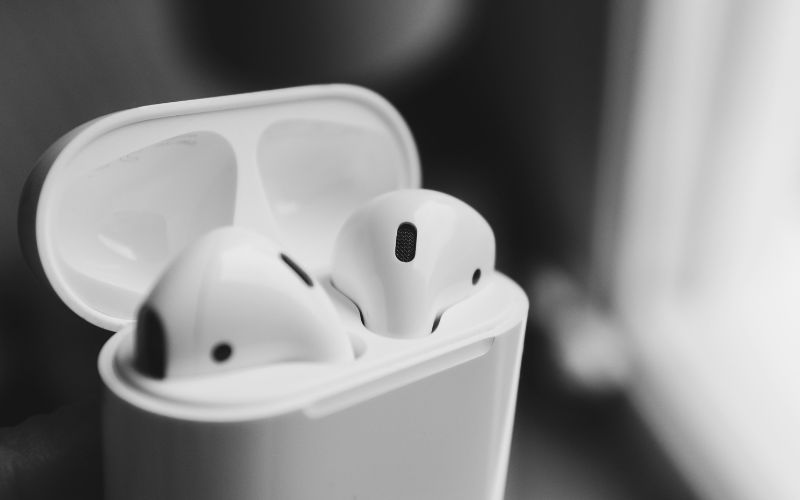
Keep AirPods connecting smoothly with six practical tips for charging, pairing, and everyday use. (Image by Unsplash)
3. When an Aging Phone Could Be the Connection Problem
If you have tried every troubleshooting step and your AirPods still won’t connect, your phone itself might be the issue. Older devices often run outdated Bluetooth firmware and lack compatibility with newer AirPods models. Upgrading to a newer phone solves connection problems that no amount of resetting will fix.
If cost is holding you back, the federal Lifeline program provides free phone service for qualifying low-income households. This support makes it easier to stay connected to family, work, healthcare, and essential online resources.
TAG Mobile is one of the Eligible Telecommunications Carriers (ETCs) partnering with Lifeline to offer eligible customers free smartphones and unlimited monthly service. Eligible customers can receive free monthly service, while device prices and availability depend on their location, eligibility, and current offers.
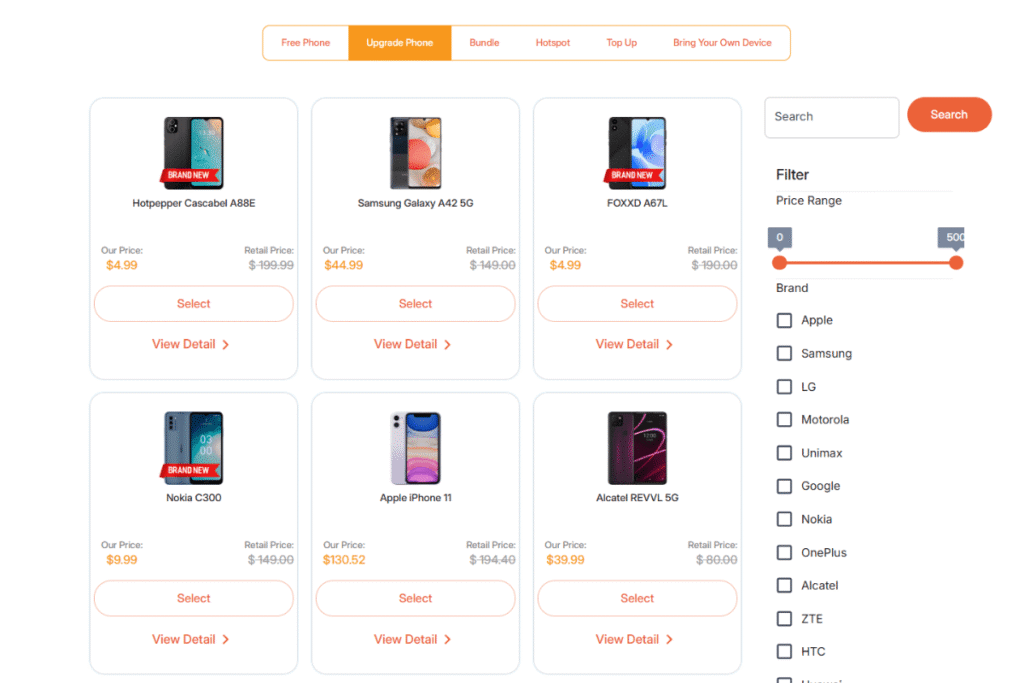
If an older phone keeps struggling with Bluetooth connections, consider which features would make a replacement useful beyond pairing your AirPods. You may take a look at TAG Mobile’s selection and apply if you qualify:
Samsung Galaxy A03s: An Android smartphone with a 6.5-inch display, a 5,000mAh battery, and a fingerprint sensor, suited to everyday calls, messaging, browsing, and watching videos.
iPhone 13 Pro Max: An Apple smartphone with a spacious 6.7-inch display, ProMotion, and an A15 Bionic chip, offering convenient AirPods integration alongside a triple-camera system for photos and videos.
Samsung Galaxy S21 5G: A 5G Android smartphone with a Dynamic AMOLED 2X display and an adaptive refresh rate up to 120Hz, providing smooth scrolling and versatile wide, ultrawide, and telephoto cameras.
TCL 20 SE: A large-screen Android smartphone with a 6.82-inch NXTVISION display and a 5,000mAh battery, suited to reading, streaming, messaging, and daily communication.
FOXXD C67: A smartphone with a 6.75-inch 90Hz display, 4GB RAM, 64GB storage, and a 5,000mAh battery, offering room for everyday apps, videos, and browsing.
Samsung Galaxy A42 5G: An Android smartphone with a 6.6-inch Super AMOLED display, Snapdragon 750G processor, and Bluetooth 5.0, combining 5G connectivity with expandable storage and an on-screen fingerprint sensor.
You may qualify for Lifeline through household income at or below 135% of the Federal Poverty Guidelines or participation in certain support programs. Only one Lifeline benefit is allowed per household.
Check whether you qualify with TAG Mobile, then enter your ZIP code to review available service plans and free or discounted phone offers.
List of tablets and upgraded phones at TAG Mobile (Offers may vary by state, inventory, and time of your application).
Note: Eligibility varies by state and program. Offers depend on availability and qualifications. TAG Mobile operates under the federal Lifeline Program as an Eligible Telecommunications Carrier (ETC). Service is non-transferable and limited to one service per household.
4. Quick Question about AirPods Connection Problems
One silent earbud or another failed pairing attempt can make it hard to tell what needs fixing. These answers help you check the charging issue, identify which device is struggling, and decide whether a reset is worthwhile.
Why Won’t One AirPod Charge?
One AirPod may not charge if it is seated incorrectly, debris interferes with contact, or its battery has developed a fault. Make sure the case has power, reseat the earbud, and check its charging status. If it still will not charge after cleaning according to Apple’s guidance, contact Apple Support.
How Do I Know If My AirPods or Phone Is the Problem?
Try your AirPods with another compatible device, then test a different Bluetooth headset with your phone. If the AirPods work elsewhere but both headsets struggle on your phone, the phone is the more likely cause. If the AirPods fail across devices, investigate their charging, pairing, or hardware instead.
Should I Reset My AirPods If They Won’t Connect?
A reset is worth trying after checking battery levels, enabling Bluetooth, restarting your device, and attempting a fresh pairing. Follow the reset instructions for your exact AirPods model because the controls differ between generations. Resetting can resolve pairing problems, but it will not repair a faulty battery or damaged hardware.
5. Final Thoughts
AirPods connection problems do not always point to faulty earbuds, so a few targeted checks can save you from replacing them unnecessarily. If why won’t my AirPods connect remains the question, test the charging status, Bluetooth pairing, and audio output before trying a reset or professional repair. Another device can also help reveal whether the AirPods or your phone is causing the issue. If an older phone turns out to be the problem, TAG Mobile offers service and device options that eligible users can explore.
Share
TAG Blog
Stories, guides, and helpful updates for staying connected.