How to Pair Apple Watch to New Phone With or Without Your Old iPhone
Upgrading to a new iPhone requires a few extra steps before your Apple Watch is ready to come along. Our guide will explain how to pair Apple Watch to new phone without losing impo...
Quincy D.-Sep 09, 2026
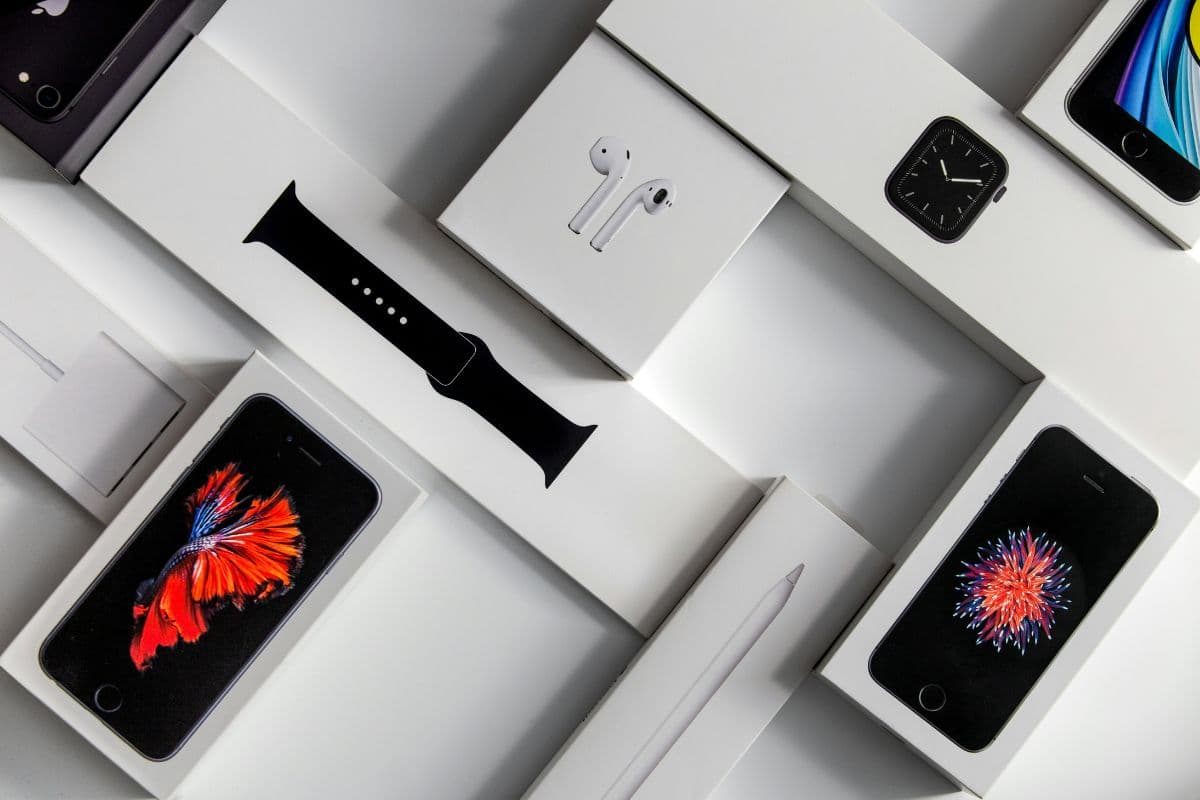
Image by Unsplash
Table of Contents
Upgrading to a new iPhone requires a few extra steps before your Apple Watch is ready to come along. Our guide will explain how to pair Apple Watch to new phone without losing important data or spending unnecessary time setting everything up again. The process may differ depending on whether you still have access to your previous iPhone.
1. How to Pair Apple Watch to New Phone When You Still Have the Old iPhone
Keeping the old iPhone available makes the transfer much easier because your Apple Watch data and settings can move with the rest of your iPhone information. Following the steps in order also reduces the risk of losing health data, watch faces, or app settings.
Step 1: Prepare the Old iPhone and Apple Watch
Update the old iPhone and Apple Watch to the latest compatible software, connect both devices to Wi-Fi, and keep them charged.
Before starting how to pair Apple Watch with new phone, make sure the watch is still connected properly to the old iPhone.
Step 2: Back Up or Transfer Your Old iPhone
Create a current iCloud or computer backup, or use Apple’s direct iPhone transfer process when setting up the new device. Apple Watch data is included with the paired iPhone backup, although health and activity information requires iCloud or an encrypted computer backup.
Step 3: Set Up the New iPhone
Turn on the new iPhone and follow the setup prompts, restoring from your backup or transferring data directly from the old phone.
Sign in with the same Apple Account, so your apps, settings, and supported Apple Watch information can carry over correctly.
Step 4: Bring the Apple Watch Near the New iPhone
Once the new iPhone is ready, keep the Apple Watch nearby and open the Watch app if pairing does not start automatically. When learning how to pair an Apple Watch to a new phone, follow the on-screen prompts to connect the existing watch to the new device.
Step 5: Complete Pairing and Restore Your Watch Data
Choose the available option to restore the Apple Watch from a backup when prompted. Allow enough time for apps, settings, watch faces, and other synced information to return, then keep both devices close together until the setup process finishes.
Step 6: Check the Watch Before Erasing Your Old iPhone
Confirm that the watch connects to the new iPhone, receives notifications, and shows expected apps and health information. Only erase or trade in the old iPhone after verifying that the transfer is complete and the Apple Watch works normally with the new device.
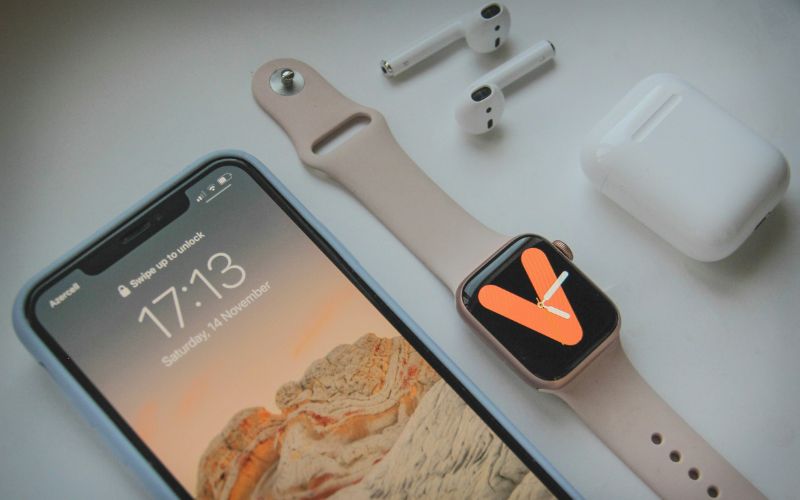
Six main steps to pair an old Apple Watch to a new phone. (Image by Unsplash)
2. How to Pair Old Apple Watch to New Phone Without the Old iPhone
Without the old iPhone, the transfer requires resetting the Apple Watch before connecting it to the new device. The process is still manageable, but you may need your Apple Account credentials and an available backup to recover previous settings and data.
Step 1: Erase the Apple Watch
On the Apple Watch, open Settings, go to General > Reset, and choose Erase All Content and Settings.
This removes the current pairing so the watch can connect to another iPhone. If prompted, enter the watch passcode before confirming the reset.
Step 2: Keep Activation Lock in Mind
Erasing the watch does not necessarily remove Activation Lock.
When following how to pair my Apple Watch to my new phone, be ready to enter the Apple ID and password previously associated with the watch so ownership can be verified during setup.
Step 3: Bring the Watch Near the New iPhone
Turn on the reset Apple Watch and place it close to the new iPhone.
Make sure Bluetooth and Wi-Fi are enabled on the phone, then wait for the pairing prompt to appear. If it does not, open the Watch app manually.
Step 4: Start the Pairing Process
Tap the option to pair a new watch and follow the on-screen instructions. Use the iPhone camera to scan the animation on the Apple Watch, or choose manual pairing if necessary, then continue through the setup prompts.
Step 5: Restore From an Available Backup
If a compatible Apple Watch backup is available, choose it during setup to recover supported settings, watch faces, apps, and other stored information. If no backup appears, you may need to set the Apple Watch up as new.
Step 6: Finish Setup and Recheck Your Data
Complete the remaining prompts for passcode, apps, notifications, and other preferences, then allow syncing to finish. Check that health information, settings, and apps appear as expected, keeping in mind that some data may be unavailable if no recent backup existed.
3. Can You Pair an Apple Watch to Android?
No. Apple Watch is designed to pair with an iPhone, so Android phones are not officially supported for setup or regular syncing.
If you are learning how to pair Apple Watch to new phone, the replacement device must be a compatible iPhone rather than an Android handset.
4. FAQs about Pairing an Apple Watch to a New Phone
Pairing questions often come down to compatibility, connection requirements, and how much data needs to sync. Knowing how to pair Apple Watch to new phone also helps set realistic expectations before you begin the transfer.
Can one Apple Watch be paired to two iPhones?
No. An Apple Watch can only be actively paired with one iPhone at a time. To move it to another iPhone, you must first transfer or remove the existing pairing before completing setup on the new device.
How long does it take to pair an Apple Watch with a new iPhone?
The basic pairing process often takes only a few minutes. Restoring apps, settings, or backups, or installing software updates, can extend the total setup time. Keeping both devices charged and connected to a stable network helps the process finish more smoothly.
Do I need Wi-Fi to pair an Apple Watch with a new phone?
Bluetooth handles part of the direct pairing between the Apple Watch and iPhone, but Wi-Fi or another internet connection is still useful during setup. It may be needed for Apple Account verification, software updates, and restoring data from iCloud.
5. Final Thoughts
Moving an Apple Watch to another iPhone goes more smoothly when backups, Apple Account details, and device compatibility are ready beforehand. The process for how to pair Apple Watch to new phone varies slightly depending on whether the old iPhone is still available, but both methods can preserve important settings, apps, and synced data.
For more practical mobile guidance and device tips, explore TAG Mobile.
Share
TAG Blog
Stories, guides, and helpful updates for staying connected.