How to Connect AirPods to Laptop and Fix Common Pairing Problems
Pairing AirPods with a laptop is usually straightforward, but Bluetooth settings, device compatibility, or previous connections can sometimes cause delays. Learning how to connect...
Quincy D.-Aug 18, 2026
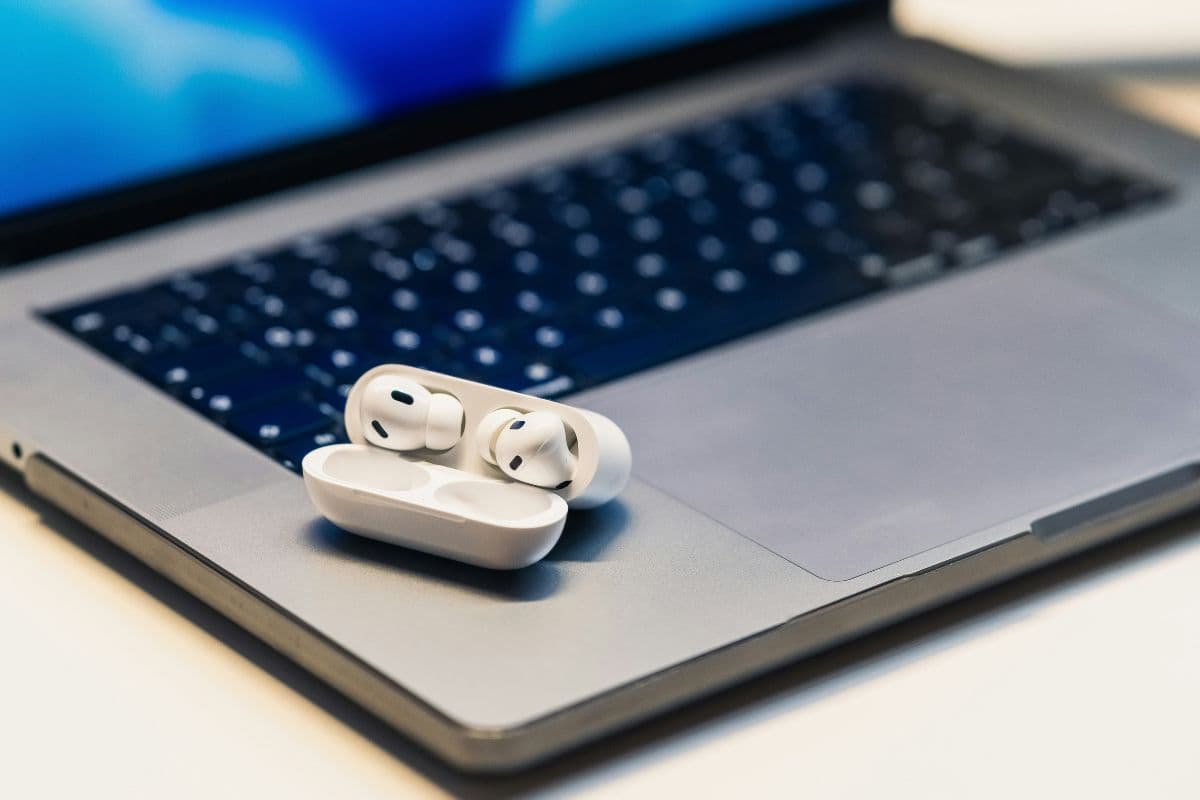
Image by Unsplash
Table of Contents
Pairing AirPods with a laptop is usually straightforward, but Bluetooth settings, device compatibility, or previous connections can sometimes cause delays. Learning how to connect AirPods to laptop helps you set up wireless audio for meetings, music, videos, or everyday work without unnecessary trial and error. Knowing where to find pairing controls and how to troubleshoot common issues can also make future reconnections faster and more reliable.
1. How to Connect AirPods to Laptop: Guide for Common Brands
Connecting AirPods to a laptop mainly depends on the operating system rather than the brand printed on the device. Dell and HP laptops typically use Windows Bluetooth settings, while MacBook models use Apple’s built-in Bluetooth controls for pairing.
Dell Laptop
Dell laptops with Bluetooth can connect to AirPods through the standard Windows pairing menu.
If you are checking how to connect AirPods to Dell laptop, make sure Bluetooth is enabled and place the AirPods in pairing mode before searching for nearby devices.
Open Start and select Settings.
Go to Bluetooth & devices.
Turn Bluetooth on if it is disabled.
Place both AirPods in their charging case and open the lid.
Put the AirPods into pairing mode until the status light flashes white.
Select Add device on the Dell laptop.
Choose Bluetooth.
Select your AirPods when they appear in the available-device list.
Wait for Windows to confirm that the connection is complete.
Select the AirPods as the audio output device if the sound does not switch automatically.
HP Laptop
HP laptops follow essentially the same Windows Bluetooth process, so no Apple computer is required to use AirPods for music, calls, or videos. For how to connect AirPods to HP laptop, first confirm that the laptop supports Bluetooth and that your AirPods are discoverable.
Open the Start menu and choose Settings.
Select Bluetooth & devices.
Enable Bluetooth.
Keep the AirPods inside the charging case and open the lid.
Activate pairing mode until the indicator flashes white.
Click Add device.
Select Bluetooth from the available connection types.
Choose your AirPods from the list of nearby devices.
Allow Windows a few moments to complete pairing.
Open the sound output settings and select the AirPods if audio continues playing through the laptop speakers.
MacBook
MacBooks can often connect to AirPods automatically when both devices use the same Apple account, but manual pairing is also straightforward. Apple recommends using the Bluetooth section in System Settings when the AirPods do not appear automatically.
Open the Apple menu and select System Settings.
Click Bluetooth in the sidebar.
Make sure Bluetooth is turned on.
Place the AirPods in their charging case and open the lid.
Put the AirPods into pairing mode until the status light flashes white.
Look for the AirPods under nearby Bluetooth devices.
Click Connect next to their name.
Put the AirPods in your ears after pairing.
If necessary, open Control Center and select the AirPods as the current sound output device.
2. How to Fix AirPods That Keep Disconnecting
Frequent disconnections can come from low battery, unstable Bluetooth, incorrect audio settings, automatic device switching, or outdated firmware.
If you are asking how do I connect my AirPods to my laptop without repeated dropouts, work through the most likely causes one at a time.
Check the AirPods Battery
Low battery levels can make a wireless connection less reliable, especially when one earbud is much lower than the other. Charge both AirPods and the case fully, then reconnect them to the laptop and test whether the disconnections continue.
Forget and Pair the AirPods Again
Corrupted or outdated pairing data can cause unstable Bluetooth behavior. Remove the AirPods from the laptop’s saved Bluetooth devices, place them back into pairing mode, and connect them again as a new device to rebuild the connection from scratch.
Check Bluetooth and Reduce Interference
When learning how to connect AirPods to laptop, a stable Bluetooth connection is essential. Keep the AirPods reasonably close to the laptop and move away from devices that may cause wireless interference. Turning Bluetooth off and back on can also clear temporary connection glitches before you reconnect the earbuds.
Set AirPods as the Main Audio Output
Sometimes the AirPods remain connected, but Windows or macOS switches audio to another device, which can feel like a disconnect. Open the laptop’s sound settings and make sure the AirPods are selected as the current output device.
Disable Automatic Switching
AirPods can automatically switch between Apple devices using the same Apple Account, which may interrupt a laptop connection. If this happens frequently, change the connection preference so the AirPods stay with the last connected device instead of switching automatically.
Reset the AirPods
Persistent connection problems may require a full AirPods reset. Remove the existing pairing, reset the earbuds according to the instructions for your AirPods model, then pair them with the laptop again and check whether the connection remains stable.
Stable Bluetooth performance depends on more than the initial pairing process. If you are learning how to connect AirPods 4 to laptop, a few simple habits can help reduce dropouts, delayed audio, and repeated reconnection issues.
Keep the AirPods charged so low battery levels do not interrupt the Bluetooth connection.
Stay within a reasonable distance of the laptop and avoid thick walls or large objects between devices.
Reduce interference from nearby Bluetooth accessories, Wi-Fi equipment, and other wireless electronics when possible.
Keep your laptop’s Bluetooth drivers and operating system updated for better device compatibility.
Remove old or unused Bluetooth devices that may compete for automatic connections.
Set AirPods as the preferred audio output after pairing, so sound does not switch unexpectedly.
Re-pair the AirPods if the connection quality becomes inconsistent after repeated use.
Use simple tips to keep your AirPods connection stable and reliable. (Image by Unsplash)
4. Take Your AirPods Beyond the Laptop With a Connected Phone
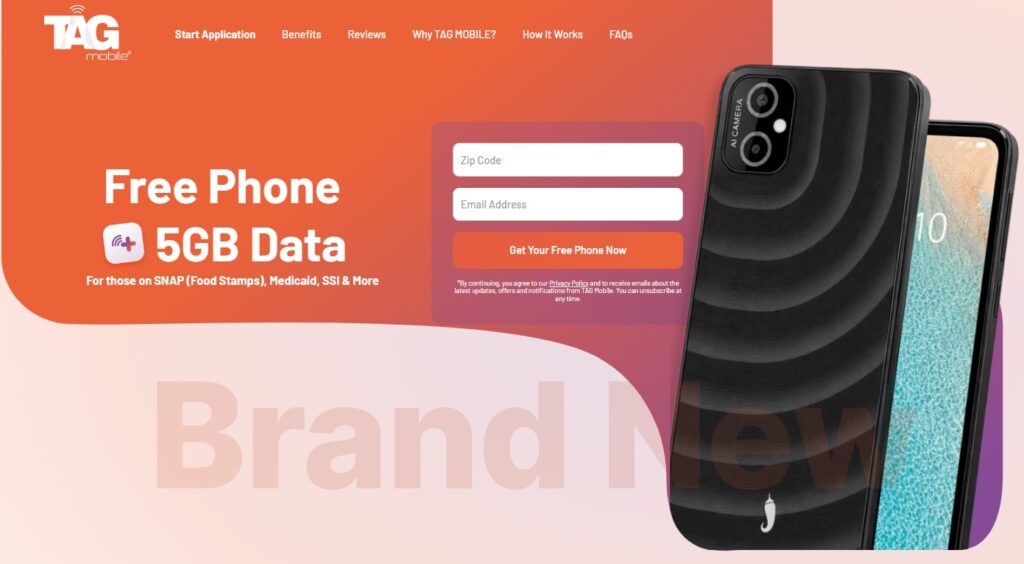
AirPods become even more useful when they can move easily between your laptop and phone for calls, music, navigation, or everyday communication. Eligible users who need more affordable mobile access may be able to receive Lifeline-supported service and device offers through TAG Mobile.
TAG Mobile is a licensed wireless provider offering Lifeline services to qualifying customers. Its current benefits can make mobile connectivity more accessible, especially for users who need a phone for Bluetooth accessories, communication, and internet access.
Some notable TAG Mobile benefits include:
Free smartphone offers for qualifying new Lifeline customers, depending on state and availability.
Discounted phone options for users who want additional device choices.
Free monthly data.
Unlimited talk and text.
Free international calling to more than 200 countries and territories.
To receive these benefits, applicants must first qualify for the Lifeline Program. Eligibility can be based on household income at or below 135% of the Federal Poverty Guidelines or participation in qualifying programs such as SNAP or Medicaid.
Applying for a free phone through TAG Mobile generally follows these steps:
Confirm your eligibility: Determine whether you qualify through household income or participation in an approved assistance program.
Enter your ZIP code: Visit the TAG Mobile website to check Lifeline service, plan, and device availability in your area.
Review available options: Compare the Lifeline plans and free or discounted smartphone offers shown for your location.
Choose your plan and device: Select an eligible service plan and available phone option before continuing with enrollment.
Complete the application: Provide your legal name, date of birth, residential address, and other requested information.
Verify your eligibility: Upload proof of identity, address, income, or program participation if additional verification is required.
Review and submit: Check your information carefully before sending the application for approval.
Receive and activate: Once approved, follow TAG Mobile’s shipping and activation instructions to receive your qualifying device or SIM and start your Lifeline-supported service.
Phone models, plan benefits, and free-device availability may vary by state, eligibility, and current inventory.
Note: Eligibility varies by state and program. Offers depend on availability and qualifications. TAG Mobile operates under the federal Lifeline Program as an Eligible Telecommunications Carrier (ETC). Service is non-transferable and limited to one service per household.
5. Main Questions about Connecting AirPods to a Laptop
Wireless earbuds can work well with both Apple and Windows laptops, but available functions depend on the operating system and Bluetooth support. These answers cover common issues that may appear when learning how to connect AirPods to laptop and using them across different devices.
Can I use the AirPods microphone on a laptop?
Yes. Apple confirms that AirPods can work as a Bluetooth headset with non-Apple devices, allowing you to both listen and talk. On Windows, make sure the AirPods are selected as the input device in Sound settings if the microphone does not activate automatically.
Why are my AirPods not showing up in Bluetooth?
The AirPods may not be in pairing mode, may already be connected to another device, or Bluetooth may be disabled on the laptop. Put the AirPods into pairing mode until the status light flashes white, then refresh the laptop’s Bluetooth device list and try again.
Do all AirPods features work on Windows?
The AirPods may not be in pairing mode, may already be connected to another device, or Bluetooth may be disabled on the laptop. Put the AirPods into pairing mode until the status light flashes white, then refresh the laptop’s Bluetooth device list and try again.
Do AirPods 4 have a pairing button?
No, AirPods 4 charging cases do not have the traditional physical setup button on the back. To enter pairing mode, open the case with the AirPods inside and double-tap the front of the case until the status light flashes white.
6. Final Thoughts
Pairing AirPods with a laptop becomes much easier once Bluetooth, pairing mode, and audio settings are configured correctly. Knowing how to connect AirPods to laptop also helps you troubleshoot missing devices, repeated disconnects, or sound output problems more efficiently.
Dell and HP laptops generally follow Windows Bluetooth steps, while MacBooks use Apple’s built-in pairing system. Keeping software updated and reconnecting the earbuds when needed can help maintain smoother, more reliable wireless audio.
Share
TAG Blog
Stories, guides, and helpful updates for staying connected.