How to Connect Two Monitors for a Dual-Screen Setup & 5 Mistakes To Avoid
One screen can quickly feel limiting when documents, browser tabs, meetings, and other apps all compete for space. A second monitor can make multitasking more comfortable, but the...
Quincy D.-Oct 06, 2026
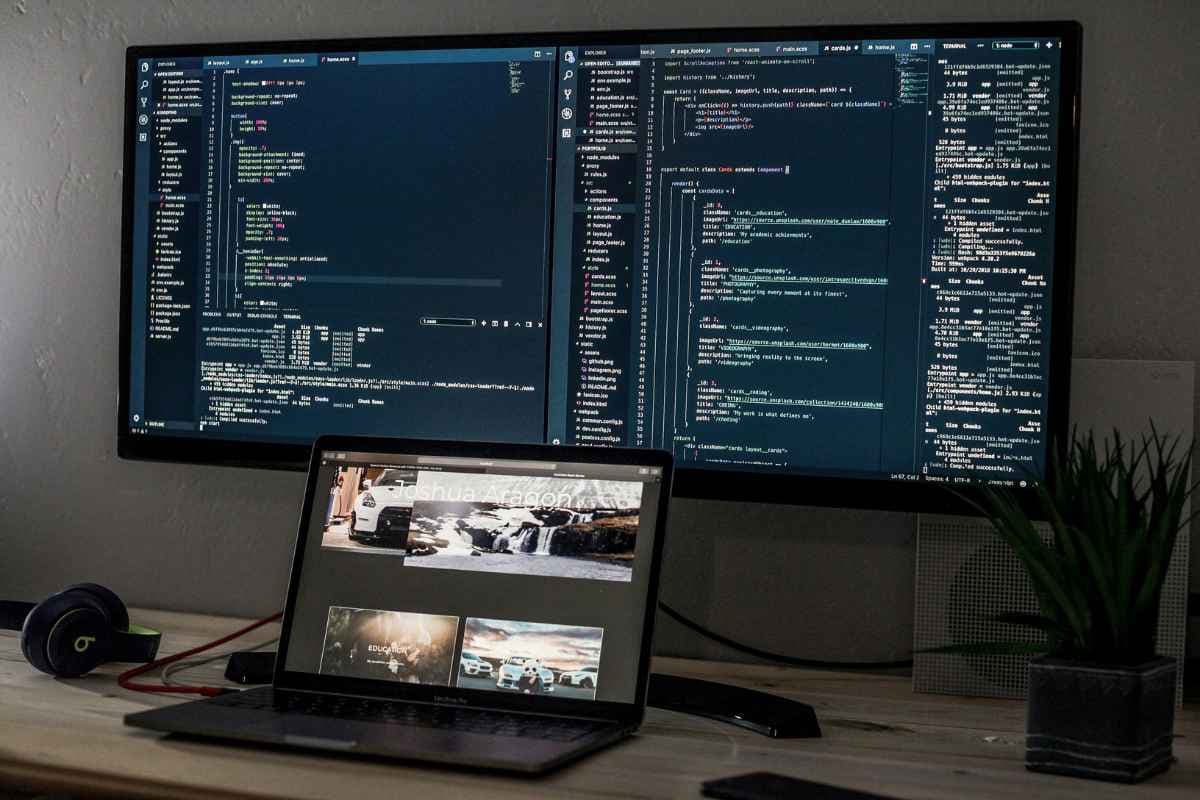
Image by Unsplash
Table of Contents
One screen can quickly feel limiting when documents, browser tabs, meetings, and other apps all compete for space. A second monitor can make multitasking more comfortable, but the setup depends on the ports and display capabilities your computer actually supports.
With how to connect two monitors, a few checks before plugging everything in can help you choose the right connection and avoid frustrating issues such as blank, duplicated, or incorrectly arranged screens.
1. Can Your Computer Actually Run Two Monitors?
Multiple-monitor setups and large computer screens have become increasingly common as they provide more screen space and can make multitasking and productivity easier.
Many modern computers support two monitors, but compatibility depends on the graphics hardware, supported display count, and available connections.
Two video outputs can help, although a compatible dock may connect both through one port. Check your model’s specifications, since port count alone does not guarantee support for two independent displays.
2. How to Connect Two Monitors to One PC
Both screens need compatible connections before your PC can use them as one workspace. After plugging them in, a few display settings determine whether they show separate windows or duplicate the same content.
Physical Connection
How do I know if my PC can run two monitors?
Start by checking your PC’s display outputs and each monitor’s inputs, then choose compatible HDMI or DisplayPort cables.
Connect each screen to a supported output, plug both into power, and select the correct input using their controls. On a desktop with a dedicated graphics card, use the card’s ports rather than assuming motherboard ports will work.
If your PC needs a dock or adapter, confirm that it supports two independent displays. An ordinary HDMI splitter duplicates one image across both screens.
Software Configuration
Once both screens are connected, how to connect two monitors to one computer comes down to arranging them correctly in Windows.
Open Settings > System > Display, then select Identify to match each numbered display with its physical screen.
If one is missing, select Detect under Multiple displays and check its connection.
Choose to extend these displays to create additional workspace. Drag the display icons to match your desk arrangement, select your main screen, and adjust resolution and scaling for each monitor.
Laptop ports, graphics capabilities, and operating system support determine which connections will work.
Choose a wired setup for consistent performance, or combine a cable connection with a compatible wireless display when your equipment allows it.
Wired Connection
Start by checking your laptop’s maximum external display count and available video outputs.
When planning how to connect two monitors to laptop, use compatible HDMI, DisplayPort, or video-capable USB-C connections. If you need a dock, confirm that it supports two independent screens with your specific laptop and operating system.
Connect both monitors, select their correct inputs, and open your computer’s display settings. Choose an extended desktop and arrange the screen icons to match your desk before adjusting resolution and scaling.
Wireless Connection
For a compatible Windows laptop and Miracast-enabled display, turn on Wi-Fi and activate the monitor’s wireless receiving mode.
Press Windows + K on the laptop, select the display, and follow any pairing prompts.
Once connected, use Windows + P to choose Extend.
For two external monitors, a wired first screen and a wireless second screen may be practical, subject to device support. Do not assume your laptop can extend to two separate Miracast receivers simultaneously; wireless performance can also vary.
Wireless Display Adapter
If your monitor lacks built-in wireless receiving, a compatible Miracast adapter can provide it.
Connect the adapter to the screen’s HDMI input and its required power source, then select that HDMI input.
Follow the manufacturer’s pairing instructions using Windows + K on a supported laptop.
Keep the other monitor connected by cable for a mixed setup, if your computer supports it. Check compatibility before buying: a Miracast receiver requires a supported sending device and does not automatically work with macOS.
4. Mistakes That Can Ruin an Otherwise Simple Dual-Monitor Setup
Blank screens and duplicated windows often come from compatibility assumptions rather than faulty monitors. Before troubleshooting how to connect two monitors, check these five mistakes that can prevent an otherwise straightforward setup from working.
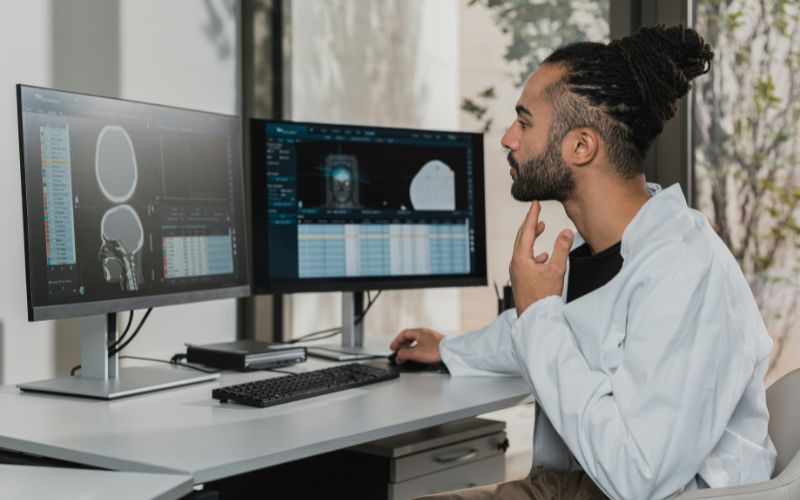
Check five setup mistakes that can keep two monitors from connecting and displaying properly. (Image by Unsplash)
Counting Ports Without Checking Display Support
Two available connectors do not necessarily mean your computer supports two external monitors simultaneously.
Graphics hardware and model-specific limits still apply, particularly on laptops. Check the manufacturer’s specifications for supported display count, resolution, and refresh rate before choosing cables or assuming a dock will overcome the computer’s existing display limit.
Using an HDMI Splitter for an Extended Desktop
An ordinary HDMI splitter sends the same video signal to both connected screens. It cannot create two independent workspaces, even if both monitors display an image successfully.
For an extended desktop, use separate supported video outputs or a compatible docking solution designed to provide independent displays with your particular computer.
Assuming Every USB-C Port Supports Video
USB-C describes the connector shape, not every function available through it.
Some ports support charging and data without native video output, so a basic USB-C-to-HDMI adapter may not work. Verify the laptop’s video capabilities and the adapter’s requirements instead of relying on matching plugs or the cable’s physical appearance alone.
Leaving the Desktop in Duplicate Mode
Duplicate mode shows the same content on both monitors, which can make a successful connection seem unhelpful. Select Extend in your display settings to create additional workspace.
Then arrange the numbered screen icons to match their physical positions, helping the pointer move naturally between displays without unexpected jumps or confusion.
Ignoring Resolution and Refresh Rate Limits
Your laptop, dock, adapter, and cables must support the combined display configuration you select.
A connection that handles one high-resolution monitor may offer lower limits when two are attached. Check the specifications for simultaneous output, then choose supported resolutions and refresh rates if you encounter flickering, reduced performance, or disconnects.
5. FAQs about Connecting Two Monitors
Even with both screens plugged in, a few settings or hardware limits can affect the result. These answers help you troubleshoot missing displays and decide whether your setup needs additional equipment.
Why Is My Second Monitor Not Being Detected?
Check that the monitor has power, the correct input is selected, and the cable is securely connected to a supported video output.
In Windows, open Settings > System > Display and select Detect under Multiple displays. If it remains missing, test another cable and confirm your computer supports the additional screen.
Can I Use HDMI and DisplayPort at the Same Time?
Yes, many computers support an HDMI monitor and a DisplayPort monitor simultaneously.
Both connections must come from supported outputs, and your graphics hardware must support the combined display configuration. On desktops with a dedicated graphics card, do not assume its ports and the motherboard’s ports work together automatically.
Do I Need a Docking Station for Two Monitors?
No, a dock is unnecessary if your computer already provides suitable outputs and supports both monitors. A compatible docking station can simplify connections when your laptop has limited ports. Check its support for two independent displays with your laptop and operating system before buying.
Does Using Two Monitors Slow Down a Computer?
Two monitors add some graphics workload, but everyday browsing and document editing often run smoothly on capable hardware.
Gaming, video editing, and high-resolution displays can place greater demands on the graphics processor and memory. Performance depends on your computer’s specifications and what you run across the screens.
6. Final Thoughts
A well-planned dual-monitor setup can give you more room to work without constantly jumping between windows. For how to connect two monitors, check your computer’s available ports and display support first, then choose the right cables or adapter and arrange the screens to suit your workflow. Fine-tune resolution, scaling, and positioning for a comfortable setup.
TAG Mobile also shares practical tech guides for everyday devices and digital tasks, so make sure you follow for more!
Share
TAG Blog
Stories, guides, and helpful updates for staying connected.