Why Won’t My Laptop Connect to My Hotspot? 12 Fixes to Try
Connection failures between a laptop and phone hotspot can have several causes. A wrong password can prevent the laptop from joining the network. A weak hotspot signal can also int...
Quincy D.-Sep 22, 2026
Image by Unsplash
Table of Contents
Connection failures between a laptop and phone hotspot can have several causes. A wrong password can prevent the laptop from joining the network. A weak hotspot signal can also interrupt the connection.
When troubleshooting why won’t my laptop connect to my hotspot, start with the simplest checks before moving into network resets or driver changes.
1. Why Won’t My Laptop Connect to My Hotspot: How to Fix It
Laptop hotspot problems usually come from a small setting, compatibility issue, or temporary network glitch rather than a serious device failure. You can try these 12 fixes to see if the connection is improved.
Fix 1: Make Sure the Hotspot Is Actually On
Hotspot settings can switch off automatically after inactivity, a restart, or a battery-saving action.
Before asking why won’t my hotspot connect to my laptop, open Personal Hotspot on iPhone or Mobile Hotspot on Android and confirm that sharing is enabled.
Fix 2: Turn Wi-Fi Off and Back On
Temporary Wi-Fi glitches can stop a laptop from seeing or joining a hotspot even when nearby networks appear normally.
Turn Wi-Fi off on the laptop, wait several seconds, then switch it back on. Search for the hotspot again and try reconnecting.
Fix 3: Move Your Phone Closer to the Laptop
Distance, walls, furniture, and nearby wireless devices can weaken the hotspot signal enough to cause failed connections.
Place both devices within a few feet of each other, and avoid putting the phone inside a bag, drawer, or behind large objects.
Fix 4: Double-Check the Hotspot Password
Incorrect passwords are one of the most common reasons a laptop sees a hotspot but cannot join it. Even one wrong capital letter, number, or symbol can cause repeated connection failures.
Open the hotspot settings on your phone and compare the password carefully with what is saved on the laptop. If you’re wondering why won’t my laptop connect to my hotspot, checking the password is one of the quickest ways to rule out a failed connection.
Fix 5: Forget the Hotspot and Connect Again
Saved network information can become outdated after you change the hotspot password, rename the phone, or modify wireless settings.
Open the laptop’s saved Wi-Fi networks, select your phone hotspot, and choose Forget. Search for the network again, select it, enter the current password, and reconnect.
Fix 6: Disconnect Other Devices From the Hotspot
Phones can only support a limited number of connected devices, and performance may suffer before the maximum is reached. Another device using the hotspot heavily can also make a new connection fail or become unstable.
Disconnect devices you are not actively using, then try connecting the laptop again. If you’re asking why won’t my laptop connect to my hotspot, reducing the number of active connections can help rule out device limits as the cause.
Fix 7: Restart Both Your Phone and Laptop
Temporary software errors can affect Wi-Fi, cellular data, tethering, or network discovery without showing a clear warning. Restarting both devices refreshes those services and can resolve problems that survive simpler toggles.
Power off the phone and laptop completely, wait briefly, then restart both. Enable cellular data and the hotspot first, then turn on Wi-Fi on the laptop and try again.
Fix 8: Check Hotspot Frequency and Compatibility
Some older laptops have trouble detecting or connecting to newer 5 GHz hotspot bands.
If your phone offers a compatibility setting, try switching to a 2.4 GHz hotspot or enabling Maximize Compatibility on supported iPhones.
If you’re still wondering why won’t my laptop connect to my hotspot, check the hotspot’s frequency next, especially when using an older laptop or wireless adapter.
Fix 9: Turn Off Battery-Saving or Automatic Hotspot Shutoff Features
Battery saver, low power mode, or automatic hotspot timeout settings can interrupt tethering to conserve energy. Some phones also turn the hotspot off when no connected device is detected for a short period.
Temporarily disable power-saving features and look for settings such as Turn Off Hotspot Automatically or Timeout. Test the connection again afterward.
Fix 10: Update Your Phone and Laptop
Outdated software can create compatibility problems between hotspot features and laptop Wi-Fi drivers. Updates often include fixes for networking bugs, wireless stability, and device communication issues.
Check for available iOS or Android updates on the phone, then review Windows or macOS updates on the laptop.
Fix 11: Temporarily Check VPN or Custom Network Settings
VPNs, proxy settings, custom DNS configurations, or security software can occasionally interfere with hotspot connections.
Temporarily pause the VPN or other custom network tools, then reconnect and test a webpage.
Fix 12: Reset Network Settings as a Last Resort
Persistent problems can sometimes come from corrupted Wi-Fi, cellular, Bluetooth, or saved network settings.
Resetting them rebuilds the connection environment, but it should come after easier fixes because it removes stored preferences.
2. What Specific Fixes Resolve iPhone Hotspot Failures on Laptops?
iPhone tethering can fail even when cellular data appears normal. The problem may come from a hotspot setting or a compatibility issue.
Enabling “Allow Others to Join” Settings
Personal Hotspot may stay hidden from nearby laptops when Allow Others to Join is disabled. Open Settings > Personal Hotspot and switch this option on.
Then keep the screen open briefly while the laptop searches for available Wi-Fi networks.
When troubleshooting why won’t my laptop connect to my iPhone hotspot, this should be one of the first checks.
Verifying Current Wi-Fi Network Passwords
Saved hotspot passwords can become outdated after you change the Personal Hotspot password or rename the iPhone.
Check the current password under Settings > Personal Hotspot, then compare it with what the laptop has saved.
Toggling the “Maximize Compatibility” Feature
Some older laptops and wireless adapters may struggle with the Wi-Fi band used by newer iPhones.
Open Settings > Personal Hotspot and enable Maximize Compatibility if your iPhone offers it. Test the laptop again afterward.
Checking Cellular Carrier Hotspot Permissions
Personal Hotspot depends partly on carrier provisioning and the wireless plan attached to your line.
If your carrier has not enabled tethering correctly or your plan does not support it, Personal Hotspot may be unavailable even when regular mobile data still works.
Updating iOS and Windows or macOS System Software
Older software can create compatibility problems between an iPhone and laptop, especially after networking changes on either device.
Install available iOS updates first, then check Windows or macOS for pending system updates. Windows users should also review Wi-Fi drivers if problems continue.
Why won’t my laptop connect to my hotspot? Fix it by checking connections, settings, updates, and network configurations. (Image by Unsplash)
3. How to Qualify for Phone Service With No Monthly Cost?
Monthly phone service can be available at no cost for eligible households through the Lifeline program, a federal benefit that helps lower the price of qualifying phone or internet service.
Eligibility is based on either household income or participation in certain government assistance programs.
Income-based qualification: Household income must be at or below 135% of the Federal Poverty Guidelines. For 2026, the exact income limit depends on household size and location.
Program-based qualification: Participation in programs such as SNAP, Medicaid, SSI, Federal Public Housing Assistance, Veterans Pension or Survivors Benefit, or qualifying Tribal programs can establish eligibility.
Lifeline provides the federal service benefit. TAG Mobile participates as an Eligible Telecommunications Carrier and may offer qualifying customers devices or other service features separately, depending on the current offer and location.
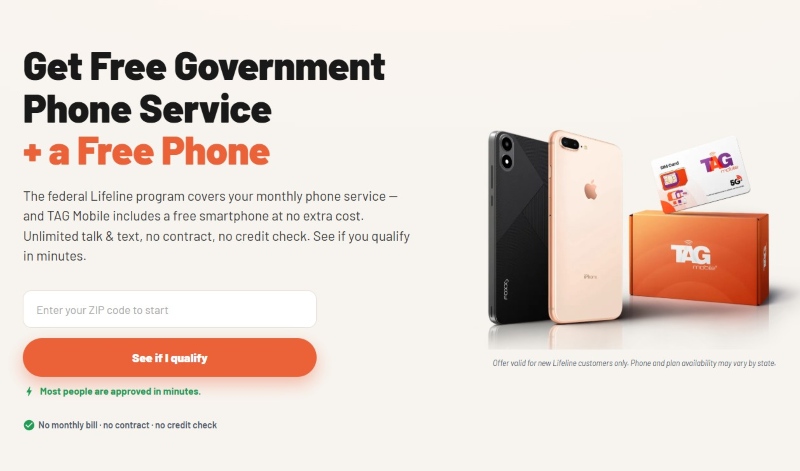
Current TAG Mobile offers may include free monthly data, unlimited talk and text, international calling to 200+ countries, free delivery, and free or discounted phones depending on state, ZIP code, eligibility, and inventory.
The application process is straightforward once your eligibility documents are ready. Here are the main steps it takes for an applicant to enroll through TAG Mobile:
Verify Lifeline eligibility: Qualify through household income at or below the applicable Lifeline limit or participation in eligible assistance program.
Enter your ZIP code: Visit TAG Mobile and enter your ZIP code to check Lifeline availability, plans, and current device offers in your area.
Choose your service and device: Review the Lifeline service available in your area. You can choose a free or discounted phone based on the plan you opt for.
Complete your application: Enter your legal name, date of birth, residential address, contact details, and other required information accurately.
Provide documents if requested: Upload acceptable proof of program participation or proof of income, along with identity or address documents.
Review and submit: Double-check your personal and eligibility information before submitting the application for verification and approval.
Wait for delivery: After approval and order processing, qualifying devices are generally delivered within 7-10 business days, subject to inventory and shipping conditions.
Once your phone or SIM/eSIM is ready, follow TAG Mobile’s activation instructions to begin using your Lifeline service.
As an Eligible Telecommunications Carrier, TAG Mobile provides Lifeline-supported free phone services to eligible customers.
Note: Eligibility varies by state and program. Offers depend on availability and qualifications. TAG Mobile operates under the federal Lifeline Program as an Eligible Telecommunications Carrier (ETC). Service is non-transferable and limited to one service per household.
4. FAQs about Laptop and Hotspot Connection Problems
Connection failures often come down to compatibility, device limits, or settings that no longer match between the phone and laptop.
If you are troubleshooting why won’t my laptop connect to my hotspot, these quick answers can help narrow down the cause before you make bigger changes.
Does a 5 GHz hotspot work with every laptop?
No. Older laptops or wireless adapters may not support 5 GHz networks, which can make the hotspot invisible or impossible to join.
Can too many connected devices stop my laptop from joining?
Yes. Phones can support only a limited number of hotspot connections, and performance can drop as more devices share the same link.
Should I reset network settings if my hotspot won’t connect?
Only after simpler fixes fail. Resetting network settings can clear corrupted Wi-Fi, cellular, Bluetooth, or saved network information, but it may also erase stored Wi-Fi passwords and other preferences that you will need to set up again.
Can I use USB tethering instead of a Wi-Fi hotspot?
Yes. USB tethering lets a phone share mobile data directly with a laptop through a cable and can provide a steadier connection than Wi-Fi in some situations.
5. Final Thoughts
Connection failures are much easier to solve once you separate laptop settings from phone, network, and carrier-related causes. When checking why won’t my laptop connect to my hotspot, start with visibility, passwords, compatibility, and software before moving to deeper resets.
USB tethering can also serve as a useful backup when Wi-Fi keeps failing. For eligible users, TAG Mobile offers Lifeline-supported service and device options worth considering.
Share
TAG Blog
Stories, guides, and helpful updates for staying connected.