How to Fix Slow Startup Windows: Find What’s Slowing Down Your PC
Long waits before the desktop appears can interrupt work, delay updates, and make even a capable computer feel outdated. Figuring out how to fix slow startup windows begins with se...
Quincy D.-Sep 30, 2026
Image by Unsplash
Table of Contents
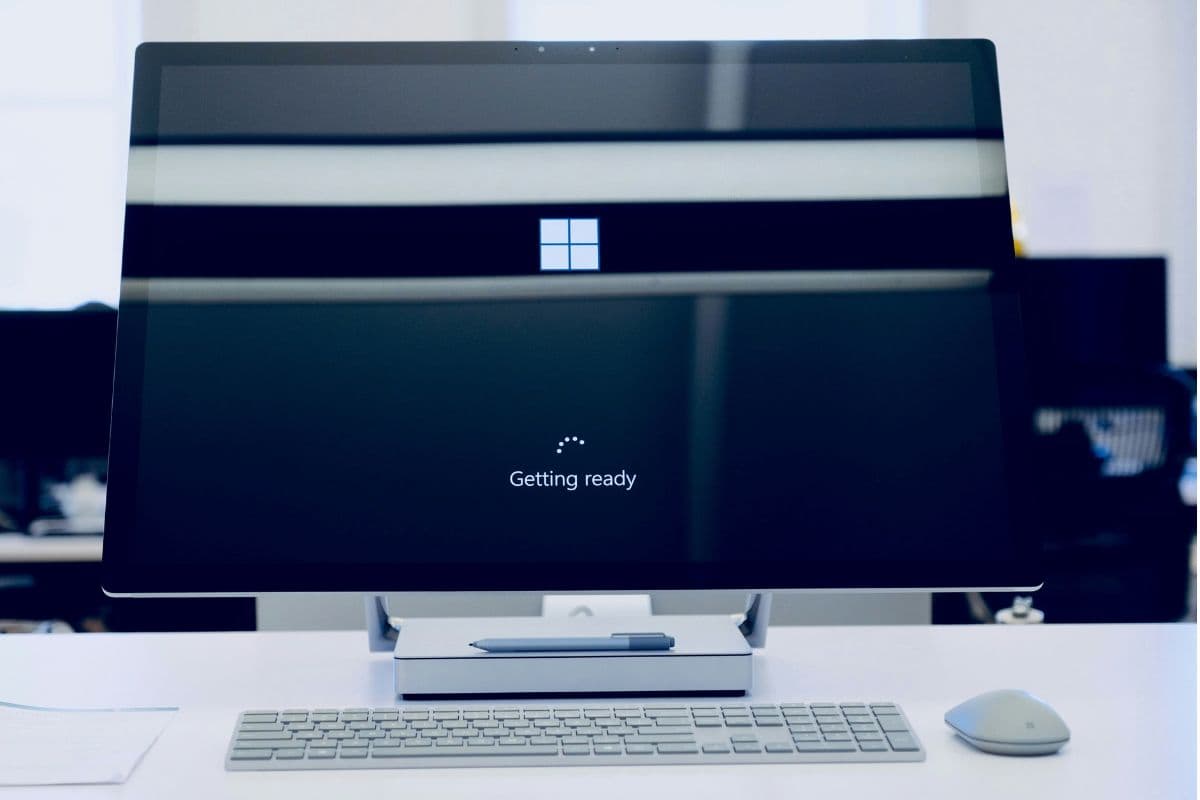
Long waits before the desktop appears can interrupt work, delay updates, and make even a capable computer feel outdated. Figuring out how to fix slow startup windows begins with separating harmless login delays from problems involving startup apps, storage, drivers, malware, or aging hardware.
This guide organizes quick adjustments and deeper diagnostic checks in a practical order, helping you narrow down the cause without making unnecessary system changes.
1. How to Fix Slow Startup Windows: 5 Quick Fixes
Startup delays can come from software loading too early, limited storage, outdated drivers, malware, or a struggling system drive. Begin with simple changes, restart after each one, and continue to deeper diagnostics only when the previous fix makes no noticeable difference.
Fix 1: Disable High-Impact Startup Apps
Press Ctrl + Shift + Esc, open Task Manager, and select Startup apps. Sort programs by Startup impact, then disable nonessential items you recognize, such as game launchers or chat tools. For example, how to fix very slow startup Windows 10 often begins by reducing high-impact programs that launch automatically.
Fix 2: Clean Up Apps That Start in the Background
Open Settings > Apps > Installed apps and review software you rarely use. Uninstall unnecessary programs or limit background permissions where Windows provides that option. Avoid disabling security, audio, graphics, or hardware utilities unless you understand their purpose, since removing essential background components may create new performance or functionality problems.
Fix 3: Free Up Storage Space
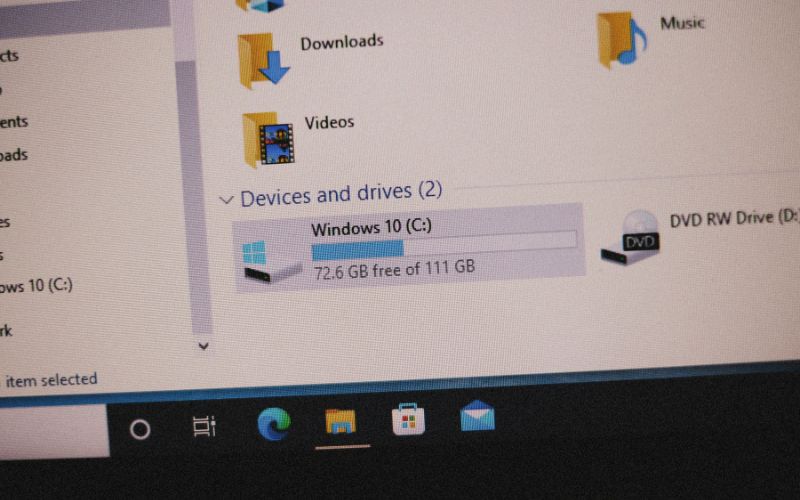
Check available capacity under Settings > System > Storage. Remove temporary files, empty the Recycle Bin, uninstall unused software, or move large personal files to another drive. Storage Sense can automate routine cleanup. Keeping reasonable free space gives Windows room for updates, temporary data, and virtual memory during startup.
Fix 4: Install Windows and Optional Driver Updates
Open Settings > Windows Update, check for updates, and install available security and system improvements. Next, review Advanced options > Optional updates for relevant drivers. For example, how to fix Windows 11 slow startup may involve installing a corrected storage, chipset, graphics, or network driver before restarting the computer.
Fix 5: Check for Driver Problems
Right-click Start and open Device Manager, then look for warning symbols beside storage controllers, display adapters, network hardware, or other devices. Update a problematic driver through Windows Update or the hardware manufacturer. If startup slowed immediately after an update, rolling back that specific driver may restore normal performance.
Fix 6: Scan for Malware and Unwanted Software
Open Windows Security, select Virus & Threat Protection, and run a quick scan. Use Scan options for a full scan or Microsoft Defender Offline scan when suspicious activity continues. Remove unfamiliar browser extensions, bundled utilities, and programs that consume resources or repeatedly add themselves to the startup list.
Fix 7: Check Your Drive for the Real Bottleneck
Open Task Manager after signing in and review the Performance tab. Sustained 100% disk activity, unusually slow response times, or repeated errors may point to an overloaded or failing drive. Back up important files immediately if you notice clicking sounds, corrupted data, frequent freezes, or storage health warnings.
Fix 8: Optimize Your Drive Correctly
Search for Defragment and Optimize Drives, select the Windows drive, and choose Optimize. Windows applies the appropriate process based on drive type: defragmentation for hard disk drives and TRIM optimization for solid-state drives. Avoid using third-party defragmentation tools on an SSD, as they provide no meaningful startup benefit.
Fix 9: Use Safe Mode to Isolate the Problem
Enter Windows Recovery, then choose Troubleshoot > Advanced options > Startup Settings > Restart and select Safe Mode. Windows will load with limited drivers and services. Faster startup in Safe Mode suggests that a third-party program, driver, or service is causing the normal boot delay and requires further investigation.
Fix 10: Try a Clean Boot When Startup Is Still Slow
Search for msconfig and open System Configuration. Under Services, select Hide all Microsoft services before choosing Disable all, then disable remaining startup items through Task Manager and restart. Re-enable services gradually to identify the conflict. Restore normal startup after troubleshooting so required programs and features operate again.
2. How Do Windows 11, Windows 10, and Windows 7 Startup Fixes Differ?
Startup troubleshooting follows the same general goal across Windows versions, but recovery access, system architecture, and available tools differ. Matching the repair method to the installed version helps prevent outdated instructions from creating additional boot problems.
Comparison
Windows 11
Windows 10
Windows 7
Recovery environment
Uses Windows Recovery Environment, commonly called WinRE
Uses WinRE with a similar menu structure
Uses System Recovery Options
Alternative access
Hold Shift while selecting Restart, use automatic recovery, or boot from installation media
Hold Shift while selecting Restart, use automatic recovery, or boot from installation media
Boot from a Windows 7 installation disc or system repair disc
Typical boot architecture
Primarily UEFI and GPT, with Secure Boot capability and TPM 2.0 required for supported installations
Supports UEFI/GPT and older BIOS/MBR configurations
Commonly uses legacy BIOS, MBR, and active partitions
Problems checked
Damaged startup files, corrupted BCD data, incompatible changes, and selected system issues
Consistent maintenance prevents unnecessary apps, storage shortages, and unresolved updates from gradually extending boot time. Alongside learning how to fix slow startup Windows, use these habits to preserve performance and identify new delays before they become severe.
Review startup apps in Task Manager each month and disable nonessential programs that have enabled themselves after installation or an update. For example, when learning how to fix slow startup Windows 10, checking for unnecessary apps configured to launch automatically is a practical first step.
Keep sufficient free space on the Windows drive by removing temporary files, uninstalling unused software, and moving large personal files elsewhere.
Install Windows updates and appropriate driver updates regularly, then restart the computer instead of leaving updates permanently pending.
Run scheduled malware scans with Windows Security and remove unfamiliar software, browser extensions, or bundled utilities that consume resources.
Shut down or restart the computer periodically rather than relying exclusively on sleep, which may preserve unresolved processes and update requests.
Optimize storage through Windows’ built-in Optimize Drives tool, allowing the system to apply defragmentation to HDDs or TRIM to SSDs correctly.
Monitor sudden changes in boot time, disk activity, error messages, and drive health so failing hardware or software conflicts can be addressed early.
Use seven simple maintenance tips to keep Windows startup fast and prevent future slowdowns. (Image by Unsplash)
4. How Can Mobile Devices Handle Quick Daily Tasks Without Booting a PC?
Smartphones can handle many everyday tasks that once required a computer, including email, document review, video calls, banking, navigation, appointment booking, and cloud file access. Mobile apps also let users respond quickly without waiting for Windows to start.
Lifeline reduces the monthly cost of qualifying phone or internet service for eligible low-income households. Applicants may qualify through household income or participation in programs such as SNAP, Medicaid, SSI, Federal Public Housing Assistance (FPHA), or qualifying Tribal programs.
TAG Mobile is a Houston-based wireless provider and an Eligible Telecommunications Carrier authorized to offer Lifeline-supported service in approved areas. Many applicants choose TAG Mobile because its online enrollment combines service benefits with several practical device and support options:
Free or discounted devices: Qualifying offers may include a free 4G or 5G smartphone or access to discounted certified pre-owned devices, subject to state and inventory availability.
Monthly service benefits: Eligible plans may provide unlimited talk, unlimited text, and a monthly mobile data allowance that varies by state.
iOS and Android choices: Available inventory may include Apple, Samsung, and other recognized brands, giving applicants options across different screen sizes and operating systems.
Free device delivery: Approved orders are shipped without a delivery charge, with processing and shipment generally taking 7-10 business days.
Accessible customer assistance: Multilingual support is available through phone, email, or live chat for enrollment, account, and service questions.
Device preferences depend on whether users prioritize a compact design, large display, 5G performance, photography, or battery capacity. TAG Mobile lists the following options, although pricing, condition, and availability can change according to location and current inventory:
Samsung Galaxy A20: Android smartphone featuring a 6.4-inch Super AMOLED display, 4,000 mAh battery, and dual rear cameras. Its large screen supports email, browsing, video calls, navigation, and document viewing.
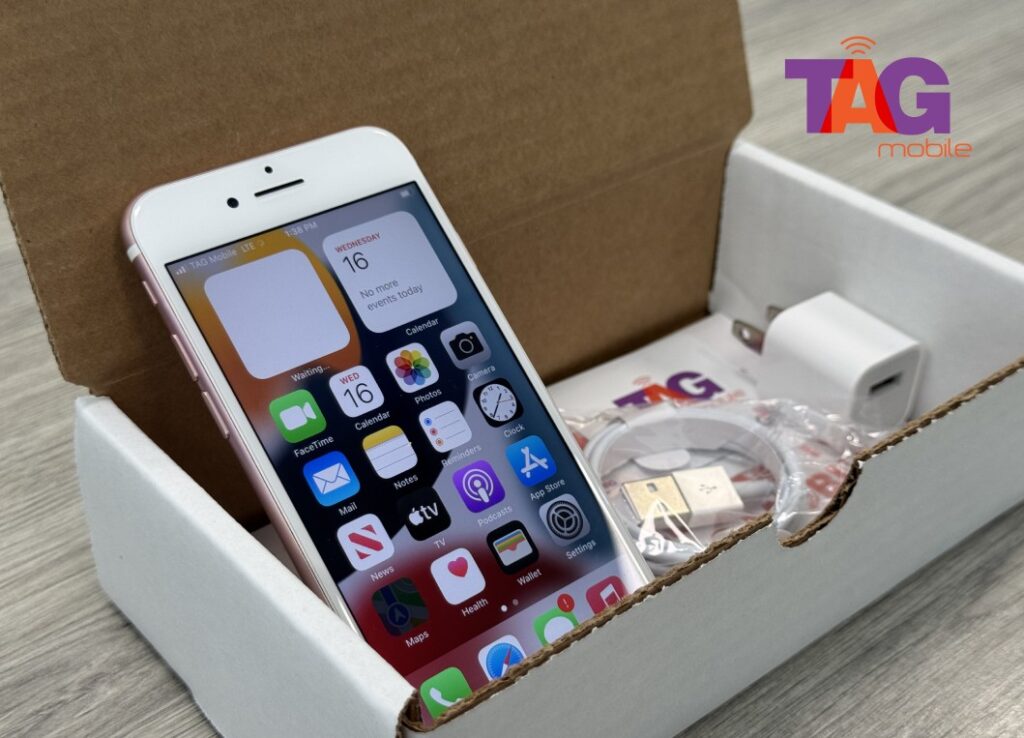
iPhone 8: Compact Apple smartphone with a 4.7-inch Retina HD display, Touch ID, wireless charging, and a 12 MP rear camera. Familiar iOS controls make everyday communication and app use straightforward.
iPhone 13: 5G smartphone powered by Apple’s A15 Bionic chip and equipped with a 6.1-inch Super Retina XDR display. Dual cameras and strong performance suit multitasking, content creation, video calls, and mobile productivity.
iPhone 13 Pro Max: Premium 5G option with a 6.7-inch Super Retina XDR display, ProMotion technology, and a triple-camera system. Its larger screen makes documents, schedules, maps, and media easier to view.
20 SE: Large-screen Android smartphone designed for browsing, streaming, messaging, and routine app use. Its high-capacity battery supports users who need longer operation between charges for communication and daily digital tasks.
Where can I get a free phone or tablet? TAG Mobile is the answer.
Note: Eligibility varies by state and program. Offers depend on availability and qualifications. TAG Mobile operates under the federal Lifeline Program as an Eligible Telecommunications Carrier (ETC). Service is non-transferable and limited to one service per household.
5. FAQs about Slow Windows Startup
Slow boot times often result from overloaded startup processes, limited storage, outdated drivers, malware, or aging hardware. These answers explain the most common causes and show how Windows troubleshooting tools can help identify them.
Why Does Windows Take So Long to Start?
Windows may start slowly when too many programs launch automatically, storage space is low, or system files and drivers need attention. Older hardware, malware, pending updates, and failing storage drives can also increase boot time. For example, users searching for how to fix slow startup Windows 7 may begin by reviewing unnecessary startup programs and checking whether aging hardware is contributing to longer boot times.
Do Startup Apps Slow Down Windows?
Yes, startup apps consume memory, processing power, and storage resources while Windows loads. Disabling unnecessary high-impact programs in Task Manager can shorten startup time without uninstalling the applications.
Can an HDD Cause Slow Startup?
Yes, traditional hard disk drives read files more slowly than solid-state drives, particularly as they age or become fragmented. Replacing an HDD with an SSD can significantly improve boot speed, application loading, and overall system responsiveness.
Does Safe Mode Help Diagnose Slow Startup?
Safe Mode starts Windows with only essential drivers and services, making it useful for isolating software-related delays. If startup becomes faster in Safe Mode, a third-party application, driver, or background service is likely causing the problem.
Final Thoughts
Effective solutions for how to fix slow startup Windows begin with checking startup apps, storage space, updates, drivers, and drive health. Safe Mode or a clean boot can reveal conflicts that routine maintenance misses.
Once your computer runs smoothly again, TAG Mobile helps you stay connected while handling quick everyday tasks across your devices. Regular maintenance can keep future boot delays under control.
Share
TAG Blog
Stories, guides, and helpful updates for staying connected.