How to Turn Off Windows Notifications Without Missing Important Alerts
Constant pop-ups can interrupt work, gaming, meetings, and other focused tasks, but disabling every alert can make important updates easier to miss. By adjusting notification permi...
Quincy D.-Aug 18, 2026
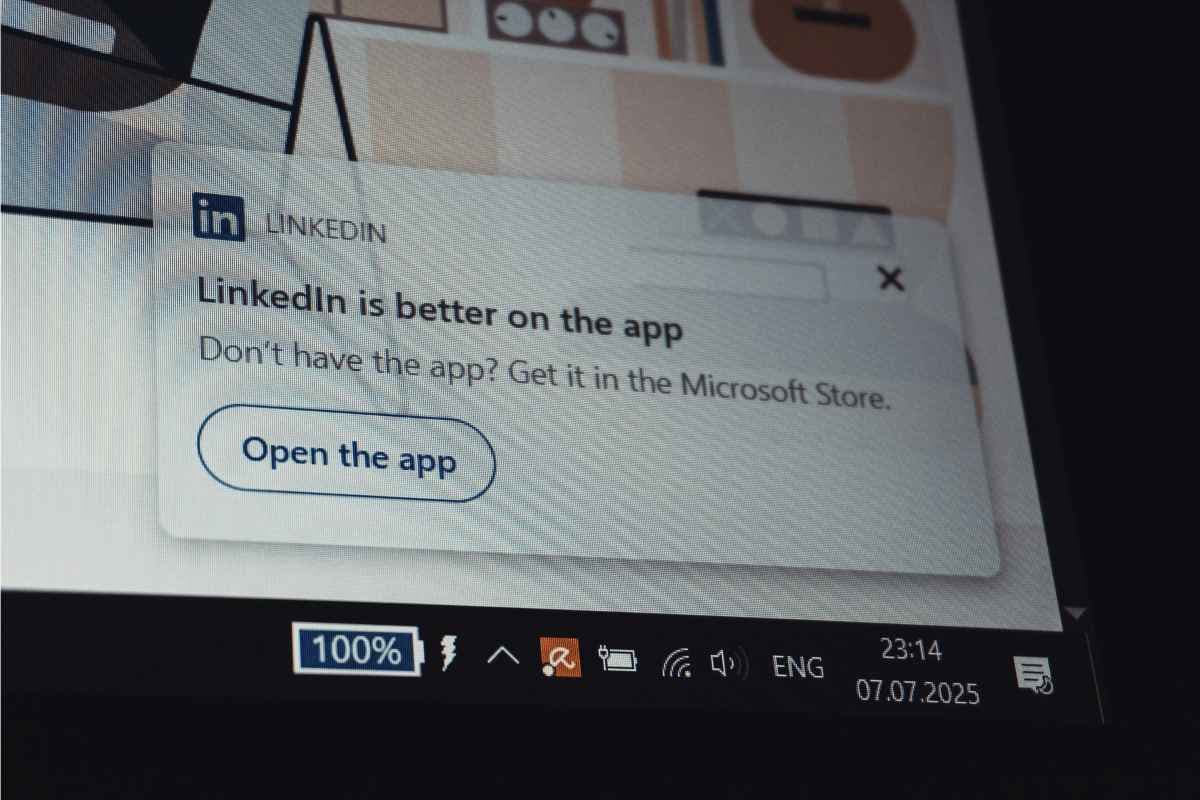
Image by Unsplash
Table of Contents
Constant pop-ups can interrupt work, gaming, meetings, and other focused tasks, but disabling every alert can make important updates easier to miss. By adjusting notification permissions, priority settings, and focus options, you can create a quieter desktop without losing the alerts that still matter.
Read on to check how to turn off Windows notifications to reduce unnecessary interruptions.
1. How to Turn Off Windows Notifications
Windows lets you silence all notifications or control them app by app, so you do not have to block every alert at once. The steps differ slightly between Windows 11 and Windows 10, but
Both versions place notification controls inside the Settings app.
How to Turn Off Notifications on Windows 11
Windows 11 gives you a central notification panel where you can disable alerts completely or customize which apps are allowed to interrupt you.
This makes it easy to reduce distractions while keeping important system or communication alerts active.
Open Start and select Settings.
Go to System.
Select Notifications.
Turn the main Notifications switch off if you want to disable most notifications at once.
To keep some alerts, leave the main switch on and scroll through the app list.
Turn individual apps off if you no longer want notifications from them.
Select an app to adjust banners, sounds, notification center visibility, or priority.
Use Do Not Disturb when you want temporary silence without permanently changing every app setting.
How to Turn Off Notifications in Windows 10
Windows 10 uses a similar system, but the notification controls appear under Notifications & actions
If you are looking for how to turn off Windows 10 notifications, you can either disable all app alerts or customize individual senders instead.
Open Start and choose Settings.
Select System.
Open Notifications & Actions.
Turn off Get notifications from apps and other senders to silence most notifications.
To keep selected alerts, leave the main option enabled and scroll to Get notifications from these senders.
Turn off individual apps that create unnecessary interruptions.
Select a sender to control banners, sounds, and notification behavior.
Review the settings afterward to make sure important security or work alerts are still enabled.
2. Turn Off Notifications Without Missing Important Alerts
Reducing interruptions does not mean every notification needs to disappear. The better approach is to silence low-value alerts while keeping security, scheduling, and work-related messages available when they matter.
Keep Security Alerts
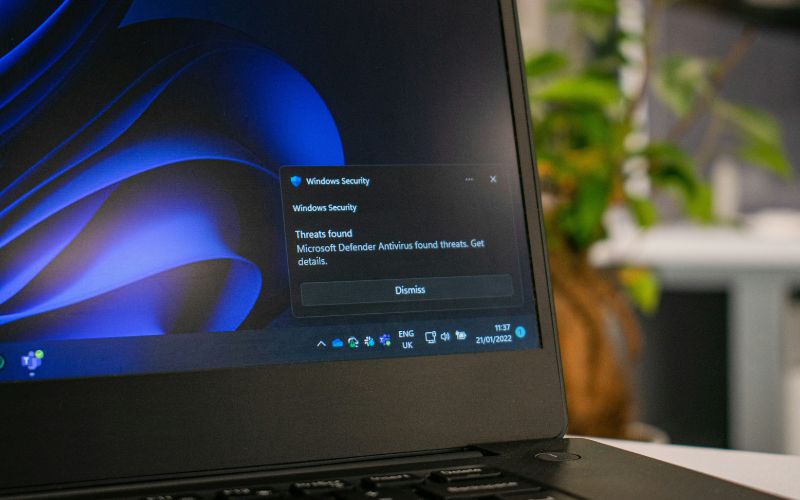
Security notifications can warn you about malware, firewall changes, account issues, or other system risks, so they should generally remain enabled.
When learning how to turn off Windows notifications, avoid disabling alerts from Windows Security unless you have a specific reason and understand the consequences.
Keep Calendar Reminders
Calendar alerts are useful for meetings, deadlines, appointments, and scheduled tasks that can easily be missed during a busy day.
Keep notifications enabled for your primary calendar app, then adjust banner or sound settings if you want reminders to feel less disruptive.
Keep Important Work Apps
Messaging, email, project-management, and collaboration tools may contain time-sensitive information that still deserves attention. Instead of muting every work app, keep notifications active for the services you depend on most and disable alerts from less important channels or secondary accounts.
Disable Promotional Notifications
Promotional messages, product suggestions, app recommendations, and marketing alerts are often the easiest notifications to remove. Turning these off can reduce clutter without affecting essential communication, security, or scheduling, making the notification center easier to scan when something important arrives.
Use Priority Notifications
Priority notifications let selected apps or contacts reach you even when Do Not Disturb is active. This is useful when you want a quieter workspace but still need urgent messages, reminders, or calls from specific sources to appear without reopening all notifications.
3. Tips for a Less Distracting Windows Desktop
Reduce interruptions with a few simple desktop habits that create a cleaner, more focused workspace. (Image by Unsplash)
Fewer interruptions can make it easier to focus on work, study, gaming, or meetings without constantly reacting to pop-ups.
Beyond learning how to turn off Windows notifications, a few desktop habits can also create a cleaner and calmer workspace.
Pin only essential apps to the taskbar so frequently used tools stay accessible without visual clutter.
Remove unnecessary desktop shortcuts and organize important files into clearly named folders.
Use Do Not Disturb during focused work sessions, presentations, or calls to temporarily silence nonessential alerts.
Disable notification sounds for lower-priority apps while keeping banners available when visual reminders are enough.
Close background apps you are not actively using to reduce both interruptions and unnecessary system activity.
Keep only important widgets or taskbar features visible so the desktop feels less crowded.
Review notification permissions regularly and remove apps that no longer need permission to send alerts.
4. Let’s Move Essential Communication to Your Phone
Keeping urgent calls, messages, and account alerts on your phone can reduce desktop interruptions without cutting you off from important communication. For eligible households, Lifeline can also make mobile service more affordable.
The Lifeline Program is a federal benefit that helps qualifying low-income consumers lower the monthly cost of phone or internet service. Eligibility may be based on household income or participation in certain assistance programs.
TAG Mobile is a U.S. wireless provider that offers Lifeline-supported service to eligible customers. Its combination of wireless connectivity and free or discounted device opportunities can be useful for users who want dependable mobile access for calls, texts, verification codes, and important alerts.
Applying for a free phone through TAG Mobile generally involves a few straightforward steps:
Check eligibility: Qualify through SNAP, Medicaid, SSI, Veterans benefits, or household income at 135% or below the Federal Poverty Line.
Enter your ZIP code on TAG Mobile’s site: See which Lifeline plans and free devices are available in your area.
Select a plan and device: Choose the Lifeline plan and phone/tablet that work for you.
Fill out your application: Provide your legal name, date of birth, address, and contact information.
Upload verification if needed: Submit required proof of program participation or income.
Submit: Review everything and send your application for approval.
Once approved, qualifying devices or SIM options are typically delivered within 7-10 business days, depending on inventory and shipping conditions. Follow the provided instructions to activate your phone, SIM card, or eSIM.
Device availability, plan benefits, and free phone offers can vary by state, eligibility, and current inventory, so checking your qualification is the best way to see what TAG Mobile currently offers.
Apply to receive free or heavy-discounted devices through TAG Mobile Lifeline services.
Note: Eligibility varies by state and program. Offers depend on availability and qualifications. TAG Mobile operates under the federal Lifeline Program as an Eligible Telecommunications Carrier (ETC). Service is non-transferable and limited to one service per household.
5. Frequently Asked Questions about Windows Notifications
Windows gives you several ways to reduce interruptions without disabling every alert on your PC. These quick answers explain how app-specific controls, Do Not Disturb, and Notification Center can help you manage alerts more selectively.
Can I turn off notifications for only one app?
Yes. In Windows notification settings, you can leave the main notification system enabled and turn off alerts for individual apps. This is useful when one program sends too many pop-ups, but you still want notifications from email, calendar, security, or work apps.
What is Do Not Disturb in Windows 11?
Do Not Disturb temporarily limits notification interruptions while allowing selected priority alerts to come through. It is useful during meetings, gaming, presentations, or focused work because you can reduce distractions without permanently changing every app’s notification settings.
Can I hide notifications but keep them in Notification Center?
Yes, for supported apps, you can disable notification banners while still allowing alerts to appear in Notification Center. This keeps pop-ups off your screen while giving you a place to review notifications later when it is more convenient.
6. Final Thoughts
Managing alerts selectively can make Windows feel calmer without cutting you off from information that matters. Once you know how to turn off Windows notifications, you can mute promotional pop-ups, limit noisy apps, and use Do Not Disturb while keeping security, calendar, and work alerts available. Reviewing notification settings regularly also helps prevent clutter from building up again. A more intentional setup creates a cleaner desktop and a smoother, less distracting daily workflow.
Share
TAG Blog
Stories, guides, and helpful updates for staying connected.