Windows 11 Home vs Pro: Which Version Fits You Best?
Two editions can look almost identical on screen while offering different tools behind the scenes. That makes it easy to pay for features you will never use or overlook something y...
Quincy D.-Oct 06, 2026
Image by Unsplash
Table of Contents
Two editions can look almost identical on screen while offering different tools behind the scenes. That makes it easy to pay for features you will never use or overlook something your work requires. This Windows 11 Home vs Pro comparison focuses on the differences that influence a purchase, from security and remote access to business controls, helping you match the edition to your actual needs.
1. Windows 11 Home vs Pro Which Is Better? What’s Actually Different?
Windows 11 Home covers everyday browsing, studying, entertainment, and gaming, while Pro adds tools for more specialized requirements. Compare the features below against what you need rather than assuming the higher edition suits everyone.
Feature
Windows 11 Home
Windows 11 Pro
Security: BitLocker
Supports Device Encryption on eligible hardware, but lacks the full BitLocker management interface.
Adds BitLocker Drive Encryption controls for managing drive protection.
Remote access
Can connect to a supported remote PC as a client, but cannot host Microsoft’s built-in Remote Desktop sessions.
Can host Remote Desktop connections, allowing access from another device when configured correctly.
Virtualization
Does not include the Hyper-V role; compatible third-party virtualization tools may still work.
Includes Hyper-V for creating and managing virtual machines on supported hardware.
Business management
Does not support Active Directory domain join or Microsoft Entra ID join; offers fewer organizational management options.
Supports domain join, Microsoft Entra ID join, Group Policy, and additional business management capabilities.
Hardware limits
Supports up to 128GB of RAM.
Supports up to 2TB of RAM, accommodating more memory-intensive configurations.
Remote Desktop hosting and Hyper-V also have configuration and hardware requirements, while the RAM figures are edition limits rather than guarantees that your motherboard supports those capacities.
2. 5 Common Windows 11 Home vs Pro Buying Mistakes
Edition names can distract from the features that actually justify an upgrade. When weighing Windows 11 Home vs Pro, avoid these five assumptions that can lead to unnecessary spending or a missing capability.
1. Assuming Pro Automatically Makes Your PC Faster
Pro adds capabilities rather than automatically increasing processing speed or gaming performance.
On comparable hardware, everyday tasks generally depend more on the processor, memory, storage, and software workload. Choose Pro for a feature you need, such as Remote Desktop hosting, rather than expecting the edition name alone to improve performance.
2. Thinking Home Has No Encryption or Security
Home includes core Windows security protections and can offer device encryption on eligible devices.
Pro adds fuller BitLocker management, which matters when you need more control over drive protection. Check your actual encryption requirements before upgrading; paying for Pro does not remove the need for updates, backups, and careful account security.
3. Confusing Remote Desktop Access With Hosting
Connecting from your computer to another PC is different from allowing someone to connect remotely into yours.
Home can serve as a Remote Desktop client, while Pro supports the built-in hosting feature. Identify which direction you need before purchasing, and remember that other remote-access applications have their own capabilities and requirements.
4. Buying Pro Without Checking Workplace Requirements
Working from home does not automatically require Windows Pro. Browser-based tools, office applications, and video meetings may run perfectly well on Home. Ask your employer or IT administrator whether domain join, Microsoft Entra ID join, Group Policy, or another specific management feature is required before paying for an unnecessary upgrade.
5. Assuming Pro Removes Your Hardware Limitations
A higher RAM ceiling does not make your computer accept more memory than its motherboard supports.
Hyper-V also requires suitable hardware and enabled virtualization settings. Check the device specifications alongside the edition’s features, since upgrading Windows cannot add missing physical capabilities or guarantee that a demanding workload will run smoothly.
Common Windows 11 Home vs Pro buying mistakes that can lead to overspending or missing features. (Image by Unsplash)
3. Building a Budget-Friendly Setup for School or Everyday Use
Keeping technology costs manageable starts with choosing tools that match your actual tasks. Alongside the right Windows edition, affordable connectivity and a suitable mobile device can support studying, communication, and everyday browsing.
The Lifeline program helps eligible households reduce monthly phone or internet costs through a service discount, with enhanced support available on qualifying Tribal lands. Participating providers can add their own device promotions, so a free phone or discounted tablet is a provider offer rather than a guaranteed federal benefit.
TAG Mobile is a wireless service provider offering Lifeline-supported services. Depending on location and current promotions, customers may find free or discounted phones and tablets.
You can compare the following TAG Mobile devices according to whether you need a phone for communication or a tablet for a larger viewing area. Do note that there are limited-time offers that may include a laptop, so make sure you catch up with the latest news!
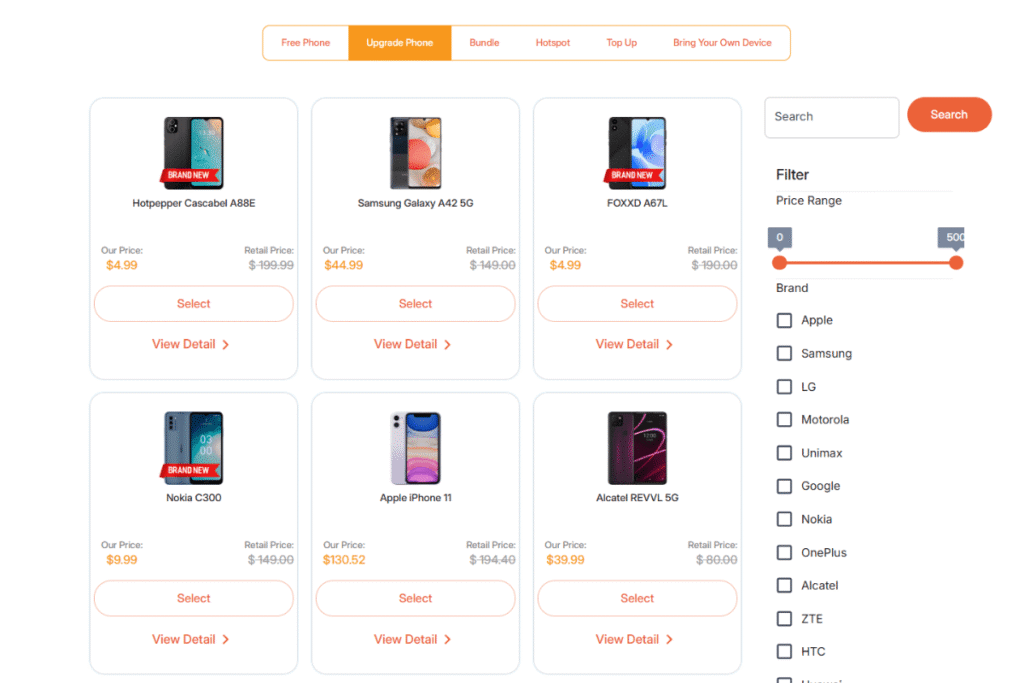
Clovertek G17: A 10.1-inch tablet with 4G LTE support, 32GB of storage, and a 5,000mAh battery, providing a larger workspace for reading, browsing, instructional videos, and online learning.
iPhone 13 Pro Max: A premium Apple smartphone with a spacious 6.7-inch Super Retina XDR display, 5G connectivity, and strong performance for documents, video calls, school platforms, and everyday apps.
Samsung Galaxy S21 5G: A compact flagship Android phone with a 6.2-inch high-refresh-rate display and 5G support, balancing portability with capable performance for communication, browsing, and mobile productivity.
Samsung Galaxy Tab A 2018: An 8-inch Android tablet with 32GB of storage and expandable microSD support, offering extra viewing room for basic reading, browsing, and media use.
iPad 7: A 10.2-inch Apple tablet with a Retina display, providing generous screen space for course materials, online classes, productivity apps, video calls, and web-based learning.
TCL 20 SE: A large-screen Android smartphone with a 6.82-inch display and 5,000mAh battery, making it a practical option for browsing, messaging, videos, and other everyday mobile tasks.
List of tablets and upgraded phones at TAG Mobile (Offers may vary by state, inventory, and time of your application).
Note: Eligibility varies by state and program. Offers depend on availability and qualifications. TAG Mobile operates under the federal Lifeline Program as an Eligible Telecommunications Carrier (ETC). Service is non-transferable and limited to one service per household.
4. FAQs about Windows 11 Home vs Pro
Edition names alone do not tell you whether an upgrade will improve your everyday experience. These answers clarify performance, file retention, security, and costs before you make a purchase.
Windows 11 Home vs Pro Which Is Faster?
Neither edition is automatically faster for everyday tasks or gaming on comparable hardware. Pro adds specialized features rather than a general performance boost, so your processor, RAM, storage, and running applications matter more.
Will Upgrading From Home to Pro Delete My Files?
A standard edition upgrade through Settings or the Microsoft Store normally preserves your files, installed applications, and settings. It differs from a clean installation, which can remove existing data. Back up important files before upgrading.
What Features Do I Lose With Windows 11 Home?
Home lacks Pro’s full BitLocker management, built-in Remote Desktop hosting, Hyper-V role, and business features such as domain join and Group Policy. It still includes core Windows security, everyday applications, and device encryption on eligible hardware.
Can I Downgrade From Windows 11 Pro to Home?
Yes, but switching from Pro to Home generally requires a clean installation rather than a simple edition change that retains everything. You need a valid Home license and should back up your files before reinstalling Windows and restoring your applications.
Does Windows 11 Pro Have Better Security?
Pro offers additional security controls, particularly fuller BitLocker management and tools for enforcing organizational policies. Both editions include core protections such as Microsoft Defender Antivirus and Windows Firewall, so Pro is most useful when you need those extra controls.
How Much Is Windows 11 Pro vs Home?
U.S. retail listings show Windows 11 Home at approximately $139 and Pro at $199.99 for standalone digital licenses. A Home-to-Pro upgrade is a separate purchase, and prices vary by region, retailer, and license type, so check the applicable offer before paying.
5. Final Thoughts
Paying for an edition makes sense when its features solve a real need. The Windows 11 Home vs Pro decision comes down to everyday use versus requirements such as remote desktop hosting, BitLocker management, or business controls. Match the edition to your workflow and hardware, so your budget goes toward capabilities you will actually use. Also, keep practical technology guides within reach with TAG Mobile now!
Share
TAG Blog
Stories, guides, and helpful updates for staying connected.