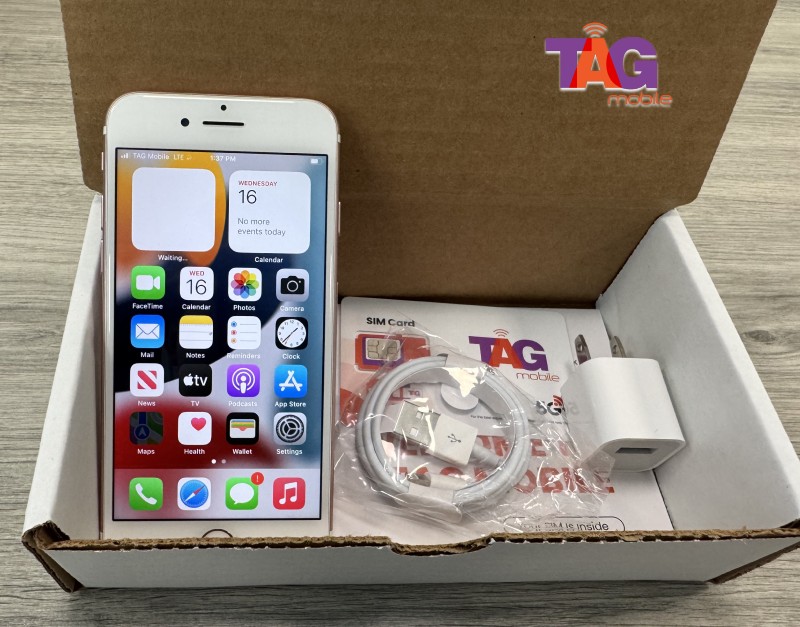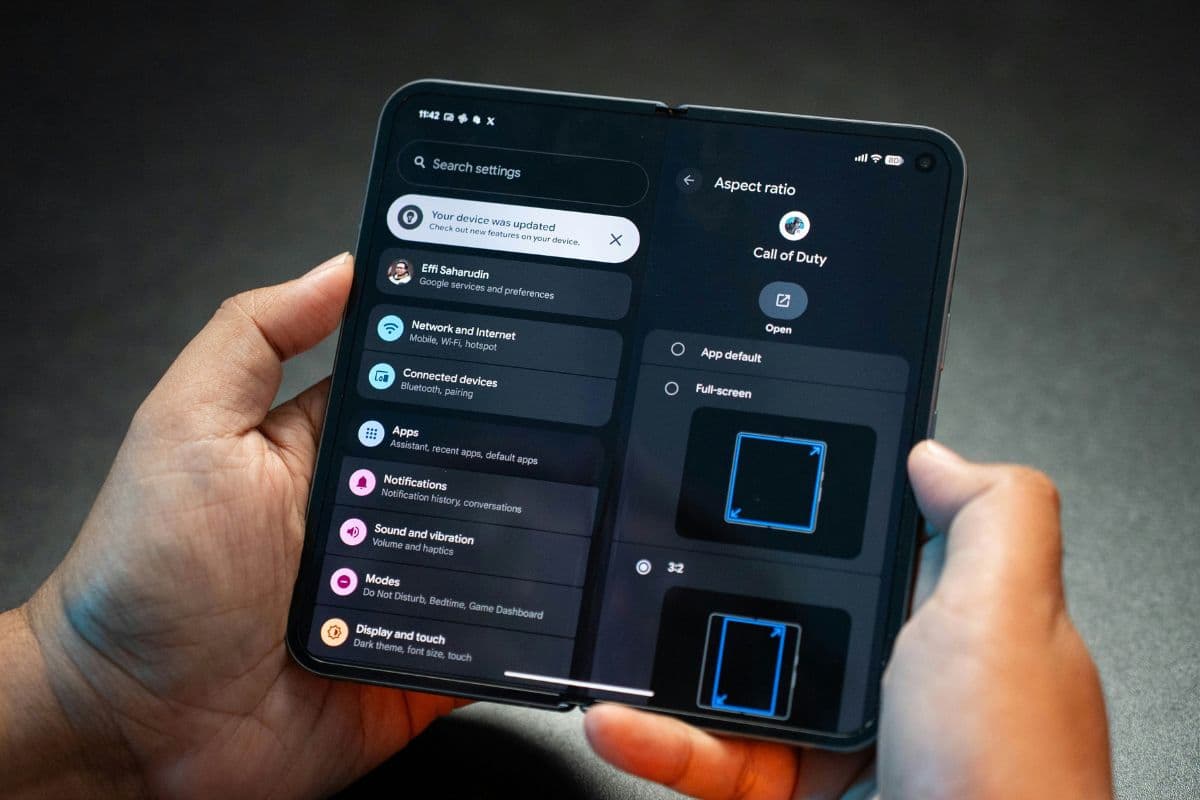
In some instances, the Android device may fail to connect to the network despite the correct installation of the SIM card. This has been experienced as the SIM card inserted but no service Android notification on the device screen, where the user may be unable to make calls or send texts, or access the data services.
This can occur for various reasons, such as network configuration issues, inactivated SIM cards, or network issues. To get more information regarding the possible reasons and the possible solutions, you can refer to the guide/article from TAG Mobile.
1. What “No Service” Means on an Android Phone
The “No Service” message on an Android phone indicates that the device cannot connect to a mobile carrier’s cellular network. When this happens, the phone is unable to make voice calls, send SMS messages, or use mobile data through the carrier.
This issue may occur if the SIM card is not detected, the network signal is unavailable, or the device settings prevent the phone from connecting to the carrier’s network.
>>> Read More: Best Free eSIM Service for Android: How to Find One in 2026?
2. How to Fix “SIM Card Inserted but No Service” on Android
When an Android phone shows a “No Service” message even though a SIM card is inserted, the issue may be related to the SIM card, network settings, or software configuration. The following steps can help identify the cause and restore the device’s connection to the carrier network.
Step 1: Remove and Reinsert the SIM Card
Start by turning off the Android phone and carefully removing the SIM card from the SIM tray. Check the card for dust, scratches, or damage that might affect the connection. After that, place the SIM card back into the tray securely and turn the phone on again to see if the network signal returns.
Step 2: Check Mobile Network Settings
Next, review the mobile network configuration on the device. Open Settings → Network & Internet → Mobile Network and confirm that mobile data and the correct network operator are selected. In some cases, manually selecting the carrier network can help the phone reconnect properly.
Step 3: Reset Network Settings
If the connection problem continues, resetting the network settings may help. This action clears saved Wi-Fi networks, Bluetooth connections, and mobile data settings, allowing the phone to rebuild its network configuration. After performing the reset, the device will reconnect to available networks and may restore cellular service.
Step 4: Update Android Software
Outdated system software can sometimes cause network compatibility problems. Check for updates by navigating to the System Update section in the phone settings and installing the latest Android version available for the device. Software updates often include bug fixes and improvements for network connectivity.
Step 5: Test the SIM Card in Another Phone
Finally, insert the SIM card into another compatible phone to determine whether the problem is related to the SIM card or the device itself. If the SIM card works normally in another phone, the original device may require further troubleshooting or repair. If the SIM does not work in another device, contacting the carrier for a replacement SIM card may be necessary.
3. SIM Card Issues That Can Cause “No Service”
In many situations, the SIM card inserted but no service Android problem happens because of issues related directly to the SIM card. Identifying the specific SIM-related cause can help restore the connection faster and prevent the same problem from happening again.
Damaged or Dirty SIM Card
A SIM card may stop working properly if its metal contacts become scratched, worn out, or covered with dust. When the phone cannot read the SIM correctly, the device may fail to connect to the carrier network and display “No Service.”
To fix this issue, remove the SIM card and gently clean the metal contacts using a soft, dry cloth before reinserting it into the tray. If the SIM card appears physically damaged, contacting the carrier to request a replacement SIM is usually the best solution.
Inactive or Expired SIM Card
Sometimes a SIM card becomes inactive if the mobile plan has expired or the account has been suspended by the carrier. In this situation, the phone may recognize the SIM card but still cannot access the network. Checking the account status with the carrier can confirm whether the SIM is still active. If the SIM card has been deactivated, reactivating the service or obtaining a new SIM card from the carrier will usually resolve the problem.