How to Split Screen on iPad: Current Methods and Multitasking Tips
Side-by-side apps can turn an iPad into a more practical workspace for researching, writing, messaging, or comparing information. This guide explains how to split screen on iPad us...
Quincy D.-Sep 30, 2026
Image by Unsplash
Table of Contents
Side-by-side apps can turn an iPad into a more practical workspace for researching, writing, messaging, or comparing information. This guide explains how to split screen on iPad using the current windowing system, including direct app controls and the Dock.
Clear instructions also cover window placement, resizing, and compatibility considerations, helping you build a smoother multitasking setup without repeatedly returning to the Home Screen or closing your active task.
1. How to Split Screen on iPad: Put Two Apps Side by Side
Current iPadOS versions use windowed apps and tiling controls instead of the older split view workflow. Users searching for how to do split screen on iPad with new update can arrange two compatible apps through either method below.
Method 1: Start With One App and Add a Second App
Starting from one open app is useful when the second app is located on the Home Screen or in the App Library. Enable windowed apps before arranging them.
Open Settings, tap Multitasking & Gestures, select Windowed Apps, and launch your first app. Resize it using the handle in the bottom-right corner.
Touch and hold the Window Controls button at the top left, then choose a half-screen layout. Swipe upward from the bottom to reveal the Home Screen.
Tap the second app, resize its window, and place it beside the first. Drag the center divider until both apps have enough working space.
Method 2: Start Split Screen From the Dock
Using the dock is faster when the second app is already pinned or recently opened. One drag can tile it beside the current full-screen app.
Launch the first app, then swipe slightly upward from the bottom edge. Stop when the dock appears without returning completely to the home screen.
Touch and hold the second app’s Dock icon, then drag it over the open app toward the left or right edge until a tiling preview appears.
Release the icon to place both apps side by side. Adjust their widths with the center divider, or drag it fully aside to restore full screen.
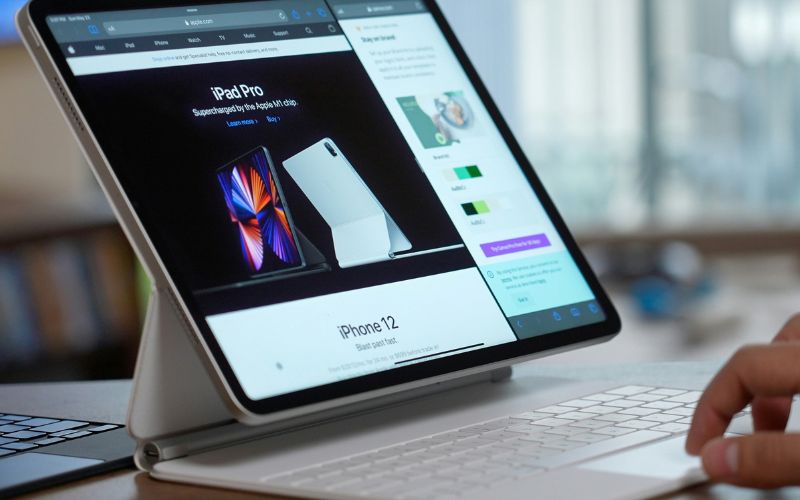
Arrange two compatible iPad apps side by side using windowed apps or tiling controls. (Image by Unsplash)
2. How to Get Rid of Split Screen on iPad?
Leaving a side-by-side layout can mean closing one window, returning an app to full screen, or disabling windowed multitasking altogether. Choose the method that matches whether you want to exit the current arrangement temporarily or prevent it from appearing again.
Method 1: Drag the Divider to One Edge
Place your finger on the divider between the two tiled apps and drag it completely toward the left or right edge. Releasing the divider removes the smaller window and expands the remaining app to full screen. Unsaved activity in the removed app usually remains available when reopened.
Method 2: Use the Window Controls
Tap the app you want to keep, then touch and hold the Window Controls button near its upper-left corner. Select the full-screen layout from the available options. Your chosen app expands across the display while the other window remains accessible through the dock, app switcher, or home screen.
Method 3: Close the Unwanted App Window
Tap the window you no longer need to make it active, then select its Close button from the controls at the upper left. Closing a window removes it from the current workspace without deleting the app. Reopen it later from the Dock, Home Screen, or App Library.
Method 4: Turn Off Windowed Multitasking
Open Settings, tap Multitasking & Gestures, and switch from Windowed Apps or Stage Manager to the full-screen option available on your iPadOS version. Future apps will open individually instead of appearing as movable windows. Settings names may differ slightly on iPads running an older software release.
3. How to Compare the Discounted Tablet With Your Actual Needs?
Lower pricing does not automatically make a tablet suitable for everyday work, school, entertainment, or communication. Compare its software support, performance, display, connectivity, and long-term value before deciding whether the offer meets your priorities.
Check iPadOS Compatibility
Confirm the tablet model and the newest iPadOS version it supports before accepting an offer. Older devices may still handle browsing and video calls but miss current multitasking tools, security updates, or app features. Longer software support generally provides better value over several years of use.
Evaluate Screen Size and Multitasking
Smaller tablets offer easier portability, while larger displays provide more room for documents, video, and side-by-side apps. Anyone researching how to split screen on iPad new update should confirm that the model supports the required iPadOS version and provides enough display space for comfortable multitasking.
Review Performance and Storage
Compare the processor, memory, and storage capacity with the apps you expect to run. Light browsing requires fewer resources than gaming, video editing, or frequent multitasking. Limited storage may fill quickly with photos and downloads, while older processors can make demanding apps feel noticeably slower.
Confirm Wi-Fi and Cellular Options
Decide whether Wi-Fi alone is enough or cellular connectivity is necessary when traveling away from home. Check carrier compatibility, supported network bands, hotspot capability, and monthly data requirements. Cellular models usually cost more, so the added flexibility should match how and where the tablet will be used.
Inspect Condition, Warranty, and Total Cost
Determine whether the tablet is new, refurbished, certified pre-owned, or previously used. Review battery condition, cosmetic wear, included accessories, return terms, and warranty protection. Consider activation charges, service requirements, upgrades, and replacement costs rather than judging value from the advertised device price alone.
4. How to Qualify for Free and Discounted Mobile Devices?
Affordable mobile service and suitable devices can help eligible households handle communication, schoolwork, appointments, and essential online tasks. Qualification rules and available equipment should be reviewed together before choosing an offer.
Lifeline is a federal benefit that reduces the cost of eligible phone or internet service. Applicants may qualify through household income at or below 135% of the Federal Poverty Guidelines or participation in an approved program such as SNAP, Medicaid, SSI, Federal Public Housing Assistance, or Veterans Pension and Survivors Benefit.
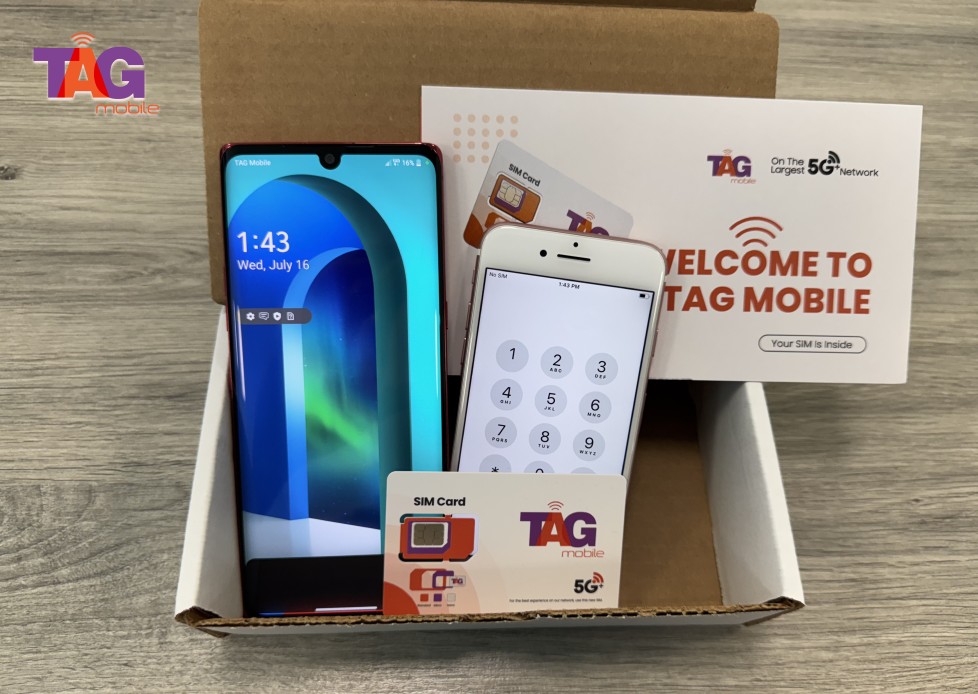
Houston-based TAG Mobile is an Eligible Telecommunications Carrier that helps qualified customers apply for Lifeline-supported service. Many applicants choose TAG Mobile because its available benefits may extend beyond the federal service discount, although plans, devices, coverage, and inventory vary by state.
Eligible customers may receive monthly service with talk, text, and high-speed data.
Qualifying plans may include a free smartphone or access to discounted device upgrades, depending on state availability and current inventory.
No-contract service and no credit check can simplify enrollment for approved customers.
Multilingual support is available to assist customers through the application and activation process.
Free delivery, SIM service, and activation may be included with qualifying offers.
The application takes only a few steps when the required information is prepared in advance. Keep identification, address verification, and current eligibility documents clear and readable to prevent unnecessary processing delays.
Check your Lifeline eligibility: Confirm that you qualify through household income or participation in an eligible assistance program such as SNAP, Medicaid, SSI, FPHA, Veterans Pension or Survivors Benefit, or certain Tribal programs.
Enter your ZIP code: Use TAG Mobile’s application page to check Lifeline service availability, plans, and current device offers in your area.
Choose your plan and device: Review the options available for your location and select an eligible free or discounted device, or BYOD when available.
Complete the application: Enter your legal name, date of birth, residential address, household information, and other required details accurately.
Provide documents if requested: Upload proof of income or qualifying program participation, as well as identity or address documents, when additional verification is necessary.
Review and submit: Double-check your information and selections before submitting the application for eligibility verification and approval.
Wait for delivery: After approval and order processing, qualifying devices are generally delivered within 7-10 business days, subject to inventory and shipping conditions.
Activate your service: Once your device or SIM/eSIM is ready, follow TAG Mobile’s activation instructions to begin using your Lifeline service.
Eligible households can check whether they qualify through TAG Mobile, then compare the available free or discounted devices before making a final selection.
Apply now and get the free device and data that you need!
Note: Eligibility varies by state and program. Offers depend on availability and qualifications. TAG Mobile operates under the federal Lifeline Program as an Eligible Telecommunications Carrier (ETC). Service is non-transferable and limited to one service per household.
5. FAQs about Split Screen on iPad
Multitasking behavior varies according to the iPad model, software version, selected windowing mode, and individual app support. These answers address common issues users encounter when placing apps side by side or managing multiple windows.
Can Every iPad Use Split Screen?
Not every iPad offers identical multitasking features because compatibility depends on the model and installed iPadOS version. Check Settings > General > About for the software version, then compare it with Apple’s compatibility information for the device.
Why Can’t I Split the Screen on My iPad?
Windowed Apps or Stage Manager may be disabled under Settings > Multitasking & Gestures. Certain apps also restrict resizing or multitasking, so test another compatible app and install available iPadOS updates before assuming the feature is unavailable.
Can I Open Two Windows From the Same App?
Some iPad apps, including Safari, Notes, Mail, and Files, support multiple windows. Availability depends on how the app was designed, so look for New Window, Open in New Window, or similar options in its menu.
Does Split Screen Make an iPad Slower?
Running two demanding apps simultaneously can increase memory, processor, and battery use, particularly on older models. Closing unnecessary apps, reducing background activity, and restarting the iPad may improve responsiveness when multitasking feels slow.
Final Thoughts
Side-by-side apps make researching, writing, messaging, and comparing information much easier on a compatible iPad. Once you understand how to split screen on iPad, current window controls and Dock gestures make multitasking feel natural.
TAG Mobile can help eligible households access affordable service and available free or discounted devices. Checking software support and device specifications ensures your tablet matches how you plan to use it.
Share
TAG Blog
Stories, guides, and helpful updates for staying connected.