How to connect Apple Pencil to iPad? Not every Apple Pencil pairs with an iPad in the same way, making model compatibility an important first step.
You can read about Apple Pencil generations, Bluetooth requirements, troubleshooting tips, and available TAG Mobile tablet options for users seeking more screen space.
1. Which Apple Pencil Works With Which iPad?
Apple Pencil generations use different connectors and support different groups of iPads, so compatibility should always be checked before pairing.
Anyone wondering how to connect my Apple Pencil to my iPad should identify both devices first rather than assuming every pencil works with every iPad.
| Apple Pencil Model | Pairing Method | Common Compatible iPad Groups |
| Apple Pencil Pro | Attach magnetically to the long-side connector. | iPad Pro 11-inch and 13-inch with M4 or M5. iPad Air 11-inch and 13-inch with M2, M3, or M4. iPad mini with A17 Pro. |
| Apple Pencil (USB-C) | Connect to the iPad using a USB-C cable, then tap “Tap to Connect.” | Recent USB-C iPad Pro, iPad Air, iPad mini, iPad 10th generation, and iPad with A16. |
| Apple Pencil (2nd generation) | Attach magnetically to the side of the compatible iPad. | iPad mini 6th generation. iPad Air 4th or 5th generation. Selected 11-inch and 12.9-inch iPad Pro models. |
| Apple Pencil (1st generation) | Plug directly into Lightning or use the USB-C to Apple Pencil adapter on newer compatible iPads. | iPad 6th through 10th generations. iPad with A16, iPad mini 5th generation, iPad Air 3rd generation. Selected older iPad Pro models. |
Apple’s compatibility list was updated in March 2026 and should be checked when purchasing a Pencil for a specific iPad generation.
>>> Read More: Spotify vs Apple Music: Which Streaming Service Is Right for You?
2. How to Connect Apple Pencil to iPad?
The pairing process changes depending on whether the pencil uses magnetic attachment, USB-C, or a Lightning connection.
If you are asking, “How do I connect my Apple Pencil to my iPad?” begin by confirming compatibility and turning on Bluetooth before following the method for your pencil generation.
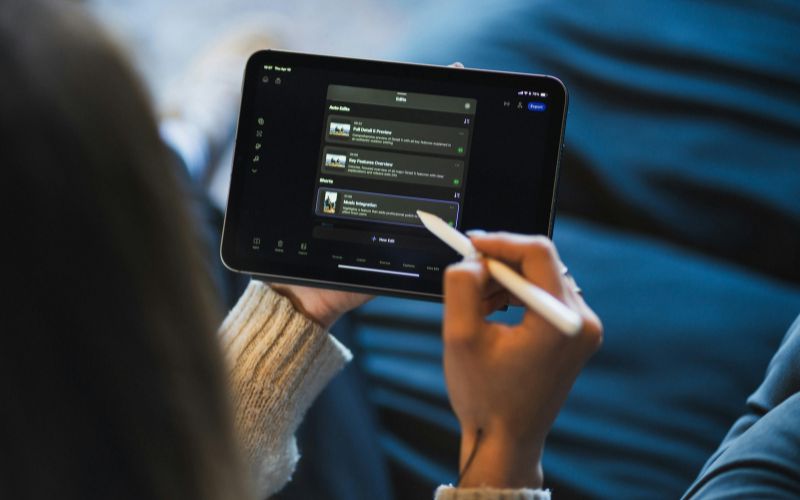
Apple Pencil Pro
Apple Pencil Pro pairs through the magnetic connector on compatible newer iPads. Learning how to connect Apple Pencil Pro to iPad is straightforward because pairing and charging happen from the same attachment point.
- Open Settings > Bluetooth and make sure Bluetooth is turned on.
- Position the Apple Pencil Pro along the magnetic connector on the long side of the compatible iPad.
- Allow the pencil to attach securely.
- Wait for the pairing response to appear.
- Keep it attached when charging is needed.
- Check battery status through the Batteries widget or Settings > Apple Pencil.
Apple Pencil (USB-C)
The USB-C version attaches magnetically for storage, but pairing does not happen simply by placing it on the side of the iPad. A physical USB-C connection is required for initial pairing.
- Slide open the end of the Apple Pencil to expose its USB-C connector.
- Connect the Pencil to a USB-C charging cable.
- Plug the other end into the compatible iPad.
- Tap “Tap to Connect” when it appears.
- Disconnect the cable after pairing is complete.
- Reconnect the Pencil if the iPad is restarted, Bluetooth is turned off, or the Pencil is paired with another device.
Apple Pencil (2nd generation)
The second-generation Apple Pencil uses the iPad’s magnetic connector for both pairing and charging. No Lightning plug, USB-C cable, or separate adapter is required on compatible models.
- Turn on Bluetooth under Settings > Bluetooth.
- Place the Apple Pencil on the magnetic connector along the side of the compatible iPad.
- Allow the pencil to snap into position.
- Wait briefly while the iPad recognizes and pairs with it.
- Leave it attached whenever charging is needed.
- Remove cases or covers that interfere with the magnetic connector if pairing fails.
Apple Pencil (1st generation)
How to connect Apple Pencil to iPad? First-generation Pencil pairing depends on the iPad connector.
Older compatible iPads with Lightning allow direct connection, while the iPad 10th generation and iPads with A16 require a USB-C to Apple Pencil adapter.
- Remove the pencil cap.
- For compatible Lightning iPads, insert the Pencil directly into the Lightning port.
- Tap Pair when the prompt appears.
- For iPad 10th generation or iPad with A16, connect the Pencil to the USB-C to Apple Pencil adapter.
- Attach the adapter to the iPad with a USB-C cable.
- Tap Pair when prompted.
- Reconnect if pairing is lost after restarting the iPad or disabling Bluetooth.
3. Do You Need Bluetooth to Use Apple Pencil?
Yes, Bluetooth must be enabled to pair and use Apple Pencil features with a compatible iPad.