Setting up mobile connectivity is one of the most important steps when you start using a new device. Many users want to ensure their phone can immediately access calls, messages, and mobile data through their carrier’s network.
Learning how to set up cellular on new iPhone helps make the activation process smoother, whether you are inserting a physical SIM card or activating an eSIM. To see the detailed instructions and helpful tips, you can refer to the article from TAG Mobile for more information.
1. What Cellular Setup Means on a New iPhone
Cellular setup on a new iPhone refers to the process of connecting the device to a mobile carrier so it can use services such as phone calls, text messages, and mobile data. This setup usually involves inserting a physical SIM card or activating an eSIM through your carrier during the initial device configuration.
If this step is not completed correctly, some users may wonder, “Why does my new iPhone not connect to Cellular data?”. In most cases, the issue occurs when the SIM or eSIM has not been activated, the carrier settings are missing, or the device has not yet connected to the carrier’s network.
2. What You Need Before Setting Up Cellular
Before activating cellular service on a new iPhone, it is helpful to prepare a few important things. Having the right information and tools ready can make the setup process much faster and smoother.
- A compatible SIM card or eSIM activation details: Make sure you have a nano-SIM card from your carrier or an eSIM QR code or activation instructions if you plan to use eSIM.
- An active mobile plan with your carrier: Your carrier must have an active plan linked to your SIM or eSIM profile for the phone to connect to the cellular network.
- A stable Wi-Fi connection: Many iPhone setup steps, especially eSIM activation, require an internet connection. Connecting to Wi-Fi helps the device download carrier settings and activation data.
- Your Apple ID and password: During the setup process, the iPhone may ask you to sign in with your Apple ID to restore settings or complete device activation.
- Your carrier’s account information (if required): In some cases, the carrier may ask for account verification or login details to activate cellular service on the new device.
3. How to Set Up Cellular on a New iPhone (Step-by-Step)
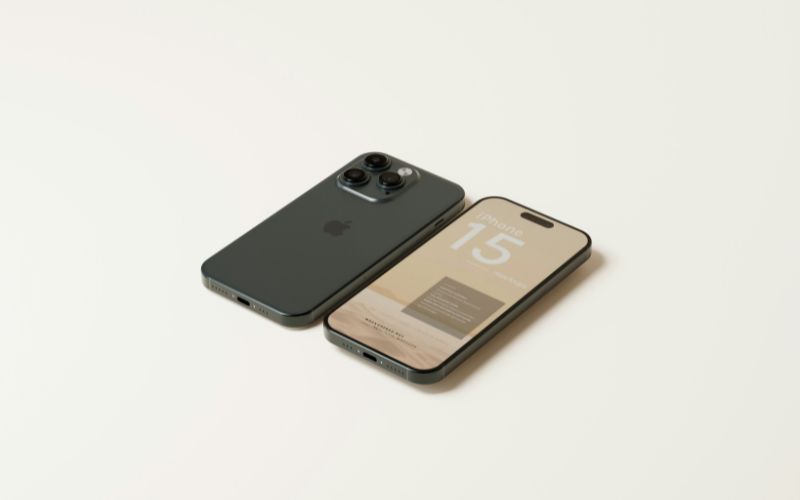
How do I activate cellular on my new iPhone? Activating cellular service is an essential part of setting up a new iPhone. By following a few simple steps, users can connect their devices to a mobile network and begin using calls, messages, and mobile data.
Step 1: Turn On Your New iPhone
First, you press and hold the power button until the Apple logo appears on the screen. The device will start the setup process and display the “Hello” welcome screen. From here, you can begin configuring language, region, and other initial settings.
Step 2: Connect to Wi-Fi
Next, let’s connect the iPhone to a stable Wi-Fi network. A Wi-Fi connection helps the phone complete activation and download necessary carrier settings. It is especially important when activating an eSIM or restoring settings from a previous device.
Step 3: Insert a SIM Card or Select eSIM Setup
At this stage, you can add your cellular plan to the device. Many users wonder, “When activating a new iPhone, do you put the SIM card in first?”.
In most cases, inserting the SIM card during setup helps the phone recognize the carrier automatically.
If you are using eSIM, simply choose the eSIM option and follow the on-screen instructions to scan the QR code or activate the digital plan.
Step 4: Follow Carrier Activation Instructions
After adding the SIM or selecting eSIM setup, follow the instructions provided by your mobile carrier. The iPhone may automatically detect the network and activate the plan, or it may prompt you to confirm the activation through your carrier’s system.
Step 5: Confirm Cellular Connection
Finally, you check the status bar at the top of the screen to confirm that cellular service is active. You should see the carrier name and signal bars appear once the activation is complete. At this point, your iPhone is ready to make calls, send texts, and use mobile data.
4. Common Problems When Setting Up Cellular
Sometimes the cellular setup process may not work perfectly the first time. Understanding common issues and their solutions can help users quickly restore their mobile connection and complete the activation successfully.







