How to Save Contacts to SIM Card: Best 2026 Backup Guide
Keeping your contacts organized is important, especially when changing devices or protecting important information. Understanding how to save contacts to SIM card allows you to sto...
Quincy D.-Mar 27, 2026
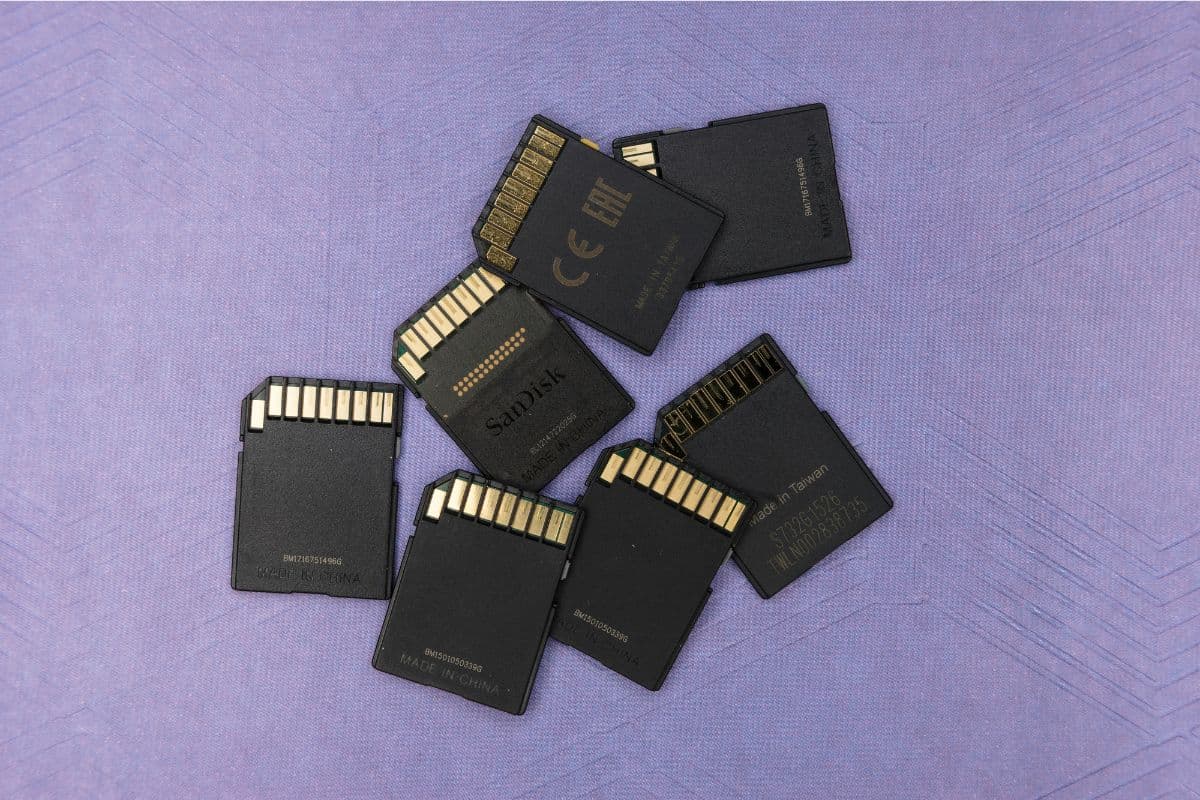
Image by Unsplash
Table of Contents
Keeping your contacts organized is important, especially when changing devices or protecting important information. Understanding how to save contacts to SIM card allows you to store essential numbers securely and transfer them easily when needed.
For more information, TAG Mobile offers valuable tips on handling your contacts, utilizing your SIM card features to the fullest, and selecting device compatibility. With quality service and support, TAG Mobile ensures your information is secure and accessible at all times.
Saving contacts to a SIM card can be useful for basic backup and quick transfers between devices. However, it also comes with several limitations that users should understand before relying on it as a primary storage method.
Limited Storage Capacity
SIM cards have very limited storage compared to modern smartphones. Most SIM cards can store only about 100-250 contacts, which may not be enough for users with large contact lists. Once the storage limit is reached, you won’t be able to save additional contacts unless you delete existing ones.
Fewer Contact Details
SIM cards can only store basic information such as names and phone numbers. If you’re wondering, does a SIM card save all your contacts?, the answer is no.
Details like email addresses, photos, notes, or multiple numbers per contact are usually not supported. This means you may lose important information when saving contacts to a SIM.
Compatibility Differences Between Devices
Different devices and operating systems may handle SIM-stored contacts differently. Some phones may not fully support importing or displaying SIM contacts, while others may format them differently.
This can lead to missing or improperly displayed contact information when switching between devices, especially across different platforms like Android and iOS.
Saving contacts to your SIM card on Android is a simple way to keep important numbers backed up and easy to transfer. By following the correct steps, you can move your contacts securely without losing essential information.
Step 1: Open the Contacts App
You should begin by opening the Contacts app on your Android device. This is where all your saved contacts are stored and managed. Make sure you are viewing the correct contact list before proceeding to the next step.
Step 2: Tap the Menu or Settings Option
Next, you need to access the menu or settings within the Contacts app. This is usually found by tapping the three-dot icon or a settings button.
From there, look for options like “Import/Export contacts,” which allow you to manage how contacts are transferred.
If you’re wondering, How do I put contacts on my SIM?, this is the section where the process begins.
Step 3: Select “Export to SIM Card”
Once you find the import/export options, choose “Export to SIM card.” Your device may ask you to select specific contacts or export all of them. Keep in mind that due to SIM storage limits, you may only be able to transfer a certain number of contacts.
Step 4: Confirm the Export
Finally, confirm the export action to start transferring your contacts. The process usually takes a few moments, depending on how many contacts you are saving. After completion, your selected contacts will be stored on the SIM card and can be accessed on another compatible device.
3. Can You Save Contacts to SIM Card on iPhone?
Many users wonder whether iPhones support saving contacts directly to a SIM card like some Android devices. While iPhones offer strong contact management features, they handle storage differently.
iPhones Store Contacts in iCloud or Device Memory
Apple devices are designed to store contacts in iCloud or directly on the device, rather than on the SIM card. This allows for automatic syncing across multiple Apple devices and better data security. Unlike some Android phones, iPhones do not provide a built-in option to save contacts directly to the SIM.
Importing Contacts From SIM to iPhone
Although iPhones don’t support saving contacts to a SIM, they do allow you to import contacts from a SIM card.
This can be done through the settings menu, where you can transfer existing SIM contacts into your iPhone’s storage. This feature is useful when switching from another phone to an iPhone.
Instead of relying on SIM storage, iPhone users can back up contacts using cloud-based services. iCloud is the most common option, offering automatic syncing and backup.
Additionally, users can use Google Contacts or other cloud services to ensure their contact information is accessible and easy to restore when needed.
4. Tips for Managing Contacts on Your Phone
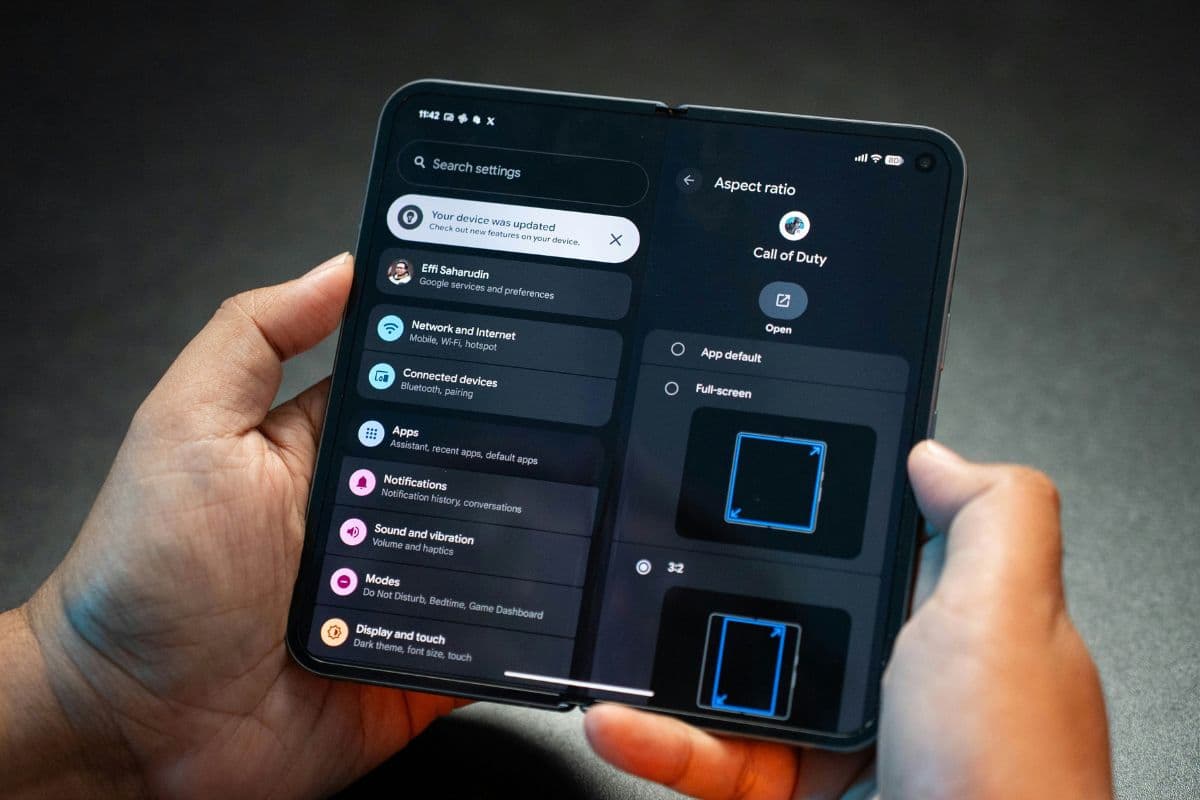
Some useful tips to manage contacts on your phone. (Image by Unsplash)
Keeping your contacts well-organized can save time and prevent data loss when switching devices or updating your phone. With a few simple habits, you can ensure your contact list stays accurate, secure, and easy to manage.
Sync contacts with a cloud account: Use services like Google or iCloud to automatically back up and sync your contacts across devices. This helps you restore them if you change or lose your phone.
Regularly back up your contacts: In addition to cloud sync, consider exporting your contacts periodically as a backup file. This provides an extra layer of protection.
Avoid storing contacts only on SIM: SIM cards have limited storage and fewer details, so they should not be your primary storage method. If you’re wondering, Do SIM cards ever expire?, they can become inactive over time depending on carrier policies.
Clean up duplicate contacts: Merge or delete duplicate entries to keep your contact list organized and easier to navigate.
Add complete contact details: Include names, emails, and notes to make your contacts more useful and easier to identify.
Use labels or groups: Organize contacts into groups like family, work, or emergency to quickly find the right person when needed.
Update contacts regularly: Make sure phone numbers and details are current to avoid communication issues later.
5. Final Words
Knowing how to save contacts to SIM card is a simple but valuable step to protect your important phone numbers and make switching devices easier. By keeping a backup on your SIM, you can avoid losing contacts and stay organized at all times. It also helps ensure a smoother transition when upgrading or changing phones.
Choosing a reliable provider can further enhance your mobile experience. With TAG Mobile, you can enjoy dependable service, flexible plans, and helpful support to manage your data and stay connected with confidence.
Notice: The government does not cover device costs, only basic service through Lifeline. Any free or discounted devices, upgrades, or top-ups are limited-time TAG Mobile offers and may vary by state, eligibility, and availability. Terms and conditions apply.
Share
TAG Blog
Stories, guides, and helpful updates for staying connected.