How to Know if eSIM is Activated: Tips for All Devices
Many smartphone users want to confirm that their digital SIM is working properly after completing the setup process. If you’re wondering how to know if eSIM is activated, there are...
Quincy D.-Mar 16, 2026
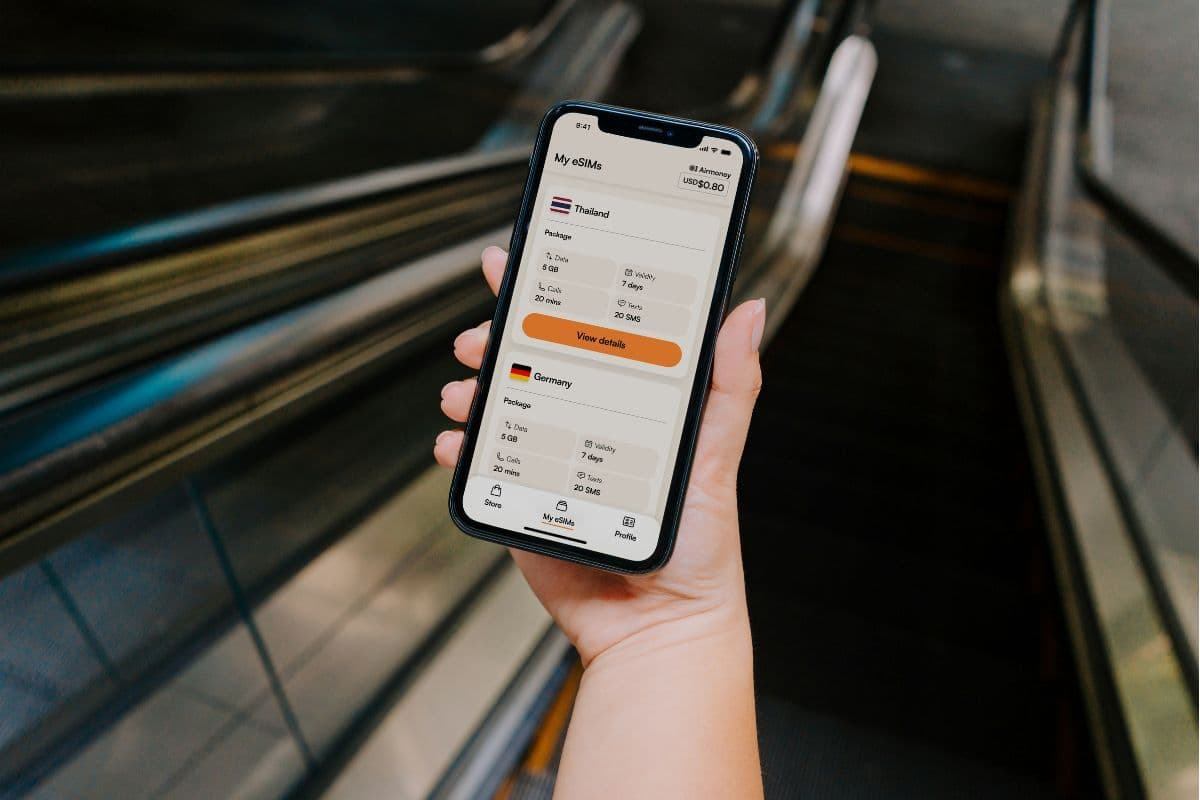
Image by Unsplash
Table of Contents
Many smartphone users want to confirm that their digital SIM is working properly after completing the setup process. If you’re wondering how to know if eSIM is activated, there are several indicators that show your device has successfully connected to the carrier network. These signs may include seeing signal bars, accessing mobile data, or viewing the active plan inside your phone’s cellular settings. Checking these details helps ensure the eSIM profile was installed correctly and that your device is ready to make calls, send messages, and use mobile data.
To understand the exact indicators and troubleshooting steps if something doesn’t appear correctly, review the detailed guide below from TAG Mobile.
After installing an eSIM profile, it’s important to confirm that the activation process has completed successfully. Smartphones usually show several clear indicators once the device connects to the carrier network.
These signs can help users quickly understand how to know if eSIM is activated and ensure their phone is ready for calls, messages, and mobile data.
A Carrier Name Appears in the Status Bar
One of the first signs of successful activation is the carrier name appearing in the status bar at the top of your phone screen. When the eSIM is working properly, your device will display the network name along with signal bars that indicate network strength. This confirms that the phone has successfully registered with the carrier and can connect to the cellular network.
Mobile Data Connects to the Internet
Another reliable indicator is that mobile data works normally when Wi-Fi is turned off.
If the eSIM is fully activated, your device should be able to open websites, refresh apps, and stream content using cellular data. This connection shows that the digital SIM profile is correctly linked to the carrier’s network services.
The eSIM Plan Is Visible in Cellular Settings
You can also confirm activation by checking your device’s Cellular or Mobile Network settings. Inside this section, the installed eSIM plan should appear in the list of available cellular lines. When the plan is visible and marked as active, it indicates that the digital SIM profile has been successfully downloaded and installed on the device.
Your Phone Number Is Linked to the eSIM Profile
Finally, many smartphones display the phone number associated with the eSIM profile within the cellular settings menu. Seeing your number listed confirms that the carrier has completed the provisioning process and linked the service to your device.
Once this information appears correctly, the phone should be able to make calls, send text messages, and access mobile data without issues.
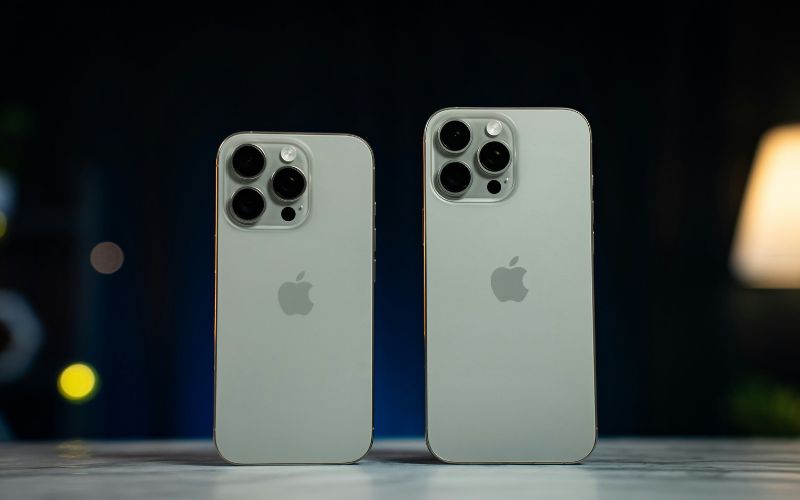
Full guide to activate an eSIM on your iPhone. (Image by Unsplash)
2. How to Know if eSIM is Activated on iPhone
After installing an eSIM on your iPhone, it’s helpful to verify that the activation process completed successfully. Apple provides several built-in indicators within the system settings that allow users to confirm whether their cellular plan is active and connected to the carrier network.
Open Settings
Start by unlocking your iPhone and opening the Settings app from the home screen. This is where all network and cellular configurations are managed on the device. Accessing this menu is the first step toward reviewing the current status of your installed cellular plans.
Tap Cellular
Inside the Settings menu, you scroll down and select Cellular (sometimes labeled Mobile Data depending on region). This section displays all active and stored SIM profiles associated with your iPhone. If you’re trying to determine whether eSIM is activated or searching for how to check if eSIM is activated in iPhone, this menu provides the most accurate information about your connection status.
Look for the eSIM Plan under Cellular Plans
Within the Cellular settings page, locate the Cellular Plans or SIMs section. Your installed eSIM should appear here with the carrier name or plan label that was assigned during activation. When the plan is visible in this list, it means the digital SIM profile has already been downloaded to the device.
Check if the Line Is Turned On
Next, you tap the eSIM profile and confirm that the “Turn On This Line” option is enabled. When this toggle is switched on, the iPhone is permitted to connect to the carrier network using that eSIM plan. If the toggle is off, the profile remains stored on the device but will not provide cellular service.
Confirm Signal Bars Appear on the Status Bar
Finally, let’s check the status bar at the top of the screen. If the carrier name and signal bars appear, the phone has successfully registered on the network. Once these indicators are visible, the eSIM is fully active and ready for calls, text messages, and mobile data.
Once you install an eSIM on an Android device, it’s important to confirm that the digital SIM profile has successfully connected to your carrier network. Android phones provide several built-in indicators within system settings that help users verify whether their eSIM line is active and ready to use.
Go to Settings > Network & Internet > SIMs (or Settings > Connections > SIM Manager)
Start by opening the Settings app on your Android phone. From there, navigate to Network & Internet → SIMs or, on some Samsung devices, Connections → SIM Manager. This section shows all SIM profiles currently stored on your device, including both physical SIM cards and digital eSIM plans.
Check if the eSIM Appears in the SIM List
Inside the SIM management menu, your eSIM profile should appear alongside any physical SIM card that may be installed in the phone. Seeing the plan listed confirms that the eSIM profile has already been downloaded and recognized by the device. This menu is also one of the easiest places for users who want to understand how to know if eSIM is activated on their Android phone.
Tap on Your eSIM Profile
Next, tap on the eSIM profile displayed in the list. Opening the profile allows you to view details such as the carrier name, mobile number (if assigned), and network configuration. This page also contains controls that allow you to enable or disable the eSIM line.
Ensure the Toggle for “Use SIM” or “Enable” Is Turned On
Look for a toggle labeled Use SIM, Enable, or Turn On SIM, depending on the Android version and device manufacturer. This toggle must be switched ON for the phone to connect to the carrier network using the eSIM. If the toggle is disabled, the profile will remain installed but inactive.
Check the Status Indicator
Finally, review the status label displayed under the eSIM profile. A properly activated eSIM usually shows indicators such as “Active,” “Enabled,” or “Connected.” Once this status appears and signal bars are visible in the notification bar, your Android device is fully connected and ready to use calls, texts, and mobile data.
4. How Long Does eSIM Activation Usually Take?
After installing the digital SIM profile, eSIM activation is typically a quick process that enables users to connect to their carrier network. After you scan the QR code or finish the setup using a carrier app, activation usually takes one to five minutes. During this stage, many users also check how to know if eSIM is activated by looking for signal bars or verifying that the cellular plan appears in their phone’s network settings.
However, a number of variables, including device compatibility, network conditions, and carrier processing speed, can affect the precise timing. Some users may need 10 to 15 minutes to fully register on the network, even though many activations happen almost instantly. In rare cases, it can take up to 24 hours for the eSIM to become fully active, particularly during account verification or carrier provisioning.
5. Using a Device That’s Ready for Mobile Connectivity
Setting up eSIM and confirming activation can sometimes involve several steps, including compatibility checks and carrier verification. For many users, using a smartphone that already comes prepared for mobile connectivity can make the process much easier and faster.
Programs like the U.S. Lifeline Program help eligible households access affordable mobile service through participating providers such as TAG Mobile.
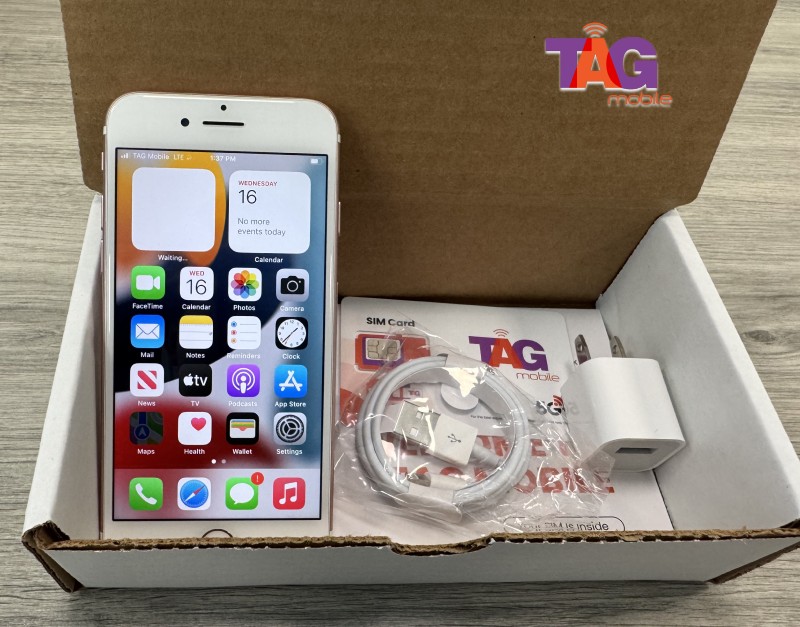
Apply for the best phone at the best values for you.
If qualified, customers may receive a compatible smartphone or use their own device while activating service with a SIM card or eSIM. The available plans are designed to provide reliable connectivity without high monthly costs.
According to the plan details of TAG Mobile, eligible users may receive several useful benefits in a Lifeline plan, such as:
Unlimited talk and text each month for everyday communication.
Up to 10-16 GB* of free mobile data depending on eligibility and location.
Free international calling to over 200 countries and territories, helping users stay connected with family abroad.
Free SIM kit or eSIM activation, allowing compatible devices to connect quickly.
Essential phone features such as voicemail, caller ID, call waiting, and 3-way calling.
Nationwide coverage and 4G/5G connectivity through major U.S. networks.
For users who want a simpler setup experience, choosing a device that already works with an eligible Lifeline plan can reduce the need for manual configuration.
By reviewing the available devices and plans offered by TAG Mobile, qualified applicants can quickly get a phone that is ready for calls, messages, and mobile data from day one.
*Offers may vary and are subject to future updates.
6. Final Words
Knowing how to know if eSIM is activated can help you confirm that your device is properly connected to your carrier’s network. By checking your signal status, cellular settings, and mobile data access, you can quickly verify whether the digital SIM is working correctly.
Understanding these indicators can prevent confusion during setup and ensure your phone is ready for everyday use. As more smartphones adopt eSIM technology, learning how to manage and confirm activation becomes increasingly useful. If you want reliable guidance, compatible devices, or flexible mobile plans, you can explore the helpful resources and service options available through TAG Mobile.
Notice: The government does not cover device costs, only basic service through Lifeline. Any free or discounted devices, upgrades, or top-ups are limited-time TAG Mobile offers and may vary by state, eligibility, and availability. Terms and conditions apply.
Share
TAG Blog
Stories, guides, and helpful updates for staying connected.