Tutorial on How to Hide Phone Number When Calling (2026)
Therefore, if you are concerned about your privacy or you don’t want to share your phone number with strangers, learning how to hide phone number when calling will give you more co...
Quincy D.-Feb 17, 2026
Image by Unsplash
Table of Contents
Therefore, if you are concerned about your privacy or you don’t want to share your phone number with strangers, learning how to hide phone number when calling will give you more control over your outgoing calls. This will provide you with the best privacy for your personal details. To know more about the procedure, you can follow the guide or article from TAG Mobile.
1. What “Hide Phone Number When Calling” Really Means
“Hide phone number when calling” implies that you are trying to prevent your caller ID from displaying your personal phone number on the other person’s screen. Your number may be shown as “Private,” “Unknown,” or “No Caller ID.” This option ensures your privacy, especially when making calls to businesses or people you do not know. Knowing how to hide my number when calling enables me to determine who gets to see my details.
2. How to Hide Phone Number when Calling on iPhone
If you prefer more privacy during calls, your iPhone lets you control whether your number appears on other people’s screens. The steps below show you how to hide phone number when calling so your caller ID stays private, and your calls appear as “No Caller ID” or “Unknown.”
Step 1: Open the Settings App
The first step is to unlock your Apple iPhone device, then select the Settings app from the home screen or App Library. This app has all the settings for the device. After accessing the Settings app, you can access the phone and privacy features.
Step 2: Tap Apps, Then Phone
Next, you scroll down the menu until you see “Apps,” then tap “Phone.” The “Phone” section controls everything to do with calling, including caller ID and call forwarding. This opens up the options for controlling how your outgoing calls appear to others.
Step 3: Tap Show My Caller ID
You can access the “Phone” settings and choose “Show My Caller ID.” This menu option directly influences the visibility of your number when you make a call. Once the option is accessed, you can see a simple on/off switch.
Step 4: Turn the Toggle Off
Lastly, you switch the switch Off to hide your caller ID. After disabling it, your calls will be displayed as “No Caller ID,” “Private,” and “Unknown” rather than your actual number. If you can’t locate the option, your carrier might be controlling the caller ID.
3. How to Hide Your Number when Calling on Android
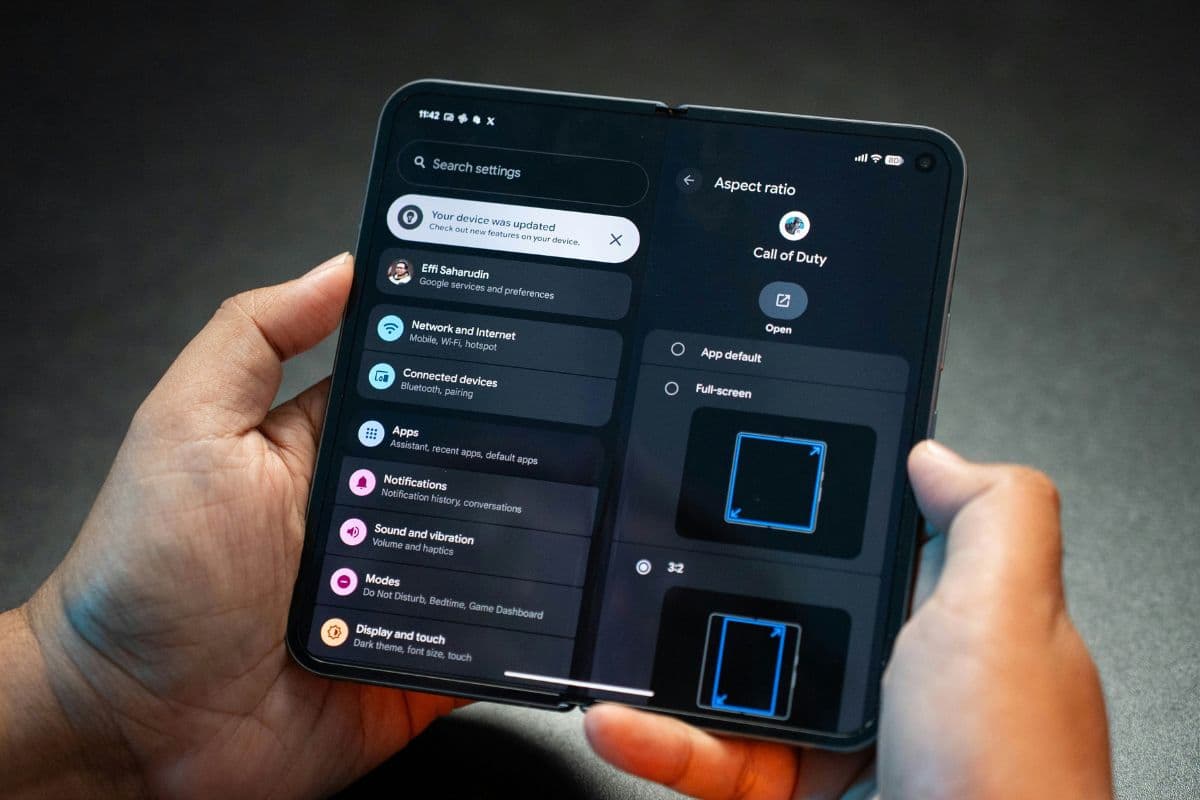
Full guide to how to hide phone number when calling on Android. (Image by Unsplash)
If you want more privacy during outgoing calls, Android phones let you control whether your number is visible to others. The steps below explain how to hide your phone number when calling on Android phones, so your calls appear as “Private” or “Unknown” instead of showing your real number.
Step 1: Open the Phone App on your Android Device
The first step involves unlocking your phone and accessing the phone application that you commonly use to make phone calls. This application contains all the call-related settings and controls. This step allows you to access the caller ID feature directly.
Step 2: Tap the Three Dots or More Options Menu Icon
Next, you look at the top-right corner of the screen and tap the three dots or More options icon. This menu reveals additional features that are not shown on the main dialer screen. From here, you can access your call configuration settings.
Step 3: Go to Settings, then Call or More settings
The next step involves pressing the settings menu that appears after pressing the three dots or the More Options menu icon. After accessing this menu, you need to press the Call settings or More settings menu. This menu may look slightly different for Samsung devices. However, this section contains the caller ID feature that you want to access.
Step 4: Select the Caller ID Option
Inside the call settings, you tap Caller ID. This option determines how your number appears when you place outgoing calls. Opening it will show several display choices.
Step 5: Select the Hide Number Option
The final step of how to hide phone number when calling involves pressing the Hide Number option. This feature allows you to keep your phone number hidden from other people. After pressing this feature, other people will see “Private,” “Unknown,” or “No Caller ID” when you make outgoing phone calls. However, you can search for “caller ID” under settings if you are unable to find this feature.
4. Limited Features on Your Phone? Explore Better Calling Options
However, if the device itself is outdated and does not have the necessary features for a phone call, such as caller ID, voicemail, and privacy, even the most basic operations can become very irritating. For instance, features such as call forwarding and learning how to hide your phone number when calling may not be supported by outdated devices and plans. This can make a phone call less convenient than it should be.
This is where the Lifeline program can be very beneficial to the user. This government-supported program can help the qualifying user get affordable and discounted phone plans every month (it only provides services). What’s beneficial is that many of its providers also offer the devices for free.
TAG Mobile, as one of those Lifeline-approved carriers, offers free phones with some essential plans. The plans include reliable nationwide coverage and straightforward options designed to fit essential communication needs without expensive contracts or hidden fees.
Effortlessly searching for how to hide phone number when calling with reliable connectivity from TAG Mobile
5. Final Words
Taking control of your caller ID is a great way to boost your sense of security and privacy. Once you understand how to hide phone number when calling, you can be sure to stop your number from being exposed and reduce the number of calls you receive.
This can be a great way to boost your security and confidence when communicating with different people. If you’re looking for a reliable service and affordable plans to boost your communication, consider checking out TAG Mobile for great coverage and customer support.
Notice: The government does not cover device costs, only basic service through Lifeline. Any free or discounted devices, upgrades, or top-ups are limited-time TAG Mobile offers and may vary by state, eligibility, and availability. Terms and conditions apply.
Share
TAG Blog
Stories, guides, and helpful updates for staying connected.