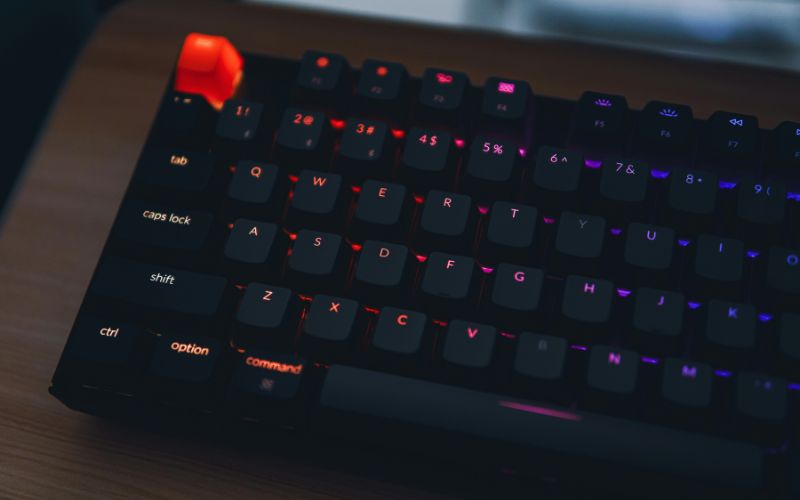
How to Fix Keyboard Not Typing: 10-Step Repair Ladder From Easy to Advanced
A keyboard that suddenly stops responding can bring work, browsing, or gaming to a halt. Our guide on how to fix keyboard not typing starts with quick checks for connections and se...
Quincy D.-Sep 09, 2026
Image by Unsplash
Table of Contents
A keyboard that suddenly stops responding can bring work, browsing, or gaming to a halt.
Our guide on how to fix keyboard not typing starts with quick checks for connections and settings, then moves through drivers, software conflicts, and possible hardware problems. Following the fixes in order can help identify the cause without wasting time on unnecessary repairs.
1. How to Fix Keyboard Not Typing on Laptop: Try 10 Fixes in Order
Keyboard failures can come from temporary software glitches, accessibility settings, driver problems, incorrect layouts, loose connections, or debris around the keys.
Working through the fixes in order is the safest way to identify the cause without making unnecessary system changes.
1. Restart Your Computer
Restarting clears temporary processes, reloads system services, and can restore keyboard input after a minor Windows glitch.
Save any open work, restart the computer normally, then test several keys after Windows loads. If the keyboard works on the sign-in screen but stops later, the issue may be tied to software, drivers, or settings rather than the hardware itself.
2. Disconnect and Reconnect the Keyboard
For an external keyboard, unplug the USB cable or disconnect the wireless connection, wait a few seconds, then reconnect it. Try another USB port if available and replace or recharge wireless batteries when needed.
When troubleshooting how to fix computer keyboard not typing, confirming that Windows can properly detect the device should come before changing drivers or system settings.
3. Check Whether the Keyboard Is Locked or a Function Key Is Active
Some laptops include function-key combinations that can disable certain keys, switch input modes, or change how the keyboard behaves.
Look for keyboard, lock, or Fn symbols on the function row and check your laptop manual if necessary. Also test Num Lock or Fn Lock, since an unexpected mode change can make specific keys appear unresponsive.
4. Turn Off Filter Keys
Filter Keys is a Windows accessibility feature designed to ignore brief or repeated keystrokes, but accidental activation can make a keyboard feel slow or unresponsive.
Open Settings, go to Accessibility, select Keyboard, and turn Filter Keys off. Test typing again afterward to see whether a normal key response returns without changing any other accessibility features.
5. Check Your Keyboard Language and Layout
An incorrect keyboard layout can make keys produce unexpected characters or seem incorrectly mapped even when the hardware works normally.
Check the language indicator on the Windows taskbar and switch to the layout you actually use. Remove unnecessary layouts from Settings if you repeatedly switch by accident, then test letters, numbers, and punctuation again.
6. Run the Windows Keyboard Troubleshooting Options Available on Your PC
Windows versions differ in which troubleshooters they provide, so check Settings for available keyboard or hardware diagnostic options.
Some systems may direct you through built-in support tools rather than a dedicated keyboard troubleshooter. Follow the recommended checks, apply any suggested fixes, then restart and retest the keyboard before moving to driver-related steps.
7. Update the Keyboard Driver
Outdated or corrupted drivers can interfere with keyboard detection and input. Open Device Manager, expand Keyboards, right-click the relevant device, and choose Update driver.
When working through how to fix laptop keyboard not typing, also check your laptop manufacturer’s support page if Windows does not find a newer driver automatically, especially after major system updates.
8. Reinstall the Keyboard Driver
If updating does not help, reinstalling the driver can clear a damaged configuration.
In Device Manager, right-click the keyboard, choose Uninstall device, and restart the computer. Windows will typically detect the keyboard again and reinstall a compatible driver automatically. Avoid deleting unrelated input devices unless you are certain which entry belongs to the affected keyboard.
9. Install Pending Windows Updates
System updates can contain fixes for device compatibility, drivers, and input-related bugs. Open Settings, go to Windows Update, check for available updates, and install important pending items.
Restart the computer afterward, even if Windows does not immediately require it, then test the keyboard again to determine whether the issue was connected to outdated system components.
10. Clean Around Unresponsive Keys
Dust, crumbs, and debris can prevent individual keys from pressing correctly or returning to position.
Shut down the laptop or disconnect the external keyboard before cleaning, then use gentle compressed air or a soft brush around affected keys.
You should avoid pouring liquid directly onto the keyboard or aggressively prying off keycaps, since some laptop mechanisms are easy to damage.
2. When Should You Replace the Keyboard Instead of Fixing It?
Repair makes sense when the problem comes from software, settings, drivers, or minor debris, but hardware damage changes the equation.
If the same keys keep failing after careful troubleshooting, replacement may be more practical than repeating temporary fixes.
Multiple keys remain unresponsive: If several keys still do not work after restarting, updating drivers, checking settings, and cleaning, the keyboard may have an internal hardware fault.
Liquid damage is visible or suspected: Spills can corrode contacts and damage the keyboard matrix. Even if some keys recover, recurring failures may continue and make replacement the safer long-term option.
Keys are physically broken: Missing keycaps, damaged hinges, cracked mechanisms, or keys that no longer spring back normally often require hardware replacement rather than software troubleshooting.
The keyboard disconnects repeatedly: Frequent loss of input despite stable drivers and connections can indicate a failing cable, connector, controller, or keyboard assembly.
Repairs only work temporarily: If you keep searching how to fix my keyboard on my laptop not typing because the same issue returns after each repair, the hardware may be reaching the end of its usable life.
Repair costs approach replacement cost: For older external keyboards, replacement is often cheaper than professional repair. With laptops, compare the cost of the keyboard assembly and labor before deciding.
An external keyboard works normally: If a USB or Bluetooth keyboard works without issues while the built-in laptop keyboard does not, that strongly suggests the internal keyboard or its connection needs repair or replacement.
Replace your keyboard when damage is severe, repairs keep failing, or fixing it costs too much. (Image by Unsplash)
3. Consider Other Technological Devices at A Rare Cost, or No Cost Even
If attempts at how to fix keyboard not typing do not solve the problem, switching to another connected device can keep essential communication within reach. Eligible users may also be able to reduce device and service costs through the support of federal Lifeline Program.
Lifeline eligibility may be based on participation in programs such as SNAP, Medicaid, SSI, Federal Public Housing Assistance, or certain Tribal programs. Applicants may also qualify through household income requirements and should prepare supporting documents before applying.
Furthermore, TAG Mobile is a licensed service provider that participates in Lifeline and offers qualifying customers access to available wireless service and device options, depending on eligibility and inventory. It’s important to note that the device offers come from the provider themselves, not the government or the program.
Applying through TAG Mobile is easier when your eligibility information is ready before you begin.
Check your eligibility: Determine whether you meet Lifeline requirements through qualifying household income or participation in an eligible assistance program.
Enter your ZIP code: Use your location to see the TAG Mobile Lifeline plan and current device offers available in your area.
Fill out the application: Enter your legal name, date of birth, residential address, and other requested information carefully.
Provide documents if needed: Upload proof of identity, address, income, or qualifying program participation when additional verification is required.
Complete eligibility verification: Your submitted information is checked to confirm that you qualify for the Lifeline benefit.
Review available options: Select from the TAG Mobile service and eligible device offers available for your location.
Submit and wait for approval: Complete your enrollment and, once approved and processed, allow approximately 7-10 business days for qualifying device delivery.
TAG Mobile phone and SIM card package for qualified Lifeline users.
Note: Eligibility varies by state and program. Offers depend on availability and qualifications. TAG Mobile operates under the federal Lifeline Program as an Eligible Telecommunications Carrier (ETC). Service is non-transferable and limited to one service per household.
4. FAQs about Fixing a Keyboard That Won’t Type
Keyboard problems can look different depending on which keys fail and when the issue appears. Knowing how to fix keyboard not typing also means separating temporary software glitches from driver, layout, or hardware problems.
Why can I type numbers but not letters?
This can happen when a keyboard mode, accessibility setting, input layout, or software conflict affects letter keys while number keys remain responsive. On laptops, also check Num Lock and Fn settings and whether an external keyboard behaves normally.
Can a keyboard driver cause keys to stop working?
Yes. A corrupted, outdated, or incompatible keyboard driver can prevent some or all keys from responding correctly. Updating or reinstalling the driver through Device Manager often helps when the problem starts after a Windows update or system change.
Can restarting a computer fix a keyboard?
Yes, especially when the problem is caused by a temporary system or driver glitch. Restarting reloads Windows services and input drivers, so it is one of the simplest troubleshooting steps to try before changing settings or replacing hardware.
5. Final Thoughts
A keyboard can stop working for many reasons, from loose connections and incorrect settings to outdated drivers or hardware faults. For how to fix keyboard not typing, it helps to begin with the simplest checks and rule out each possible cause one by one. This can save time and may restore normal typing without replacing the device.
Explore TAG Mobile for more practical tech guidance and mobile options.
Share
TAG Blog
Stories, guides, and helpful updates for staying connected.