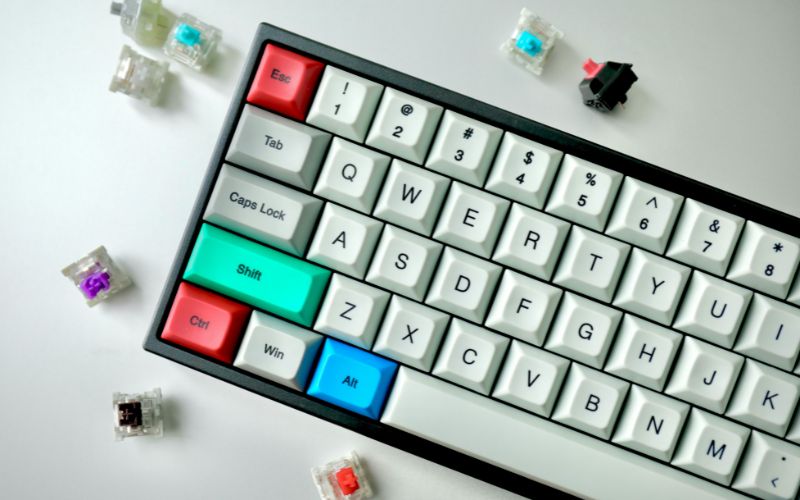
How to Clean Keyboard Keys, Gaps, and Hidden Debris
Dust, crumbs, and sticky residue can build up beneath the surface, affecting both appearance and typing performance. Understanding how to clean keyboard keys properly helps you rem...
Quincy D.-Aug 05, 2026
Image by Unsplash
Table of Contents
Dust, crumbs, and sticky residue can build up beneath the surface, affecting both appearance and typing performance. Understanding how to clean keyboard keys properly helps you remove visible dirt, reach narrow gaps, and clear hidden debris without damaging sensitive components.
Read on to discover safe tools, practical cleaning methods, and essential precautions for keeping laptop and desktop keyboards cleaner, more responsive, and comfortable to use.
1. Identify the Keyboard Before Choosing a Cleaning Method
Keyboard designs differ in key structure, spacing, and sensitivity, so one cleaning method may not suit every device.
Learning how to clean keyboard keys starts with identifying your keyboard type, helping you remove dirt effectively while reducing the risk of broken keycaps, damaged switches, or trapped moisture.
Keyboard Type
Key Characteristics
Important Precautions
Laptop Keyboard
Low-profile keys with delicate clips and limited space underneath
Avoid pulling off keys unless the model supports removal, as fragile clips can break easily.
Mechanical Keyboard
Raised, removable keycaps with individual switches
Never pour liquid onto the switches or reinstall damp keycaps.
Membrane Keyboard
Quiet, closely spaced keys positioned over a pressure membrane
Removing keycaps may damage the membrane or key supports, so consult the manual first.
Chiclet Keyboard
Flat, square keys separated by narrow gaps
Do not force tools beneath the keys or spray cleaning liquid directly onto the keyboard.
External Wireless Keyboard
Portable design powered by batteries or an internal rechargeable battery
Keep moisture away from the battery compartment, charging port, and electronic controls.
2. How to Clean Keyboard Keys?
Keyboard keys collect dust, skin oils, crumbs, and sticky residue that can affect comfort and responsiveness over time.
Using gentle tools and minimal moisture helps remove buildup without damaging the switches, key mechanisms, or internal electronics.
Clean your keyboard gently to remove dust and grime while protecting the keys and internal components. (Image by Unsplash)
How to Clean Keyboard Without Removing Keys
Removing keycaps is unnecessary for many low-profile keyboards and may damage delicate clips.
This is especially important when learning how to clean MacBook keyboard under keys, since individual keys should not be pried off during routine cleaning.
Shut down the computer and disconnect all cables.
Hold the keyboard at approximately a 75-degree angle.
Spray compressed air across the keys using short, controlled bursts.
Rotate the device and repeat from both sides.
Brush around each key with a soft, clean detailing brush.
Wipe the key surfaces using a microfiber cloth lightly dampened with isopropyl alcohol.
Allow the keyboard to dry completely before turning the device back on.
How to Clean Under Keyboard Keys Without Prying Them Off
Debris trapped beneath the edges can often be removed without lifting or loosening the keycaps.
Working carefully around each gap protects fragile hinges while restoring smoother movement and reducing the chance of keys sticking.
Turn off and unplug the keyboard before cleaning.
Tilt it downward and gently tap the back to release loose crumbs.
Direct short bursts of compressed air through the gaps from several angles.
Sweep loosened particles away with a soft-bristled brush.
Slide a dry cleaning swab gently around the edges of sticky keys.
Use a swab lightly dampened with isopropyl alcohol for stubborn residue.
Let all cleaned areas dry fully before testing the keyboard.
3. Computer Trouble Should Not Cut Off Your Digital Access
Computer problems can make it harder to manage work, appointments, applications, and other essential online tasks. Mobile service provides another practical way to stay connected while a computer is unavailable or being repaired.
The Lifeline Program is a federal benefit that helps eligible low-income consumers reduce the cost of qualifying phone service. The benefit is limited to one person per household and cannot be transferred to someone else.
TAG Mobile is a U.S. wireless service provider, a licensed Lifeline provider in the US.
Many qualifying consumers apply through TAG Mobile because it offers affordable service, nationwide coverage where available, multilingual customer support, no contracts or credit checks, and a choice of free or discounted devices depending on eligibility and inventory.
TAG Mobile’s Lifeline plan can support communication, browsing, online forms, and access to digital resources when a computer is not available. Plan availability and included data may vary by state and ZIP code.
Up to 16GB of free data, with available plans varying by state.
Unlimited talk and text.
Free international calling to more than 200 countries and territories.
Nationwide 5G+ and 4G LTE coverage where available.
Free or discounted phones, tablets, with free shipping, subject to eligibility and inventory.
Free SIM kit or eSIM for compatible devices.
Wi-Fi Calling, Caller ID, Call Waiting, 3-Way Calling, and Voicemail on supported devices.
No annual contract or credit check required for Lifeline-supported service.
Explore the smartphone and tablet list on TAG Mobile. Do note that stock can change and vary by state.
Note: Eligibility varies by state and program. Offers depend on availability and qualifications. TAG Mobile operates under the federal Lifeline Program as an Eligible Telecommunications Carrier (ETC). Service is non-transferable and limited to one service per household.
4. Questions about Removing and Cleaning Keyboard Keys
Correct timing and proper interpretation are essential for getting an accurate oil reading. If you’re learning how to check oil level in car correctly, the answers below clarify common concerns about engine temperature, waiting time, low oil, and overfilling.
Can you clean under keyboard keys without removing them?
Yes. Turn off and unplug the keyboard, then use compressed air, a soft brush, or a small cleaning putty to lift dust and crumbs from the gaps. Avoid forcing tools beneath laptop keys because delicate clips can break easily.
Is compressed air safe for laptop keyboards?
Compressed air is generally safe when the can stays upright, and the nozzle is held a short distance from the keys. Use brief bursts at an angle rather than spraying continuously, which can release cold liquid propellant or push debris deeper inside.
Can I use rubbing alcohol on keyboard keys?
Yes, but apply 70% isopropyl alcohol lightly to a microfiber cloth or cotton swab rather than pouring or spraying it directly onto the keyboard. When learning how to clean keyboard keys, keep moisture away from the gaps and test first if the keycaps have printed coatings.
How do I clean sticky keys without damaging the keyboard?
Power off the device, remove surface debris, and wipe around the sticky key with a barely damp cloth or cotton swab containing a small amount of isopropyl alcohol. Press the key repeatedly as it dries, but do not pry it off unless the manufacturer confirms that removal is safe.
Can I clean my keyboard keys with alcohol?
Yes, isopropyl alcohol can remove oils and grime because it evaporates quickly. Use only a small amount on a cloth, avoid soaking the keys, and allow the keyboard to dry completely before reconnecting or turning it on.
5. Final Words
Simple keyboard maintenance helps prevent dust, crumbs, oil, and sticky residue from affecting comfort or key response. Knowing how to clean keyboard keys means using gentle tools, minimal moisture, and safe techniques suited to your device. Careful cleaning can keep each key working smoothly while reducing accidental damage. For convenient access to troubleshooting guides wherever needed, eligible consumers can explore TAG Mobile.
Share
TAG Blog
Stories, guides, and helpful updates for staying connected.