How to Fix Keyboard Delay: Find What’s Causing the Lag & 6 Methods to Try
Keyboard lag can turn a quick message, work task, or gaming session into a frustrating experience when each keystroke takes a moment to appear. Since the keyboard itself is not alw...
Quincy D.-Oct 09, 2026
Image by Unsplash
Table of Contents
Keyboard lag can turn a quick message, work task, or gaming session into a frustrating experience when each keystroke takes a moment to appear. Since the keyboard itself is not always responsible, how to fix keyboard delay starts with narrowing down where the problem comes from rather than changing settings at random.
A few simple checks can rule out common causes before you move on to drivers, system settings, or possible hardware issues.
1. How to Fix Keyboard Delay on Laptop and Other Devices: Start With the Fastest Checks
Before changing drivers or buying a replacement, check whether the delay comes from the connection, power supply, or an overloaded computer. So, how to fix keyboard delay? Try these fixes individually and test your typing after each one so you can tell what actually helps.
Fix 1: Restart the Computer
Save your work, then choose Restart rather than simply closing the laptop lid.
A restart can clear temporary software problems and give stalled processes a fresh start. For example, if you are researching how to fix keyboard delay Windows 11, this is a useful first check before changing settings.
Once the computer restarts, test typing before reopening your usual apps.
Fix 2: Disconnect and Reconnect the Keyboard
Unplug an external keyboard, wait a few seconds, and reconnect it securely.
For a keyboard with a USB receiver, reconnect the receiver instead.
For Bluetooth, switch the keyboard off and on and check that it reconnects.
This can resolve a temporary connection problem. If you use a laptop’s built-in keyboard, skip this step rather than attempting to disconnect internal components.
Fix 3: Try Another USB Port
Move the keyboard or its receiver to another USB port on the computer.
If it currently connects through a hub or dock, try plugging it directly into the computer to check whether that accessory contributes to the problem. Test the same typing task afterward. A consistent improvement points toward the original connection path, though it does not automatically prove the port is faulty.
Fix 4: Check Wireless Battery Level
Check the battery indicator in your keyboard’s software or device settings, if available.
Recharge the keyboard or fit fresh batteries according to its instructions, then test it again.
Low battery power can contribute to unreliable wireless operation, but it is not the only possible cause. If charging makes no difference, continue checking the connection rather than assuming the keyboard needs replacement.
Fix 5: Close Heavy Background Apps
Open Task Manager on Windows or Activity Monitor on macOS and look for applications consuming substantial processor or memory resources.
Close unnecessary programs normally, saving any work first, rather than ending unfamiliar system processes.
Browsers with many tabs, video editors, and recording software can compete for resources. Retest typing with fewer apps running to see whether overall system load contributes to the delay.
Fix 6: Test in Another Program
Type in a simple text editor, then compare the response with the app where you noticed lag.
For example, when investigating how to fix keyboard delay on Valorant, smooth typing elsewhere suggests checking game performance and settings before reinstalling the keyboard.
Delayed in-game actions can also involve rendering or network issues, so they do not necessarily indicate a keyboard fault.
2. Should You Update or Reinstall the Keyboard Driver?
Driver troubleshooting is worth considering when the delay persists across programs after the basic checks.
If you are still working out how to fix keyboard delay, start with available updates before reinstalling the device, and use software intended for your exact model.
Update the Driver
On Windows, check Windows Update first, including available optional driver updates.
You can also open Device Manager, expand Keyboards, right-click the relevant device, and select Update driver.
Choose Search automatically for drivers, then follow the prompts. Restart if requested and test whether typing improves before trying another troubleshooting step afterward.
Reinstall the Device
In Device Manager, expand Keyboards, identify your keyboard, and select Uninstall device from its right-click menu.
Keep a working mouse available and avoid selecting options that remove driver packages. Restart the computer; Windows will attempt to reinstall the device driver. Test typing once the keyboard becomes available again after restarting.
Check the Manufacturer
Visit the keyboard manufacturer’s support page or the laptop maker’s page for a built-in keyboard.
Search by exact model and operating system for relevant drivers, firmware, or troubleshooting instructions. Some keyboards use standard Windows drivers instead of dedicated downloads, so install only updates explicitly intended for your particular device model.
3. Practical Tips to Reduce Keyboard Input Delay
Typing should keep pace with your thoughts, without pauses that interrupt each sentence. If you are still working out how to fix input delay on keyboard, these habits can help reduce connection problems and unnecessary system load.
Keep a wireless keyboard within its recommended range, with fewer obstacles between it and the computer or receiver.
Move wireless receivers away from nearby devices that may cause interference, following the keyboard manufacturer’s placement guidance.
Check accessibility settings for features that intentionally delay keystrokes, such as Windows Filter Keys, and disable them if you do not need them.
Keep keyboard software and the operating system updated, then restart when required to complete installation.
Temporarily disable unnecessary keyboard macros, remapping tools, or extensions to check whether they contribute to the lag.
Compare wireless performance with a supported wired connection, if your keyboard offers one, to help isolate connection-related delays.
Reduce keyboard input delay by improving connection stability and minimizing unnecessary system load. (Image by Unsplash)
4. Still Typing on a Slow Phone? Know When It’s Time to Upgrade Your Phone
If your phone still struggles with typing after restarting, updating apps, and freeing storage, its aging hardware may be part of the problem. When slow performance affects everyday tasks across multiple apps, replacing the device may be worth considering.
And there is a support program with offers that you may qualify for. Let’s see how this works.
What Is the Lifeline Program?
Lifeline is a federal assistance program that helps eligible households afford phone or internet service through a monthly discount. Free or discounted phones are separate provider offers, rather than a guaranteed Lifeline benefit.
You can qualify through either of these routes:
Household income: Your household income is at or below 135% of the Federal Poverty Guidelines.
Program participation: You or someone in your household participates in SNAP, Medicaid, SSI, Federal Public Housing Assistance, or Veterans Pension and Survivors Benefit.
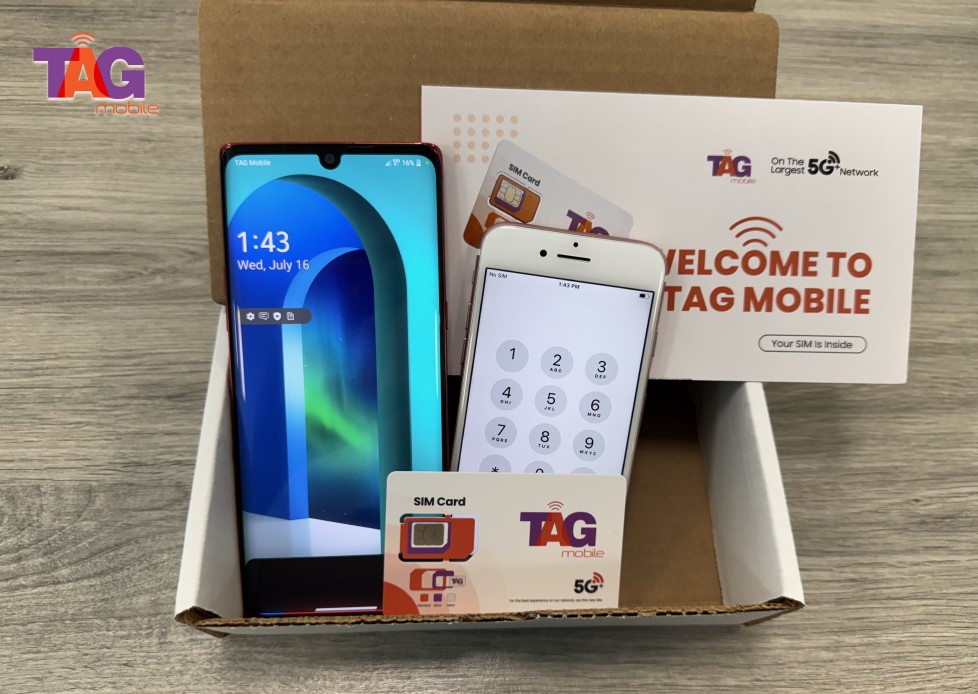
Why Apply Through TAG Mobile?
TAG Mobile is a wireless provider and eligible telecommunications carrier offering Lifeline-supported service to qualifying customers.
Its combination of monthly service and device offers can make it appealing when you need both an affordable connection and a replacement phone.
Depending on your location, eligibility, and current offers, benefits may include:
Free smartphones on selected offers, with models and availability varying by ZIP code and stock.
Free monthly service with unlimited talk and text on qualifying plans.
Up to 16GB of free data, with allowances varying by location and eligibility, and time of offers.
Free delivery on eligible orders.
How to Apply for a Free Phone at TAG Mobile
Start by checking which service plans and phones are available for your home address. Review the displayed device price before applying, since a free phone depends on the current offer and your eligibility.
Check your Lifeline eligibility: Confirm that you qualify through household income or participation in an eligible assistance program such as SNAP, Medicaid, SSI, FPHA, Veterans Pension or Survivors Benefit, or certain Tribal programs.
Enter your ZIP code: Check TAG Mobile service availability and view the plans and current device offers available in your area.
Choose your plan and device: Review the available Lifeline service and select an eligible free or discounted phone offer. Device models and pricing depend on location, eligibility, inventory, and current promotions.
Provide information like your legal name, date of birth, residential address, household information, and other required details accurately.
Complete eligibility verification: Follow the verification process and provide proof of income or qualifying program participation, identity, or address if additional documentation is requested.
Review and submit: Double-check your application, selected plan, device, and any applicable charges before submitting for approval.
Wait for approval and delivery: After approval and order processing, qualifying devices are generally delivered within 7-10 business days, subject to inventory and shipping conditions.
Once your phone or SIM/eSIM is ready, activate your service following TAG Mobile’s activation instructions to start using your Lifeline service.
TAG Mobile is the one of the most trusted Lifeline provider choices for eligible US residents.
Note: Eligibility varies by state and program. Offers depend on availability and qualifications. TAG Mobile operates under the federal Lifeline Program as an Eligible Telecommunications Carrier (ETC). Service is non-transferable and limited to one service per household.
5. FAQs about Keyboard Delay
Keyboard lag can appear only during fast typing or become noticeable when a wireless connection starts acting up. If you are learning how to fix keyboard delay, identifying when and where the lag occurs can help narrow down the possible cause. These answers explain what those patterns may suggest and which checks are worth trying first.
Can a Low Keyboard Battery Cause Lag?
Yes, low battery power can contribute to delayed or missed keystrokes on some wireless keyboards. Recharge the device or replace its batteries, then test again; if the delay remains, check the connection and other possible causes.
Why Does My Keyboard Lag When I Type Fast?
Fast typing can make an existing delay more noticeable when an app or computer struggles to process input. Accessibility features such as Filter Keys may also ignore brief or repeated keystrokes. Compare typing in a simple text editor and check those settings to help narrow down the cause.
Can a USB Hub Cause Keyboard Input Delay?
Yes, a faulty, overloaded, or inadequately powered USB hub can contribute to unreliable keyboard input. Connect the keyboard or receiver directly to the computer and repeat the same typing test. If performance improves, investigate the hub, its power supply, or attached devices.
6. Final Thoughts
Every delayed keystroke is a reason to check what is slowing the response, rather than immediately replacing the keyboard. Working through how to fix keyboard delay one change at a time helps separate connection issues from software or device problems. Test after each adjustment so you can keep the changes that actually improve responsiveness.
If an aging phone also needs replacing, check eligible service and device offers with TAG Mobile.
Share
TAG Blog
Stories, guides, and helpful updates for staying connected.