How to Connect Hotspot to Laptop: 3 Ways to Get Online
Mobile internet sharing gives phones a practical way to provide online access to laptops, tablets, and other nearby devices without regular Wi-Fi. To understand how does hotspot wo...
Quincy D.-Sep 15, 2026
Image by Unsplash
Table of Contents
Mobile internet sharing gives phones a practical way to provide online access to laptops, tablets, and other nearby devices without regular Wi-Fi.
To understand how does hotspot work, it helps to see how cellular data is converted into a shareable connection through Wi-Fi, USB, or Bluetooth. Connection quality can then vary based on signal strength, data limits, device load, security settings, and battery usage.
1. How to Connect Hotspot to Laptop in Under a Minute
Getting a laptop online through your phone is usually quick once mobile data and tethering are set up correctly.
The process for how to connect hotspot to laptop mainly involves enabling the feature on your phone, then joining that network from the laptop like regular Wi-Fi.
On Your Phone
Before the laptop can connect, your phone needs an active mobile data connection and a hotspot that other devices can detect.
Checking the network name and password first also makes the connection smoother once you switch over to the laptop.
Turn on cellular or mobile data if it is not already active, then confirm that your phone can access the internet without Wi-Fi.
Open the hotspot settings, which may appear as Personal Hotspot on iPhone or Mobile Hotspot on Android.
Enable the hotspot and allow nearby devices to join when that option appears.
Check the network name shown in the settings so you know exactly what to look for on the laptop.
Note the hotspot password before leaving the screen, especially if it was generated automatically or changed previously.
On Your Laptop
Once the phone is broadcasting its connection, the laptop treats it much like any other available Wi-Fi network.
Keeping the phone nearby during setup can help the network appear faster and reduce the chance of an early disconnect.
Open the Wi-Fi panel from the taskbar, menu bar, or system settings on your laptop.
Look through the available networks until you see the hotspot name shown on your phone.
Select that network, then enter the hotspot password carefully when prompted.
Choose Connect and give the laptop a moment to establish the connection.
Open a webpage afterward to confirm that internet access is working before closing the hotspot settings on your phone.
2. Connecting an iPhone to a Laptop: Pick Your Laptop
Connecting an iPhone to a laptop is straightforward, but Windows and MacBooks handle Personal Hotspot a little differently. Knowing which steps match your laptop helps you connect faster, avoid unnecessary settings changes, and keep the connection more stable.
iPhone to Windows Laptop
For how to connect hotspot from iPhone to laptop, Wi-Fi is usually the simplest option on Windows because it requires no cable or additional setup beyond the hotspot password.
Keep the personal hotspot enabled on the iPhone while the Windows laptop searches for available networks.
Open Settings on the iPhone, go to Personal Hotspot, and turn on Allow Others to Join.
Check the Wi-Fi password displayed on the same screen and keep the iPhone nearby.
On the Windows laptop, open the Wi-Fi menu from the taskbar and refresh the available network list if needed.
Select the iPhone name when it appears, then type the hotspot password exactly as shown.
Choose Connect and test the connection by opening a webpage or another internet-based app.
iPhone to MacBook
Apple devices can make how to connect iPhone hotspot to laptop especially convenient when both devices use the same Apple Account and have Wi-Fi and Bluetooth enabled.
In many cases, the Mac can detect the iPhone through Instant Hotspot without requiring the password to be entered manually.
Make sure Wi-Fi and Bluetooth are turned on for both the iPhone and MacBook.
Enable Personal Hotspot on the iPhone if the Mac does not detect it automatically.
On the MacBook, open the Wi-Fi menu from the menu bar or Control Center.
Look for the iPhone under Personal Hotspot, then select it to begin connecting.
Wait until the Wi-Fi status confirms the connection, then test internet access before moving the devices farther apart.
3. How to Connect an Android Hotspot to a Laptop
Android phones make it easy to share mobile data with a laptop once tethering is enabled in the right settings menu. For how to connect hotspot to laptop, the exact labels may vary slightly by phone brand and Android version, but the overall process stays similar.
1. Open Hotspot Settings
Go to Settings, then look for Network & Internet, Connections, or a similar network menu. Open Hotspot & Tethering or Mobile Hotspot to reach the controls needed for sharing your phone’s cellular connection.
2. Turn On Mobile Hotspot
Enable mobile hotspot and make sure cellular data is already active. If your phone offers extra options, check the network name, security type, and password before moving to the laptop.
3. Find the Network on Your Laptop
Open Wi-Fi settings on the laptop and wait for nearby networks to appear. Look for the hotspot name shown on your Android phone, then select it from the available connection list.
4. Enter the Hotspot Password
Type the password exactly as it appears in your phone’s hotspot settings. Pay attention to uppercase letters, numbers, and symbols, since even a small mismatch can prevent the laptop from connecting.
5. Confirm Internet Access
Once connected, open a browser or another online app to confirm that data is working properly. Keep the phone reasonably close and avoid turning on battery-saving features if the connection becomes unstable.
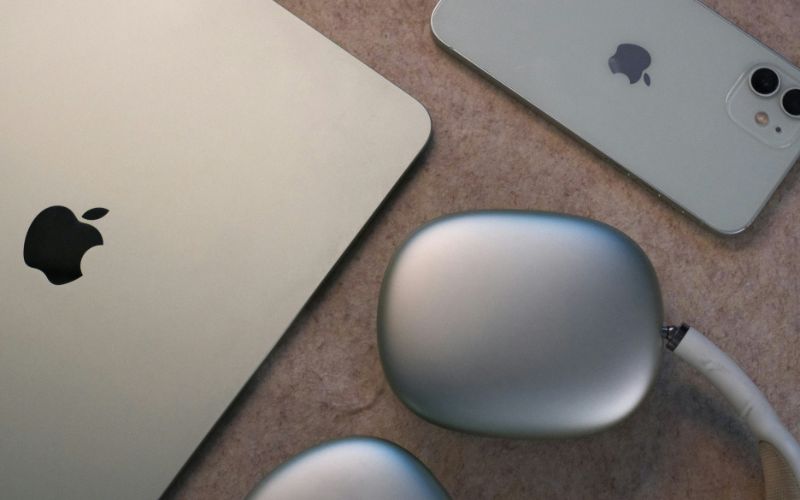
Choose your laptop type to find the right way to connect your iPhone. (Image by Unsplash)
4. How Much Data Will Your Laptop Use on a Phone Hotspot?
Laptop tethering can burn through mobile data quickly, especially during video calls, cloud backups, software updates, or HD streaming. Checking your monthly allowance first helps you understand how long a phone hotspot can realistically support school, work, or everyday browsing.
Lifeline is a federal program that lowers the cost of qualifying phone or internet service for eligible low-income households. Applicants can generally qualify in two ways: through household income at or below 135% of the Federal Poverty Guidelines, or through participation in programs such as SNAP, Medicaid, SSI, Federal Public Housing Assistance, or certain Tribal programs.
Do note that service is non-transferable and limited to one service per household.
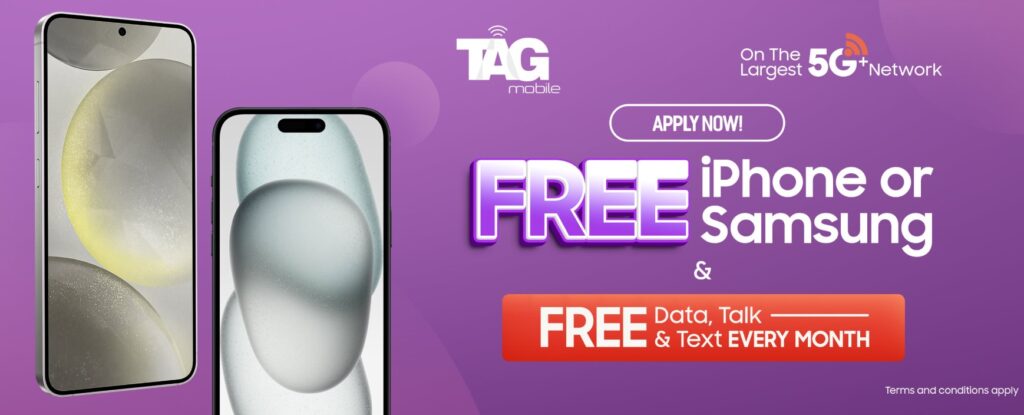
TAG Mobile participates in Lifeline as an Eligible Telecommunications Carrier, giving qualifying customers access to a free monthly wireless plan with up to 16GB* of free data, unlimited talk and text, and international calling to 200+ countries and territories.
Users who need dedicated hotspot data should review paid plans with separate tethering allowances, making plan selection especially important for frequent laptop use.
Device choice can also shape how comfortably you handle everyday mobile tasks alongside tethering. Check out these top-demanded phone options through TAG:
iPhone 7: Compact Apple smartphone suited to calling, messaging, browsing, email, FaceTime, and everyday iOS apps. It remains a practical choice for users who prefer a straightforward Apple experience in a smaller form factor.
iPhone 8 Plus: Larger-screen Apple smartphone that gives users more room for browsing, streaming, video calls, and routine app use. Its familiar iOS interface can appeal to customers who want a bigger display without moving to a tablet.
FOXXD C67: Android smartphone listed by TAG Mobile for everyday communication and mobile internet use. Its larger-screen format makes it suitable for messaging, browsing, social apps, video viewing, and other regular smartphone activities.
TCL 20 SE: Android smartphone designed around a spacious display, making browsing, streaming, reading, and daily communication more comfortable. It can work well for users who want a phone with more screen space for media and routine online tasks.
*Offers may vary and are subject to future updates.
Apply to receive free or heavy-discounted devices through TAG Mobile Lifeline services.
IMPORTANT: The government does not subsidize devices. Lifeline programs cover basic service costs only. Free or discounted devices, upgrade plans, or top-ups are exclusive benefits provided by TAG Mobile as part of our promotional offers. Terms and conditions apply. Limited-time promotion; offers vary by state, stock availability, and eligibility.
5. Quick Answers for Laptop Hotspot Users
Connection issues can come from phone settings, laptop Wi-Fi, signal strength, or the tethering method you choose. For how to connect laptop to hotspot, checking device visibility, available connection options, and plan limits can usually narrow down the problem quickly.
Why isn’t my laptop finding my phone hotspot?
Your laptop may not detect the hotspot if tethering is turned off, the phone is too far away, or Wi-Fi is disabled on either device. Restart Wi-Fi, keep the phone nearby, and confirm that the hotspot is discoverable before searching again.
Can I connect my phone to my laptop without Wi-Fi?
Yes. USB tethering lets you share mobile data through a cable, while Bluetooth tethering is another wireless alternative on supported devices. USB is usually the more practical choice when regular Wi-Fi hotspot sharing is unavailable or unstable.
Is USB tethering better than a Wi-Fi hotspot?
USB tethering can provide a steadier connection and may use less phone battery because the device can charge while connected. Wi-Fi hotspot sharing is more convenient, however, especially when you want to stay wireless or connect more than one device.
Can I connect multiple laptops to one phone hotspot?
Yes, many smartphones can share their connection with several devices at once, although the exact limit varies by phone and software. More connected laptops can divide available bandwidth and increase data use, so performance may slow during streaming, downloads, or video calls.
6. Final Thoughts
When your laptop needs internet away from regular Wi-Fi, a phone hotspot can be one of the fastest solutions available. Mastering how to connect hotspot to laptop comes down to choosing the right connection method, entering the correct settings, and keeping an eye on mobile data usage. Wi-Fi offers flexibility, while USB can deliver a steadier link for longer sessions. TAG Mobile also provides Lifeline-supported wireless options that may help eligible users manage connectivity costs more comfortably.
Share
TAG Blog
Stories, guides, and helpful updates for staying connected.