How to Change Keyboard on Android in a Few Simple Steps
Android gives you plenty of flexibility when the default keyboard no longer fits the way you type. This guide explains how to change keyboard on Android, switch between installed o...
Quincy D.-Aug 31, 2026
Image by Unsplash
Table of Contents
Android gives you plenty of flexibility when the default keyboard no longer fits the way you type. This guide explains how to change keyboard on Android, switch between installed options, restore the original keyboard, and adjust appearance or preferences.
You will also learn what happens to typing data, how multiple keyboards work together, and what to consider before giving a third-party keyboard access to your device.
1. Can You Change the Keyboard on Android?
Yes, Android allows you to replace the default keyboard with another compatible option or keep multiple keyboards available on the same device.
This flexibility makes it easy to choose a keyboard that better matches your preferred language, typing style, layout, appearance, or features. Available options and customization choices can vary depending on your phone model, Android version, and keyboard app.
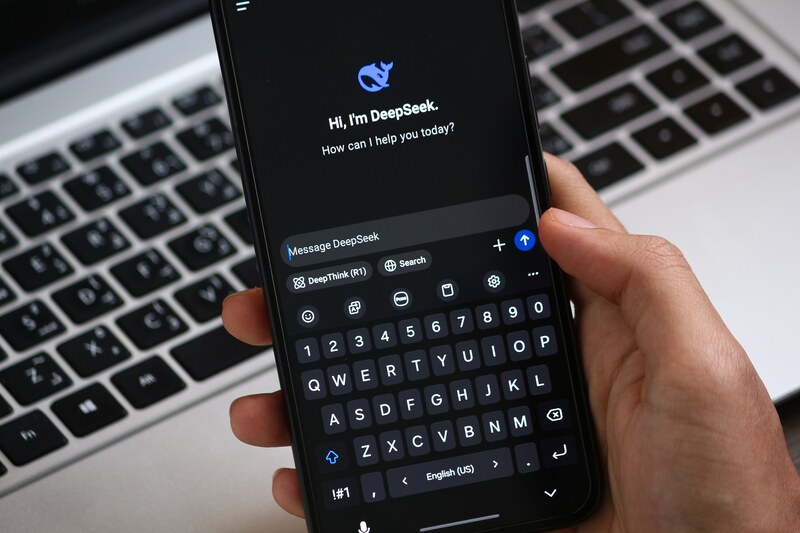
Android gives you plenty of flexibility when the default keyboard no longer fits the way you type. T (Image by Pexels)
2. How to Change Keyboard on Android Step by Step
Switching keyboards usually involves installing or enabling the one you want before setting it as the active input method. Menu wording can differ across Android devices, so look for options such as “Keyboard,” “Languages & input,” “On-screen keyboard,” or “Default keyboard.”
Step 1: Choose and Install a Keyboard
Start by selecting a keyboard that fits your typing preferences, whether you want different languages, themes, gesture typing, or stronger autocorrect options. Download it from a trusted app store and review the developer, ratings, permissions, and privacy information before installation.
Step 2: Open Keyboard Settings
Go to Settings and look for System, General management, or a similar menu, depending on your phone brand. From there, open Languages & input, Keyboard, or On-screen keyboard. This section shows the keyboards currently installed on your Android device and gives you access to the controls needed to manage or switch between them.
Step 3: Enable the New Keyboard
Open “Manage keyboards,” or the equivalent menu on your device, then enable the keyboard you recently installed. Android may show a security notice because keyboard apps can potentially process what you type.
Read the warning carefully, review the app’s permissions and privacy practices, and activate only keyboards from developers you recognize and trust.
Step 4: Set It as the Default Keyboard
Open the default keyboard or current keyboard setting to view every enabled option on your device. Select the keyboard you want to use as your main input method.
When following how to change the keyboard on Android, this choice controls which keyboard opens automatically in Messages, Notes, browsers, and other apps whenever you tap a text field.
Step 5: Test the New Keyboard
Open Messages, Notes, or any app with a text field, then tap the screen to bring up the keyboard. Make sure the newly selected keyboard appears correctly and try key features such as autocorrect, voice typing, swipe gestures, emoji access, or language switching.
Testing these functions helps confirm that the keyboard works smoothly before you keep it as your default option.
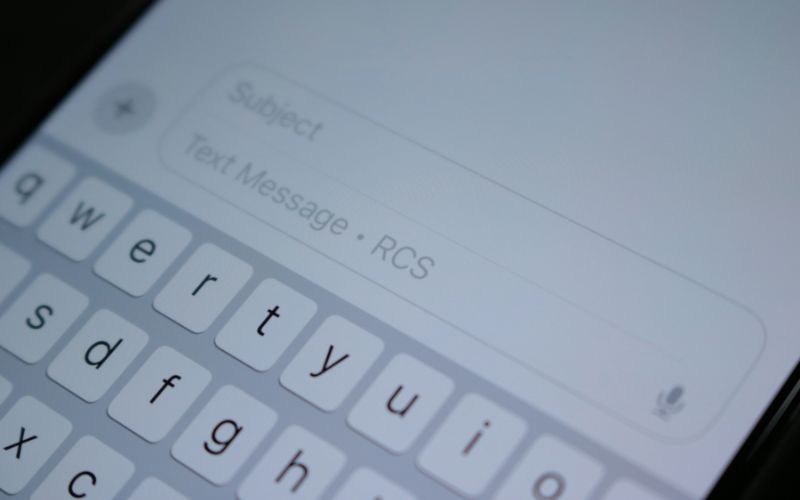
Change your Android keyboard step by step in just a few taps. (Image by Unsplash)
3. How to Switch Back to Your Original Android Keyboard
Switching back to the original keyboard is simple and does not require deleting the keyboard you recently installed. Android usually keeps enabled keyboards available in the system, so you can change the default whenever your typing preferences change.
Open the Settings app on your Android phone.
Go to System or General Management, depending on your device model.
Select Languages & Input, Keyboard, or Keyboard list and default.
Tap Default keyboard or Current keyboard to view the available options.
Choose the keyboard that originally came with your phone.
For how to change your keyboard on Android while typing, look for the keyboard-switching icon that may appear near the bottom of the screen when multiple keyboards are enabled.
Open Messages, Notes, or another app with a text field afterward.
Tap the text field and confirm that your original keyboard now appears and works normally.
4. FAQs about Changing Your Android Keyboard
Keyboard settings cover more than simply choosing which layout appears on screen. The answers below explain how multiple keyboards, stored typing information, third-party apps, themes, and restoring default settings work on Android.
Can I have two keyboards on Android at the same time?
Yes, Android can keep multiple keyboard apps enabled at the same time. You can select one as the default and switch to another through the input-method selector when available, without reinstalling it each time.
Does changing the keyboard delete my typing data?
Usually, no. Changing the active keyboard does not automatically erase information stored by the previous keyboard app. However, learned words, predictions, clipboard history, or personalization may remain inside that app until you clear its data or uninstall it.
Is it safe to use a third-party keyboard on Android?
Third-party keyboards can be safe when they come from reputable developers, but they deserve careful scrutiny because keyboards process what you type. When researching how to change keyboard on Android, review the app’s permissions, privacy policy, developer reputation, and data practices before enabling it.
How do I change the keyboard back to normal on Android?
Open Settings and locate the keyboard or language-input controls, then choose your original keyboard under Default keyboard or Current keyboard. The exact path varies by Android version and manufacturer, so some phones may place these controls under general management instead of system.
How to change keyboard background on Android?
The steps depend on the keyboard app you use. With Gboard, go to Settings > System > Languages & input > Virtual Keyboard > Gboard > Theme, choose a color or image-based theme, and tap Apply.
A keyboard that matches your typing style can make a surprisingly big difference in everyday phone use. With how to change keyboard on Android, you can experiment with different languages, layouts, themes, and features without committing permanently to one setup. Choose reputable keyboard apps, review the permissions they request, and switch back anytime if the new option does not feel right.
Need help with another Android setting? The TAG Mobile blog has more straightforward tech guides to help you get more from your phone.
Share
TAG Blog
Stories, guides, and helpful updates for staying connected.