Why Is My Phone on SOS? Causes and 8 Ways to Fix It
Seeing SOS on your phone usually means regular cellular service is unavailable, even though emergency calling may still work through another supported network. If you are asking wh...
Quincy D.-Sep 30, 2026
Image by Unsplash
Table of Contents
Seeing SOS on your phone usually means regular cellular service is unavailable, even though emergency calling may still work through another supported network. If you are asking why is my phone on SOS, the cause could involve weak coverage, SIM or eSIM issues, carrier outages, account problems, or incorrect network settings. Checking each possibility systematically can help restore normal service faster.
1. What Does SOS Only Mean on a Phone?
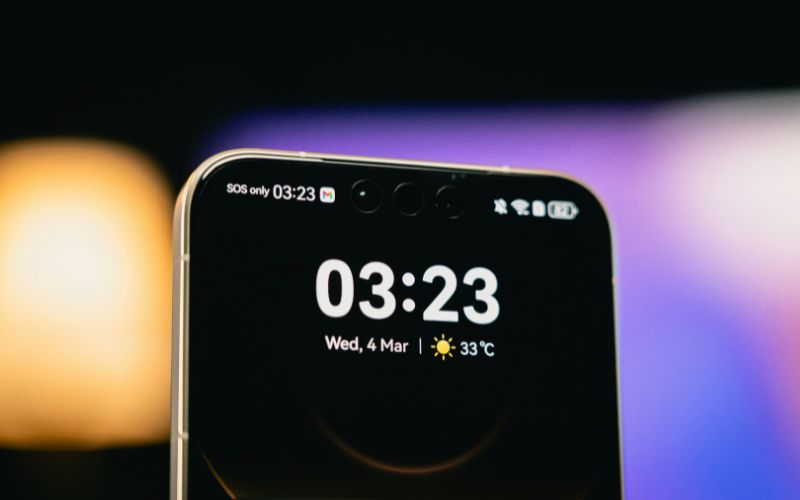
SOS Only means your phone cannot connect to your normal carrier’s cellular network,but it may still be able to make emergency calls using another available network. As a result, regular calls, SMS messages, and mobile data generally remain unavailable until your device reconnects to your carrier.
The wording varies between phone models and operating systems. On iPhones, Apple may display SOS or SOS Only in the status bar when the device is outside its carrier’s coverage but emergency calling remains possible. Android phones can experience the same underlying network problem, although manufacturers may use messages such as Emergency calls only, No service, or similar wording instead.
Therefore, SOS Only is not necessarily an iPhone-specific network issue. The exact indicator simply depends on the device and software.
SOS can appear for several reasons, ranging from a temporary signal drop to a SIM, account, software, or hardware issue. Checking the most likely causes first can save time and help you restore normal cellular service without unnecessary resets.
You’re Outside Your Carrier’s Coverage Area
Traveling through rural areas, underground parking garages, tunnels, mountains, or buildings with heavy construction can push your phone beyond usable coverage. In that situation, your device may still detect another network for emergency calling, which explains why is my phone on SOS only even when regular service disappears.
Move to an open area, go upstairs, or travel closer to a known coverage zone. After relocating, wait a few moments for the phone to reconnect automatically.
Cellular Signal Is Temporarily Weak
Short-term signal drops can happen even inside your carrier’s normal coverage area. Network congestion, weather, building materials, distance from a cell tower, or moving between towers can temporarily interrupt service and leave the phone showing SOS.
Try toggling Airplane Mode on for about 10 seconds, then turn it off. You can also restart the phone or move closer to a window or outdoor area to help the device reconnect.
Your Carrier Is Experiencing a Network Problem
Carrier outages or maintenance can interrupt cellular service across a neighborhood, city, or larger region. When that happens, your phone may lose access to your normal network while still retaining emergency-calling capability.
Check your carrier’s outage page or service status updates using Wi-Fi or another device. If there is a confirmed outage, there may be nothing to fix locally; service should return once the carrier restores the network.
Carrier outages or maintenance can interrupt cellular service across a neighborhood, city, or larger region. (Image by Unsplash)
Your SIM Card Has a Problem
A physical SIM card that is loose, damaged, dirty, or no longer recognized can stop your phone from registering with the carrier. That can leave the device showing SOS even though coverage is available nearby.
Power off the phone, remove the SIM, inspect it carefully, then reinstall it securely. If the problem continues, contact your carrier for a replacement SIM rather than repeatedly resetting network settings.
Your eSIM Isn’t Activated Correctly
eSIM problems can appear after switching phones, changing carriers, transferring service, or deleting a cellular profile by mistake. If activation is incomplete, the phone may fail to register with the network, which can explain why is my phone on SOS mode after a device or plan change.
Open your cellular settings and confirm the correct eSIM line is turned on. If the profile is missing or inactive, contact your carrier to reactivate or reissue the eSIM.
Your Cellular Plan or Account Has an Issue
Expired service, a suspended account, failed payment, incomplete activation, or an unprocessed plan change can prevent the network from authorizing your phone. Even with a strong signal nearby, the device may remain unable to access normal cellular service.
Sign in to your carrier account over Wi-Fi and check plan status, billing, activation, and any service alerts. Contact customer support if everything looks correct but the phone still will not reconnect.
iOS or Carrier Settings Need Attention
Outdated iOS software or carrier settings can occasionally interfere with network registration after updates, SIM changes, or carrier configuration changes. This is one possible reason why is my phone stuck on SOS even when other nearby phones have service.
Connect to Wi-Fi, install any available iOS update, then check for a carrier settings update. If needed, restart the device afterward. Reset network settings only after simpler steps fail because it removes saved Wi-Fi and network configurations.
The Phone May Have a Hardware Problem
Physical damage to the antenna, SIM reader, modem, or internal components can cause persistent SOS status. Drops, water exposure, failed repairs, or impact damage are more suspicious when software fixes and carrier checks do not resolve the problem.
Test the phone in multiple locations and confirm your account and SIM work correctly. If SOS remains everywhere, contact Apple, the manufacturer, or an authorized repair provider for diagnostic testing.
3. How to Prevent Unexpected Cellular Outages on Mobile Devices?
Unexpected signal loss is easier to handle when your phone, account, and carrier settings are kept in good shape before a problem appears. A few preventive habits can reduce the chance of sudden SOS status and make troubleshooting faster when service does drop.
Keep software updated: Install current iOS or Android updates and any available carrier settings updates so the phone can maintain proper network compatibility.
Check coverage before traveling: Review your carrier’s coverage map if you are heading into rural, mountainous, underground, or remote areas where service may be limited.
Keep your account active: Make sure billing, plan renewals, and line activation remain current so service is not interrupted unexpectedly.
Protect the SIM or eSIM setup: Avoid unnecessary SIM swaps or eSIM deletions, and confirm the correct cellular line remains enabled after changing phones or plans.
Restart occasionally: Periodic restarts can refresh network registration and clear minor connection glitches before they become persistent.
Save Wi-Fi access as backup: Trusted Wi-Fi can help you contact support, check outages, or use Wi-Fi calling when cellular service disappears.
Watch for carrier-specific issues: For example, someone searching why is my phone on SOS Verizon should first check Verizon coverage, outage notices, account status, and SIM or eSIM activation before assuming the phone itself is faulty.
Keep your phone, account, and carrier settings updated to reduce unexpected cellular service problems. (Image by Unsplash)
4. How to Deal With Persistent SOS Signals That Will Not Clear?
Persistent SOS usually means the problem is no longer a brief signal interruption. Once basic steps such as restarting the phone and toggling Airplane Mode fail, move through deeper checks in a clear order.
Confirm Your Carrier Account Is Active
Log in to your carrier account over Wi-Fi and verify that the line is active, paid, and fully provisioned. Look for suspension notices, failed payments, unfinished activation, or recent plan changes that may not have completed correctly. Contact support if the account appears normal but service still does not return.
Recheck the SIM or eSIM
Remove and reinstall a physical SIM if your phone uses one, or confirm that the correct eSIM profile is enabled in cellular settings. Damaged SIM cards and incomplete eSIM activation can keep a device locked in SOS mode. Ask your carrier for a replacement or reactivation if needed.
Update Carrier Settings and Software
Connect to Wi-Fi and install any available operating system or carrier settings updates. Outdated network configuration can interfere with registration, especially after changing carriers, transferring service, or updating the phone. Restart the device after installing updates to give the modem a fresh network connection.
Reset Network Settings
Use a network settings reset only after simpler fixes fail. This can clear corrupted cellular, Wi-Fi, VPN, and network configuration data that may be blocking reconnection. Keep in mind that saved Wi-Fi networks and passwords are typically removed, so make sure you can reconnect afterward.
Test the Phone in Another Location
Move to an area where your carrier normally has strong coverage and test again. If SOS disappears, the original location may have weak service or a local outage. If the phone remains stuck on SOS everywhere, the problem is more likely tied to the account, SIM, modem, or hardware.
Contact the Carrier Before Repairing the Phone
Carrier support can check provisioning, SIM status, outages, line restrictions, and network registration from their side. If they confirm that the account and network are working normally, then device-level diagnostics make more sense. This avoids paying for repairs when the real problem is still service-related.
Have the Hardware Inspected
Persistent SOS after account, SIM, software, and coverage checks may point to an antenna, modem, SIM reader, or internal hardware problem. This is more likely after drops, water exposure, or previous repairs. Contact the manufacturer or an authorized repair center for diagnostic testing.
5. FAQs about Why Your Phone Is on SOS
SOS status does not always mean there is a serious problem with the device itself. In many cases, a temporary signal, carrier, or network-registration issue is responsible, and a few simple actions may restore service.
Does Airplane Mode fix SOS?
Sometimes. Turning Airplane Mode on for about 10 seconds and then off forces the phone to disconnect and search for the cellular network again. If the cause is a temporary registration or signal issue, normal service may return.
How long does SOS mode last?
There is no fixed duration. SOS can disappear within seconds after coverage returns, or remain for hours if the carrier has an outage, the account is inactive, or the SIM or eSIM has a problem.
Will restarting my phone get it out of SOS?
It can. Restarting refreshes the phone’s network connection and may clear a temporary software or carrier-registration glitch. If SOS returns immediately, check coverage, account status, SIM or eSIM settings, and carrier outages next.
Will SOS go away on its own?
Yes, when the cause is temporary weak coverage or a short carrier interruption, the phone may reconnect automatically once service becomes available. Persistent SOS usually requires additional troubleshooting rather than simply waiting.
Final Thoughts
Losing cellular service can be frustrating, especially when calls, texts, or mobile data are suddenly unavailable. Identifying why is my phone on SOS starts with checking coverage, carrier status, SIM or eSIM settings, software updates, and account issues. Persistent problems may require carrier support or device diagnostics.
Share
TAG Blog
Stories, guides, and helpful updates for staying connected.