Why Does My Hotspot Say No Internet? 11 Causes and Quick Fixes
Your phone can broadcast a hotspot successfully while still failing to provide usable internet to connected devices. Understanding why does my hotspot say no internet means checkin...
Quincy D.-Sep 16, 2026
Image by Unsplash
Table of Contents
Your phone can broadcast a hotspot successfully while still failing to provide usable internet to connected devices. Understanding why does my hotspot say no internet means checking whether mobile data is working, the cellular signal is strong enough, your plan still has available data, and network settings are functioning correctly. Identifying which part of the connection has failed helps you choose the right fix instead of changing unrelated settings.
1. Why Does My Hotspot Say No Internet?
Seeing “connected” only confirms that your laptop or tablet has joined the phone’s local hotspot network. When you wonder “why does my hotspot say connected but no internet”, the problem is usually somewhere between the phone and its cellular connection.
Mobile data is turned off or temporarily unavailable.
Cellular signal is too weak for usable internet access.
Your high-speed or hotspot data allowance has been exhausted.
Carrier provisioning does not currently allow tethering.
Too many connected devices are sharing the connection.
VPN, DNS, or custom network settings are interfering.
Temporary software or network glitches are blocking data.
Outdated system or carrier settings are causing compatibility problems.
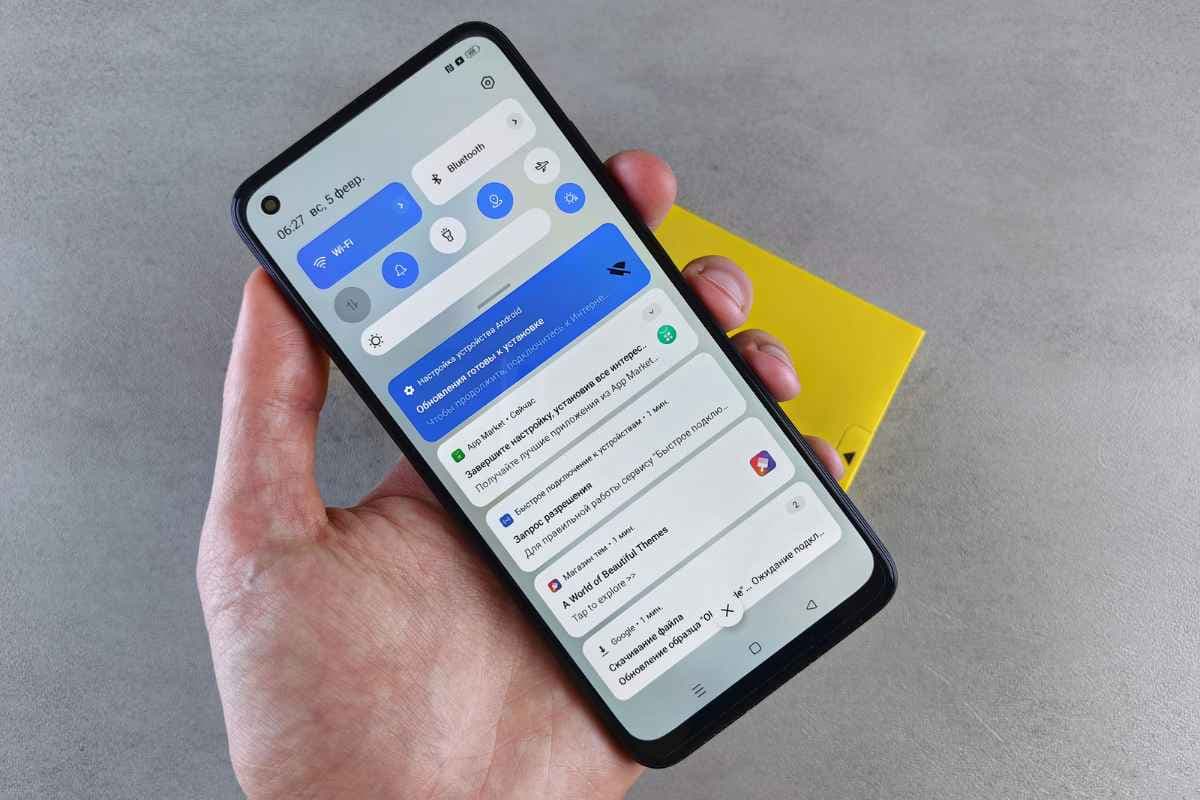
A hotspot may show connected but no internet when the phone’s cellular connection is unavailable. (Image by Unsplash)
2. How to Fix a Hotspot That Says “No Internet”
“No internet” does not always mean the hotspot itself is broken. Start by checking whether the phone can reach the internet independently, then work through signal, data allowance, connected devices, and network settings before considering a full reset.
Fix 1: Check Whether Mobile Data Works on Your Phone
Turn off Wi-Fi on the phone and open a webpage using cellular data alone. If the page does not load, the phone has no working mobile internet to share.
This is an important first check for why does my hotspot say no internet, because troubleshooting the connected laptop will not help until cellular data works directly on the phone.
Fix 2: Turn Mobile Data and Hotspot Off and Back On
Temporary cellular or tethering sessions can become stuck even when both settings appear enabled. Turn off mobile data and the hotspot, wait several seconds, then enable mobile data first.
Once cellular internet is working again, switch the hotspot back on and reconnect your laptop or tablet. This refreshes both parts of the connection without removing saved network settings.
Fix 3: Toggle Airplane Mode
Airplane mode can quickly force the phone to disconnect from and reconnect to the cellular network. Turn it on for several seconds, then switch it off and wait for cellular service to return.
After signal bars and mobile data reappear, enable the hotspot again. This simple refresh can resolve temporary carrier-registration issues without requiring a restart or network reset.
Fix 4: Check Your Cellular Signal
Hotspot performance depends on the phone’s mobile connection, so weak reception can leave a laptop connected to Wi-Fi but unable to load anything. Check the cellular signal indicator and test mobile data directly.
Try moving near a window, going outdoors, or changing locations if reception is poor. Stronger cellular coverage may restore internet access without changing any hotspot settings.
Fix 5: Check Your Mobile Data and Hotspot Allowance
Wireless plans may treat regular phone data and tethering data differently. Even when mobile browsing still works, a separate hotspot allowance may already be exhausted or reduced to slower speeds.
Review your carrier account or plan details to see how tethering is handled. If why does my hotspot say no internet appears near the end of a billing cycle, data limits deserve particular attention.
Fix 6: Disconnect Other Hotspot Devices
Multiple connected devices divide the available bandwidth and can increase mobile data consumption quickly. Some phones and plans also limit how many devices can connect at the same time.
Disconnect phones, tablets, TVs, or laptops you are not actively using. Then reconnect only the device experiencing the problem and test the internet again before adding other devices back.
Fix 7: Forget the Hotspot and Reconnect
Saved Wi-Fi information can become outdated after changing the hotspot password, network name, or other settings. On the affected laptop or tablet, select the hotspot network and choose Forget.
Search for the network again, enter the current password, and reconnect from scratch. This clears stored connection information without resetting every Wi-Fi network saved on the device.
Fix 8: Restart Both Devices
Background cellular, Wi-Fi, or network processes can occasionally stop responding correctly. Restarting both the phone and connected device reloads those services and clears many temporary glitches.
After both devices restart, confirm cellular data works on the phone first. Then enable the hotspot, connect the laptop again, and test a webpage before making further changes.
Fix 9: Temporarily Disable VPN or Custom Network Settings
VPNs, custom DNS servers, proxy configurations, or security tools can sometimes prevent internet traffic from passing through a tethered connection correctly. Temporarily disable these settings on both devices while testing.
If internet access returns, re-enable each configuration one at a time. This makes it easier to identify the specific setting causing the conflict without permanently removing useful network tools.
Fix 10: Update Your Phone
Older iOS or Android software may contain network bugs or compatibility issues affecting cellular data and tethering. Open the software update section in Settings and install any available system updates.
Restart the phone afterward and test mobile data before enabling the hotspot again. Carrier-related updates may also improve network behavior, depending on your device and wireless provider.
Fix 11: Reset Network Settings
Persistent problems may come from corrupted cellular, Wi-Fi, Bluetooth, or saved network configurations. A network reset can rebuild those settings, but it should be saved for last because saved Wi-Fi passwords and other preferences may be removed.
For why does my hotspot say no internet iPhone, try the earlier fixes first, then use Reset Network Settings only if the connection continues failing across multiple devices.
3. Check Your Wireless Plan Before You Keep Troubleshooting
Knowing how to find hotspot password can help you reconnect another device, but the correct password alone will not solve a plan-level data or tethering restriction, especially when a plan has reached its data limit or does not include hotspot access. Checking your monthly benefits can save time before you move into deeper phone or laptop troubleshooting.
For those unknown, Lifeline is a federal benefit that helps lower the cost of qualifying phone or internet service for low-income individuals and families.
Households can generally qualify either through income at or below 135% of the Federal Poverty Guidelines or through approved programs such as SNAP, Medicaid, SSI, Federal Public Housing Assistance, or Veterans Pension and Survivors Benefit.
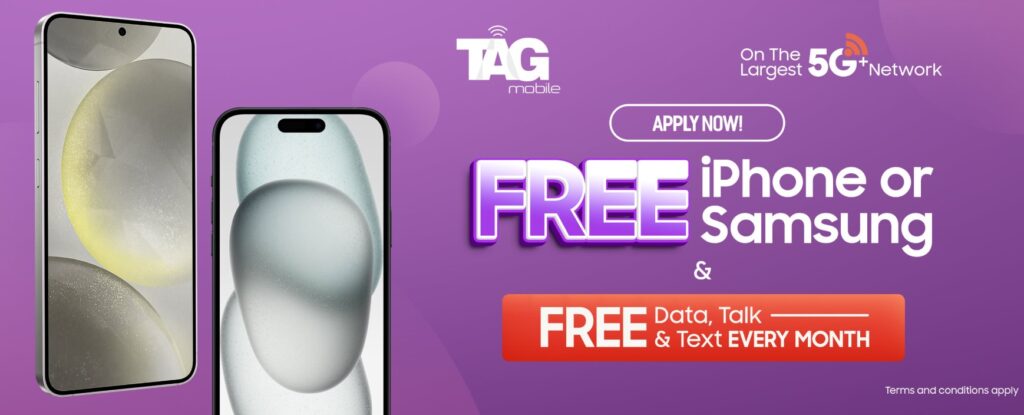
And as a licensed service carrier participating in Lifeline, TAG Mobile delivers wireless service to eligible customers and offers device options alongside its plans.
Free data per month on eligible Lifeline plans, depending on location.
Unlimited talk and text.
Free international calling to more than 200 countries and territories.
Free delivery plus free or discounted phone options, subject to eligibility, ZIP code, and inventory.
Nationwide 5G+/4G LTE coverage where available, along with features such as Wi-Fi calling, caller ID, call waiting, voicemail, and 3-way calling.
Note: Customers who want dedicated mobile hotspot access can upgrade to a paid plan with a hotspot allowance, so general high-speed mobile data should not automatically be assumed to equal tethering data.
Apply to receive free or heavy-discounted devices through TAG Mobile Lifeline services.
Note: Eligibility varies by state and program. Offers depend on availability and qualifications. TAG Mobile operates under the federal Lifeline Program as an Eligible Telecommunications Carrier (ETC). Service is non-transferable and limited to one service per household.
4. FAQs about Hotspot “No Internet” Errors
Tethering problems can come from network settings, carrier limitations, or software conflicts even when the hotspot itself appears active. These quick answers explain when VPNs, network resets, and cellular signal strength may be involved.
Can a VPN cause hotspot internet problems?
Yes. Some VPN configurations can interfere with how internet traffic passes from the phone to connected devices. Temporarily disabling the VPN can help confirm whether it is causing the issue before you change any deeper network settings.
Should I reset network settings if my hotspot has no internet?
Only after simpler fixes fail, resetting network settings can clear corrupted Wi-Fi, cellular, Bluetooth, or saved connection data, but it may also remove stored Wi-Fi passwords and other preferences that must be set up again.
Can I have full bars but still have no hotspot internet?
Yes. Strong signal bars do not guarantee that mobile data or tethering is actually working. Data limits, carrier restrictions, congestion, account issues, or temporary network problems can still leave connected devices without internet access.
Hotspot errors become easier to solve when you separate phone settings from signal, plan limits, and network configuration. When checking why does my hotspot say no internet, start with mobile data and allowance details before moving to resets or advanced settings. Simple checks often reveal the cause quickly. TAG Mobile also offers Lifeline-supported wireless options for eligible users looking to reduce monthly connectivity costs.
Share
TAG Blog
Stories, guides, and helpful updates for staying connected.