Why Can’t I Share My Location on iPhone? Causes and Fixes
Location sharing can make meeting friends or keeping family updated easier, until the option disappears or stops working. Several settings and connection issues can produce similar...
Quincy D.-Oct 06, 2026
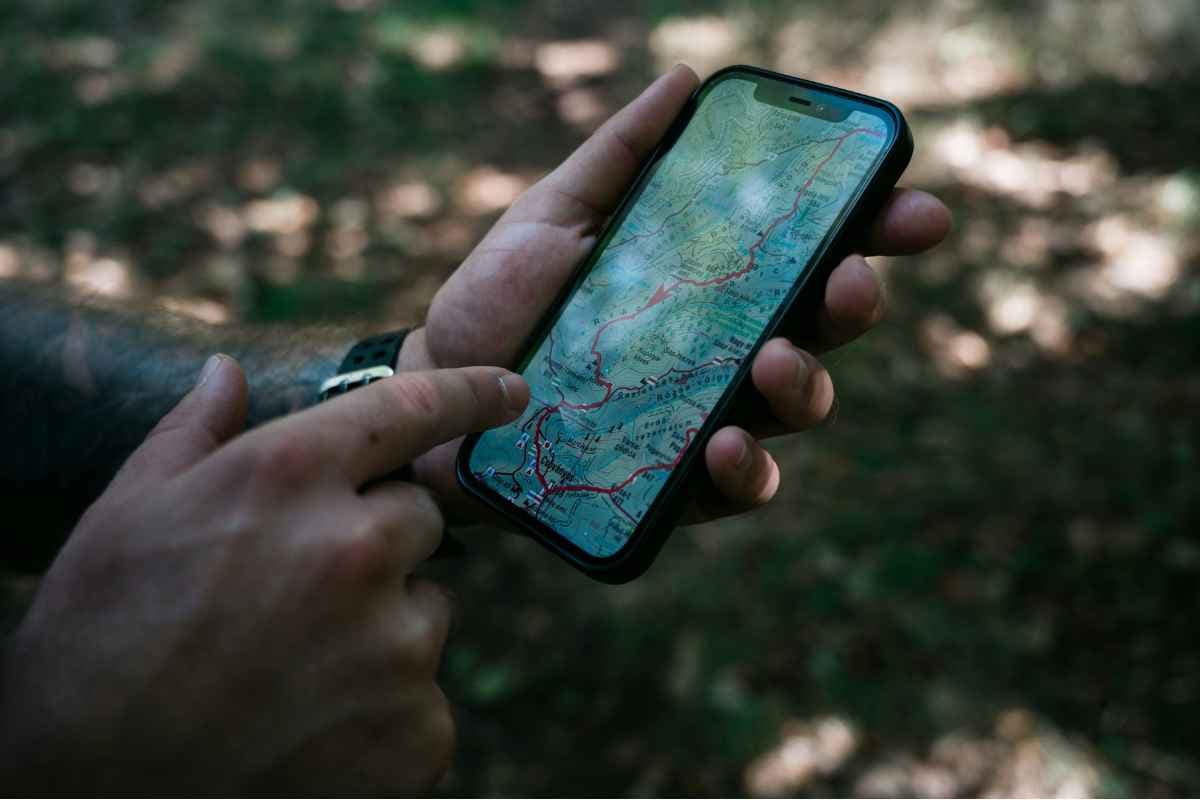
Image by Unsplash
Table of Contents
Location sharing can make meeting friends or keeping family updated easier, until the option disappears or stops working. Several settings and connection issues can produce similar symptoms, making the cause difficult to spot. If you are asking why can’t I share my location on iPhone, this guide helps you narrow down the problem and check the relevant controls without changing unrelated settings on your device.
1. Why Can’t I Share My Location on iPhone?
Location sharing can fail because a required setting is disabled, the connection drops, or another device is supplying your position. Check these ten causes in order to narrow down the issue without changing unrelated settings.
1. Location Services Is Turned Off
Without Location Services, your iPhone cannot provide its current position for normal location sharing. Open Settings > Privacy & Security > Location Services and check that it is enabled.
For example, someone asking why can’t I share my location on iPhone 15 should check this setting before assuming their device is faulty.
Open Settings > your name > Find My and check Share My Location. You can also review this switch under Me in Find My, then confirm sharing is active for the intended person.
3. Find My Is Not Set Up Correctly
Find My needs location sharing configured before friends can see your position.
Check that you are signed in to your Apple Account, then open People and confirm the intended contact is listed.
Review Location Services permissions for Find My; locating your own devices is separate from sharing your position with people.
4. Your Internet Connection Is Weak or Unavailable
Your iPhone may determine its position without a working internet connection, but sending updated information to another person requires connectivity.
Try opening a webpage to check access, then switch between Wi-Fi and cellular data if available. If you are wondering why I can’t share my location on iPhone, check connectivity first.
5. The Wrong Apple Device Is Sharing Your Location
Another Apple device may still be selected as your location source, especially after switching phones.
Open Find My > Me and check which device supplies your position. If needed, tap Use This iPhone as My Location so others receive updates from the phone you carry rather than a device left elsewhere.
6. Screen Time Restrictions Are Blocking Location Changes
Screen time can prevent changes to Location Services or Share My Location, leaving controls unavailable or grayed out.
Review Settings > Screen Time > Content & Privacy Restrictions and the relevant privacy controls. If a parent or guardian manages these settings, ask them to review the restriction rather than trying to bypass it.
7. Your Apple Account Has a Temporary Issue
An account prompt or temporary Apple service interruption may interfere with location sharing even when local settings look correct.
Check settings for messages requiring attention and review Apple’s System Status page. Avoid signing out as your first troubleshooting step; resolve visible prompts and test again once any reported interruption has cleared.
8. Find My or iOS Has a Temporary Glitch
If the setup appears correct but Find My stops refreshing, close and reopen the app, then restart your iPhone if necessary. Ask the recipient to refresh their view as well. A temporary delay does not prove a setting is wrong, so test again before resetting preferences or changing account information.
9. Your iPhone Software Needs an Update
An unresolved software issue may affect sharing, particularly if your device is running an older iOS release.
Check Settings > General > Software Update and install an available update after backing up your phone. Updates may resolve bugs, but they will not correct disabled sharing, unsupported settings, or an unavailable internet connection.
10. The Problem Is on the Other Person’s Side
Sometimes sharing is active, but the recipient has no internet connection, is checking the wrong account, or is viewing an outdated screen.
Confirm you shared with the correct contact details and ask them to reopen Find My. Their own location-sharing switch does not need to be enabled simply to view yours.
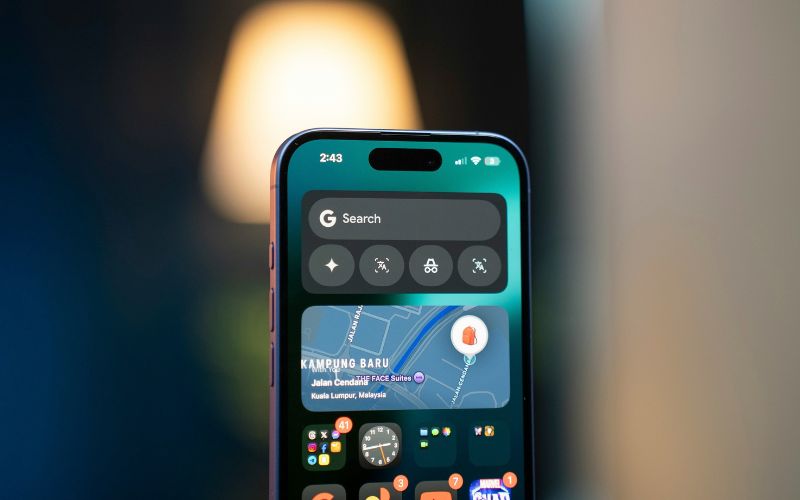
Check the top 10 reasons your iPhone cannot share its location and identify what may be causing the problem. (Image by Unsplash)
2. How to Fix Location Sharing on iPhone Step by Step
Work through the essential settings before trying broader troubleshooting measures. Test sharing after each adjustment so you can identify what resolved the problem without making unnecessary changes.
Step 1: Check Your Internet Connection
Open a webpage to confirm your iPhone has internet access, then try another Wi-Fi network or cellular data if necessary.
Check that airplane mode has not disconnected the connection you need. A working location sensor alone cannot keep another person updated when your phone cannot send its position.
Step 2: Enable Location Services
Go to Settings > Privacy & Security > Location Services and turn it on if disabled.
Scroll to Find My and review its location access settings. If these controls are grayed out, check screen time restrictions before proceeding, since a managed privacy setting may prevent you from making the required changes.
Step 3: Turn On Share My Location
Open Find My, tap Me, and enable Share My Location. If you are asking why can’t I share my location on Find My iPhone, remember that this switch is separate from general Location Services.
You can also check it through Settings > [your name] > Find My before testing again.
Step 4: Select the Correct Location Source
While viewing Me in Find My, check which device is supplying your location. Tap Use This iPhone as My Location if another device is selected and that option appears.
This matters after changing phones or using several Apple devices, because a device left at home may otherwise supply your position.
Step 5: Check Sharing With the Intended Contact
Open the People tab and select the intended recipient to review your sharing status. If sharing is not active, tap the add button, choose Share My Location, select the correct contact, and choose a duration. Verify their phone number or Apple Account email rather than relying only on a familiar name.
Step 6: Restart and Check for Updates
If sharing still fails, restart your iPhone and ask the recipient to reopen Find My. Check Settings → General → Software Update for an available release. If the problem persists, review account prompts and Apple’s service status, then contact Apple Support rather than repeatedly changing settings that already appear correct.
3. Avoid 5 Mistakes When Fixing iPhone Location Sharing
Changing several controls at once can make the original problem harder to identify. When troubleshooting why can’t I share my location on my iPhone, avoid these five mistakes that can waste time or interrupt other features.
1. Confusing Location Services With Share My Location
Location Services allows your device and apps to use location information, while Share My Location controls sharing your position with people. Turning on only one may leave the setup incomplete. Check both settings individually, then verify that the intended recipient has an active sharing relationship with you in Find My.
2. Expecting the Find My Network to Replace Internet Access
The Find My network can help locate supported devices under certain conditions, but it does not guarantee continuous person-to-person location updates without connectivity. Test your iPhone’s internet access before changing privacy settings. An offline device may leave the recipient seeing an older position rather than your current location.
3. Forgetting Which Device Supplies Your Position
Signing in to several Apple devices does not mean Find My automatically uses whichever one you are holding.
Review the location source under Me, especially after replacing your phone. Selecting the iPhone you carry prevents confusion caused by another device reporting its position from home or a different location.
4. Changing Screen Time Controls Without Checking Restrictions
Repeatedly tapping a grayed-out switch will not remove a Screen Time restriction.
Check whether Location Services or Share My Location changes are locked under Content & Privacy Restrictions. If someone else manages the device, ask them to review the relevant control instead of disabling unrelated protections or guessing the passcode.
5. Resetting Settings or Signing Out Too Early
Broad resets and Apple Account sign-outs can interrupt other services without addressing the actual cause. First confirm connectivity, permissions, the location source, and recipient details, then restart and check for updates.
Reserve more disruptive measures for a clearly identified problem or instructions from Apple Support, with a backup prepared beforehand.
4. Getting a New iPhone? Set Up Location Sharing From Day One
Moving to another iPhone gives you a fresh opportunity to check who can see your location and which device supplies it. Complete these settings during setup, so your previous phone does not remain the location source.
TAG Mobile is a Houston-based wireless provider offering prepaid plans and Lifeline-supported service for eligible households. Its online application process, multilingual support, and choice of devices make enrollment more convenient, while no-contract service helps customers avoid a long-term commitment. Eligible applicants may also access free or discounted device offers, depending on location and current promotions.
Lifeline helps qualifying households reduce monthly connectivity costs, while TAG Mobile’s phone offers are separate provider benefits. You can qualify through either of these two paths:
Income-based eligibility: Your household income is at or below 135% of the Federal Poverty Guidelines.
Program-based eligibility: You participate in SNAP, Medicaid, SSI, Federal Public Housing Assistance, or Veterans Pension and Survivors Benefit.
SNAP recipients may qualify through their program participation without a separate income assessment, although verification is still required. Only one Lifeline benefit is allowed per household.
If you are considering an iPhone through TAG Mobile, compare the listed models below before selecting a device. Check each product page for current pricing, condition, and availability in your area.
iPhone XS: A compact premium option with a 5.8-inch Super Retina OLED display and Face ID, suited to users who prefer gesture-based navigation and a smaller handset.
iPhone 11: Features a larger 6.1-inch Liquid Retina display, Face ID, and dual cameras, providing more viewing space for maps, messages, videos, and everyday apps.
iPhone SE 3: Combines a compact 4.7-inch design and Touch ID with the A15 Bionic chip and 5G connectivity, making it a strong choice for users who still prefer a Home button.
iPhone 7 Plus: Offers a larger 5.5-inch display, Touch ID, and dual rear cameras. As an older model, consider the apps and software features you plan to use when choosing this option.
iPhone SE 2: Another compact 4.7-inch option with Touch ID and the A13 Bionic chip, suitable for users who prefer the traditional iPhone design and straightforward everyday use.
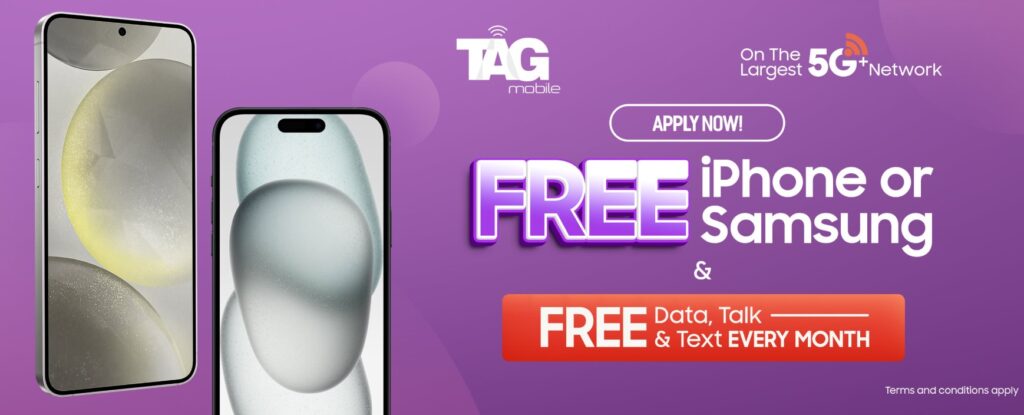
Apply to receive free or heavy-discounted devices through TAG Mobile Lifeline services.
Note: Eligibility varies by state and program. Offers depend on availability and qualifications. TAG Mobile operates under the federal Lifeline Program as an Eligible Telecommunications Carrier (ETC). Service is non-transferable and limited to one service per household.
5. FAQs about Sharing Location on iPhone
Location sharing can behave differently depending on the app, connection, and type of update you send. If you are asking why can’t I share my location on iPhone, these answers clarify what everyday settings and interruptions actually change.
Can I Share My Location Without Find My?
Yes, you can send a map pin through Apple Maps or use another app that supports location sharing. However, a static pin shows a selected position rather than continuously updating your whereabouts. Apple’s ongoing location sharing through Messages uses Find My functionality.
Does Low Power Mode Stop Location Sharing?
Low Power Mode does not automatically turn off Share My Location. If updates stop, check connectivity, location permissions, and your selected location source before assuming the battery-saving setting is responsible.
Will Restarting My iPhone Stop Location Sharing?
Restarting normally preserves your location-sharing settings and existing sharing relationships. Updates may pause while the phone is off or reconnecting, then resume once the necessary services and internet connection are available.
Does My iPhone Need to Be Online to Share Its Location?
An internet connection is generally needed to send ongoing location updates to another person. Your phone may determine its position offline, but that does not mean it can transmit it. The Find My network’s ability to help locate supported offline devices is separate from continuous sharing with people.
6. Final Thoughts
Reliable location sharing starts with the right permissions, a working connection, and the correct device selected in Find My. When troubleshooting why can’t I share my location on iPhone, check these essentials before making broader changes. Stay connected to practical iPhone guides and explore available service options with TAG Mobile. Test sharing with your intended contact afterward to confirm they can see your updated position.
Share
TAG Blog
Stories, guides, and helpful updates for staying connected.