How to Use Hotspot on iPhone for Laptop, PC, and Other Devices
Personal Hotspot turns your iPhone into a portable internet source when regular Wi-Fi is unavailable. If you want to know how to use hotspot on iPhone, let’s check for the proper s...
Quincy D.-Sep 29, 2026
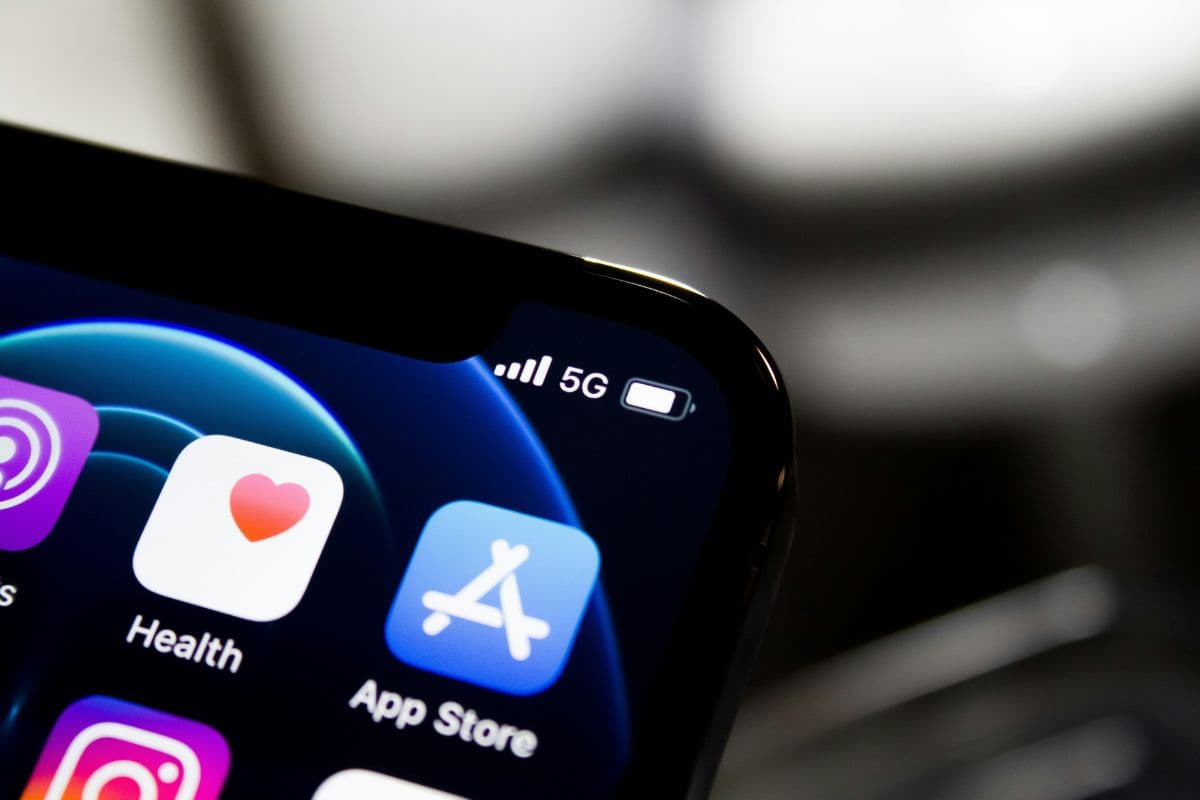
Image by Unsplash
Table of Contents
Personal Hotspot turns your iPhone into a portable internet source when regular Wi-Fi is unavailable.
If you want to know how to use hotspot on iPhone, let’s check for the proper setup guide which can help laptops, PCs, tablets, and other phones connect more smoothly while keeping mobile data usage under control.
1. How to Use Hotspot on iPhone for Smartphones in 5 Steps
Sharing an iPhone connection with another smartphone only takes a few settings changes once cellular data is active.
Following the steps in order also helps avoid password errors, connection delays, or confusion between Wi-Fi, Bluetooth, and USB tethering options.
Step 1: Make Sure Cellular Data Is Available
Open Settings > Cellular and confirm that Cellular Data is turned on.
Personal Hotspot shares the iPhone’s cellular connection, so the feature depends on active mobile service and carrier support. When learning how to use personal hotspot on iPhone, this should always be checked before changing any hotspot settings.
Step 2: Open Personal Hotspot
Go to Settings > Personal Hotspot.
Depending on the iPhone setup or carrier configuration, you may instead find the option under Settings > Cellular > Personal Hotspot. This menu contains the controls used to enable sharing, review the Wi-Fi password, and manage how other devices connect.
Step 3: Turn On Allow Others to Join
Switch on Allow Others to Join so nearby devices can detect the iPhone hotspot.
Check the Wi-Fi password shown on the same screen and make sure the second smartphone has the correct credentials before trying to connect.
Step 4: Choose How You Want to Connect
iPhone supports hotspot sharing through Wi-Fi, Bluetooth, and USB for compatible devices.
For how to use your own hotspot on iPhone, Wi-Fi is usually the simplest option for another smartphone, while Bluetooth can serve as an alternative when a Wi-Fi connection is unavailable or unstable.
Step 5: Connect the Second Device
Open Wi-Fi settings on the second smartphone, select the iPhone’s name from the available networks, and enter the Personal Hotspot password.
Wait for the connection to complete, then test internet access in a browser or app to confirm that cellular data is being shared successfully.
Laptop connections work best when the iPhone has active cellular data and Personal Hotspot is already enabled. You can connect wirelessly for convenience or use USB when you want a more direct link with less dependence on nearby Wi-Fi conditions.
Connect Your Laptop Over Wi-Fi
Open Settings > Personal Hotspot on the iPhone and turn on Allow Others to Join.
Keep the hotspot screen open while the laptop searches for available networks, then open Wi-Fi settings on the laptop and select the iPhone’s name from the list.
Enter the Personal Hotspot password shown on the iPhone and wait for the connection to finish.
For how to use iPhone hotspot on PC, this same Wi-Fi method works on Windows laptops and desktops with a compatible wireless adapter. Test a webpage afterward to confirm that the iPhone’s cellular data is being shared correctly.
Connect Your Laptop With USB
Connect the iPhone to the laptop using a compatible USB cable, then unlock the phone and tap Trust if the computer asks for permission. Make sure cellular data and Personal Hotspot are enabled so the laptop can recognize the iPhone as an available network connection.
USB tethering can be useful when Wi-Fi is unstable or when you want the iPhone to charge while sharing data.
On Windows, Apple device drivers or related software may be required for the connection to appear correctly. Once detected, select the iPhone network connection and test internet access.
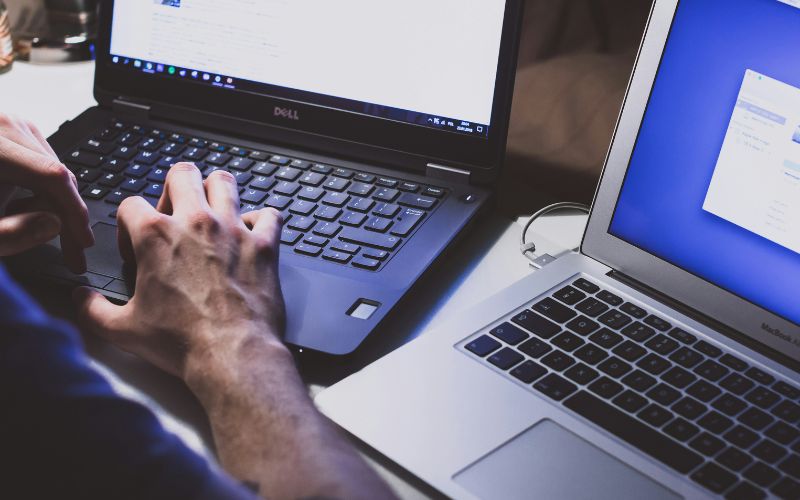
How to use hotspot on iPhone? Connect your laptop to an iPhone hotspot for quick internet access. (Image by Unsplash)
3. Pick Your Hotspot Route: Wi-Fi, USB, or Bluetooth?
Each connection method offers a different balance of speed, convenience, battery use, and compatibility.
When working through how to use hotspot on iPhone, choosing the right option depends on whether you need quick wireless access, a steadier wired link, or low-power tethering.
Factor
Wi-Fi
USB
Bluetooth
Setup
Fast and familiar
Requires a compatible cable
Requires device pairing
Speed
Usually the fastest wireless option
Stable and often very consistent
Typically slower than Wi-Fi
Battery Use
Can drain the iPhone faster
iPhone may charge while connected
Generally lighter than Wi-Fi
Best For
Laptops, tablets, phones
PCs and laptops
Light browsing or backup connectivity
Mobility
Fully wireless
Limited by cable length
Wireless but shorter-range
4. How to Know Someone Is Using Your iPhone Hotspot
Hotspot activity can usually be spotted through iPhone status indicators and the connection count shown in Personal Hotspot settings.
These signs make it easier to notice unexpected users and decide whether your hotspot password should be changed.
Check the hotspot indicator: iPhone displays a hotspot status indicator when another device is actively connected through Personal Hotspot.
Review connected-device information: Depending on the iOS version, Personal Hotspot settings may show how many devices are connected, even if individual device names are not always displayed.
Watch mobile data usage: Unexpected increases in cellular data can suggest another device has been using the hotspot, especially during downloads, streaming, or software updates.
Notice battery drain or warmth: Sharing data continuously can increase battery consumption and make the iPhone warmer during heavier use.
Change the password if unsure: When managing how to use hotspot on iPhone securely, updating the Wi-Fi password disconnects devices that no longer have the new credentials.
5. Need More Data for iPhone Hotspot Use?
Regular tethering can use high-speed data quickly, especially during video calls, streaming, cloud syncing, or large laptop updates.
Checking your monthly data allowance before relying heavily on Personal Hotspot can help you manage usage and reduce the risk of reaching plan limits or experiencing slower speeds. This is why the mobile plan behind the hotspot matters just as much as the feature itself.
Lifeline is a federal program that helps eligible low-income consumers reduce the monthly cost of qualifying phone or internet service. Importantly, Lifeline subsidizes the service benefit itself. Free or discounted devices, additional data, top-ups, or upgraded plans may be separate promotional benefits offered by participating providers rather than benefits guaranteed by Lifeline.
For people who depend on mobile data for everyday connectivity, this discount can make maintaining wireless service more affordable.
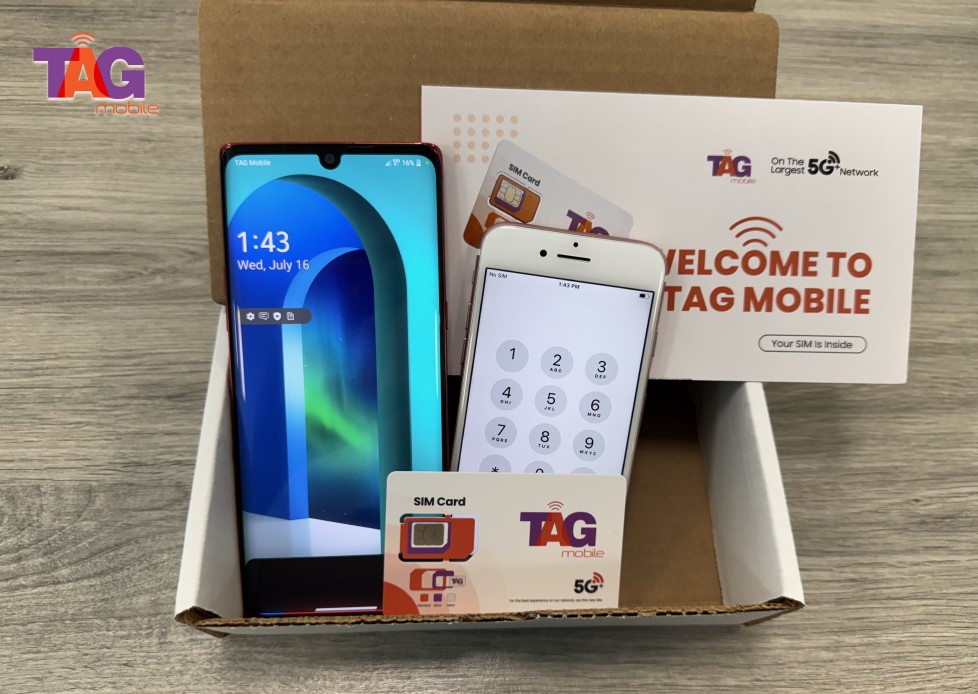
Among participating providers, TAG Mobile offers Lifeline-supported wireless service to qualifying customers, with benefits that may include high-speed data as well as separate free or discounted device offers.
Exact plans, data allowances, devices, and promotional benefits can vary by location, eligibility, and current availability.
Current TAG Mobile Lifeline features can include:
Free data each month, depending on state and plan availability.
Unlimited talk and text for qualifying Lifeline customers.
Free international calling to more than 200 countries and territories.
Nationwide 5G+/4G LTE coverage where supported.
Caller ID, call waiting, three-way calling, voicemail, and Wi-Fi calling.
Free SIM or eSIM options and free delivery where available.
Free or discounted smartphones for eligible customers, subject to location and inventory.
BYOD support for users who prefer to keep a compatible existing iPhone or other device.
Note: Mobile data needs differ widely, so reviewing the plan details before using an iPhone as a regular hotspot is important.
TAG Mobile is the one of the most trusted Lifeline provider choices for eligible US residents.
Note: Eligibility varies by state and program. Offers depend on availability and qualifications. TAG Mobile operates under the federal Lifeline Program as an Eligible Telecommunications Carrier (ETC). Service is non-transferable and limited to one service per household.
6. Final Thoughts
Reliable tethering comes down to active cellular data, the right connection method, and enough monthly data for the devices you share with. With how to use hotspot on iPhone, Wi-Fi offers convenience, USB provides a direct link, and Bluetooth can serve as a lighter backup option.
Monitoring connected devices and data usage also keeps the setup easier to manage. For qualifying users, TAG Mobile offers Lifeline plans worth exploring for affordable mobile connectivity.
Share
TAG Blog
Stories, guides, and helpful updates for staying connected.