How to Use FaceTime on Android: Join a Call From Your Browser
You do not need an iPhone to take part in every FaceTime conversation. For Android users, how to use FaceTime on Android is mainly about opening an invitation link in a supported w...
Quincy D.-Sep 09, 2026
Image by Unsplash
Table of Contents
You do not need an iPhone to take part in every FaceTime conversation. For Android users, how to use FaceTime on Android is mainly about opening an invitation link in a supported web browser and joining the call from there.
There is no FaceTime app to install, and an Apple ID is not required, making occasional calls with Apple users relatively simple.
1. Can You Use FaceTime on an Android Phone?
Yes, although Android users cannot use FaceTime exactly like someone on an iPhone, iPad, or Mac.
An Apple user must create a FaceTime link and share it with you first. You then open that invitation in the latest Google Chrome or Microsoft Edge, and join through the browser instead of a native Android FaceTime app.
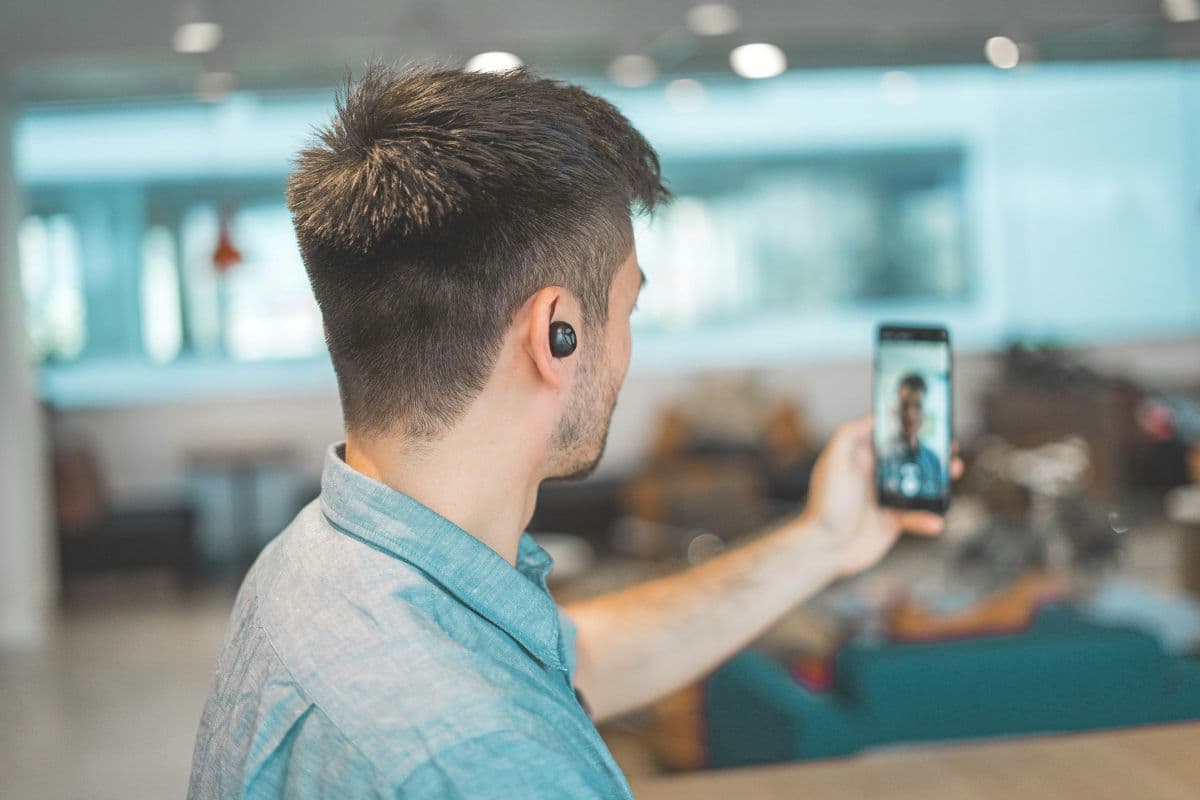
Android users can join FaceTime calls through a shared link in a supported web browser. (Image by Unsplash)
2. How to Use FaceTime on Android Samsung in 6 Steps
Joining from a Samsung phone requires only a FaceTime invitation, a compatible browser, and working camera and microphone permissions.
The host remains in control of admission, while you handle the rest of the process directly from your Android browser.
Step 1: Ask the Apple User to Create a FaceTime Link
Ask someone using a compatible iPhone, iPad, or Mac to create a FaceTime link and send it to you by message, email, or another communication channel. Android users cannot create a FaceTime call themselves, so receiving this invitation is the necessary starting point for joining the conversation.
Step 2: Open the FaceTime Link on Your Android Phone
Tap the invitation and open it in the latest version of Google Chrome or Microsoft Edge.
This browser-based approach is central to how to use FaceTime on Android, since Apple does not provide a native FaceTime Android application. Make sure your internet connection is stable before continuing.
Step 3: Enter the Name You Want Others to See
Type the name you want displayed to the host and other participants, then select Continue. You do not need an Apple ID simply to join the call through the web. Using a recognizable name can also help the host identify and approve your request more quickly.
Step 4: Allow Camera and Microphone Access
Your browser may request permission to access the phone’s camera and microphone before entering FaceTime.
Grant both permissions if you want participants to see and hear you. These settings can still be adjusted later through the call controls if you need to mute yourself or disable video.
Step 5: Tap Join and Wait to Be Admitted
Select Join once your name and permissions are ready. FaceTime places you in a waiting state until the host lets you into the conversation. This approval process prevents anyone who receives the link from entering automatically without the host knowing who is requesting access.
Step 6: Use FaceTime Controls During the Call
After admission, you can mute the microphone, switch video on or off, change cameras, enter full-screen mode, and use other available web controls.
Apple notes that web participants can use many core FaceTime functions, although SharePlay and screen sharing are not available through FaceTime on the web.
3. FaceTime on Android vs. Cross-Platform Video Calling Apps
FaceTime links are convenient when someone inside the Apple ecosystem is already organizing the conversation.
Comparing how to use FaceTime on an Android phone with dedicated cross-platform calling services makes it easier to decide whether browser access offers enough flexibility for your needs.
Feature
FaceTime on Android
Cross-Platform Video Calling Apps
Access
Through Chrome or Microsoft Edge
Usually through an app, browser, or both
Starting Calls
Android users cannot initiate FaceTime calls
Android users can generally create calls
Account
No Apple ID required simply to join
Requirements depend on the platform
Invitation
Requires a FaceTime link from an Apple user
May use contacts, meeting links, or invitations
Basic Controls
Camera, microphone, full screen, camera switching, and other web controls
Similar controls are commonly supported
Screen Sharing
Not available to FaceTime web participants
Often available, depending on the platform
Best Fit
Occasional calls hosted by Apple users
Frequent communication across different operating systems
For anyone researching how to use FaceTime on Android, FaceTime works well when an Apple user starts the call, and you only need straightforward audio and video communication.
Cross-platform services may be more suitable when Android users need to initiate conversations themselves or regularly use advanced collaboration tools.
4. View Free Phone Options From TAG Mobile for Smooth Calling Experiences
Video calling feels more comfortable when your device has a practical screen size, dependable connectivity, sufficient battery life, and a camera suited to everyday communication. Choosing the right phone or tablet can therefore improve much more than just FaceTime access.
TAG Mobile is one of the Lifeline service providers that have earned trust from participants across the states. Offering Lifeline-supported wireless options for eligible households, the companies provides nationwide coverage, affordable device choices, multilingual support, no contracts or credit checks for its Lifeline offering, and the flexibility to choose from available devices.
Applicants may qualify for the Lifeline through programs such as Medicaid, SNAP, SSI, Federal Public Housing Assistance, Veterans Pension or Survivors Benefit, or certain Tribal programs. Household income at or below 135% of the Federal Poverty Guidelines may also qualify, while eligibility documentation and the one-benefit-per-household rule apply.
Meanwhile, device preferences vary widely: some users want a compact phone for calls on the go, while others prefer a tablet for a larger video window, browsing, or entertainment.
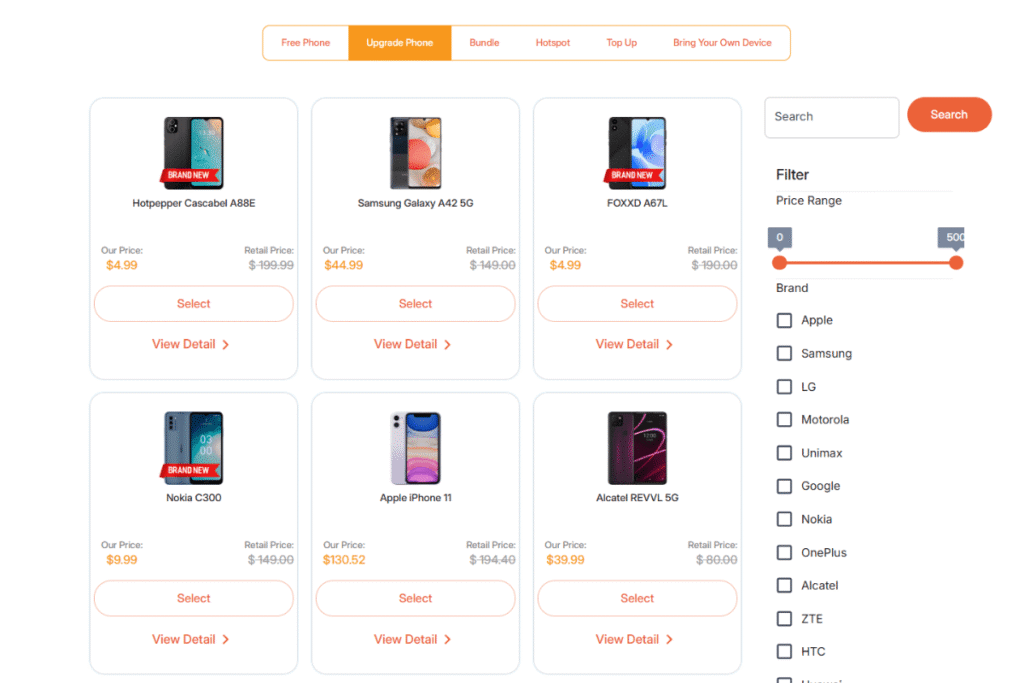
TAG Mobile currently lists the following models, with availability and offers varying by location and eligibility.
Clovertek G17: A tablet with a roomier display for browsing, streaming, online learning, and video communication when a smartphone screen feels too small.
Samsung Galaxy A71 5G: A large-screen Android smartphone with 5G connectivity, offering comfortable viewing for video calls, entertainment, browsing, and everyday apps.
iPhone 13: An Apple smartphone with native FaceTime support, making it especially convenient for users who frequently make video calls within the Apple ecosystem.
FOXXD C67: A large-format smartphone suited to everyday calls, messaging, web browsing, videos, and other common mobile activities.
Samsung Galaxy Tab A 2018: A tablet designed for users who value additional screen space for reading, streaming, browsing, and browser-based video conversations.
iPhone SE 3: A compact Apple smartphone with native FaceTime access, ideal for users who want familiar iOS features in a smaller, easier-to-handle device.
Samsung Galaxy Tab A7 Lite: A portable tablet with more viewing room than a typical phone, making video calls, reading, streaming, and web browsing more comfortable.
iPad 7: An Apple tablet that pairs a larger display with native FaceTime support, providing plenty of screen space for video conversations, entertainment, and everyday online tasks.
TCL 20 SE: A large-screen Android smartphone suited to browsing, messaging, videos, and daily communication, including joining FaceTime calls through shared web links.
TAG Mobile states that eligible Lifeline customers may receive free monthly service with talk, text, and data, while free or discounted phone availability depends on eligibility, state, and inventory.
Enter your ZIP code and check your Lifeline eligibility to see which current device and service options are available where you live.
List of tablets and upgraded phones at TAG Mobile (Offers may vary by state, inventory, and time of your application).
Note: Eligibility varies by state and program. Offers depend on availability and qualifications. TAG Mobile operates under the federal Lifeline Program as an Eligible Telecommunications Carrier (ETC). Service is non-transferable and limited to one service per household.
5. FAQs about Using FaceTime on Android
Browser access removes one major barrier between Android and Apple users, but it does not provide every feature available in the native FaceTime app. These answers cover several common issues people encounter while learning how to use FaceTime on Android.
Is FaceTime free on Android?
Yes. Apple does not charge Android users a separate fee simply to join a FaceTime call through a browser link. The call still requires internet access, however, so cellular data usage may count against your wireless plan if you are not connected to Wi-Fi.
Can I download FaceTime from Google Play?
No. Apple does not provide an official FaceTime app for Android through Google Play. Android users receive a FaceTime link from an Apple user and open it through the latest Google Chrome or Microsoft Edge instead.
Why is FaceTime blurry on my Android phone?
Blurred video can result from unstable Wi-Fi, weak cellular data, network congestion, poor lighting, or the quality of your device’s camera. Apple recommends a strong Wi-Fi or mobile connection for browser-based FaceTime, so switching networks or improving signal strength may help sharpen the call.
6. Final Thoughts
Apple users can invite Android users to FaceTime calls simply by sharing a web link. This makes how to use FaceTime on Android fairly straightforward: open the invitation in Chrome or Edge, enter your name, allow camera and microphone access, and join the call. Some Apple-only features may be limited, but the essential video calling tools remain accessible.
Explore TAG Mobile for more mobile tips and device options.
Share
TAG Blog
Stories, guides, and helpful updates for staying connected.