How to Turn Off Read Receipts iPhone: For Everyone or Specific People
Read receipts can be useful, but they also reveal when you have opened an iMessage and may create pressure to respond quickly. This guide explains how to turn off read receipts iPh...
Quincy D.-Aug 31, 2026
Image by Unsplash
Table of Contents
Read receipts can be useful, but they also reveal when you have opened an iMessage and may create pressure to respond quickly.
This guide explains how to turn off read receipts iPhone for all conversations or selected contacts, while clarifying what changes after the setting is disabled. You will also learn where to find the controls and how the feature behaves across different message threads.
1. How to Turn Off Read Receipts iPhone for All Conversations
Turning off read receipts gives you more control over when other people can tell that you have opened their iMessages. The setting applies broadly, so you do not need to adjust every conversation one by one.
Step 1: Open Settings
Open the Settings app on your iPhone and scroll until you find Apps, then select Messages. On some iOS versions, Messages may appear directly in the main Settings list, so the exact path can look slightly different.
Step 2: Find Send Read Receipts
Inside the Messages settings, look for the Send Read Receipts option. This controls whether other iMessage users can see a Read status after you open their messages.
Step 3: Turn the Setting Off
Tap the switch beside Send Read Receipts so it turns off. If you are learning how to turn off read receipts on iPhone, this is the main control that disables them for conversations where no individual override is active.
Step 4: Return to Messages
Exit Settings and open Messages normally. New iMessages you read should no longer show a Read status to the sender, although delivery information can still appear when the message reaches your device.
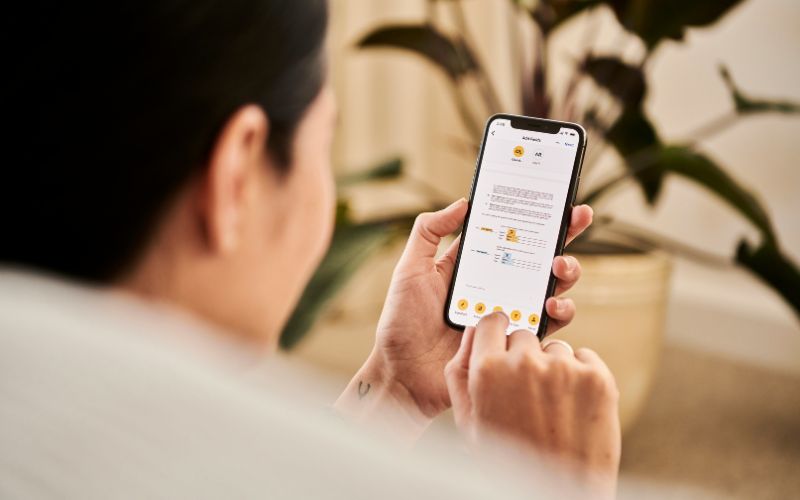
Turning off read receipts gives you more control over when other people can tell that you have opened their iMessages. (Image by Unsplash)
2. Steps to Turn Off Read Receipts for One Specific Person
Yes, you can turn off read receipts for one specific person while keeping them enabled for other iMessage conversations. This gives you more control over your privacy because you can manage the setting directly inside an individual message thread without changing the preference for everyone else.
Disable for Individual Contacts
Apple lets you override the general read receipt setting inside an individual iMessage conversation. This makes how to turn read receipts off on iPhone more flexible when you only want to hide the Read status from selected people.
Open the Messages app and choose the conversation with the person you want to adjust.
Tap the contact name or profile icon at the top of the conversation.
Look for the Send Read Receipts option in the contact details.
Turn the switch off for that conversation.
Return to the message thread and continue using Messages normally.
Other contacts can still receive read receipts if the feature remains enabled for them.
Re-enable for Specific People Later
Changing your mind does not require resetting every Messages privacy option. You can return to the same conversation and restore read receipts for that person whenever you want.
Open Messages and select the relevant conversation.
Tap the contact name or profile icon at the top.
Find “Send Read Receipts” in the conversation settings.
Turn the switch back on.
Future iMessages opened in that thread can once again display a Read status.
Repeat the process separately for any other contact you want to adjust.
3. What Happens When You Turn Off Read Receipts on iPhone?
Sometimes you may want more privacy with one conversation without changing how Messages works for everyone else. iPhone makes that possible by letting you control read receipts separately for individual contacts.
Senders No Longer See “Read”
Once read receipts are disabled, people generally cannot see the exact moment you open their iMessages. Instead of Read, the conversation may continue showing Delivered, depending on the message status and connection.
Messages Still Arrive Normally
Turning off read receipts does not block, delay, or silence incoming messages. When following how to turn off read receipts iPhone, you are only changing the visibility of your reading status, not how Messages delivers conversations.
You Can Still Reply Normally
All regular messaging functions remain available after read receipts are disabled. You can send replies, photos, links, reactions, and other supported content without turning the feature back on.
Delivery Receipts May Still Appear
Senders may still see Delivered when an iMessage successfully reaches your device. Read receipts and delivery receipts are different, so disabling one does not necessarily remove the other.
Individual Settings Can Override the General Setting
Some conversations may have their own send/read receipt preferences. If you previously customized a specific contact, review that thread separately when the behavior does not match your general Messages setting.
4. Read vs. Delivered vs. Sent: What Does Each Status Mean?
Message status labels can tell you whether an iMessage has left your device, reached the recipient, or actually been opened. Understanding the difference is especially useful when adjusting how to turn off read receipts iPhone, since disabling receipts changes only the read status rather than the entire delivery process.
Status
What It Means
What the Sender Can Tell
Sent
The message has successfully left your device and is being processed for delivery.
The message was sent, but it may not have reached the recipient yet.
Delivered
The message successfully reached the recipient’s Apple device or account.
The message arrived, but the recipient may not have opened it.
Read
The recipient opened the iMessage while read receipts were enabled for that conversation.
The sender can tell that the message was viewed and may also see the time it was read.
5. Can You Turn Read Receipts Back On Later?
Yes, you can turn read receipts back on whenever you want. The setting is easy to reverse, so you can restore the Read status for your iMessage conversations without changing other messaging features.
Here’s how to turn them back on:
Open the Settings app.
Tap Apps, then select Messages.
Scroll to Send Read Receipts.
Tap the switch to turn it on again; the toggle will appear green when enabled.
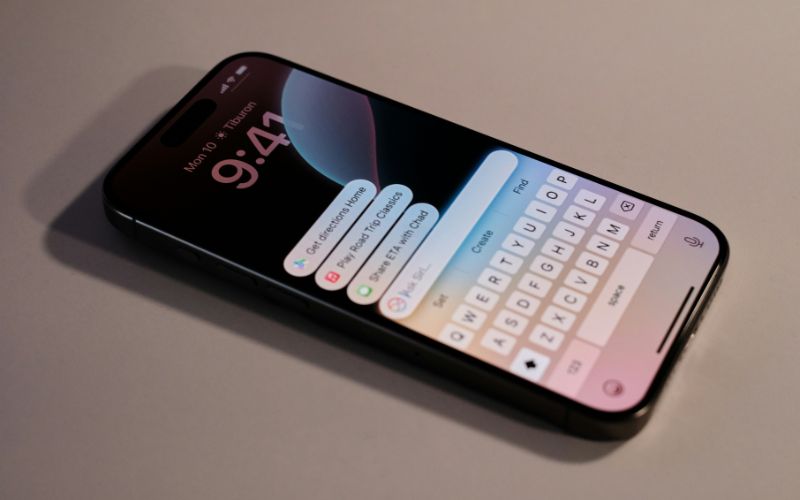
You can turn iPhone read receipts back on anytime. (Image by Unsplash)
6. FAQs about iPhone Settings
Message privacy settings can work differently across iMessage and third-party apps, which often leads to confusion about what other people can actually see. The answers below clarify how read status behaves on iPhone and what changes when receipts are disabled.
How to read Messages without being seen on iPhone?
The most reliable option is to disable Send Read Receipts before opening the conversation. If you are checking iPhone how to turn off read receipts, this setting prevents the sender from seeing a Read status for conversations where receipts are turned off.
How to tell if someone turned their read receipts off on iPhone?
Apple does not notify you when another person disables read receipts. Their messages may continue showing Delivered instead of Read, even after they have opened the conversation or replied
How can I turn off read receipts on WhatsApp?
Apple does not notify you when another person disables read receipts. Their messages may continue showing Delivered instead of Read, even after they have opened the conversation or replied.
Final Thoughts
Read receipts can be useful, but they do not have to be enabled for every conversation. Learning how to turn off read receipts iPhone gives you more control over when others can see that you opened an iMessage, whether for everyone or selected contacts.
TAG Mobile’s blog keeps practical device guidance close when privacy settings need adjusting. You can always turn the feature back on later if your preferences change.
Share
TAG Blog
Stories, guides, and helpful updates for staying connected.