How to Silence Notifications on iPhone Without Missing Important Updates
Your iPhone can go from helpful to distracting when alerts keep appearing at the wrong moments. If you want fewer interruptions without missing important calls or messages, how to...
Quincy D.-Sep 28, 2026
Image by Unsplash
Table of Contents
Your iPhone can go from helpful to distracting when alerts keep appearing at the wrong moments. If you want fewer interruptions without missing important calls or messages, how to silence notifications on iPhone is worth getting right.
Apple provides several ways to control when and how alerts reach you, whether you need a few quiet minutes or a more personalized setup. This guide walks through the options and when to use each one.
1. How to Silence Notifications on iPhone at Night?
Nighttime Focus settings can reduce interruptions without blocking every person or app that may need your attention. Follow these steps to know how to silence notifications on iPhone, build a schedule that protects your rest while still allowing urgent calls, essential messages, and selected updates.
Step 1: Choose or Create a Focus
Open Settings, tap Focus, and select Sleep or Do Not Disturb. You can also tap the Add button to create a custom focus with a name and icon. Sleep works well for a nightly routine, while a custom option offers greater control over individual settings.
Step 2: Choose Who Can Reach You
Tap People or Choose People, then decide whether to allow notifications from selected contacts or silence specific individuals. This setup supports how to silence text notifications on iPhone while keeping messages from family members, caregivers, or other important contacts available during the night.
Step 3: Choose Which Apps Can Interrupt
Return to the Focus settings and tap Apps or Choose Apps. Allow only essential services, such as security, health, or smart-home apps, or silence applications that send unnecessary overnight alerts. Review Time Sensitive Notifications carefully because enabling this option lets qualifying alerts appear immediately.
Step 4: Set a Schedule
Choose Add Schedule and select Time to enter the hours when Focus should start and end automatically. You may also activate it based on a location or app. Scheduling how to silence notifications on iPhone prevents you from needing to remember the setting every evening.
Step 5: Review Emergency and Repeated-Call Behavior
Check the People settings to decide whether repeated calls should bypass the Focus. When enabled, two or more calls from the same person within three minutes can come through. Review emergency bypass for individual contacts as well, since it can allow their calls or texts despite silencing.
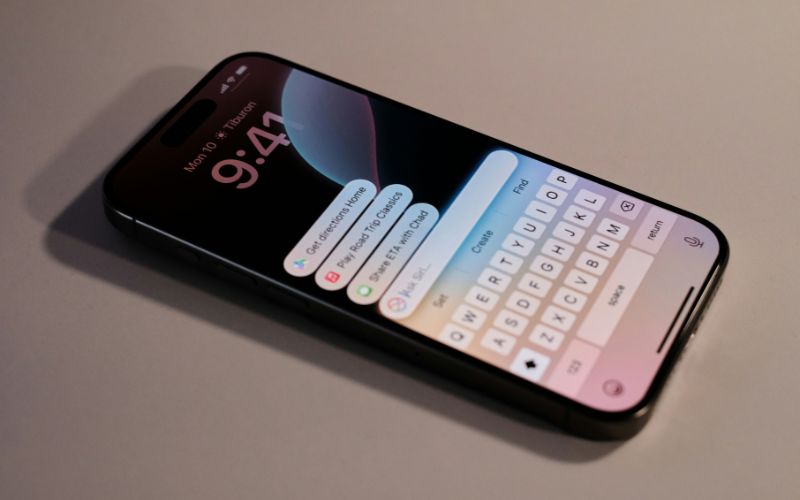
Manage iPhone notifications more effectively to stay focused while keeping important updates visible. (Image by Unsplash)
2. Pro Tips to Make iPhone Notifications Less Distracting
Reducing distractions does not require turning every alert off permanently. Along with learning how to silence notifications on an iPhone, these adjustments can make everyday updates easier to manage without hiding information you genuinely need.
Use Scheduled Summary to group nonurgent notifications and deliver them together at selected times instead of allowing each alert to interrupt you immediately.
Turn off sounds while keeping banners or Notification Center alerts enabled for apps you still want to check visually.
Disable Lock Screen notifications for private or distracting apps so incoming information does not appear whenever you pick up the device.
Set important contacts as allowed people within a Focus instead of letting every call and message bypass your quiet periods.
Review Time Sensitive Notifications for each Focus and disable the option when too many apps use it to interrupt you unnecessarily.
Mute individual conversations in Messages when a busy group chat becomes disruptive without blocking or leaving the conversation entirely.
Revisit Settings > Notifications regularly and disable alerts for apps that no longer provide useful, timely, or relevant information.
3. How Can Mobile Connectivity and Smart Devices Help Simplify Daily Schedules?
Mobile connectivity can bring calendars, reminders, family messages, transportation updates, and essential services together on one device. A smartphone or tablet can also make it easier to check appointments, manage school or work schedules, complete online forms, and receive important updates while away from home. Smart notification controls can help users stay informed without allowing every alert to interrupt work, rest, or personal time.
For families who rely on these tools every day, having a reliable device and mobile service is part of making digital organization practical. Lifeline can help reduce that cost for eligible low-income households by providing a monthly discount toward qualifying communication service.
As an eligible telecommunications carrier, TAG Mobile offers Lifeline-supported plans that may include free monthly service with talk, text, and mobile data, along with a free or discounted phone or other device depending on the offer, location, and availability.
Device needs vary based on whether users prioritize familiar iPhone controls, Android flexibility, photography, or a larger tablet display. TAG Mobile lists several options that can support scheduling, communication, navigation, reminders, and everyday app access:
iPhone 8: Compact 4.7-inch smartphone featuring Touch ID and a Retina HD display. It supports calls, messages, calendars, reminders, navigation, and everyday iOS apps in a familiar Apple design.
iPhone 13: 5G-capable Apple smartphone with a 6.1-inch Super Retina XDR display, dual-camera system, and strong everyday performance for video calls, scheduling, photography, and mobile apps.
iPhone 13 Pro Max: Large-screen 5G smartphone with a 6.7-inch Super Retina XDR display, ProMotion technology, and a triple-camera system. Its spacious screen suits calendars, video meetings, navigation, and media use.
iPhone 11 Pro: Apple smartphone equipped with a 5.8-inch Super Retina XDR display and a triple-camera system. Its manageable size supports messaging, productivity apps, photography, navigation, and daily schedule management.
Samsung Galaxy Tab A7 Lite: Compact tablet with an 8.7-inch display that provides extra space for reading, streaming, video calls, browsing, and managing calendars. It is a tablet rather than a phone.
Eligibility may be based on household income or participation in programs such as SNAP, Medicaid, SSI, Federal Public Housing Assistance, or certain Tribal programs. SNAP recipients may already meet the program-based requirements, subject to verification. Check your ZIP code, review current device availability, and see whether you qualify through TAG Mobile.
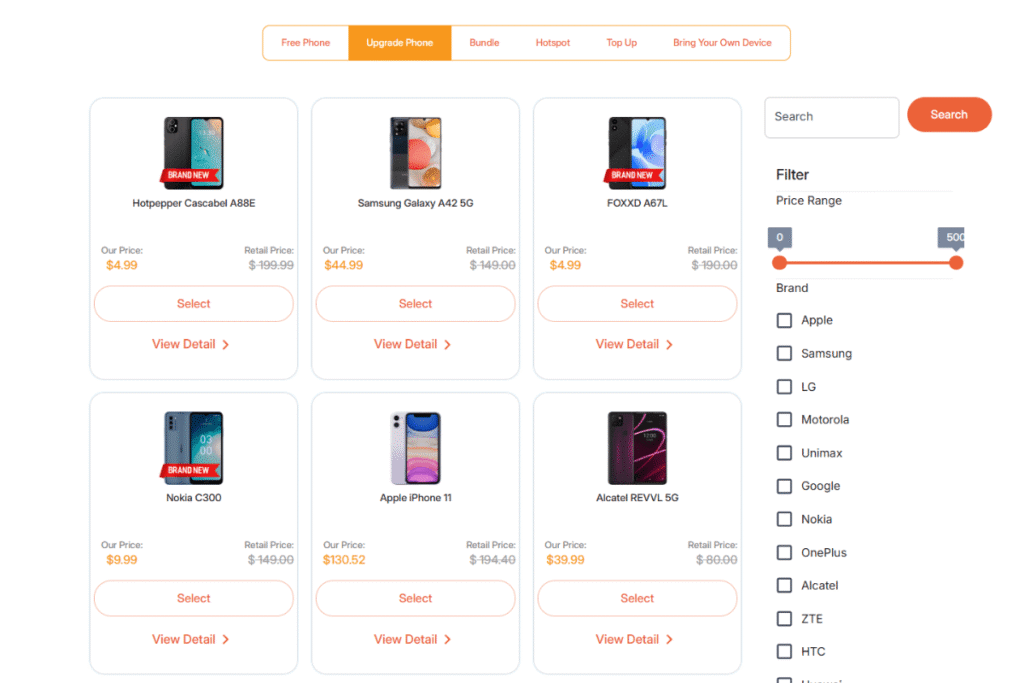
List of tablets and upgraded phones at TAG Mobile (Offers may vary by state, inventory, and time of your application).
Note: Eligibility varies by state and program. Offers depend on availability and qualifications. TAG Mobile operates under the federal Lifeline Program as an Eligible Telecommunications Carrier (ETC). Service is non-transferable and limited to one service per household.
4. FAQs about Silencing Notifications on iPhone
iPhone offers several ways to reduce interruptions while keeping selected alerts available. Anyone searching how to turn off silence notifications on iPhone can adjust Focus settings, Silent Mode, or individual app controls based on what they want to hear and see.
Can I Silence Notifications Without Using Do Not Disturb?
Yes, you can turn off sounds, banners, badges, or Lock Screen alerts for individual apps under Settings > Notifications. Silent Mode, conversation muting, scheduled summary, and custom focus profiles also provide alternatives to Do Not Disturb.
Does Silent Mode Silence All iPhone Notifications?
No, Silent Mode primarily stops notification sounds, while alerts may still appear on the Lock Screen, in banners, or inside the Notification Center. Your iPhone may also vibrate depending on its haptic settings, and alarms can still produce sound.
Does Do Not Disturb Block Calls?
Do Not Disturb usually silences calls rather than blocking them, so they still appear in your call history and may go to voicemail. You can allow selected contacts, contact groups, emergency contacts, or repeated calls to bypass the Focus when necessary.
Final Thoughts
Managing alerts thoughtfully can create quieter work sessions and more restful nights without cutting off important communication. Learning how to silence notifications on iPhone lets you combine Focus, app controls, schedules, and contact exceptions for a setup that fits your routine. Review these settings regularly as priorities change, and stay connected to the calls and updates that matter with TAG Mobile.
Share
TAG Blog
Stories, guides, and helpful updates for staying connected.