How to Silence Apple Watch Without Missing Important Alerts
Watch alerts can interrupt a meeting, a quiet dinner, or the moment you finally settle down to rest. Muting them feels straightforward until you still want to notice an important m...
Quincy D.-Oct 09, 2026
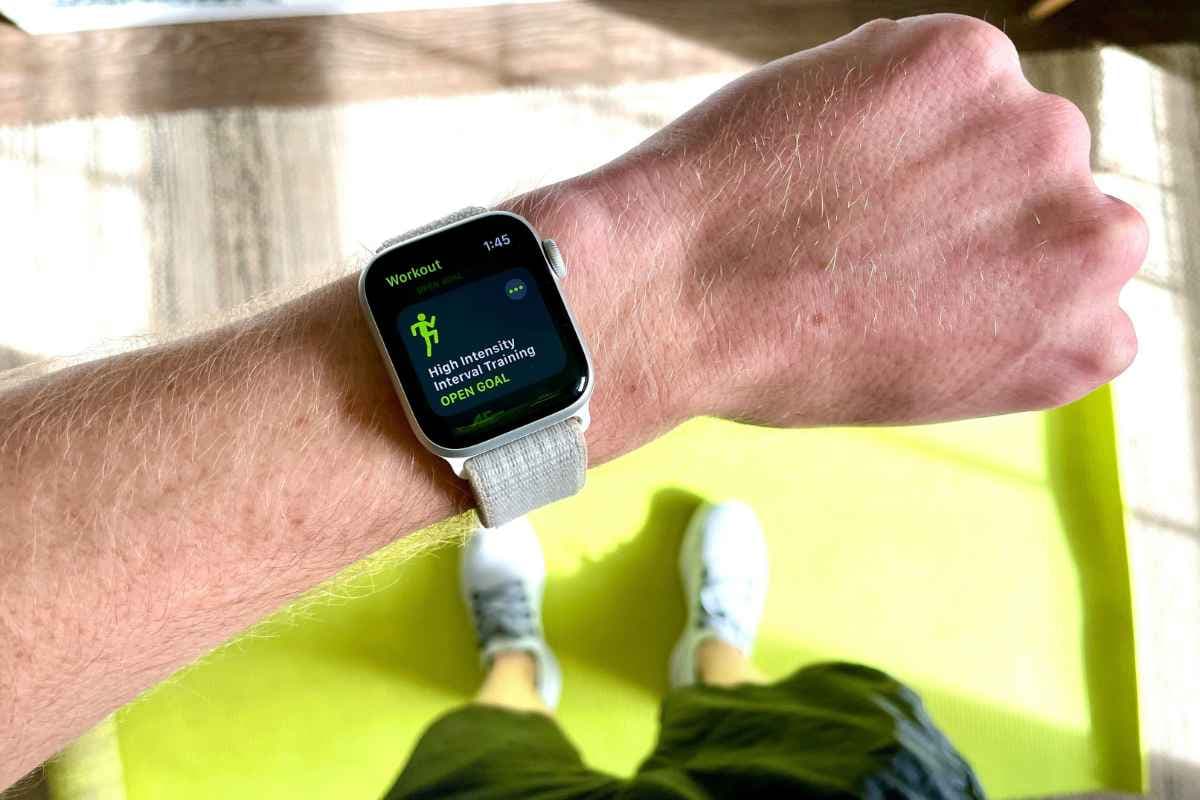
Image by Unsplash
Table of Contents
Watch alerts can interrupt a meeting, a quiet dinner, or the moment you finally settle down to rest. Muting them feels straightforward until you still want to notice an important message or call. With how to silence Apple Watch, the right setting depends on how quiet you want your device to be and which alerts still matter. A few built-in options can reduce unwanted sounds while keeping important notifications accessible when you need them.
1. How to Silence Apple Watch Notifications
Silent Mode keeps notification sounds from interrupting your day while still allowing taps on your wrist. These steps explain how to silence notifications on Apple Watch and keep those physical alerts noticeable when you need them.
Step 1: Open Control Center
Press the side button once to open Control Center on watchOS 10 or later. Use the flat button beside the Digital Crown.
If your watch runs watchOS 9 or earlier, swipe up from the watch face instead.
Step 2: Activate Silent Mode
Find the bell icon in Control Center, scrolling if necessary, and tap it. A highlighted button with a crossed-out bell confirms Silent Mode is enabled.
Notification sounds are muted, but wrist taps remain available when haptics are enabled.
Step 3: Keep Haptic Alerts Turned On
Open Settings, select Sounds & Haptics, then tap Haptics if your version includes that menu. Choose Default or Prominent rather than Off. On older versions, enable Haptic Alerts and select Prominent if you want more noticeable wrist taps.
Step 4: Check Your Watch’s Fit
Adjust the band so the back of your watch maintains contact with your skin without feeling uncomfortably tight. Proper contact makes haptic alerts easier to notice. If taps feel weak, check the fit before increasing their strength.
Step 5: Review Alarms and Timers
Check active timers and scheduled alarms before entering a quiet setting, especially if your watch will be charging. Alarms and timers can still sound on the charger despite Silent Mode, so cancel anything you do not need.
2. Silent Mode vs. Do Not Disturb vs. Focus: What’s the Difference
Muting sounds and limiting incoming interruptions are different settings on Apple Watch. Your choice of how to silence Apple Watch depends on whether you want every notification delivered quietly or only selected people and apps to reach you.
Setting
What it does
Can wrist taps continue?
Best used when
Silent Mode
Mutes notification sounds without filtering which notifications arrive.
Yes, if haptic alerts are enabled.
You want quiet alerts while remaining aware of messages and calls.
Do Not Disturb
A Focus preset that silences interruptions according to its configured exceptions
Allowed notifications may still produce taps
You want a quiet period with limited interruptions.
Focus
Let you customize notification rules for situations such as work, sleep, or personal time.
Yes, for notifications permitted by the active focus.
You want specific contacts or apps to reach you while others stay quiet.
Do Not Disturb is part of Focus, rather than a separate system. Configure permitted people, apps, and other exceptions on your iPhone before relying on a Focus to filter important alerts.
3. Tips for Keeping Apple Watch Notifications Under Control
Repeated wrist taps can become distracting even after you turn off notification sounds.
If you keep wondering how to silence my Apple Watch, adjusting individual apps and scheduling quiet periods can reduce the need to mute everything manually.
Review notifications by app: On your iPhone, open the Watch app, select My Watch, then Notifications. Keep useful alerts enabled and reduce notifications from apps you rarely check.
Send less urgent alerts to Notification Center: Where supported, select Send to Notification Center so notifications remain available to review without immediately interrupting you.
Keep haptics enabled for useful alerts: Choose Default or Prominent if you rely on wrist taps for messages or calls. Turning haptics off removes that physical cue.
Customize Focus exceptions: Allow important contacts and apps in your chosen Focus, then review time-sensitive notification settings to control additional interruptions.
Schedule regular quiet periods: Set up a Work or Sleep Focus on your iPhone for predictable periods when you want fewer notifications.
Use Cover to Mute for a sounding alert: With the feature enabled, rest your palm on the display for at least three seconds until you feel a tap. This silences the current alert; wake-up alarms are an exception.
Check settings after a quiet period: Confirm which focus is active if expected alerts stop arriving. Silent Mode and Focus serve different purposes, so changing one may not resolve the other.
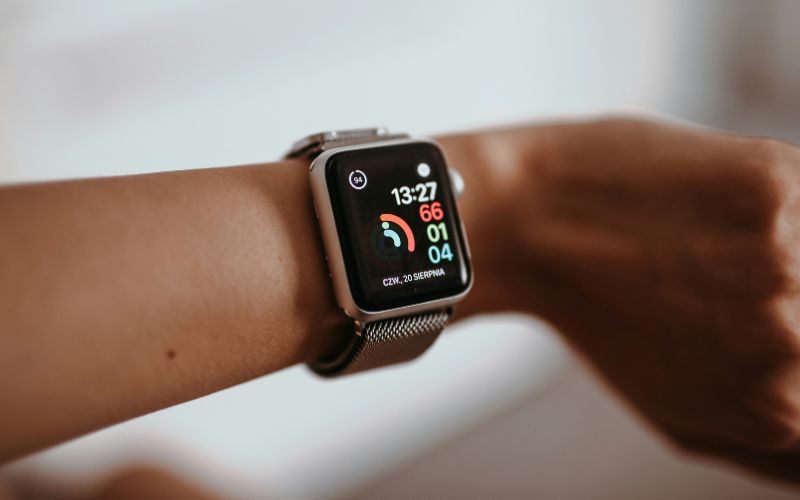
How to silence notifications on Apple Watch and how to manage it better? Manage Apple Watch notifications by adjusting individual apps and using quiet periods to reduce unnecessary interruptions. (Image by Unsplash)
4. Switching iPhones? Recheck Your Apple Watch Notification Setup
When you get a new iPhone, you will need to reconfigure your Apple Watch notifications, Silent Mode, and Focus settings to match your preferences.
If you are replacing an aging phone and cost is a concern, know that Lifeline helps qualifying households access affordable wireless service. Through providers like TAG Mobile, eligible customers receive free phones and discounted monthly service.
Free-device promotions and discounted upgrades depend on the offer available in your area, eligibility approval, and inventory.
Lifeline eligibility can be based on household income or participation in a qualifying government assistance program. Programs such as SNAP, Medicaid, SSI, Federal Public Housing Assistance (FPHA), Veterans Pension or Survivors Benefit, and certain Tribal programs may provide a pathway to qualify.
If you qualify, here are some of the options you may get:
Clovertek G17 Tablet: Features a 10.1-inch IPS display, 32GB of storage, a 5,000mAh battery, and 4G LTE plus Wi-Fi connectivity. Its larger screen makes it a practical tablet option for browsing, streaming, reading, and other everyday online activities.
iPhone XS: Offers Apple’s iOS experience in a compact premium design. The model features a 5.8-inch Super Retina OLED display, Face ID, dual rear cameras, and the A12 Bionic chip, making it a more compact choice within TAG Mobile’s Apple lineup.
iPhone 13 Pro Max: Features a 6.7-inch Super Retina XDR display, ProMotion technology, the A15 Bionic chip, 5G connectivity, and a triple-camera system. Its larger display and higher-end hardware make it one of the more advanced Apple options on the list.
FOXXD C67: Comes with a 6.75-inch 90Hz display, 64GB of storage, 4GB of RAM, a 5,000mAh battery, and a 13MP AI dual camera. This combination gives users a large screen, solid storage, and longer battery capacity in a budget-focused Android phone.
Samsung Galaxy Tab A 2018: A Samsung tablet with a larger viewing area than a smartphone, giving users more room for browsing, video playback, reading, and other tablet-based tasks. It is listed by TAG Mobile as a tablet rather than a phone.
Samsung Galaxy Tab A7 Lite: Features an 8.7-inch display, 32GB of storage, expandable memory, and a 5,100mAh battery. Its compact tablet design balances portability with more screen space than a typical smartphone.
iPad 7: Apple’s seventh-generation iPad provides a full-size tablet format and access to the iPadOS ecosystem. It is better suited to customers who want a larger Apple device rather than an iPhone-sized screen.
TCL 20 SE: Features a spacious 6.82-inch display, a 5,000mAh battery, 4GB of RAM, expandable storage, and a multi-camera system. Its large screen and battery are the main advantages for users comparing budget-friendly Android smartphones.
Samsung Galaxy A42 5G: Combines a 6.6-inch display with 5G connectivity and the Android operating system. It is a stronger fit for customers who specifically want a larger Samsung smartphone with access to 5G networks where available.
TAG Mobile service, plan benefits, and available device offers can vary by state, ZIP code, eligibility, and current inventory.
Note: Eligibility varies by state and program. Offers depend on availability and qualifications. TAG Mobile operates under the federal Lifeline Program as an Eligible Telecommunications Carrier (ETC). Service is non-transferable and limited to one service per household.
5. FAQs about Silencing Apple Watch
Apple Watch sound settings can behave differently depending on whether Silent Mode, haptics, Theater Mode, or alarms are active. These answers clarify what each setting does and when your watch may still alert you.
Why does my Apple Watch still vibrate on silent?
Silent Mode turns off notification sounds, but haptic alerts can still vibrate on your wrist. If you want fewer vibrations, open Settings on your Apple Watch, go to Sounds & Haptics, and adjust the haptic settings.
Does Silent Mode stop notifications on Apple Watch?
No. Silent Mode only mutes notification sounds, so alerts can still appear on the screen and may still trigger haptic feedback. You can use Do Not Disturb or another Focus mode if you want to reduce interruptions further.
Does Theater Mode silence Apple Watch?
Yes. Theater Mode automatically turns on Silent Mode and prevents the display from lighting up when you raise your wrist. Notifications can still arrive, and haptic alerts may continue unless you change those settings separately.
Will alarms still work when Apple Watch is silent?
Yes. Alarms and timers can still alert you while Silent Mode is enabled, typically through haptic feedback and, depending on the alarm settings, sound. This allows important scheduled alerts to remain noticeable even when regular notifications are muted.
How do I silence Apple Watch Series 10?
For how to silence Apple Watch 10, press the side button to open Control Center, then tap the bell icon to enable Silent Mode. You can also open Settings > Sounds & Haptics and turn on Silent Mode from there.
6. Final Thoughts
Quick access to the right sound controls can keep your Apple Watch quiet without missing the alerts that matter most. Once you know how to silence Apple Watch, you can switch between Silent Mode, Theater Mode, Focus, and haptic settings based on the situation.
Fine-tune these options for more control, and explore more device guidance and wireless solutions with TAG Mobile.
Share
TAG Blog
Stories, guides, and helpful updates for staying connected.