How to Screenshot on HP Laptop: Full Screen, Window, or Selected Area
Whether you need to save a receipt, document a technical issue, or share something on your screen, Windows offers several quick ways to capture it. Our guide will double down on ho...
Quincy D.-Sep 08, 2026
Image by Unsplash
Table of Contents
Whether you need to save a receipt, document a technical issue, or share something on your screen, Windows offers several quick ways to capture it.
Our guide will double down on how to screenshot on HP laptop covers options for the full screen, a single window, or a selected area using keyboard shortcuts and built-in Windows tools.
1. How to Screenshot on HP Laptop in 5 Ways
HP laptops offer several built-in screenshot options, so the best method depends on whether you want the full display, one active window, or a selected area.
Learning how to take a screenshot on HP laptop also helps you choose whether to copy the image temporarily or save it automatically.
Method 1: Press PrtScn to Capture the Whole Screen
Press the PrtScn key when you want to capture everything currently visible on your HP laptop screen. Windows copies the full-screen image to the clipboard, which means the screenshot is temporarily stored rather than saved as a separate file.
Next, open Paint, Word, an image editor, or another compatible app and press Ctrl + V to paste the screenshot.
You can crop or edit the image if needed, then choose Save As and select your preferred file format and location.
Method 2: Press Windows + Shift + S to Capture Part of the Screen
Press Windows + Shift + S to open the built-in Windows screen-capture overlay. Depending on your Windows version, you can choose a rectangular selection, freeform area, specific window, or full-screen capture to match exactly what you want to save.
After the screenshot is taken, Windows copies it to the clipboard automatically. You can paste it into another app or click the notification that appears to open the capture for cropping, annotation, editing, and saving.
Method 3: Press Alt + PrtScn to Capture One Window
How to screenshot on HP laptop? The next method is specifically for capturing one window.
Use Alt + PrtScn when you only want to capture the active window rather than everything displayed on the desktop. This shortcut copies the selected window directly to the clipboard, making it useful when you want to exclude other apps, tabs, or background content.
Next, open Paint, Word, email, or another compatible application and press Ctrl + V to paste the screenshot. You can crop or edit the image if necessary, then save it or share it directly.
Method 4: Press Windows + PrtScn to Capture and Save the Full Screen
For users searching how to take screenshot on HP laptop and save the image immediately, Windows + PrtScn is one of the most convenient shortcuts.
Pressing both keys captures the entire screen at once, and the display may briefly dim to indicate that the screenshot was successfully taken.
Unlike PrtScn alone, this method saves the image automatically instead of only copying it to the clipboard. You can usually find the screenshot in the Screenshots folder inside the Pictures directory for quick viewing, editing, or sharing.
Method 5: Use Snipping Tool for More Control
Open Snipping Tool from the Start menu when you want more flexibility than a basic keyboard shortcut provides. Depending on your Windows version, you can capture a rectangular section, freeform area, specific window, or the entire screen, making it easier to focus only on the content you need.
After capturing the screenshot, use the built-in tools to crop, annotate, highlight, or save the image. Some versions also include delay options, giving you extra time to prepare menus or windows before the capture begins.
2. How to Edit a Screenshot After You Take It
Editing a screenshot lets you remove unnecessary areas, highlight key details, add notes, or hide sensitive information before sharing it.
After learning how to take a screenshot on a HP laptop, you can use built-in Windows tools to make quick adjustments without installing extra software.
Open the screenshot: Click the capture notification after taking it, or open the saved image from the Screenshots folder.
Crop unnecessary areas: Use the crop tool to remove blank space, menus, or unrelated parts of the screen.
Add annotations: Use a pen, highlighter, or text tool to mark important information or explain specific details.
Hide sensitive content: Cover personal information, account details, or private messages before saving or sharing the image.
Resize if needed: Reduce the image dimensions when you need a smaller file for email, messaging, or online uploads.
Save the edited version: Choose Save or Save As, select the preferred file format, and store the final screenshot in an easy-to-find folder.
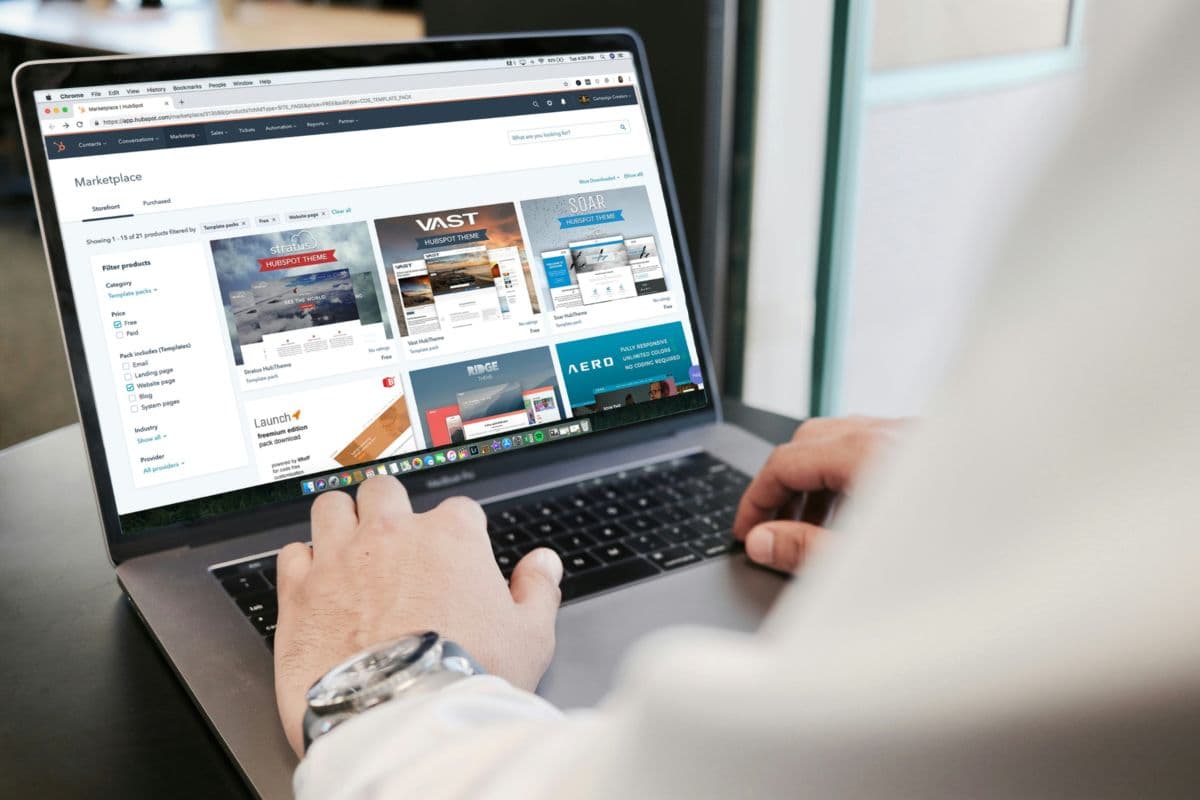
How to take a screenshot on HP laptop? You can also edit screenshots right after capturing them to crop, annotate, highlight, or hide unwanted details. (Image by Unsplash)
Screenshot options can differ based on your Windows settings, apps, and preferred save location. These common questions about how to screenshot on HP laptop cover alternative capture methods, saved files, and content that may restrict screenshots.
Can I screenshot on an HP laptop without using the keyboard?
Yes. Open Snipping Tool from the Start menu to take a screenshot without using keyboard shortcuts. Its on-screen controls let you capture a selected area, a specific window, or the entire display.
How do I change the default screenshot folder?
Screenshots created with Windows + PrtScn are usually saved in the Screenshots folder inside Pictures. If you are learning how to screenshot on a HP laptop, you can also move that folder through its Properties and Location settings, although available options may differ by Windows version.
What file type should I use for screenshots?
PNG is usually the best format because it keeps text, icons, and interface details sharp without heavy compression. JPEG can reduce file size, but it may slightly lower image quality around text and other fine details.
Why can’t I screenshot certain apps or content?
Some apps block screenshots to protect copyrighted, financial, or sensitive information. Streaming services, banking tools, secure windows, or protected media may display a black image or prevent capture completely, depending on the software and security restrictions.
4. Final Thoughts
Capturing your screen becomes much easier once you know which shortcut fits each situation. Whether you need a full-screen image, one active window, or a selected area, learning how to screenshot on HP laptop helps you save and share information quickly. Built-in Windows tools also make editing and organizing captures simple.
For more practical tech tips and mobile guidance, explore TAG Mobile.
Share
TAG Blog
Stories, guides, and helpful updates for staying connected.