How to Restore eSIM After Factory Reset iPhone: 100% Works
If you perform a factory reset on your device, your cellular settings as well as profiles may be removed during the process. Knowing how to restore eSIM after factory reset iPhone...
Quincy D.-Mar 16, 2026
Image by Unsplash
Table of Contents
If you perform a factory reset on your device, your cellular settings as well as profiles may be removed during the process. Knowing how to restore eSIM after factory reset iPhone can help you quickly reconnect your mobile plan and use your calls, texts, and cellular data without interruption.
In most cases, restoring your eSIM will require you to reinstall your carrier profile using your iPhone settings or by scanning your activation QR code again. In some cases, your eSIM can also be restored by simply signing into your account. To know more about the steps as well as some tips on restoring your connection, you can check out the guide/article from TAG Mobile for more information.
1. Can You Restore eSIM After a Factory Reset on iPhone?
Yes, it is possible to restore an eSIM after a factory reset of an iPhone. While a factory reset of an iPhone removes the eSIM profile from the device itself, the cellular plan associated with the eSIM profile remains active with the service provider.
After resetting the iPhone, it is generally possible to restore the eSIM profile by downloading a new profile using the service provider’s app or scanning the original QR code. It may also be possible to contact the service provider’s customer support department to reactivate the eSIM profile. It should be noted that the iPhone provides users with an option called “Keep eSIM” during the reset process itself.
2. How to Restore eSIM After Factory Reset iPhone?
Once you reset your device, you may be required to reinstall or reactivate your eSIM profile on your iPhone before you can use your cellular services again. However, Apple has made it quite easy to reactivate your cellular plan during your initial iPhone setup.
Turn On Your iPhone After Resetting
Once the factory reset process is complete, turn on the iPhone and wait for the Hello screen. The Hello screen indicates that the iPhone is ready to start the initial setup process. At this point, the iPhone will prompt the user through a series of steps in order to configure the language, region, and network settings.
Follow the Setup Process
The next step is to follow the on-screen instructions to configure the device. This includes selecting a language, connecting to a Wi-Fi network, and entering an Apple ID if required. During this process, the iPhone will eventually prompt you to configure the cellular connectivity.
Choose Set Up Cellular
Once the cell setup screen appears, you will choose the option to Set Up Cellular. This option enables the device to search for any available eSIM plans that are linked to your account. If your carrier provides automatic restoration for the eSIM, the iPhone may detect the digital plan.
Select Your Carrier Plan if Available
Once the system detects an available plan, it will be displayed on the screen of the iPhone. To continue the process, simply select the listed carrier plan. This will allow the device to download the eSIM profile again and reconnect it to your mobile account.
Confirm Activation
Finally, let’s verify that the activation is working as expected. The iPhone will now download the eSIM profile and connect to the cellular network. Once this is complete, you should see signal strength indicators and a carrier name at the top of your screen to verify that your eSIM has been successfully restored.
In some cases, the iPhone may not automatically detect your previous eSIM plan after a factory reset. When that happens, the carrier QR code can be used to reinstall the digital SIM profile and restore cellular service.
Connect to Wi-Fi
First, let’s connect the iPhone to a stable Wi-Fi network. A Wi-Fi connection is necessary because the device must download the eSIM profile from the carrier’s system. Without internet access, the iPhone will not be able to install the digital SIM.
Open Settings
Next, you open the Settings app on the iPhone. This section controls system configurations, including network settings and cellular plan management. From here, the user can begin the process of adding a new eSIM profile.
Tap Cellular
Inside the Settings menu, tap Cellular (or Mobile Data, depending on the region). This page displays all current mobile plans associated with the device and provides options to manage them. For users learning how to restore eSIM after factory reset iPhone, this is the main section where the new eSIM profile will be added.
Select Add eSIM
After entering the Cellular settings, select Add eSIM. This option tells the iPhone that you want to install a new digital SIM profile on the device. The phone will then prepare the camera to scan a QR code.
Scan the QR Code Provided by Your Carrier
Finally, use the iPhone camera to scan the QR code provided by your carrier. Once scanned, the device will download and install the eSIM profile automatically. After the activation process finishes, the carrier name and signal bars should appear at the top of the screen, confirming that the eSIM has been restored successfully.
4. What Happens to Your eSIM During an iPhone Factory Reset?
When an iPhone is reset to factory settings, some configurations and data are erased from the device. This reset can also impact the eSIM profile on an iPhone, depending on the reset option used during the erasure process.
The eSIM profile may be removed from the device: In most cases, a full factory reset will delete the eSIM profile on the iPhone. This means that the iPhone will no longer have a digital SIM, and it will no longer be able to use its cellular services.
Your mobile plan usually remains active with the carrier: Although the eSIM profile is removable from the phone, the mobile plan remains active with the service provider. The phone number and service are associated with your account, and this means you can reinstall your plan on the same phone or any other phone that is compatible.
Some iPhone reset options allow you to keep the eSIM: Apple may include an option like “Keep eSIM and erase data” during the reset process. In case the option is chosen, the data on the device will be erased, and the profile on the installed eSIM will remain intact. This way, the device will be able to access the network after the reset.
The eSIM can usually be restored afterward: If the eSIM profile is removed during the reset, it can typically be installed again through the carrier’s activation method. Users who want to understand how to restore eSIM after factory reset iPhone can usually reactivate the plan by downloading the profile again through the carrier app or scanning a new QR code.
5. Switching or Resetting Phones? Staying Connected Should Be Easy
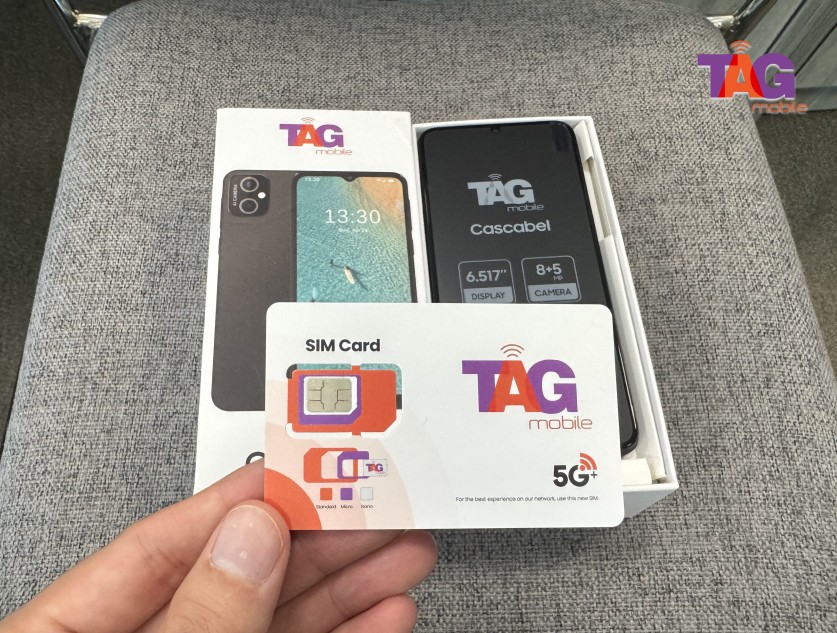
Apply for TAG Mobile free phone and SIM card/eSIM now!
Resetting a phone is usually a step in upgrading to a new phone or fixing technical hitches. In the course of resetting a phone, it is possible that the eSIM profile is deleted from the phone. In some instances, a new activation code is necessary to reconnect the phone.
If you want a simpler way to stay connected, you may be able to apply for a free phone at TAG Mobile and receive an activated eSIM.
The process is usually straightforward and can be completed online in just a few steps:
Check your eligibility for the Lifeline Program by household income or other assistant programs.
Enter your ZIP code to confirm coverage and see available plans in your area.
Choose a compatible device, such as an iPhone model that supports eSIM, depending on current availability.
Fill out the online application with basic information like your name, address, date of birth, and the last four digits of your Social Security Number.
Upload proof of eligibility if required, such as documentation for qualifying assistance programs or income verification.
Submit the application and wait for approval, after which the device will be shipped to your address.
Once approved, TAG Mobile typically delivers the phone within 7-10 business days, and activation instructions are included so you can quickly set up your device and start using your eSIM service.
6. Final Words
Resetting your device does not mean losing your mobile connection permanently. Once you understand how to restore eSIM after factory reset iPhone, you can quickly reinstall your digital SIM and reconnect to your carrier in a few steps. The restoration of your plan is usually easy, whether it is done automatically or through a QR code. If you are looking for a convenient way to activate your new eSIM or reconnect your phone after a reset, TAG Mobile is a great option for easy eSIM activation and mobile plans for eligible users. Check out TAG Mobile for a reliable mobile service.
Notice: The government does not cover device costs, only basic service through Lifeline. Any free or discounted devices, upgrades, or top-ups are limited-time TAG Mobile offers and may vary by state, eligibility, and availability. Terms and conditions apply.
Share
TAG Blog
Stories, guides, and helpful updates for staying connected.