How to Make Hotspot Faster: 12 Ways to Improve Your Speed
A slow hotspot can make video calls, downloads, and streaming frustrating even when your phone appears to have a decent signal. If you want to know how to make hotspot faster, star...
Quincy D.-Sep 16, 2026
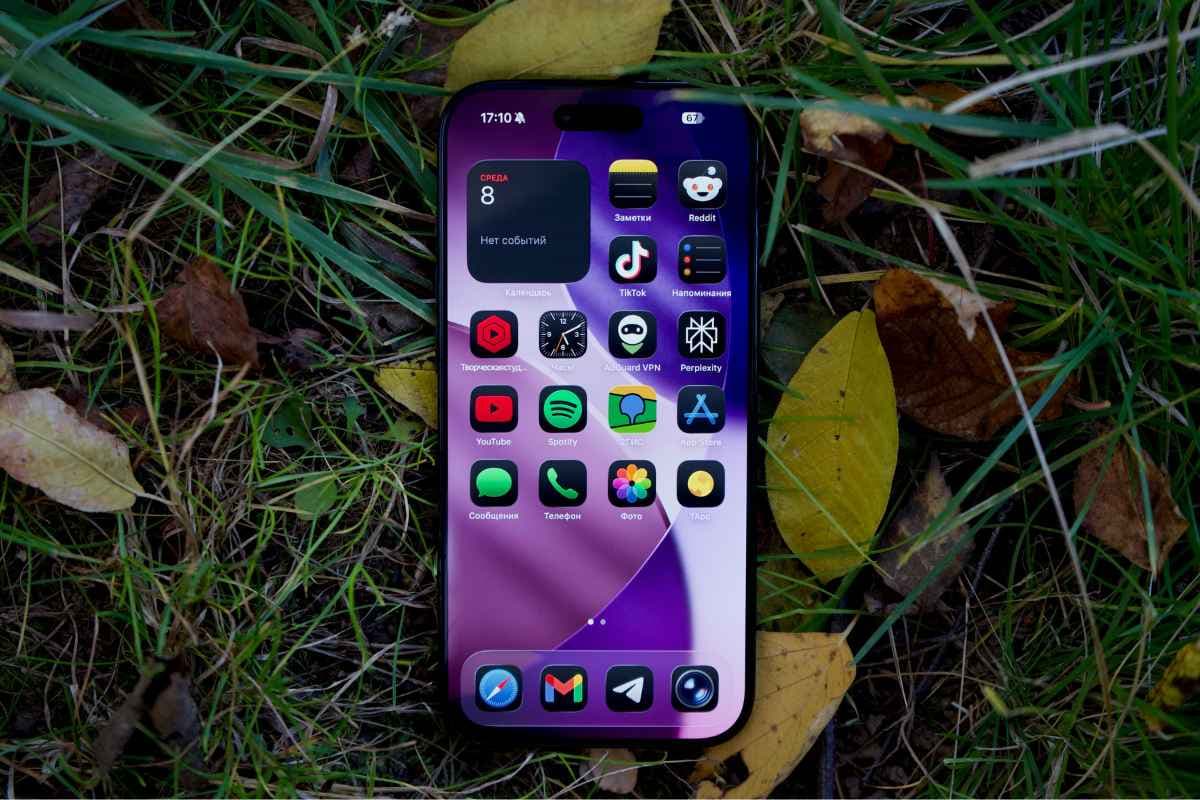
Image by Unsplash
Table of Contents
A slow hotspot can make video calls, downloads, and streaming frustrating even when your phone appears to have a decent signal.
If you want to know how to make hotspot faster, start by checking signal strength, Wi-Fi bands, connected devices, data limits, and background activity. A few simple adjustments can often improve both speed and connection stability.
1. How to Make Hotspot Faster: 12 Fixes to Try
Better hotspot performance usually comes from removing the biggest bottleneck first rather than changing every setting at once. Work through these fixes in order so you can tell whether the slowdown comes from cellular signal, Wi-Fi conditions, connected devices, or the phone itself.
1. Move Your Phone Where Cellular Signal Is Stronger
Hotspot speed cannot exceed the quality of the phone’s cellular connection. If reception is weak, move closer to a window, go outside, or test another location with better signal.
When checking how to make my hotspot faster, compare regular mobile data speed before and after moving. If the phone itself becomes faster, the hotspot usually improves as well.
2. Put Your Phone Closer to the Connected Device
Distance weakens the Wi-Fi link between your phone and laptop, tablet, or other connected device. Walls, furniture, and floors can reduce performance even when cellular reception remains strong.
Keep the phone within a few feet during heavy tasks such as streaming or downloads. A shorter, clearer path between devices usually improves stability and can reduce speed loss.
3. Disconnect Devices You Don’t Need
Every extra device shares the same available bandwidth, which can slow the entire hotspot session. Background syncing on one tablet or laptop may consume data even when you are not actively using it.
Disconnect unused devices before testing speed again. Fewer connections also make it easier to identify whether one device is responsible for unusually heavy data use.
4. Switch to 5 GHz When Speed Matters
5 GHz can deliver faster Wi-Fi performance at close range and usually faces less interference than 2.4 GHz. It works well for laptops nearby, especially during downloads, streaming, or video calls.
For example, when researching how to make hotspot faster iPhone, enabling Maximize Compatibility may favor broader 2.4 GHz support, so leave it off when compatible devices are close and higher speed is the priority.
5. Stop Background Downloads on Connected Devices
Operating-system updates, cloud backups, game downloads, and file syncing can quietly use a large share of hotspot bandwidth. This makes browsing or calls feel slow even though the connection itself is functioning normally.
Pause unnecessary downloads and automatic syncing while tethering. Check Task Manager, Activity Monitor, or app settings to see which programs are consuming data in the background.
6. Lower Streaming and Video-Call Demand
High-resolution streaming and video conferencing can consume significant bandwidth, especially when several devices are active. Dropping from 4K or 1080p to a lower resolution can free up capacity for other tasks.
Reduce video quality when speed is limited and close unused streams. This can make browsing, email, and other essential activities feel much faster without changing the hotspot itself.
7. Check Your Hotspot Data Usage
Some wireless plans reduce tethering speeds after a high-speed hotspot allowance is used. If performance dropped suddenly after several days of heavy usage, the plan limit may be the real cause.
Review your carrier account or plan details before changing more settings. Understanding how to make hotspot faster also means knowing whether the slowdown is technical or simply tied to your monthly data allowance.
8. Restart Your Hotspot Connection
Temporary network sessions can become unstable after long periods of use. Turning the hotspot off and back on refreshes the tethering connection without affecting most other phone settings.
Disable the hotspot, wait several seconds, then enable it again. Reconnect the laptop or tablet and test speed before moving on to more advanced troubleshooting.
9. Keep Your Phone From Getting Too Hot
Heavy tethering can generate heat because cellular data and Wi-Fi are operating at the same time. Excessive temperature may cause the phone to reduce performance to protect internal components.
Move the device out of direct sunlight, remove a thick case if needed, and avoid charging it in a hot environment. Letting the phone cool can improve consistency during long sessions.
10. Update Your Phone Software
Older iOS or Android versions may contain bugs that affect cellular performance, Wi-Fi stability, or tethering behavior. Software updates can include fixes for networking and compatibility issues.
Check the system update section in Settings and install any available release. Restart the phone afterward, then test cellular data and hotspot speed again.
11. Try USB Tethering for a Laptop
USB tethering can provide a more direct and stable connection than Wi-Fi, especially in areas with heavy wireless interference. It also keeps the phone physically connected to the laptop and may charge it during use.
Connect the devices with a compatible cable, enable tethering, and test performance. Windows users may need the appropriate Apple or Android drivers depending on the phone.
12. Restart the Phone and Test Again
A full restart can clear temporary software processes affecting cellular data, Wi-Fi, or tethering performance. It is especially useful when the slowdown appears suddenly without any obvious change in signal or data usage.
Restart the phone, confirm mobile data works normally, then enable the hotspot again. Test with one connected device first so you have a clean baseline for comparison.
2. How to Make Hotspot Faster for Streaming, Gaming, and Video Calls
Streaming, gaming, and video calls stress a hotspot in different ways, from high bandwidth use to latency and upload demands.
Better performance comes from adjusting signal strength, Wi-Fi band, background activity, and connected devices around the task you are actually running.
For Streaming
Streaming works best when the phone has a strong cellular signal and the connected device is close enough to use 5 GHz efficiently.
For how to make your hotspot faster during streaming, lower video quality from 4K or 1080p when bandwidth is limited, pause background downloads, and disconnect unused devices. These changes reduce competition for data and can make playback much smoother.
For Video Calls
Video calls need both stable download and upload performance, so consistency matters more than peak speed.
Keep the phone close, stop cloud backups and large downloads, and avoid moving between weak and strong signal areas during the call. USB tethering can also provide a steadier laptop connection when nearby Wi-Fi interference becomes a problem.
For Gaming
Online gaming usually uses less data than streaming, but it is very sensitive to latency and connection drops.
Use 5 GHz at close range, reduce the number of connected devices, and stop background updates before playing. Strong cellular reception and a stable connection are more important for gaming than simply chasing the highest download speed.
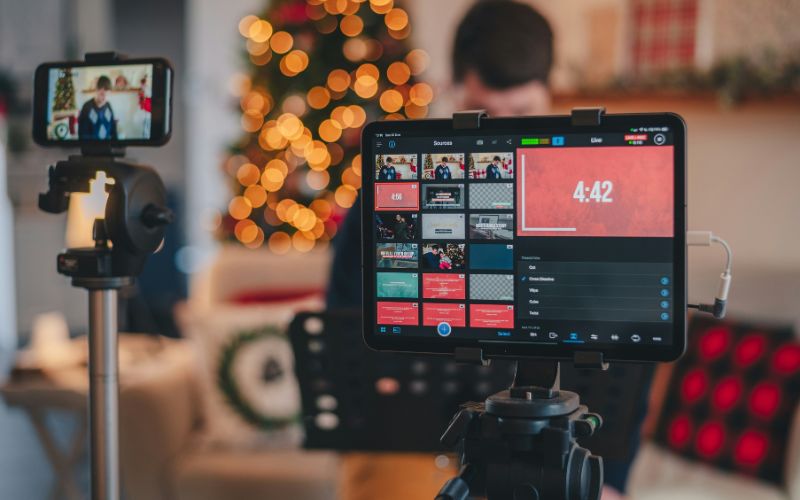
Optimize signal, Wi-Fi settings, and connected devices for smoother streaming, gaming, and video calls. (Image by Unsplash)
3. Need a Better Phone and Data Plan? Check Available TAG Mobile Offers
Slow tethering can sometimes be a plan problem rather than a device problem, especially after high-speed data or hotspot allowances are used. Lifeline can lower qualifying phone or internet costs for eligible households, while the exact service and device offers depend on the participating provider.
Households can generally qualify for Lifeline in two ways: through income at or below 135% of the Federal Poverty Guidelines or through participation in approved programs such as SNAP, Medicaid, SSI, Federal Public Housing Assistance, Veterans Pension or Survivors Benefit, and certain Tribal programs.
TAG Mobile participates in Lifeline and currently combines no-monthly-cost wireless service with several additional benefits for qualifying customers. Current plan and device offers vary by state and ZIP code, but several features stand out:
Free data each month on eligible Lifeline plans.
Unlimited talk and text for qualifying customers.
Free international calling to more than 200 countries and territories.
Free delivery plus free or discounted phones, depending on eligibility, location, and current inventory.
Nationwide 5G+/4G LTE coverage where available, with paid plans available for customers who need larger high-speed or dedicated hotspot allowances.
Applying for a free or discounted phone starts with Lifeline eligibility, but the plan and device selection deserve extra attention because available benefits can vary by location.
Here’s the process that gets you there:
Check your eligibility: Confirm that you qualify through household income or an approved assistance program such as SNAP or Medicaid, and prepare your supporting documents.
Enter your ZIP code: TAG Mobile will show the Lifeline plan and device offers available in your area.
Review the plan carefully: Check the monthly high-speed data amount, talk and text benefits, international calling, coverage, and whether hotspot access requires a paid upgrade.
Compare available devices: Review the models available for your location, compare screen size, operating system, 5G support, and everyday performance, then select the device that best fits your needs.
Submit the application: Complete the Lifeline application and provide any requested verification documents.
You may get your package in several business days after getting approved.
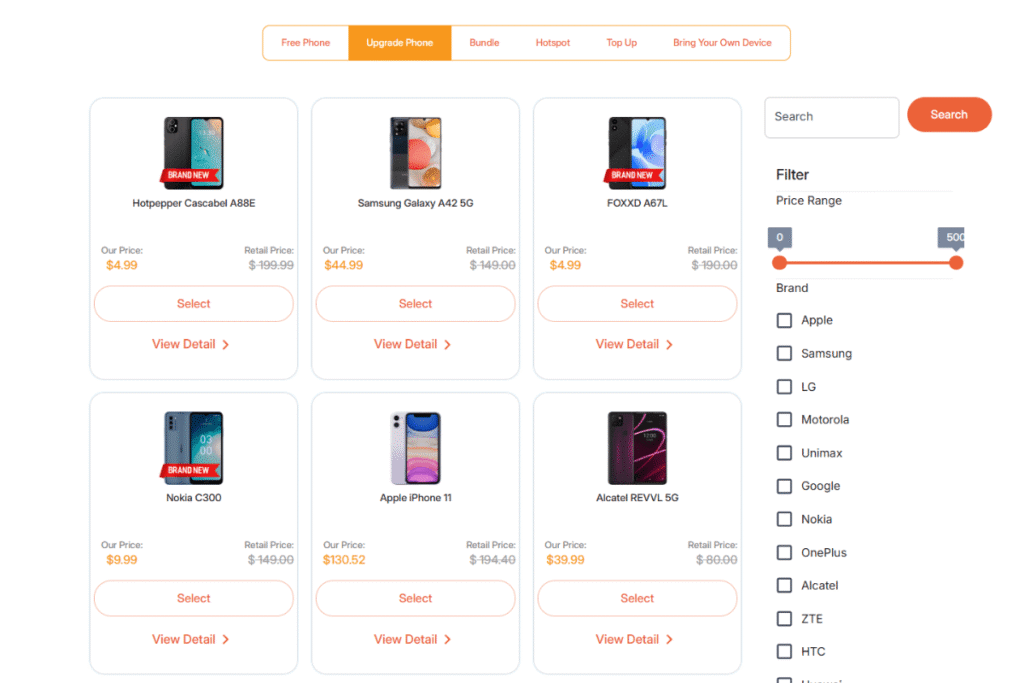
List of tablets and upgraded phones at TAG Mobile (Offers may vary by state, inventory, and time of your application).
Note: Eligibility varies by state and program. Offers depend on availability and qualifications. TAG Mobile operates under the federal Lifeline Program as an Eligible Telecommunications Carrier (ETC). Service is non-transferable and limited to one service per household.
4. FAQs about Making a Mobile Hotspot Faster
Connection speed can often improve with a few targeted adjustments, especially when the slowdown comes from signal quality, Wi-Fi settings, or background activity. These quick answers explain which changes can make tethering faster and when certain connection methods perform better.
Can I increase my mobile hotspot speed?
Yes. Moving to a stronger cellular signal, switching to 5 GHz at close range, disconnecting unused devices, stopping background downloads, and checking your data allowance can all improve performance. The hotspot still cannot exceed the speed available from your phone’s cellular connection.
Is USB tethering faster than a mobile hotspot?
USB tethering can be faster or more stable because it avoids some Wi-Fi interference and keeps the connection direct between the phone and laptop. Actual speed still depends on cellular signal, plan limits, cable quality, and device performance.
Does a VPN make hotspot slower?
It can. VPN traffic is encrypted and routed through an additional server, which may add latency or reduce speed depending on the VPN provider, server distance, and network conditions. Temporarily disabling the VPN can help confirm whether it is affecting performance.
Does 5 GHz make a hotspot faster?
Usually, yes, especially when the connected device is close to the phone. 5 GHz supports higher speeds and often faces less interference than 2.4 GHz, but its shorter range makes it less effective through walls or over longer distances.
5. Final Thoughts
Stronger tethering performance usually comes from improving signal quality, reducing bandwidth competition, and choosing the right connection method for the task. Learning how to make hotspot faster also means watching data limits, device heat, and background activity. Small adjustments can often deliver a noticeable improvement without changing phones. Eligible users can also explore TAG Mobile for Lifeline-supported wireless service and additional plan options.
Share
TAG Blog
Stories, guides, and helpful updates for staying connected.