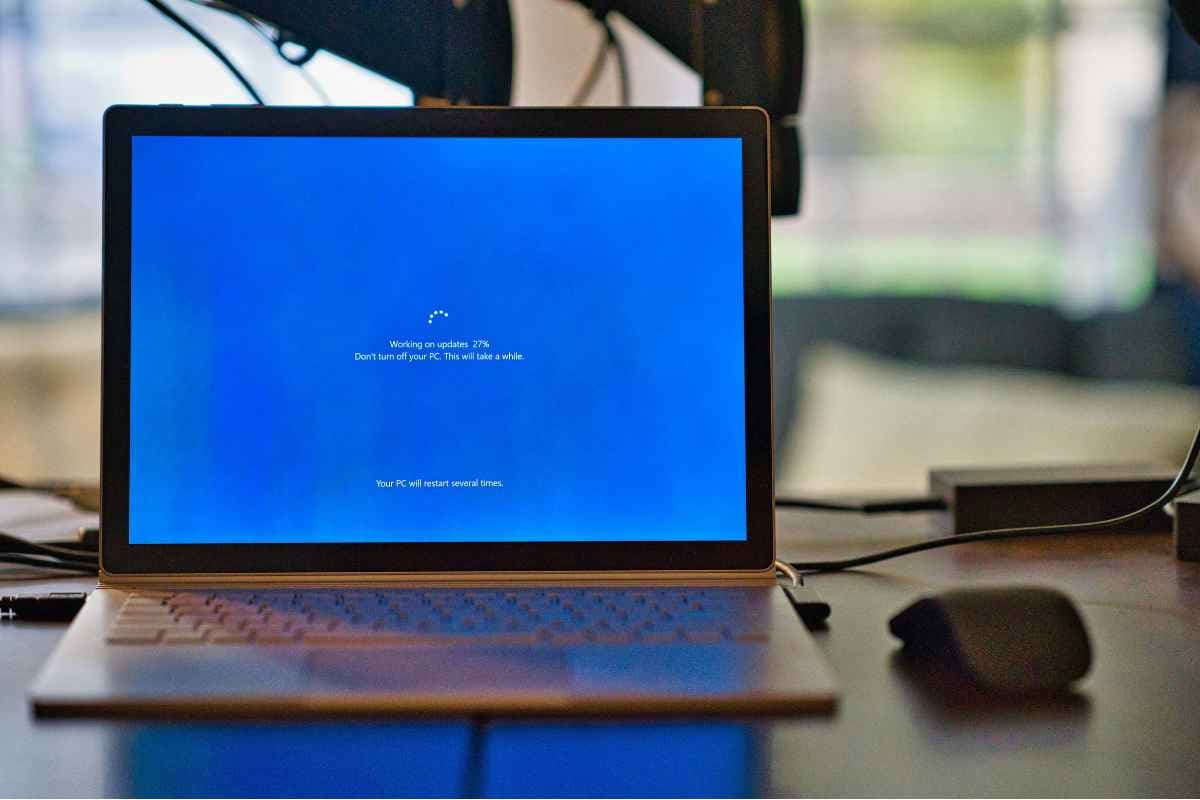
How to Fix Screen Flickering on PC, Smartphones, or TV
A flickering screen can quickly become distracting, whether the display flashes occasionally or constantly shifts in brightness. Let’s find out how to fix screen flickering as well...
Quincy D.-Sep 09, 2026
Image by Unsplash
Table of Contents
A flickering screen can quickly become distracting, whether the display flashes occasionally or constantly shifts in brightness. Let’s find out how to fix screen flickering as well as common causes that result in the issue.
1. How to Fix Screen Flickering? 4 Common Causes to Check First
Flickering usually points to a problem with display settings, connections, drivers, or the screen hardware itself. Checking these areas in a logical order can help narrow down the cause before you spend time on more complicated repairs.
Software and Display Settings Issues
Incorrect refresh rates, adaptive brightness, incompatible display modes, or app conflicts can make the screen flash, pulse, or dim unexpectedly. When working through how to fix screen flickering, first check whether the problem appears across the entire device or only inside one app.
On Windows, review refresh-rate and display settings, while phones and TVs may offer brightness, motion, or picture-processing options that affect stability. Restarting the device or affected app can also rule out a temporary software glitch.
Loose Cables or Connection Problems
HDMI, DisplayPort, USB-C, or power cables can trigger flickering when they are loose, damaged, or poorly connected. Unplug each cable, inspect the connectors, and reconnect everything firmly before testing the display again.
Trying another cable or port can help confirm whether the connection is the cause. On laptops and phones, an internal display connector may also loosen after a drop or repair, in which case professional inspection is usually safer.
Outdated Drivers and System Updates
Outdated or corrupted graphics drivers can cause screen flashes, blackouts, or unstable refresh behavior because the operating system may no longer communicate properly with the display hardware. Installing the latest compatible driver can often restore normal performance.
Check Windows Update, Device Manager, or the device manufacturer’s support tools for available updates. If flickering began immediately after a driver update, rolling back to the previous version may solve the issue more effectively than installing another release.
Hardware Damage or Failing Components
Persistent flickering can point to a failing display panel, backlight, graphics chip, power board, or internal cable. Heat, moisture, physical impact, and long-term wear can all contribute to these hardware problems.
If flickering appears before the operating system loads, continues after software troubleshooting, or changes when the device is moved, hardware damage becomes more likely. At that stage, professional repair or component replacement may be the better option.
2. Fixing Screen Flickering on a Windows PC or Laptop
Windows screen flickering is often linked to display drivers, incompatible apps, refresh-rate settings, or connection issues.
Start with simple checks, then move gradually toward driver and software fixes so you can identify the cause without changing several settings at once.
Restart the computer first
A reboot can clear temporary graphics or display-process errors. If the flickering disappears afterward, the issue may have been a short-lived software glitch rather than a hardware problem.
Check Task Manager
Press Ctrl + Shift + Esc and watch whether Task Manager flickers along with the rest of the screen. If it does, the display driver may be involved; if it remains stable while other areas flicker, an incompatible app is more likely.
Review the refresh rate
Open Settings > System > Display > Advanced Display and confirm the selected refresh rate is supported by your screen. Testing another available rate may help if the current setting is unstable.
Update the graphics driver
Use Windows Update, Device Manager, or the computer manufacturer’s support page to install the latest compatible display driver. Restart the computer after installation and check whether the flickering improves.
Roll back a recent driver if needed
If the problem began immediately after a graphics update, open Device Manager and check whether Roll Back Driver is available. Returning to the previous version can restore stable display behavior.
Update or remove problematic apps
Some software can conflict with Windows display processes. If flickering began after installing or updating an app, update it again, temporarily disable it, or uninstall it to see whether the screen stabilizes.
Check external connections
For monitors or docking stations, reconnect HDMI, DisplayPort, or USB-C cables firmly. Test another cable, port, or monitor when possible to separate a connection problem from a laptop display issue.
Install pending Windows updates
System updates can include compatibility fixes for graphics hardware and display behavior. Complete any available updates, restart the PC, and retest before moving on to hardware repair.
3. How to Fix Screen Flickering on Android and Other Phones
Phone screen flickering can come from temporary software glitches, display settings, problematic apps, or damaged hardware. Start with reversible fixes first, then move toward deeper troubleshooting only if the flashing continues.
Restart the phone
A simple reboot can clear temporary display-process or app conflicts. After the phone restarts, use it normally for a few minutes to see whether the flickering returns.
Check brightness settings
Disable adaptive or automatic brightness temporarily and adjust the level manually. Rapid brightness changes can sometimes look like flickering, especially in dim environments or when the ambient-light sensor behaves inconsistently.
Update Android and your apps
Install pending operating-system and app updates, since newer versions may include fixes for graphics or display problems. Restart the phone again after updating.
Test Safe Mode
Safe Mode disables most downloaded apps and helps identify third-party software conflicts.
For example, when troubleshooting how to fix screen flickering Android, a stable display in Safe Mode strongly suggests that an installed app may be causing the issue.
Remove recently installed apps
If the problem started after adding or updating an app, uninstall that app temporarily. Continue testing after each removal rather than deleting several apps at once, so the actual cause is easier to identify.
Review developer or display options
Settings such as forced GPU rendering or unusual refresh-rate controls can occasionally create instability. Return modified developer settings to their defaults if you changed them before the issue began.
Check for physical damage
Drops, moisture, pressure, or overheating can damage the display panel or internal connectors. Persistent flickering that survives software troubleshooting should be inspected professionally rather than fixed by repeatedly resetting the phone.
4. Troubleshooting a Flickering TV Screen: Common Solutions
TV flickering often traces back to cables, picture settings, unstable power, external devices, or an internal display component. Working through each possibility separately helps reveal whether the problem belongs to the television itself or something connected to it.
Power-cycle the TV: Turn the television off, unplug it from the wall, and leave it disconnected briefly before plugging it back in. This can reset temporary power or software issues that affect the picture.
Reseat HDMI and other cables: Loose or damaged HDMI, antenna, or power cables can create intermittent flashing. Disconnect and reconnect them firmly, then test another cable or input port if the problem continues.
Disconnect external devices: Remove streaming devices, consoles, set-top boxes, or other sources one at a time. If the flicker stops after one device is disconnected, that device, cable, or input setting is likely responsible.
Adjust picture settings: Excessive motion processing, dynamic contrast, energy-saving modes, or unsuitable refresh settings can make some screens appear unstable. When checking how to fix a flickering TV screen, temporarily disabling advanced picture processing is a useful diagnostic step.
Test another power outlet: Voltage fluctuations or a problematic power strip can affect screen stability. Plug the TV directly into another known-good wall outlet to see whether the flickering changes.
Update the TV software: Check the settings menu for firmware or system updates. Manufacturers sometimes release updates that address display compatibility, HDMI behavior, or picture-processing bugs.
Consider hardware repair: Flickering that remains across every input and menu screen may point to a failing backlight, power board, panel, or internal connection. Professional diagnosis is safer than opening the television yourself.
Troubleshoot a flickering TV by checking connections, settings, power issues, and connected devices. (Image by Unsplash)
5. 5 Mistakes That Can Make Screen Flickering Worse
Screen flickering can become harder to diagnose when several settings, drivers, or hardware components are changed at the same time. Avoiding a few common mistakes helps protect the device and makes it easier to identify what is actually causing the unstable display.
Changing Multiple Settings at Once
Adjusting refresh rate, brightness, graphics settings, and app preferences simultaneously can hide the real cause of the problem. When working through how to fix flickering screen, change one setting at a time and test the display before moving to the next step.
Ignoring Loose or Damaged Cables
Repeatedly changing software settings will not solve a flicker caused by a loose HDMI, DisplayPort, USB-C, or power connection. Check cables early, reconnect both ends firmly, and replace visibly damaged cables before assuming the screen or graphics hardware is failing.
Installing the Wrong Display Driver
Using an incompatible or incorrect graphics driver can create new display problems instead of fixing the original one. Download drivers from Windows Update, the device manufacturer, or the graphics manufacturer, and avoid random third-party driver tools that may install unsuitable versions.
Continuing to Use a Damaged Screen
Physical impact, moisture, overheating, or internal connection damage can cause flickering that software changes cannot repair. Continuing to press, bend, or heavily use the device may worsen the damage, especially if the flicker changes when the screen is moved.
Resetting the Device Too Early
Factory resets should not be the first response to screen flickering because they erase settings and data without guaranteeing a fix. Complete simpler checks first, including restarting, updating software, testing connections, reviewing display settings, and identifying whether the issue appears in Safe Mode or across different inputs.
6. FAQs about Screen Flickering
Screen flickering does not always mean the display is permanently damaged, but the cause needs to be identified before deciding on the right fix. These common questions help separate software problems from hardware failures and clarify when repair or replacement makes more sense.
Can screen flickering be fixed?
Yes, many flickering problems can be fixed by correcting display settings, updating drivers, reconnecting cables, removing problematic apps, or restarting the device. Persistent flickering that continues after software troubleshooting may require hardware repair.
Can an app cause my phone screen to flicker?
Yes. A poorly optimized or recently updated app can conflict with display rendering and make the screen flash or behave unpredictably. Testing the phone in Safe Mode can help confirm whether a third-party app is responsible.
Should I repair or replace a flickering phone?
Repair makes sense when the problem comes from a replaceable screen, loose connector, or another fixable component and the device is otherwise in good condition. Replacement may be more practical when repair costs are high, the phone is old, or several hardware problems appear together.
7. Final Thoughts
Stable display performance often returns once the cause is narrowed down to settings, drivers, connections, apps, or damaged hardware. The ideal approach to how to fix screen flickering is to start with simple checks before moving toward resets or professional repair. Testing one change at a time also makes troubleshooting far more effective.
For more practical tech guidance and mobile tips, explore TAG Mobile.
Share
TAG Blog
Stories, guides, and helpful updates for staying connected.