How to Find Hotspot Password on iPhone and Android: It Only Takes 1 Minute
Your hotspot password is stored directly in your phone settings, so finding it usually takes less than a minute. If you are searching for how to find hotspot password, the exact me...
Quincy D.-Sep 15, 2026
Image by Unsplash
Table of Contents
Your hotspot password is stored directly in your phone settings, so finding it usually takes less than a minute. If you are searching for how to find hotspot password, the exact menu differs slightly between iPhone and Android. This guide explains where to locate the password, how to change it when necessary, and what to do if another device still cannot connect properly.
1. What is My Mobile Hotspot Password?
Your mobile hotspot password is the security key other devices must enter to join your phone’s shared internet connection. It helps prevent unauthorized access and can usually be viewed or changed directly in the hotspot settings.
2. How to Find Hotspot Password on iPhone
Finding the saved password only takes a few taps once you know which settings to open. If you are asking where do I find my hotspot password, the steps below show the exact path on an iPhone and how to use that password on another device.
Step 1: Open Settings
Start by opening the Settings app on your iPhone.
This is where Apple stores controls for cellular data, Wi-Fi, Bluetooth, and Personal Hotspot. Make sure mobile data is available, especially if you plan to connect another device immediately after finding the password.
Step 2: Select Personal Hotspot
Scroll through Settings and tap Personal Hotspot. On some iPhones, you may need to open Cellular first and then select Personal Hotspot. This section contains the options used to allow other devices to join and manage how your iPhone shares its cellular connection.
Step 3: Look for Wi-Fi Password
Inside Personal Hotspot, find the Wi-Fi Password field. The current password appears there and can be tapped if you want to replace it with a new one. Choose a password that is secure but easy enough to enter correctly on the device you want to connect.
Step 4: Share or Enter the Password on the Other Device
On the second device, open its Wi-Fi settings and select your iPhone from the available networks. Enter the hotspot password exactly as shown, including capitalization and symbols. Once authenticated, the device should connect and begin using your iPhone’s cellular data connection.
Android manufacturers organize hotspot controls differently, so the exact menu path can vary from one device to another. If you are wondering how do i know what my hotspot password is, the quickest approach is to open the hotspot settings and look for the password, network details, or sharing options.
Google Pixel: Find the Password or Use the QR Code
On a Google Pixel, open Settings and go to Network & internet > Hotspot & tethering > Wi-Fi hotspot.
From there, tap the hotspot password option to view or change the current password. Google also notes that Pixel phones can share mobile data through Wi-Fi, Bluetooth, or USB tethering.
For easier sharing, some Pixel interfaces also provide QR-code-based connection options, allowing another compatible device to scan the code instead of typing the password manually. Menu labels may vary slightly depending on the Android version installed on your phone.
Samsung Galaxy: Check Mobile Hotspot Settings
Samsung Galaxy phones usually place hotspot controls under Settings > Connections > Mobile Hotspot and Tethering > Mobile Hotspot.
Open that section to view the network name, security settings, and current password, or to replace the password with a new one when necessary.
Newer Galaxy models may also offer additional sharing tools, including a one-time password and QR code. Samsung states that a one-time password can be generated specifically for temporary hotspot access, with a new password created after the hotspot is turned off and back on.
Find your Android hotspot password quickly through your phone’s hotspot settings. (Image by Unsplash)
4. 4 Easier Ways to Get Another Device Connected
Typing a long password is not always the fastest way to connect, especially when several devices need internet access.
If the question of what is the password for my hotspot keeps slowing you down, these alternative methods may make the connection process simpler.
QR Code Sharing: Compatible Android phones can display a QR code containing the connection information. The other device simply scans it to join, reducing typing errors and making password sharing more convenient.
Apple Device Sharing: Apple devices associated with compatible Apple accounts and nearby contacts may be able to share Wi-Fi credentials without manually entering them. Keep Wi-Fi and Bluetooth enabled and follow the on-screen sharing prompt when it appears.
USB Tethering: Connect the phone to a compatible computer with a USB cable, then enable USB tethering in the hotspot settings. This creates a wired internet connection and can also reduce the need to share a Wi-Fi password. Google supports USB tethering on Android, although compatibility varies by computer.
Bluetooth Tethering: Pair the two devices through Bluetooth and enable Bluetooth tethering on the phone. This method generally offers lower speeds than Wi-Fi tethering but can work well for lighter tasks when Wi-Fi sharing is inconvenient.
5. Once You Find the Password, Think About the Data Behind It
Learning how to find hotspot password solves the connection step, but the mobile data supporting that connection matters just as much. Users who qualify for federal assistance may also have access to discounted wireless service through the Lifeline Program.
Lifeline is a federal benefit program that helps eligible low-income households reduce the cost of qualifying phone or internet service.
Lifeline eligibility can generally be established in two main ways: through participation in an approved government assistance program or through household income at or below 135% of the Federal Poverty Guidelines.
SNAP is one of the qualifying government programs, alongside options such as Medicaid, SSI, Federal Public Housing Assistance, Veterans Pension and Survivors Benefit, and certain Tribal programs. Income-based qualification provides another route for households that meet the applicable threshold.
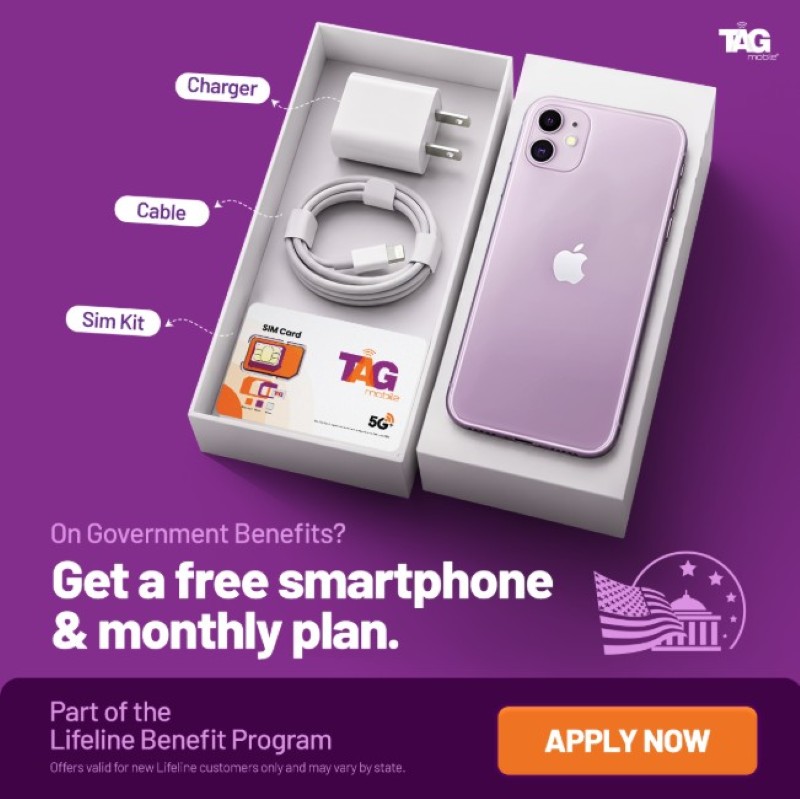
TAG Mobile is an Eligible Telecommunications Carrier and wireless provider that helps eligible customers access Lifeline-supported service. Lifeline provides the federal service benefit, while TAG Mobile supplies wireless plans and device options that can add practical communication benefits for approved customers.
Plan details can vary by state, so customers should confirm the current offer before applying. Here are the main features:
Free monthly data.
Unlimited talk and text.
Free international calling to more than 200 countries and territories.
Free delivery and access to discounted phone options.
5G+/4G LTE nationwide coverage where service is available.
See if you qualify for Lifeline, and apply through TAG Mobile to claim the best free phone and plan.
Note: Eligibility varies by state and program. Offers depend on availability and qualifications. TAG Mobile operates under the federal Lifeline Program as an Eligible Telecommunications Carrier (ETC). Service is non-transferable and limited to one service per household.
6. Hotspot Password Questions People Usually Ask Next
Finding the password is only part of managing a secure and convenient hotspot connection. Once you know how to find my hotspot password, questions about open access, password changes, and connection errors often come next.
Can I use my hotspot without a password?
Some Android phones allow hotspot security to be set to “None,” which removes the password requirement. Google documents this option for Pixel devices, but leaving a hotspot open allows nearby users to connect more easily, so password protection is generally the safer choice.
Does changing my hotspot password disconnect other devices?
Usually, yes. Devices connected with the old credentials will typically lose access after the password changes and must reconnect using the new one. This can also be useful if you want to remove previously authorized devices from the network.
Why does my hotspot say the password is incorrect?
The password may have been typed incorrectly, changed recently, or saved incorrectly on the connecting device. Double-check capitalization and symbols, forget the hotspot network on the second device, and then reconnect using the password currently displayed in your phone’s settings.
7. Final Thoughts
Once you know how to find hotspot password, connecting another device becomes much easier and more secure. Managing your password carefully, choosing convenient sharing methods, and keeping an eye on data usage can improve the overall tethering experience. TAG Mobile offers wireless plans and device options for eligible users who want practical support for everyday connectivity. Secure credentials and smart data management can help keep hotspot sharing smooth and dependable.
Share
TAG Blog
Stories, guides, and helpful updates for staying connected.