How to Delete Stickers on iPhone: Step-by-Step Removal Guide
Sticker collections can quickly become crowded with unused Live Stickers, custom images, emoji designs, and downloaded packs. Since each type is stored or displayed differently, ho...
Quincy D.-Sep 30, 2026
Image by Unsplash
Table of Contents
Sticker collections can quickly become crowded with unused Live Stickers, custom images, emoji designs, and downloaded packs. Since each type is stored or displayed differently, how to delete stickers on iPhone depends on where the unwanted item appears.
This guide separates the available removal methods, helping you clean the sticker drawer, keyboard, iMessage conversations, and third-party content without deleting anything you still want to keep.
1. How to Delete Stickers on iPhone: 4 Methods for Different Sticker Types
Sticker removal steps depend on whether the item is saved in your personal collection, displayed through the keyboard, attached to a message, or supplied by another app. Select the method matching where the unwanted sticker appears.
Method 1: Delete a Custom or Live Sticker From the Sticker Drawer
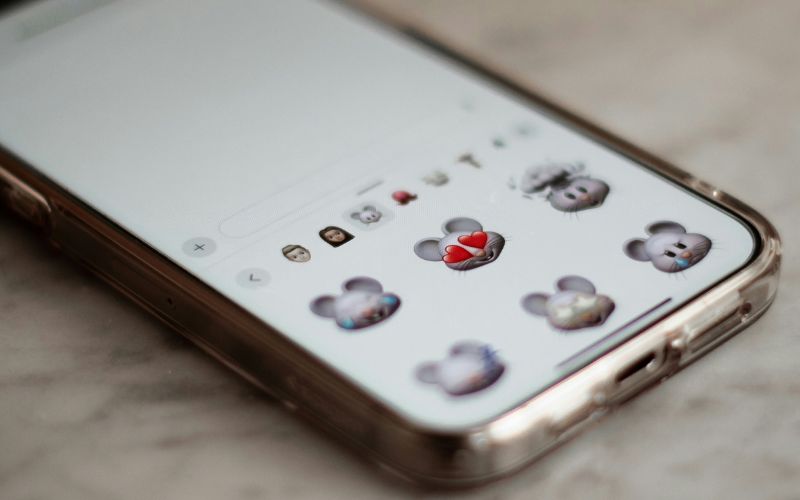
Open Messages, enter any conversation, tap the plus button beside the text field, and select Stickers. Find the custom or live sticker you no longer want, then touch and hold it until the available options appear.
Choose Delete or Remove, depending on your iOS version. Anyone checking how to delete custom stickers on iPhone should remember that removing a saved sticker may also remove it from other Apple devices using the same iCloud account.
Method 2: Delete a Sticker From the iPhone Keyboard
Open an app containing a text field, display the keyboard, and tap the emoji or globe button. Select the Stickers icon, locate your unwanted custom sticker, press and hold it, and choose Delete or Remove.
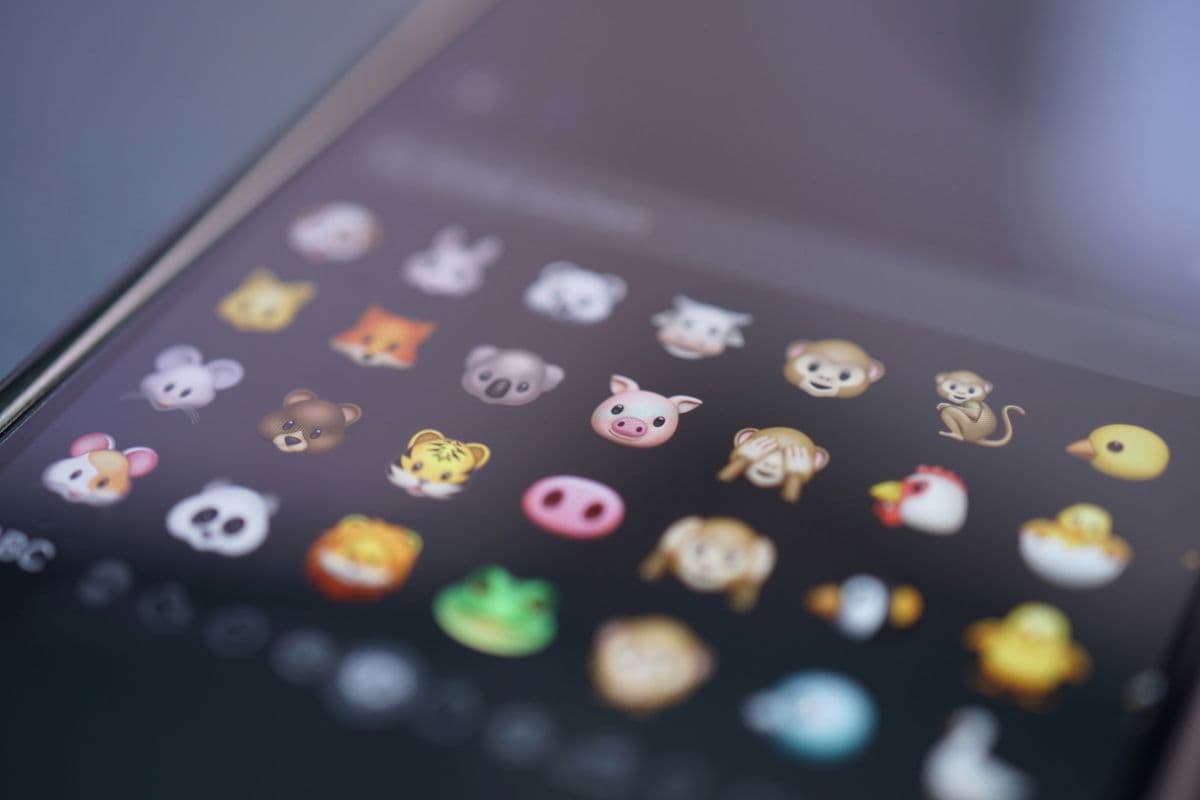
These steps explain how to delete stickers on iPhone keyboard when they belong to your personal sticker collection. Built-in emoji and Memoji characters cannot usually be deleted individually, but sticker suggestions may be hidden through the keyboard settings.
Method 3: Remove a Sticker Attached to an iMessage
Open the relevant Messages conversation and find the bubble covered by the unwanted sticker. Touch and hold the message, choose Sticker Details, then swipe left across the sticker entry and tap the trash or Delete button.
This process is useful when researching how to delete emoji stickers on iPhone after one has been placed over an iMessage. Removing the attachment does not necessarily delete its original design from your saved sticker drawer.
Method 4: Remove Third-Party Sticker Content
Third-party stickers usually come from an installed iMessage pack or a separate app. If individual deletion is unavailable, open Settings, select Apps, choose Messages, and review the installed iMessage apps to disable the relevant sticker pack.
Permanent removal may require deleting the associated app from the Home Screen or through Settings > General > iPhone Storage. Menu names can vary by iOS version, so confirm that the app provides the stickers before uninstalling it.
Four methods can delete unwanted iPhone stickers based on where they appear. (Image by Unsplash)
2. Why Can’t I Delete Stickers on My iPhone?
Removal options vary because iPhone stickers can come from Apple’s built-in library, personal photos, Messages attachments, or third-party apps. If the usual steps for how to delete stickers on iPhone are not working, one of these issues may be responsible.
Built-in stickers cannot be deleted individually: Standard emoji and some Memoji options belong to iOS rather than your personal collection. You may hide sticker suggestions through keyboard settings, but individual built-in designs generally cannot be permanently removed.
You are checking the wrong sticker Location: Deleting a saved custom sticker requires opening the sticker drawer, while removing one attached to an iMessage requires using Sticker Details. Removing it from one location may not affect the other.
The sticker menu has not opened correctly: Pressing too briefly may select or send the sticker instead of displaying removal options. Touch and hold the item until the contextual menu appears, then choose Delete or Remove.
Your iOS version has different controls: Apple occasionally changes menu names, icons, and sticker locations through software updates. Installing the latest compatible iOS version and restarting the iPhone may resolve missing buttons or temporary interface problems.
Third-party content is controlled by another app: Stickers supplied by downloaded packs may not support individual removal through Apple’s drawer. Disable the iMessage extension or uninstall the associated app to remove its content completely.
3. What Programs Offer Free or Low-Cost iPhone and Mobile Assistance?
Government assistance and participating wireless providers can reduce the cost of staying connected. Available benefits depend on household eligibility, location, provider inventory, and current device promotions.
Lifeline is a federal program that offers a monthly discount on qualifying phone or internet service. Households may qualify through income at or below 135% of the Federal Poverty Guidelines or participation in programs such as SNAP, Medicaid, SSI, Federal Public Housing Assistance, or Veterans Pension and Survivors Benefit.
TAG Mobile is a Houston-based wireless provider offering prepaid service and Lifeline-supported plans to eligible households. Many applicants choose TAG Mobile for online enrollment, multilingual customer assistance, nationwide coverage, contract-free service, and access to free or discounted devices, subject to availability.
Device preferences differ based on operating system, screen size, camera quality, performance, and budget. TAG Mobile currently lists the following smartphones, making it easier to compare available Android and iPhone options:
Samsung Galaxy A03s: Features a spacious 6.5-inch display, a 5,000 mAh battery, triple rear cameras, and expandable storage, making it practical for calls, messaging, streaming, and everyday apps.
FOXXD C67: Offers an accessible smartphone option for essential communication, web browsing, social media, and routine mobile tasks. Confirm current specifications and availability directly on the product page before selecting it.
Samsung Galaxy S21 5G: Combines 5G connectivity with a 6.2-inch Dynamic AMOLED display, smooth 120 Hz refresh rate, versatile triple-camera system, and powerful performance for photography, entertainment, and multitasking.
iPhone X: Includes a 5.8-inch Super Retina OLED display, Face ID, dual 12MP rear cameras, and the familiar iOS experience for messaging, video calls, photography, and Apple services.
iPhone SE 2: Pairs a compact 4.7-inch Retina HD display with the A13 Bionic chip, Touch ID, and a 12MP camera, suiting users who prefer traditional iPhone controls and reliable performance.
Device prices, free-phone offers, plan features, and inventory vary by state and eligibility. Applicants should enter their ZIP code and complete the qualification process to view the options currently available through TAG Mobile.
Note: Eligibility varies by state and program. Offers depend on availability and qualifications. TAG Mobile operates under the federal Lifeline Program as an Eligible Telecommunications Carrier (ETC). Service is non-transferable and limited to one service per household.
4. FAQs about Deleting Stickers on iPhone
Different sticker categories follow separate removal rules, so an option available in the sticker drawer may not appear under Recents. These answers explain how deletion affects recently used items, source photos, and custom sticker recovery.
Why Can’t I Delete a Sticker From Recents?
Recents is an automatically generated list of stickers and emoji used through the iPhone keyboard, not a separately managed collection. iOS may therefore provide no option to delete a single recent item directly. Removing a custom sticker from the main sticker drawer may clear it later, while frequently used entries usually change as you use different content.
Does Deleting a Sticker Delete the Original Photo?
Deleting a custom or live sticker removes only the extracted design stored in your iPhone’s sticker collection. Its source image remains in the Photos app because the sticker functions as a separate item. You can continue viewing, editing, sharing, or using the original photo to create another sticker later.
Can I Recover a Deleted Custom Sticker?
Deleted custom stickers generally do not move to Recently Deleted, and iOS does not provide a dedicated recovery button. If the source image remains available in Photos, press and hold its subject and choose Add Sticker to recreate it. Any effects, positioning, or adjustments applied previously may need to be added again.
Final Thoughts
Cleaning unused stickers becomes simple once you identify whether they are saved, recently used, attached to an iMessage, or supplied by another app. This guide to how to delete stickers on iPhone helps remove unwanted content without affecting original photos.
For affordable mobile service and discounted device options, check your eligibility with TAG Mobile. Always confirm the sticker type before choosing a removal method.
Share
TAG Blog
Stories, guides, and helpful updates for staying connected.