How to Connect Hotspot From iPhone to Laptop: 3 Easy Ways
Your iPhone can provide a quick internet connection for a laptop when home, office, or public Wi-Fi is not available. If you want to know how to connect hotspot from iPhone to lapt...
Quincy D.-Sep 22, 2026
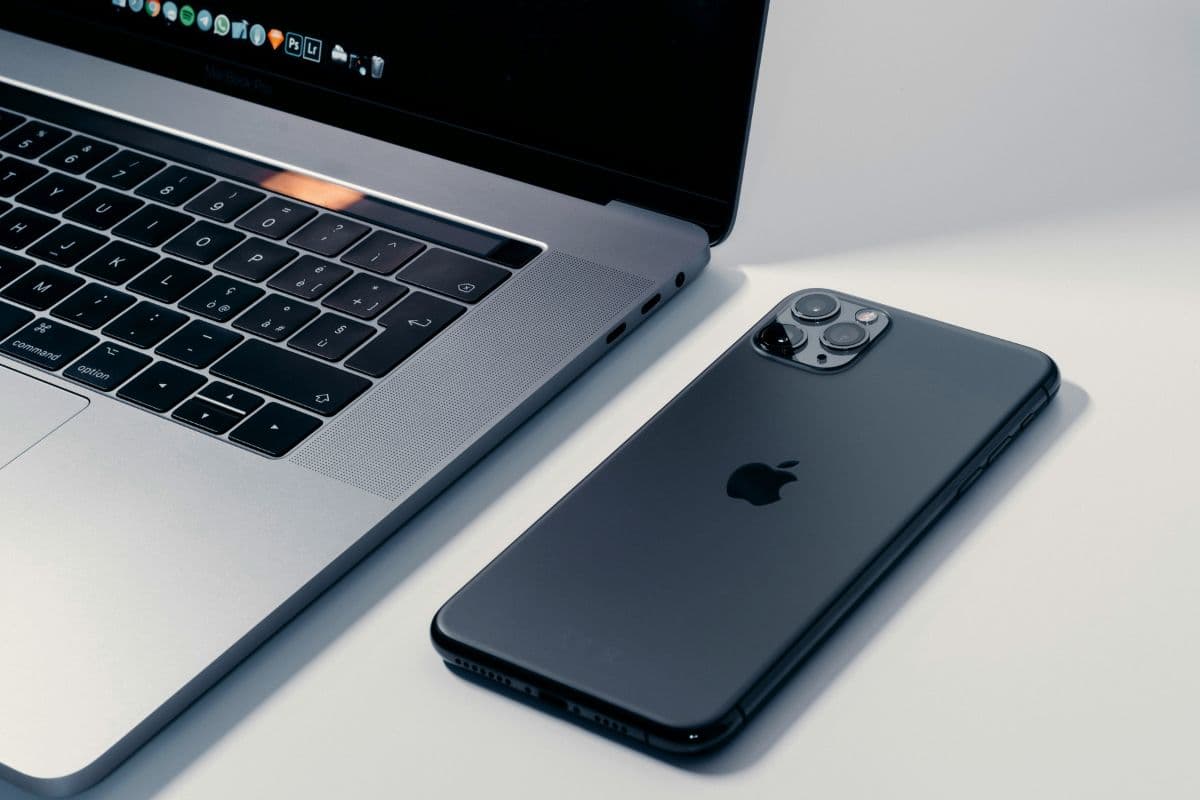
Image by Unsplash
Table of Contents
Your iPhone can provide a quick internet connection for a laptop when home, office, or public Wi-Fi is not available. If you want to know how to connect hotspot from iPhone to laptop, you can connect your iPhone wirelessly.
You can also use a USB cable when you need a more direct connection. Bluetooth is another option for compatible laptops.
1. What to Check Before Connecting Hotspot to Laptop?
A smooth connection usually depends on a few basic settings being ready before the laptop starts searching for your iPhone.
Checking them first can help prevent password errors and connection problems later.
Make sure cellular data is turned on and working on the iPhone before enabling Personal Hotspot.
Open Settings > Personal Hotspot and confirm Allow Others to Join is enabled.
Check the Wi-Fi password so you can enter it correctly when the laptop asks for it.
Keep the iPhone reasonably close to the laptop, especially when using Wi-Fi or Bluetooth.
Confirm the laptop’s Wi-Fi, Bluetooth, or USB connection is ready for the method you plan to use.
How to connect hotspot from iPhone to laptop? Check your mobile data and hotspot settings before connecting. (Image by Unsplash)
2. How to Connect Hotspot From iPhone to Laptop?
How to connect to hotspot on laptop from iPhone? Personal Hotspot can connect an iPhone to a laptop in three main ways: Wi-Fi, USB, or Bluetooth. Each method works differently.
Method 1: Connecting via Wi-Fi
Wi-Fi is usually the quickest option because it works much like joining any other wireless network.
Once Personal Hotspot is active, the laptop can detect the iPhone by name and connect with the password shown in the hotspot settings.
On the iPhone, open Settings > Personal Hotspot and turn on Allow Others to Join.
Check the Wi-Fi password displayed on the same screen and keep it handy.
Move to the laptop and open its Wi-Fi menu.
Look for your iPhone’s name in the available network list, then select it.
Enter the hotspot password carefully and choose Connect.
Wait a few seconds, then open a browser to confirm the laptop has internet access.
Method 2: Connecting via USB Cable
USB tethering is useful when you want a more direct connection and do not want to rely on nearby Wi-Fi conditions.
It can also keep the iPhone connected to power during longer work sessions.
On Windows, Apple Devices or iTunes must be installed for USB hotspot connections.
Connect the iPhone to the laptop using a compatible USB cable.
Unlock the iPhone and tap Trust if a prompt asks whether you trust the computer.
Make sure Personal Hotspot is enabled on the iPhone.
On a Mac, the iPhone connection can appear automatically in Network settings.
On Windows, make sure Apple Devices or iTunes is installed if the connection is not recognized.
Test internet access once the laptop detects the iPhone as a network connection.
Method 3: Connecting via Bluetooth
How to connect hotspot from iPhone to laptop via Bluetooth?
Bluetooth tethering works without a cable and can be useful when Wi-Fi is unavailable or you want a lower-power wireless alternative.
Setup takes a little longer because the iPhone and laptop must be paired before the internet connection can be shared.
Turn on Bluetooth on both the iPhone and the laptop.
Pair the two devices through their Bluetooth settings and confirm any matching code that appears.
Enable Personal Hotspot on the iPhone after pairing is complete.
On the laptop, open the Bluetooth network or tethering options and select the iPhone.
Choose the option to connect through the iPhone’s network access service.
Give the connection a moment to establish, then test it by opening a webpage.
3. Wi-Fi vs. USB vs. Bluetooth: Which Connection Should You Use?
Each tethering method fits a different situation, so speed alone should not decide which one you use.
Wi-Fi favors convenience, USB works well for longer and more stable sessions, while Bluetooth is better suited to lighter internet tasks when cables are unavailable.
Factor
Wi-Fi
USB
Bluetooth
Setup
Quick and fully wireless
Requires a compatible cable
Requires Bluetooth pairing first
Speed
Generally fast for everyday browsing, streaming, and work
Typically stable and suitable for heavier tasks
Usually slower than Wi-Fi and USB
Battery Use
Can drain the iPhone faster during long sessions
Laptop can charge the iPhone while connected
Often uses less power but still affects battery life
Mobility
Easy to use without cables
Movement is limited by the cable
Wireless and convenient at close range
Best For
Everyday laptop tethering
Long work sessions, downloads, or steadier connectivity
4. How to Fix iPhone Hotspot Not Showing Up on Your Laptop?
An iPhone can disappear from the laptop’s Wi-Fi list even when Personal Hotspot appears to be enabled correctly. Before resetting anything, start with basic connection checks.
Keep the Personal Hotspot Screen Open
Open Settings > Personal Hotspot and confirm Allow Others to Join is enabled, then leave that screen open while the laptop searches for Wi-Fi.
Keeping the iPhone discoverable during setup can help the hotspot appear when the laptop does not detect it immediately.
Refresh Wi-Fi on Both Devices
Temporary wireless discovery errors can prevent the laptop from seeing your iPhone. When troubleshooting how to connect hotspot from iPhone to laptop, turn Wi-Fi off and back on on both devices, wait a few seconds, and search for the iPhone network again.
Restart Both Devices
Minor software or network processes can become stuck without showing an obvious error. Restart the iPhone and laptop, allow the iPhone to reconnect to cellular data, then enable Personal Hotspot again before checking the laptop’s available Wi-Fi networks.
Try Maximize Compatibility
Older laptops may have trouble detecting the Wi-Fi band used by newer iPhones. On supported models, open Settings > Personal Hotspot and enable Maximize Compatibility, then search again from the laptop.
Update Software Before Resetting Network Settings
Outdated iOS, Windows, or macOS software can create compatibility problems between the two devices. Install available updates first and test the connection again. Consider resetting network settings only after these fixes fail because doing so removes saved Wi-Fi networks and other network preferences.
5. How to Find Compatible Phones and Plans With Included Hotspot Data?
Phone compatibility and hotspot access should be checked together before choosing a wireless plan.
A suitable device may support tethering perfectly, but the experience still depends on network coverage, monthly data, and whether the plan includes dedicated hotspot use.
To help low-income households, the federal Lifeline benefit can lower the cost of qualifying phone or internet service.
Applicants can qualify either through household income at or below 135% of the Federal Poverty Guidelines or through participation in certain assistance programs.
Meanwhile, TAG Mobile participates as an Eligible Telecommunications Carrier and offers Lifeline-supported wireless service in qualifying areas. Eligible customers can compare the available service and device options for their area as benefits may vary by state and current promotions.
The benefit package includes:
Up to 16GB of free monthly data on eligible Lifeline plans. (allowances vary by state and subject to future updates)
Unlimited talk and text.
Free international calling to more than 200 countries and territories.
Free delivery, plus free or discounted phones for eligible customers, depending on location and inventory.
Bring Your Own Device support with an IMEI compatibility checker for unlocked phones.
A reliable data plan can make hotspot use more convenient when you need to connect other devices.
Device selection, besides, is worth checking alongside the plan itself. Screen size can affect how comfortably you use the device.
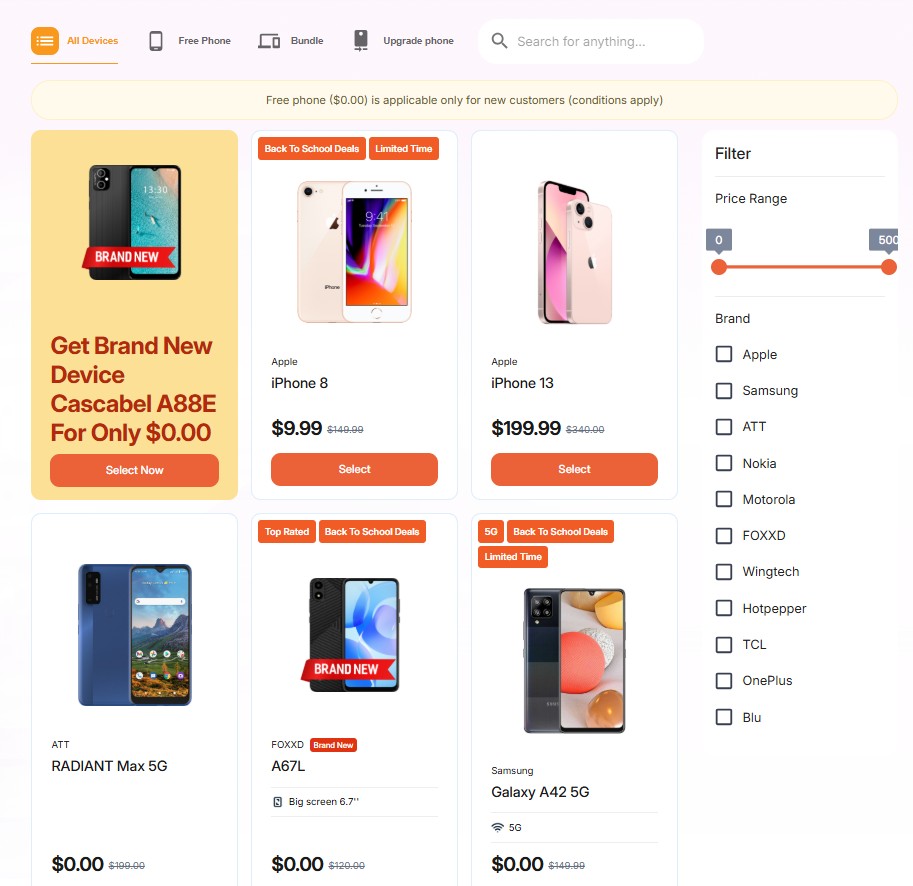
Below are smartphones and tablets, although availability and pricing can vary.
Samsung Galaxy S20 5G: 5G-capable Android smartphone suited to browsing, video calls, streaming, multitasking, and everyday mobile-data use.
Samsung Galaxy S22 5G: Modern 5G Android smartphone designed for strong everyday performance, mobile apps, photography, streaming, and communication.
iPhone 12: 5G-capable Apple smartphone offering FaceTime, iMessage, app access, browsing, streaming, and Personal Hotspot support.
Clovertek G17: Its larger screen makes it better suited to online learning, browsing, video streaming, reading, and other activities where more display space is useful.
Samsung Galaxy Tab A7 Lite: Its compact tablet format provides more screen space for reading, streaming, video calls, online classes, and web browsing without moving to a full-size laptop.
iPad 7: It is well suited to browsing, schoolwork, entertainment, video calls, and productivity apps, particularly for users who prefer a larger iOS-based screen.
Get started and apply for your mobiles services now!
Note: Eligibility varies by state and program. Offers depend on availability and qualifications. TAG Mobile operates under the federal Lifeline Program as an Eligible Telecommunications Carrier (ETC). Service is non-transferable and limited to one service per household.
6. FAQs about Connecting iPhone Hotspot to a Laptop
Laptop tethering can fail for several reasons, from hidden hotspot settings to weak cellular service or disabled wireless features. These quick answers cover the most common situations so you can identify the cause without changing unnecessary settings.
Why can’t my laptop find my iPhone hotspot?
Your iPhone may not appear if Personal Hotspot is turned off, Allow Others to Join is disabled, or the laptop’s Wi-Fi needs refreshing. Keep the Personal Hotspot screen open, move both devices closer together, and try Maximize Compatibility on supported iPhones if detection still fails.
Can I use an iPhone hotspot without Wi-Fi?
Yes. An iPhone hotspot shares cellular data, so regular Wi-Fi is not required. You can connect a laptop through Wi-Fi, USB, or Bluetooth as long as mobile data is active and your carrier plan supports tethering.
Does connecting my laptop to my iPhone use mobile data?
Yes. Internet activity on the laptop is routed through the iPhone’s cellular connection. Browsing and streaming can use mobile data quickly. Downloads and software updates can also consume a significant amount of data.
7. Final Thoughts
Laptop internet access is much easier when you know which tethering method fits the situation and what settings need to be ready first. With how to connect hotspot from iPhone to laptop, Wi-Fi offers convenience, USB can provide a steadier link, and Bluetooth works as a useful backup. Checking plan limits and cellular signal also helps prevent interruptions.
TAG Mobile gives eligible users another option to explore for Lifeline-supported wireless service. Make sure to catch up with the latest news and practical instructions!
Share
TAG Blog
Stories, guides, and helpful updates for staying connected.