How to Change Hotspot Name on iPhone in a Few Simple Taps
Renaming an iPhone hotspot can make it easier to recognize your network when connecting laptops, tablets, or other phones nearby. he process for how to change hotspot name on iPhon...
Quincy D.-Sep 14, 2026
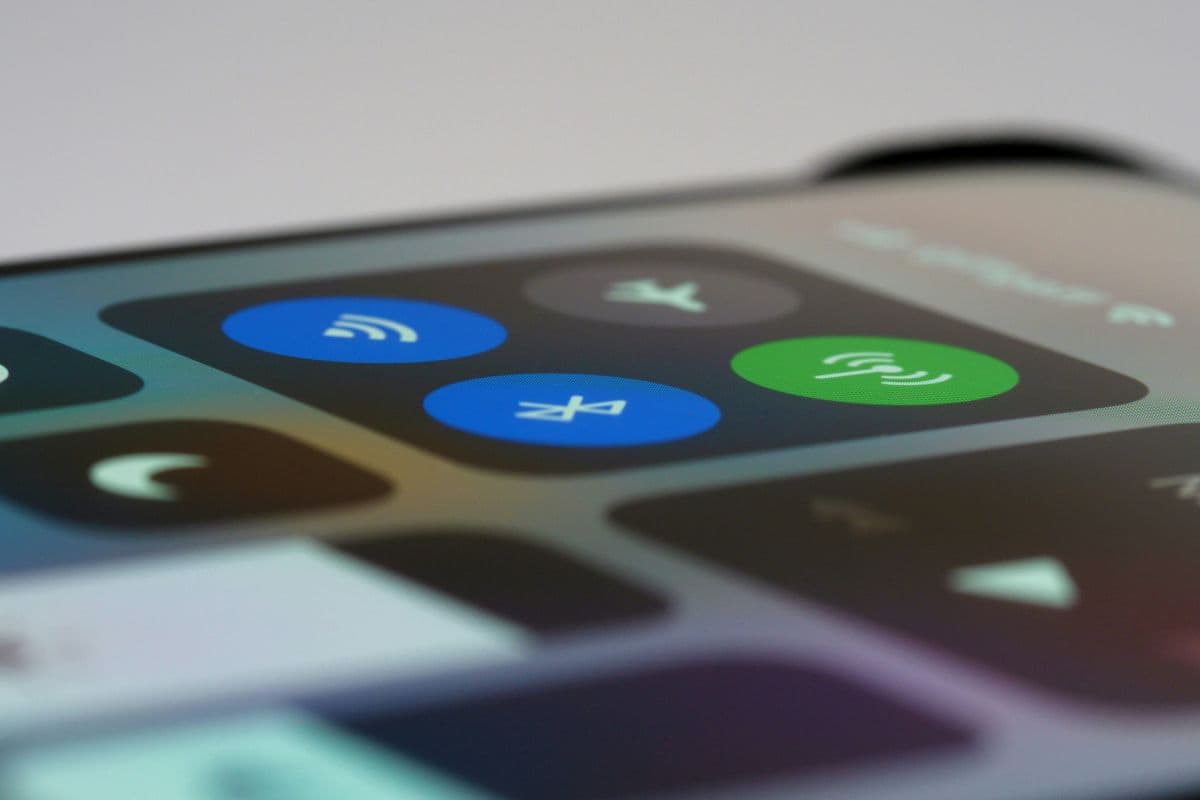
Image by Unsplash
Table of Contents
Renaming an iPhone hotspot can make it easier to recognize your network when connecting laptops, tablets, or other phones nearby.
he process for how to change hotspot name on iPhone is tied to the device name rather than a separate hotspot field, so changing your iPhone’s name updates what other devices see. A clear, unique name also helps avoid confusion in crowded Wi-Fi environments.
1. How to Change Hotspot Name on iPhone in 4 Steps
Your iPhone hotspot uses the device name shown in iOS, so there is no separate field just for renaming Personal Hotspot. Once the device name changes, the updated hotspot name should appear when nearby devices search for available Wi-Fi networks.
Step 1: Open Settings
Start from the iPhone Home Screen and open Settings. This is where iOS keeps the device information used by features such as AirDrop, Bluetooth, and Personal Hotspot.
For how to change your hotspot name on iPhone, you will update the phone’s main device name rather than changing a separate hotspot setting.
Step 2: Tap General
Scroll down in Settings and tap General. This menu contains system-level information and controls for your iPhone, including software updates, storage, transfer options, and device identification. From here, you can reach the section where the current iPhone name is stored.
Step 3: Tap About, Then Name
Inside the General menu, tap About to open your iPhone’s device information.
Next, select Name near the top of the screen.
This field controls the device name used across several Apple features, including Personal Hotspot, so changing it here also updates the network name that nearby devices can see.
Step 4: Delete the Old Name and Enter a New One
Remove the existing name, type the new one you want to use, and tap Done on the keyboard.
The change is saved automatically. If another device still shows the old hotspot name, refresh its Wi-Fi list or turn Personal Hotspot off and back on before reconnecting.
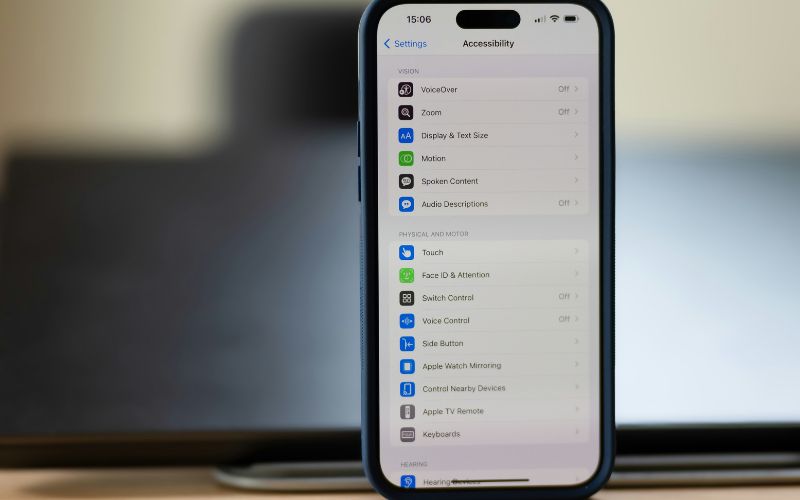
Change your iPhone hotspot name in four simple steps. (Image by Unsplash)
2. Changed the Name but Still See the Old Hotspot? Try This
Renaming your iPhone may not update the hotspot label instantly on every nearby device. Saved network data, cached Wi-Fi information, or delayed wireless refreshes can keep the previous name visible even after the change has been saved.
Turn Personal Hotspot Off and Back On
Open Settings > Personal Hotspot and switch Allow others to join off for a few seconds before enabling it again. This refreshes the hotspot broadcast and gives nearby devices a better chance of detecting the updated iPhone name.
For how to change name of hotspot on iPhone, this simple reset is often enough when the new device name is already correct in Settings, but the old hotspot label still appears.
Refresh Wi-Fi on the Other Device
Open Wi-Fi settings on the laptop, tablet, or phone trying to connect, then turn Wi-Fi off briefly and switch it back on. This forces the device to scan again instead of relying on an older cached network list.
If the renamed hotspot still does not appear, wait a few seconds and refresh the available networks again. Moving the devices closer together can also help during the first reconnect.
Forget the Old Saved Network
Previously connected devices may continue showing the old hotspot because that network profile is stored locally. Open Wi-Fi settings, select the previous hotspot name, and choose Forget This Network or a similar option.
When checking how to change personal hotspot name on iPhone, removing the saved network can be especially helpful because the connecting device is forced to treat the renamed hotspot as a new connection.
Restart the iPhone
Restarting the iPhone refreshes wireless services, temporary system data, and network identification that may still be tied to the previous device name. After the phone turns back on, check Settings > General > About > Name to confirm the update remains saved.
Next, enable Personal Hotspot again and open the Wi-Fi list on the other device. The new hotspot name should now have a better chance of appearing correctly.
Restart the Connecting Device
If the iPhone already displays the new name correctly, the problem may be on the device searching for the hotspot. Restarting that laptop, tablet, or phone clears temporary Wi-Fi information and refreshes its network discovery process.
Once it powers back on, reopen Wi-Fi settings and scan for nearby networks again. If the old hotspot remains listed, forget that saved network before reconnecting to the renamed one.
3. Should You Put Your Full Name in Your Hotspot Name?
No, avoid using your full name as a hotspot name because nearby strangers can see it when scanning for Wi-Fi networks.
A neutral, recognizable label protects more personal information while still making your hotspot easy to identify.
4. Changing the Hotspot Name vs. Changing the Hotspot Password
Renaming a hotspot changes how your iPhone appears to nearby devices, while changing the password controls who can actually connect.
Understanding how to change my hotspot name on iPhone is useful, but both settings serve different purposes for convenience and security.
Factor
Hotspot Name
Hotspot Password
Main Purpose
Helps you identify your iPhone in the Wi-Fi list
Protects the hotspot from unauthorized access
Where to Change It
Settings > General > About > Name
Settings > Personal Hotspot > Wi-Fi Password
What Happens After the Change
Nearby devices see the new network name.
Previously saved devices may need the new password.
Security Impact
Mainly affects privacy and identification
Directly controls who can connect
When to Update
When the name is confusing or reveals personal information
When the password is weak, shared too widely, or compromised
Your hotspot name only changes how other devices identify your iPhone, so it is useful when you want to recognize your network more easily or remove personal details from the name.
Your hotspot password is the setting that actually controls access, so update it whenever you want to block previous connections or prevent others from joining without permission.
5. Looking for an Affordable iPhone? How About Free, Gov-Supported Options?
Buying a new device does not always have to mean paying full retail price, especially for households that qualify for federal assistance. Besides learning how to change hotspot name on iPhone, users looking for a more affordable device can also explore Lifeline-supported wireless options.
Lifeline is a federal benefit that reduces the cost of phone or internet service for eligible low-income households. TAG Mobile is an Eligible Telecommunications Carrier (ETC) and licensed Lifeline provider that extends this value through a $0 monthly plan and free or discounted device offers in qualifying areas.
Current benefits can include up to 16GB of data, unlimited talk and text, free international calling to more than 200 countries and territories, and free delivery. Exact plans and devices vary by state, eligibility, and inventory.
Device choice can range from compact iPhones to Android smartphones and larger tablets, giving customers more flexibility beyond basic wireless service. Check some of these options out:
iPhone SE 3: A smartphone powered by the A15 Bionic chip, with 5G connectivity, and a 4.7-inch display for users who prefer a smaller iPhone.
iPhone 8: A compact phone with a 4.7-inch Retina HD display, Touch ID, wireless charging, and access to familiar Apple features such as FaceTime.
Samsung Galaxy A14 5G: A budget-friendly Samsung phone with a spacious 6.6-inch display, 5G connectivity, and a 5,000mAh battery for browsing, streaming, and everyday communication.
TCL 20 SE: A large-screen Android smartphone featuring a 6.82-inch display and a 5,000mAh battery, making it a practical choice for users who prioritize viewing space and longer everyday use.
Samsung Galaxy A32 5G: A Samsung smartphone with a 6.5-inch display, 5G connectivity, balancing generous screen space with dependable everyday performance.
Clovertek G17: A 10.1-inch tablet with 4G LTE, 32GB of storage, offering extra screen space for video calls, online learning, streaming, and browsing.
Lifeline eligibility generally comes through participation in an approved assistance program, such as SNAP, Medicaid, SSI, or Federal Public Housing Assistance, or through household income at or below 135% of the Federal Poverty Guidelines. Documentation may be required, and Lifeline is limited to one benefit per household.
Check your eligibility with TAG Mobile and enter your ZIP code to see which free or discounted phones, tablets, and Lifeline plan benefits are currently available in your area.
Apply to receive free or heavy-discounted devices through TAG Mobile Lifeline services.
Note: Eligibility varies by state and program. Offers depend on availability and qualifications. TAG Mobile operates under the federal Lifeline Program as an Eligible Telecommunications Carrier (ETC). Service is non-transferable and limited to one service per household.
6. Final Thoughts
Clear hotspot naming makes your iPhone easier to recognize while keeping unnecessary personal details out of view. With how to change hotspot name on iPhone, updating the device name in Settings refreshes what nearby devices see. Strong password habits can improve privacy and make connections easier to manage. For more practical iPhone and mobile-service guidance, read more at TAG Mobile.
Share
TAG Blog
Stories, guides, and helpful updates for staying connected.