Navigating the world of digital SIM technology can be confusing when your device is tethered to a specific network. Many users hope to use an eSIM for locked iPhone to take advantage of dual-network capabilities or more affordable data plans. However, Apple’s security protocols often prevent these digital profiles from activating on restricted hardware until specific conditions are met. This guide will clarify the technical realities of carrier locks and help you find a path to total mobile freedom.
1. The Reality of Getting an eSIM for Locked iPhone
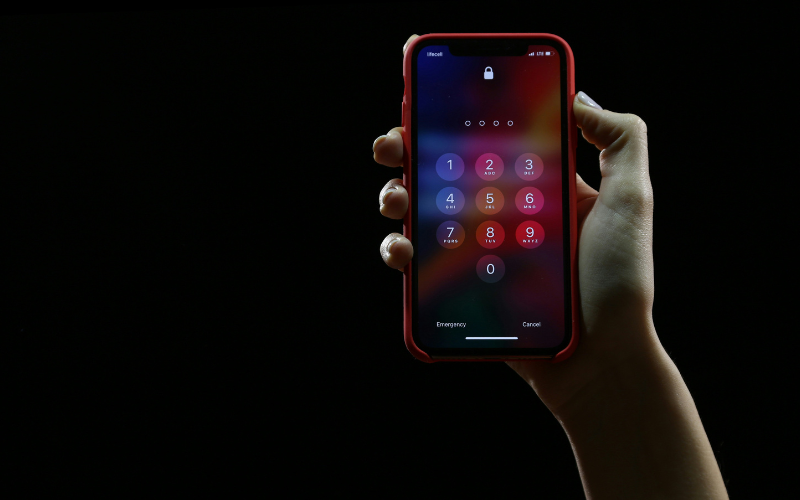
The technical reality is that a carrier lock applies to the entire device’s communication hardware, not just the physical SIM tray.
“Can I use an eSIM on an iPhone that’s carrier-locked?”, many may ask. The answer is the software restriction programmed by your original provider covers both the physical nano-SIM slot and the internal eSIM chip. If your iPhone is still under a financing contract or has not yet fulfilled its service requirements, it will reject any eSIM profile that does not originate from that specific carrier.
Furthermore, many people wonder, “Can I get an eSIM if my phone is locked?” While you can technically purchase a plan and receive a QR code from a new provider, the iPhone’s internal activation policy will block the profile from being added to your cellular settings.
To successfully utilize an eSIM for locked iPhone, the device must first communicate with Apple’s activation servers to receive a policy update that removes all network restrictions. Without this “handshake,” the digital SIM remains a dormant file that cannot register with competing 5G towers.
2. 3 Simple Steps to Unlock and Activate Your eSIM
If you are determined to use an eSIM for locked iPhone, you must follow the official carrier protocols to transition your device to an “unlocked” state. Follow these three steps to identify your status and enable adding new digital lines.
Step 1: Check Your Carrier Lock Status in Settings
Before attempting to download a new plan, you must verify your current status to avoid “SIM Not Supported” errors. Navigate to Settings > General > About on your iPhone and scroll down to the “Carrier Lock” section. If the device says “No SIM Restrictions,” you are ready to add any eSIM. If it says “SIM Locked,” your hardware is still tethered to the original provider, and you cannot yet use a third-party esim for locked iPhone.
Step 2: Request a Network Unlock from Your Original Provider
Only the carrier that originally sold the device has the authority to authorize an unlock. Contact their customer support department or use their mobile app to submit a formal unlock request.
They will check your IMEI to ensure the device is fully paid off and has been active on their network for the required period (typically 60 to 180 days). Once they approve the request, they send a digital signal to Apple’s servers to update your device’s profile.
Step 3: How Do I Activate eSIM on My Locked iPhone?
Once your carrier confirms the unlock, you might ask: “How do I activate eSIM on my locked iPhone?” First, ensure you are connected to a stable Wi-Fi network, then restart your device to pull the new activation policy. Then, Settings > Cellular > Add eSIM.
You can either scan the QR code provided by your new carrier or use the “Quick Transfer” feature if you are moving a line from another iPhone. Your device will now support the new digital SIM, finally allowing you to utilize an eSIM for locked iPhone alternative without restriction.
3. Secure a New Device with the TAG Mobile Plan
If navigating the bureaucratic hurdles of carrier unlocking feels overwhelming, there is a better way to stay connected.
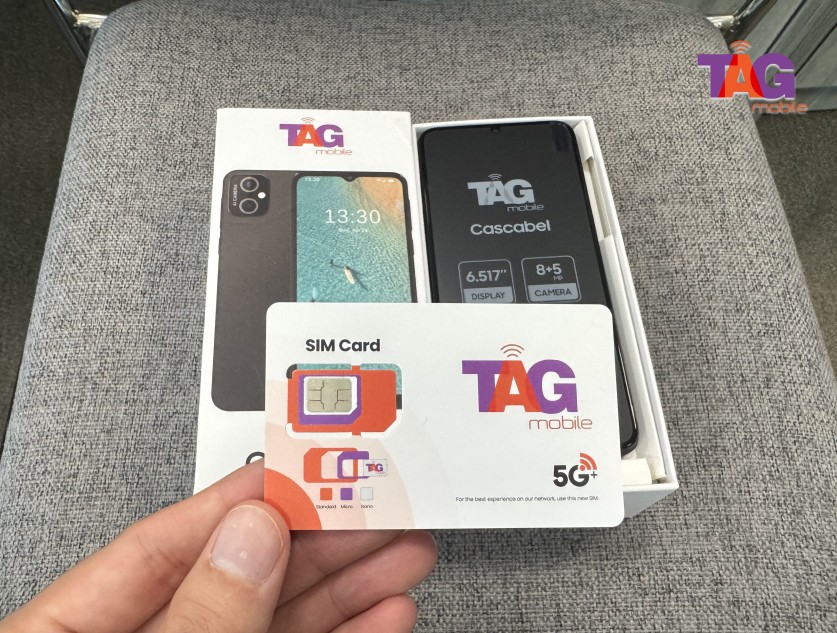
The federal Lifeline program is a permanent benefit that ensures low-income households have access to modern communication tools. By participating in this program through a trusted provider like TAG Mobile, you can receive a high-quality smartphone and an active service plan with $0 monthly bills.