Learning how an iPad SIM card works is essential in ensuring that one stays connected even in situations where there is no access to Wi-Fi. This is important in ensuring that one enjoys a smooth and effective mobile experience with the right setup on their iPad device.
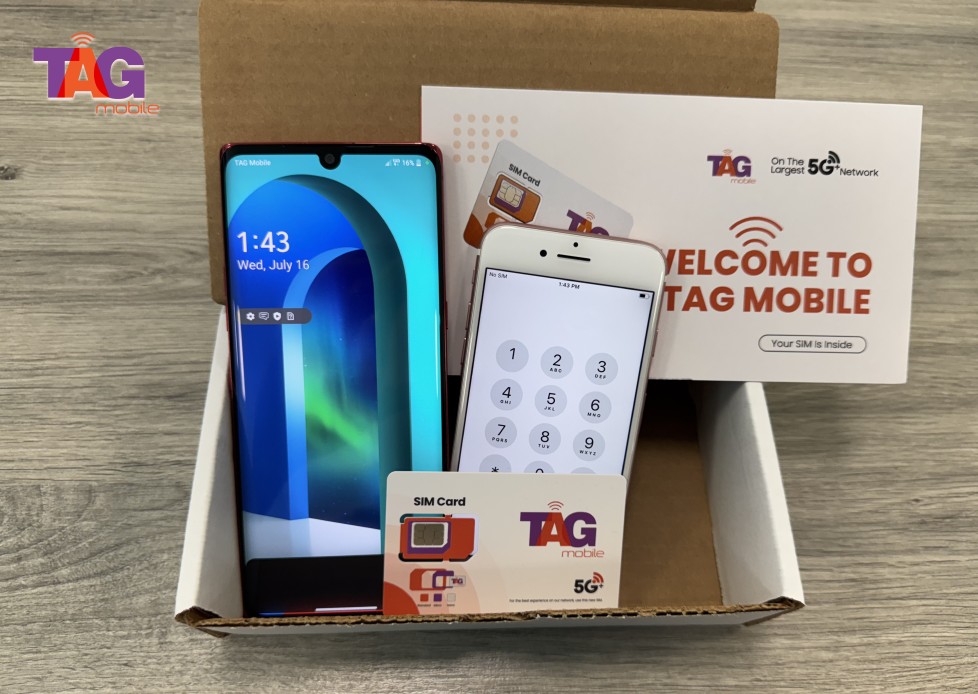
To get more details, TAG Mobile assures users of reliable network coverage, flexible plans, and support for eSIM-compatible devices. Additionally, eligible customers are offered free and discounted devices.
1. What Is an iPad SIM Card?
iPads are designed to offer flexibility, whether you’re connected to Wi-Fi or using mobile data on the go. Understanding how SIM cards work in these devices can help you choose the right option for your needs.
The Overview of an iPad SIM Card
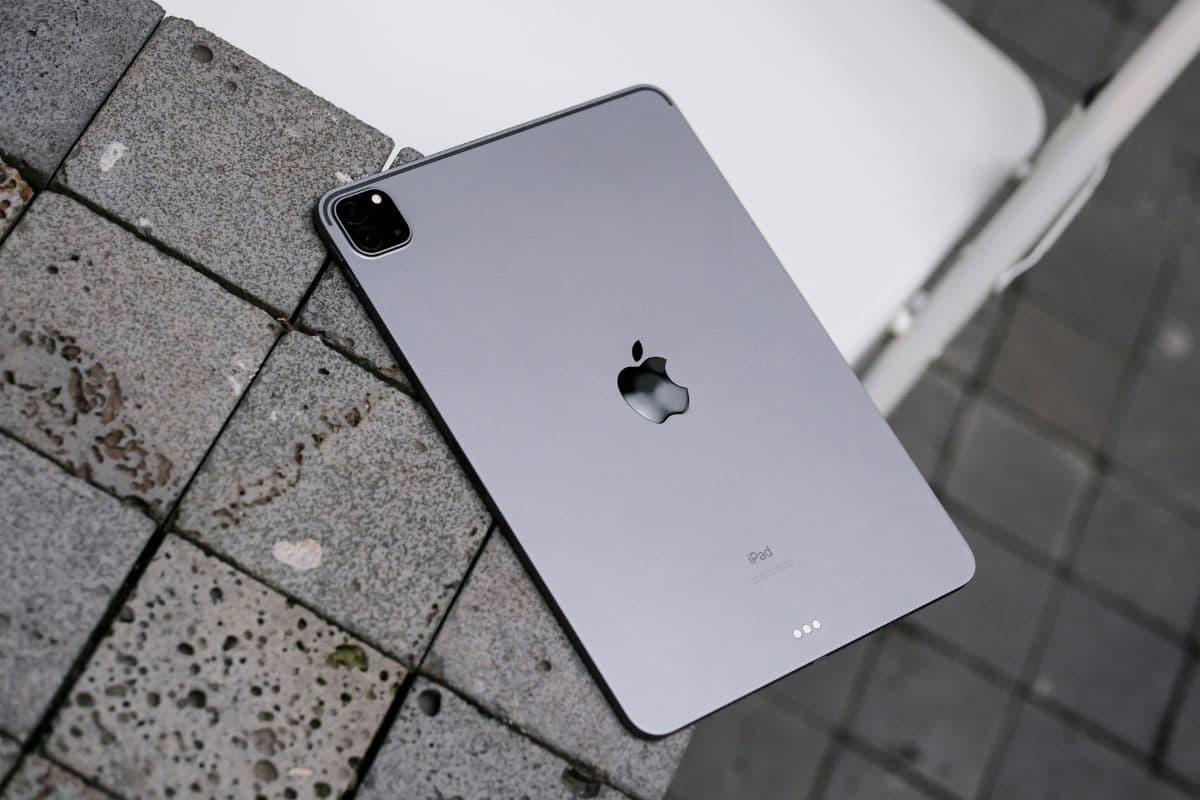
An iPad SIM card is a small chip that allows cellular-enabled iPads to connect to a mobile network for internet access without relying on Wi-Fi. It stores subscriber information and enables features like mobile data, making your device more versatile.
If you’re wondering, do iPads have SIM cards? The answer is yes, many models support either a physical SIM card, an eSIM, or both, depending on the version.
Benefits of Using a SIM Card in an iPad
Using a SIM card in your iPad brings added convenience and flexibility, especially when you need internet access outside of Wi-Fi zones. It transforms your device into a more powerful, always-connected tool for both work and entertainment.
- Stay connected anywhere: Access the internet on the go without depending on public Wi-Fi networks.
- More secure browsing: Reduce risks associated with unsecured public Wi-Fi connections.
- Better productivity: Work, send emails, and join meetings from virtually any location.
- Reliable performance: Enjoy stable connectivity through your mobile carrier’s network coverage.
- Flexible data plans: Choose plans that fit your usage, whether for short trips or daily use.
2. Which iPads Support SIM Cards?
Not all iPads are built the same when it comes to cellular connectivity, so it’s important to know which models support SIM options. Understanding these differences helps you choose a device that fits your usage, whether you prefer physical SIMs or newer eSIM technology.
iPads With Physical SIM Slots
Can an iPad use a SIM card? Yes, many iPad models come with a physical SIM slot that allows you to insert a nano-SIM for mobile data access. This feature is typically available on Wi-Fi and Cellular versions of iPads, including older and some current models.
Using a physical SIM is straightforward: you simply insert the card provided by your carrier to activate a data plan. It’s a practical option for users who prefer swapping SIMs between devices or using local carriers while traveling.
iPads With eSIM Support
Newer iPad models increasingly support eSIM technology, which eliminates the need for a physical card. Instead, users can activate a mobile plan digitally by scanning a QR code or through a carrier app. This makes switching carriers or plans more convenient, especially for frequent travelers.
eSIM also reduces the risk of losing or damaging a SIM card, while still providing reliable access to mobile networks with the same performance as traditional SIMs.
iPads With Dual SIM Capability
Some modern iPads offer dual SIM functionality, combining a physical iPad SIM card with an eSIM. This allows users to maintain two separate mobile plans on a single device, which can be useful for balancing personal and work usage or switching between carriers for better coverage.
Dual SIM capability provides added flexibility, letting you manage data plans more efficiently without needing multiple devices or constantly changing SIM cards.
3. How to Insert a SIM Card Into an iPad
Setting up an iPad SIM card is a simple process, but doing it correctly ensures stable connectivity and avoids potential issues. Following each step carefully will help your device recognize the SIM and connect to your carrier without interruption.
Step 1: Turn Off Your iPad
Before inserting a SIM card, you should power off your iPad to prevent any hardware or software conflicts. Turning off the device allows the system to reset and properly detect the SIM once it is inserted.