How to Connect PS5 Controller to PC? Wired and Bluetooth Setup Made Easy
Connecting a PS5 controller to a computer can make many PC games feel more comfortable, especially for players who prefer a gamepad over a keyboard and mouse. If you want to enjoy...
Quincy D.-Aug 24, 2026
Image by Unsplash
Table of Contents
Connecting a PS5 controller to a computer can make many PC games feel more comfortable, especially for players who prefer a gamepad over a keyboard and mouse. If you want to enjoy your favorite PC games with a more comfortable and familiar setup, learning how to connect PS5 controller to PC is a great place to start.
This guide explains how to pair your DualSense, configure compatibility, and fix input issues.
1. How to Connect PS5 Controller to PC?
PS5 DualSense controllers can work with Windows through a direct USB connection, Bluetooth pairing, or compatible launcher software. Each connection method targets specific user priorities, such as minimizing latency or eliminating trailing cables.
Wired Connection
Wired play offers the simplest method when researching how to connect PS5 controller to PC without dealing with wireless pairing.
It provides a stable connection without requiring Bluetooth pairing and lets you keep playing while the controller is connected to your computer.
Connect the USB-C end of the cable to the port on the top of the DualSense controller.
Plug the other end into an available USB-A or USB-C port on your PC.
Wait for Windows to detect the controller automatically.
Open your game or launcher and check whether the controller is recognized.
If nothing happens, try another USB port or use a USB cable that supports data transfer.
Keep the controller connected while playing if you prefer a reliable wired connection.
Wireless Bluetooth Connection
Bluetooth is a convenient option when you want a cleaner desk setup or prefer playing farther away from the computer.
For anyone learning how to connect PS5 controller to PC Bluetooth, the process starts by putting the DualSense into pairing mode and adding it through Windows settings.
Open Windows Settings and select Bluetooth & devices.
Turn Bluetooth on, then choose Add device.
Select Bluetooth from the available connection options.
Press and hold the PS button and the Create button on the DualSense at the same time.
Continue holding both buttons until the controller light begins flashing rapidly.
Select the Wireless Controller when it appears in the list of nearby devices.
Wait until Windows confirms that pairing is complete.
Open a game and test the buttons, sticks, and triggers before starting a full session.
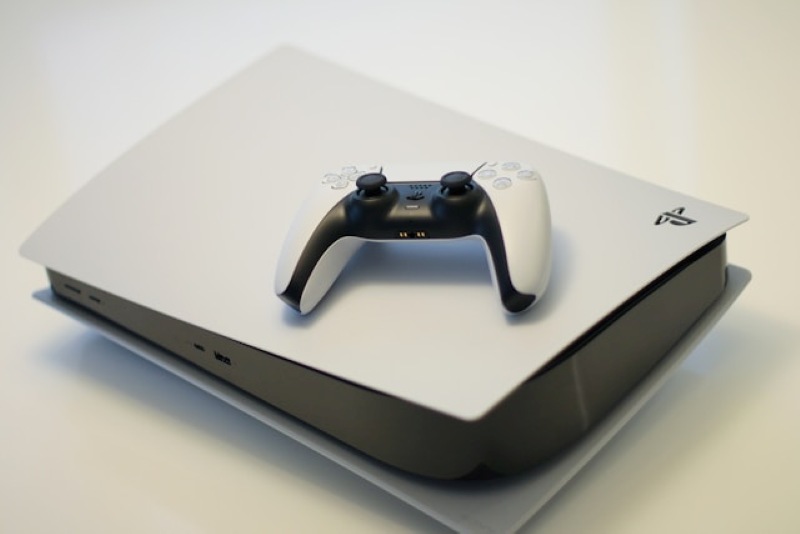
How to connect PS5 controller to PC Bluetooth? Putting the DualSense into pairing mode and add it through Windows settings. (Image by Unsplash)
Using Game Launchers and Software
Some games support DualSense directly, while others need assistance from a launcher or controller-mapping tool.
Players asking how to connect my PS5 controller to my PC for broader compatibility can use software such as Steam Input to configure controls and improve recognition across different games.
Connect the DualSense to your PC through USB or Bluetooth first.
Open Steam and go to Settings, then select Controller.
Confirm that Steam recognizes the PlayStation controller.
Enable Steam Input when a game does not support DualSense controls properly.
Fine-tune button layouts and stick sensitivity within Steam if default controls feel clumsy.
For non-Steam games with limited controller support, compatible mapping software may help Windows recognize the DualSense as another controller type.
Test titles individually because advanced features like haptic feedback depend heavily on developer support.
2. Can You Use a PS5 Controller With Non-Steam PC Games?
Yes, a PS5 DualSense controller can work with non-Steam PC games, but compatibility may vary by title. Windows usually detects the controller as a standard input device, while some games need extra configuration.
When learning how to connect PS5 controller to PC, you can add the game to Steam as a non-Steam title or use tools such as DS4Windows or DualSenseX to map buttons correctly.
3. How to Switch Your PS5 Controller Between PS5 and PC
Moving between PC and PS5 is straightforward, but the controller connection and game ecosystem do not transfer in exactly the same way. Switching platforms requires re-pairing hardware while managing digital credentials separately.
Moving From PS5 to PC
Once you master how to connect PS5 controller to PC, switching platforms requires configuring your hardware and game libraries separately.
Connect the DualSense to your computer through USB or Bluetooth, then install the PC versions of the games you want to play through a compatible launcher or storefront.
PlayStation game files and system data cannot simply be moved onto a PC. Save progress may transfer only when a game supports cross-progression or account-based cloud syncing. Otherwise, your existing progress will usually remain tied to the PS5 version.
Moving Back From PC to PS5
Returning to PS5 requires setting up the console side again because PC game files and system data cannot be transferred directly between the two platforms.
Re-establish your PlayStation Network account and sync save data through the cloud before launching games on either system.
Turn on your PS5 and connect it to your TV or monitor and a stable internet connection.
Go to Settings > Users and Accounts > Add User, then sign in with your PlayStation Network account.
Open your game library and re-download titles you already own on PlayStation, or purchase the PS5 version if needed.
Sign in to games that support cross-progression to restore eligible progress linked to your game account.
Reconnect the DualSense controller to the PS5 with a USB cable, then press the PS button to pair it again.
If a wireless headset or other accessory uses a USB dongle, remove the dongle from your PC and plug it into the PS5.
Switch compatible accessories to console or PlayStation mode when required by the device.
4. Tips for a Better PS5 Controller Experience on PC
Small setup adjustments can make the DualSense feel more responsive, stable, and comfortable across different PC games. Once the controller is connected, a few practical checks can also help prevent input problems, battery drain, and compatibility issues.
Keep the controller firmware updated: Use Sony’s official firmware updater on Windows so the DualSense has the latest fixes and compatibility improvements.
Prefer USB for the lowest latency: A wired connection is usually the better choice for competitive games or titles where even minor input delay can affect gameplay.
Use Bluetooth carefully: If you are learning how to connect PS5 controller to pc with Bluetooth, keep the controller reasonably close to the PC and reduce interference from other wireless devices.
Check Steam Input settings: Steam can improve controller recognition and let you remap buttons, adjust layouts, and customize behavior for games that do not support DualSense directly.
Test native DualSense support first: Select PC releases feature native DualSense support, enabling realistic trigger resistance out of the box.
Charge before long sessions: Bluetooth play relies on battery power, so starting with a well-charged controller can prevent interruptions during longer gaming sessions.
5. Optimize Your PC Gaming Setup Without Overspending on Connectivity
Gaming expenses quickly strain personal budgets when high-speed internet and mobile bills overlap. Qualified households can offset monthly wireless costs through the federal Lifeline Program. While the federal Lifeline benefit provides monthly service subsidies rather than free devices, authorized carriers like TAG Mobile supply eligible customers with discounted or free smartphones and tablets.
TAG Mobile functions as an Eligible Telecommunications Carrier, offering discounted wireless plans supported by nationwide 5G/4G LTE networks.
Subscribers gain access to monthly data allowances alongside unlimited talk and text. Depending on regional stock and qualifications, TAG Mobile also provides various hardware options, ranging from compact smartphones like the iPhone 13 or Samsung Galaxy series to larger media tablets ideal for streaming and study.
iPhone 13: Features a 6.1-inch Super Retina XDR display, A15 Bionic chip, 5G support, and a dual 12MP camera system. Great for everyday communication, photography, streaming, and apps.
Samsung Galaxy S21 5G: Comes with a 6.2-inch AMOLED display, 5G connectivity, and a triple-camera system. Suitable for smooth browsing, photography, streaming, and daily mobile use.
Samsung Galaxy Tab A7 Lite: Includes an 8.7-inch display, 32GB storage, expandable memory, and a 5,100mAh battery. Its compact tablet design suits reading, streaming, browsing, and video calls.
iPad mini 4: Features a 7.9-inch Retina display, A8 chip, and an 8MP rear camera. Its compact size makes it convenient for browsing, reading, media viewing, and app use.
TCL 20 SE: Has a large 6.82-inch display, 4GB RAM, expandable storage, and a multi-camera system. It works well for entertainment, social apps, photography, browsing, and communication.
Clovertek G17: The tablet has a 10.1-inch display, 3GB RAM, 32GB storage, and a 5,000mAh battery. Its larger screen works well for browsing, videos, online learning, and video calls.
TAG Mobile’s Lifeline-supported plan can include up to 16GB of data, unlimited talk and text, free delivery with discounted phones, and free international calling to more than 200 countries and territories.
Plan details, device pricing, and eligibility can vary by location, so customers should review the specific offer available for their ZIP code.
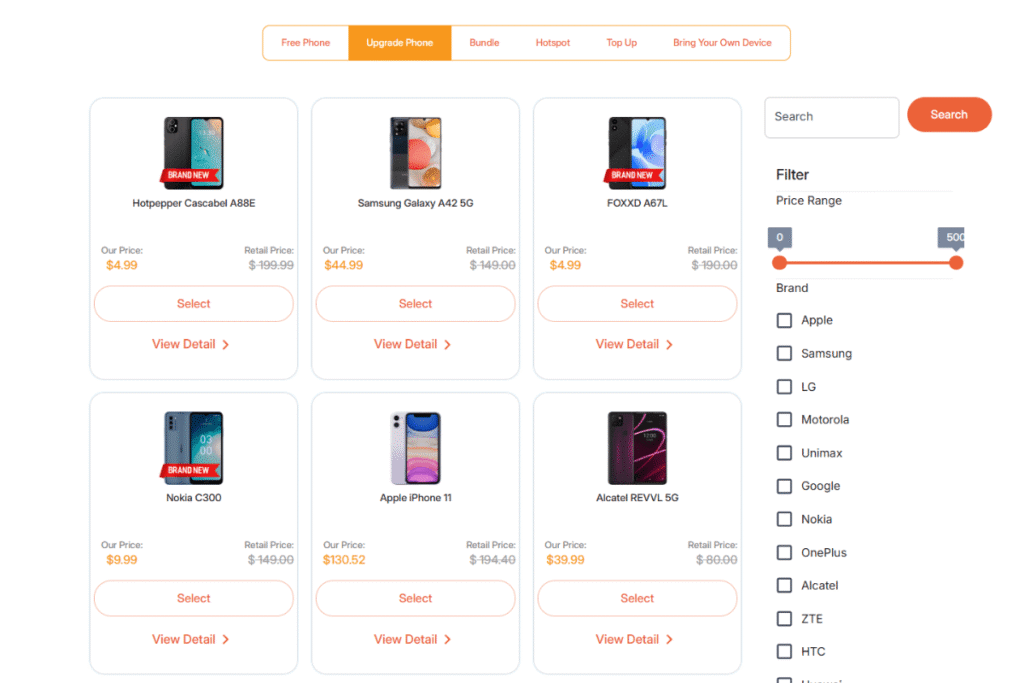
List of tablets and upgraded phones at TAG Mobile (Offers may vary by state, inventory, and time of your application).
Note: Eligibility varies by state and program. Offers depend on availability and qualifications. TAG Mobile operates under the federal Lifeline Program as an Eligible Telecommunications Carrier (ETC). Service is non-transferable and limited to one service per household.
6. FAQs about Connecting a PS5 Controller to PC
Platform support varies across storefronts and game engines. Reviewing individual game specifications ensures smooth controller pairing while avoiding layout glitches during gameplay.
Can I use a PS5 controller on Steam?
Yes, Steam supports the PS5 DualSense controller through both USB and Bluetooth connections. Steam Input can also help with button mapping and improve compatibility for games that do not recognize the controller automatically.
Does a PS5 controller work with all PC games?
Not every PC game supports DualSense natively. Many titles still work through Steam Input or controller-mapping software, but button prompts and advanced features may vary depending on the game.
Do adaptive triggers work on PC?
Adaptive triggers work in selected PC games that include native DualSense support. Availability can depend on the title and connection method, and some games may require a wired USB connection to access advanced controller features fully.
7. Final Thoughts
Smooth DualSense performance on PC starts with the right connection method and a few simple setup checks. Whether using USB, Bluetooth, or launcher support, how to connect PS5 controller to PC depends on compatibility and personal preference.
Now that you understand how to connect PS5 controller to PC, keeping your firmware updated ensures seamless gamepad performance across all your favorite games.
Share
TAG Blog
Stories, guides, and helpful updates for staying connected.