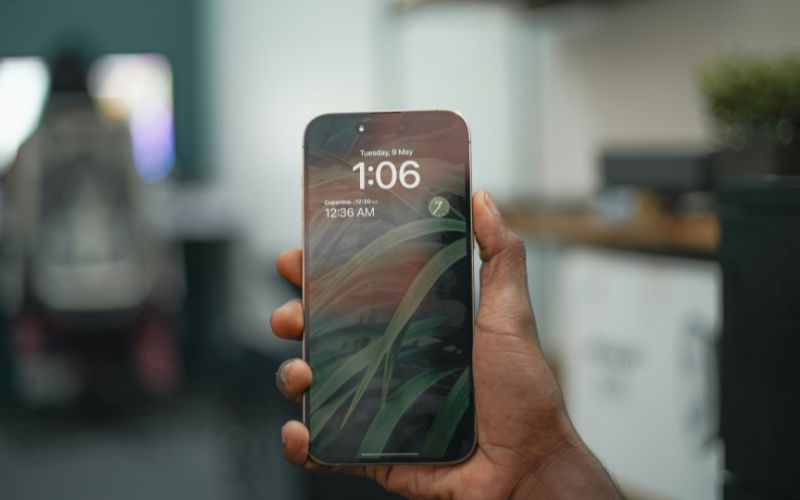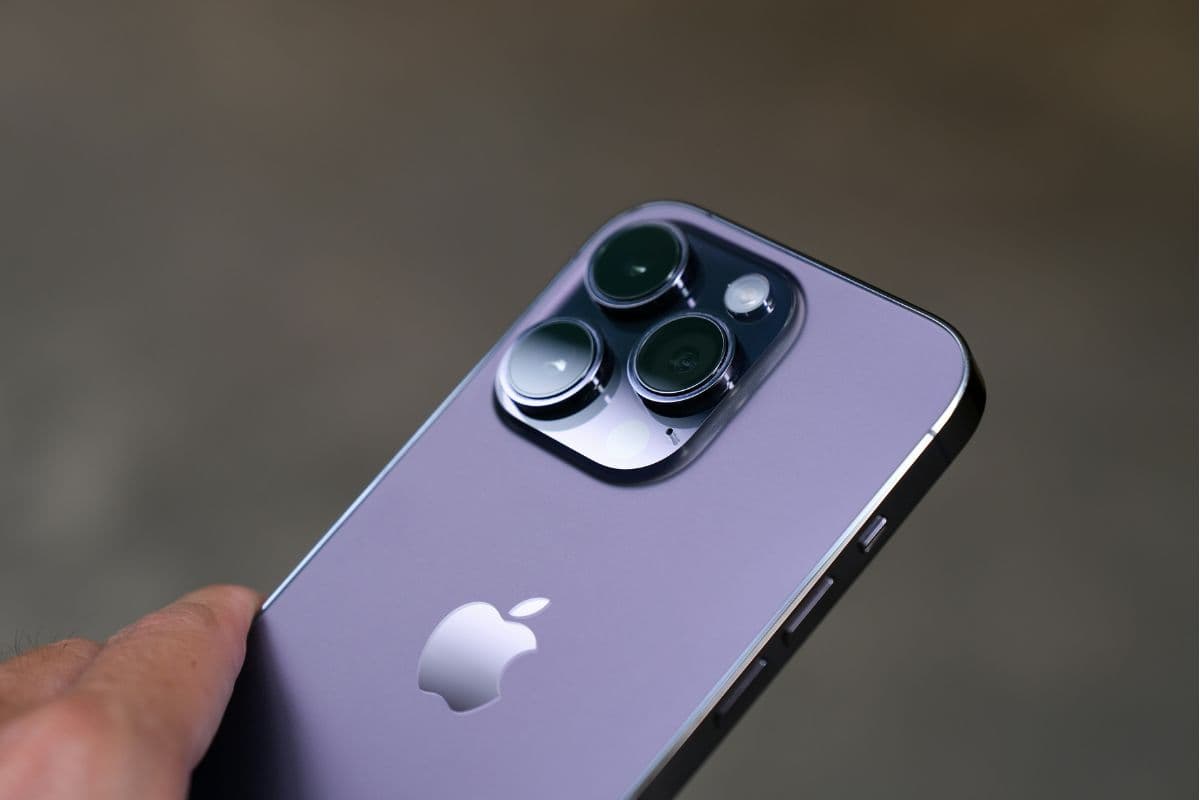
The iPhone 14 Pro SIM free is ideal for users who want premium performance without being tied to a specific carrier. With its powerful chip, advanced camera system, and sleek design, this device offers flexibility and long-term value. You can easily choose or switch networks to match your needs. For more detailed guidance and helpful tips, you can refer to the guide/article below from TAG Mobile to learn more about getting started with your iPhone.
1. Does iPhone 14 Pro Use eSIM or a Physical SIM?
For US customers, the iPhone 14 Pro is eSIM-only and does not include a physical SIM card tray. This means you will activate your mobile plan digitally through your carrier instead of inserting a nano-SIM.
If you are considering this model, make sure your carrier supports eSIM activation. You can also explore and compare available iPhone options at TAG Mobile to find the version and plan that best fit your needs.
2. How to Activate a SIM Free iPhone 14 Pro (Step-by-Step)
Activating your SIM free iPhone 14 Pro is a simple process that only takes a few minutes if you follow the correct steps. Make sure you have a stable internet connection and the eSIM details provided by your carrier before you begin.
- Connect to Wi-Fi: First, connect your iPhone to a stable Wi-Fi network. A strong internet connection ensures the eSIM profile can be downloaded and activated without interruption.
- Go to Settings → Cellular → Add eSIM: Open Settings, tap Cellular (or Mobile Data depending on your region), and select Add eSIM. This option allows you to start the digital SIM activation process.
- Scan QR or Enter Carrier Details: Use your camera to scan the QR code provided by your carrier, or manually enter the activation details if required. Make sure all information is entered correctly to avoid activation errors.
- Download Plan: Follow the on-screen instructions to download your mobile plan. Wait until the installation is complete and the carrier profile appears under your Cellular settings.
- Restart and Test Calls/Data: Restart your iPhone to refresh the network connection. After rebooting, test your calls, text messages, and mobile data to confirm everything is working properly.
>>> Read More: How to Get the Free iPhone 14 Pro at TAG Mobile?
3. Common Setup iPhone 14 Pro SIM Free Issues and Quick Fixes
When setting up your iPhone 14 Pro SIM free, you may occasionally run into small activation or network-related problems. Most of these issues are easy to fix if you follow the correct troubleshooting steps below.
eSIM Not Activating
If your eSIM is not activating, you should first make sure your device is connected to a stable Wi-Fi network. You need to confirm that you scanned the correct QR code or entered the activation details provided by your carrier accurately.
If activation still fails, restart your iPhone and try adding the eSIM again under Settings > Mobile Data > Add eSIM. If the issue continues, your carrier may need to reissue the activation profile.
“No Service” Error
If your iPhone displays “No Service,” you should check whether your SIM or eSIM has been fully activated. You can remove and reinsert the physical SIM (if applicable) or toggle Airplane Mode on and off to refresh the connection.
Restarting the device often helps the phone reconnect to the network. If there is still no signal, verify that your coverage area supports your carrier’s network bands.