How to Block Websites on Chrome? Desktop, Mobile, and More
A few simple browsing restrictions can make a big difference when certain sites are taking up too much time or exposing users to unwanted content. Exploring how to block websites o...
Quincy D.-Aug 25, 2026
Image by Unsplash
Table of Contents
A few simple browsing restrictions can make a big difference when certain sites are taking up too much time or exposing users to unwanted content.
Exploring how to block websites on Chrome helps tailor settings for work or home. Managing access through browser extensions or operating-system controls ensures a safer digital environment.
1. How to Block Websites on Chrome?
Chrome does not offer the same built-in website-blocking controls on every device, so the best method depends on where you browse.
Desktop users can rely on extensions or system-level tools, while mobile devices often use parental controls or operating-system restrictions instead.
Chrome Desktop
Desktop Chrome offers multiple ways to restrict unwanted URLs, but learning how to block websites on Chrome using a browser extension remains the simplest choice for personal use.
When learning how to block websites on Google Chrome, choose a reputable extension carefully because browser add-ons may request access to browsing data and permissions. You can set up a basic block list in just a few steps:
Open the Chrome Web Store and search for a trusted website-blocking or productivity extension that matches your needs.
Review the extension developer credentials and safety ratings before installation.
Select Add to Chrome, then confirm Add extension when Chrome asks for permission.
Open the extension from the toolbar. If you cannot see it, select the puzzle-piece icon and pin it for easier access.
Enter the website addresses you want to restrict inside the extension’s block list.
Save your changes, then try opening one of the blocked pages to make sure the restriction is working.
For stronger system-wide restrictions, Windows and macOS users can also use parental controls or edit the hosts file, although those approaches require more setup and may affect browsers beyond Chrome.
Chrome Mobile for Android
Android Chrome does not provide a simple built-in block list for ordinary adult browsing.
Setting up Google Family Link provides a practical solution when figuring out how to block websites on Chrome mobile for a child’s supervised Google Account.
The process is straightforward once Family Link supervision is active:
Open the Google Family Link app on the parent’s phone and select the child whose browsing settings you want to manage.
Tap Controls, then choose Google Chrome and Web.
Select the browsing level that fits your needs, such as Allow all sites, Try to block explicit sites, or Only allow approved sites.
Under Manage sites, open Approved sites and Blocked sites to manage individual addresses.
Tap Add a website and enter the specific URL or domain you want Chrome to restrict.
Save the setting and test the website from the child’s supervised Chrome account.
Remember that blocking an entire domain generally provides broader coverage than entering only one specific webpage address.
Chrome Mobile for iOS
On an iPhone, website restrictions are generally handled through Apple’s Screen Time controls rather than through a dedicated Chrome blocking menu.
Because Screen Time applies at the system level, the websites you restrict can also be blocked in Chrome and other browsers on the device. Follow these steps to set up the restriction:
Open Settings on the iPhone, then tap Screen Time.
Choose Content & Privacy Restrictions and turn the feature on if it is not already enabled.
Tap App Store, Media, Web, & Games, then select Web Content.
Choose Limit Adult Websites to unlock the option for manually restricted URLs.
Under Never Allow, tap Add Website and type the full address of the site you want to block.
Repeat the process for any additional websites you want restricted.
Consider protecting Screen Time settings with a passcode if the restriction is intended for a child or another user who should not be able to remove it.
2. Blocking One Website vs. Blocking a Category of Websites
Blocking one website gives you precise control by restricting a specific domain or URL that you no longer want accessible.
Category blocking works more broadly, automatically filtering groups of sites such as social media, gaming, gambling, or adult content based on predefined classifications.
When learning how to block websites on Chrome, single-site blocking is useful for targeted distractions, while category-based controls are better for wider, ongoing protection.
Use Chrome’s parental safety features to create a safer browsing experience for kids. (Image by Unsplash)
3. How Parents Can Make Chrome Safer for Kids
Knowing how to block websites on Chrome allows parents to combine direct domain restrictions with supervised account controls instead of relying on a single basic filter.
For anyone researching how to block inappropriate websites on Google Chrome Android, Google Family Link provides several useful tools for managing what a child can access.
Use Google Family Link
Family Link lets parents supervise a child’s Google Account and manage Chrome browsing from a parent device.
You can choose broader filtering options, block individual websites, approve requests for restricted pages, and adjust other online controls without constantly handling the child’s phone.
Turn On Explicit-Site Filtering
Within Family Link, parents can select “Try to block explicit sites” for Chrome. The setting is designed to reduce access to sexually explicit websites, although Google notes that no filter is perfect, so it works best alongside other parental controls and regular supervision.
Create an Approved-Sites List
For younger children, “Only allow approved sites” offers tighter control than simply blocking unwanted pages.
Parents can build a list of websites the child is permitted to visit, helping create a more limited browsing environment for schoolwork, entertainment, and age-appropriate content.
Block Specific Websites and Domains
Family Link simplifies how to block websites on Chrome by letting parents manually add individual URLs or entire domains to a master restriction list.
Blocking a domain can be more effective when a service operates across several related pages or subdomains, while individual URL restrictions work well for isolated problem sites.
Manage Apps and Screen Time Too
Safer browsing extends beyond Chrome. Family Link manages application approvals and daily screen limits effortlessly.
Remote device locking prevents children from bypassing blocked websites by switching to secondary mobile apps.
4. How to Keep Digital Safety Tools Accessible From Your Phone?
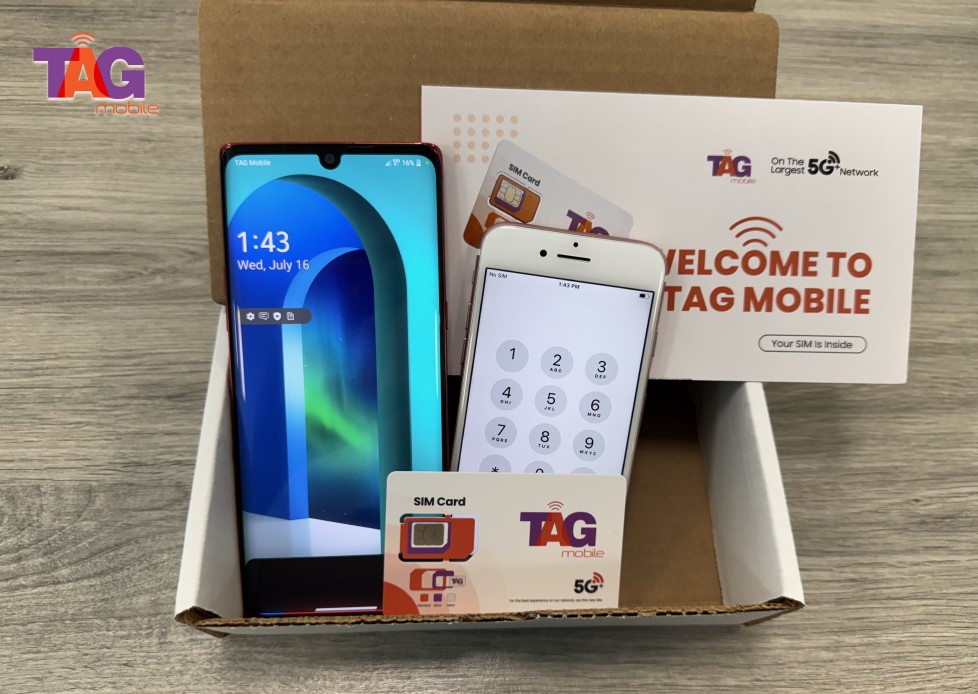
Managing online safety settings and parental controls requires consistent internet connectivity. Qualified low-income consumers can reduce monthly communication costs through the federal Lifeline Program.
The Lifeline benefit applies strictly to monthly service discounts, while authorized service providers like TAG Mobile supply qualified subscribers with free or heavily discounted mobile devices.
Applicants establish Lifeline eligibility through household income rules or program participation. You qualify automatically if you participate in government programs like SNAP, Medicaid, SSI, or Federal Public Housing Assistance.
Alternatively, households qualify under income guidelines when overall earnings fall at or below 135% of the Federal Poverty Guidelines.
Operating as an Eligible Telecommunications Carrier, TAG Mobile delivers discounted wireless plans featuring high-speed data and unlimited talk time. Depending on regional inventory and applicant eligibility, TAG Mobile offers several hardware options:
Samsung Galaxy S8+: Features a 6.2-inch Super AMOLED display and curved-edge design, offering a sharp, spacious screen for browsing, videos, and apps.
iPhone 13: Combines a 6.1-inch Super Retina XDR display, A15 Bionic chip, 5G connectivity, and dual cameras for strong performance and photography.
FOXXD C67: Offers a large 6.75-inch display, 5,000mAh battery, and 4G LTE connectivity, ideal for users prioritizing screen size and longer everyday use.
Samsung Galaxy Tab A7: Provides a larger tablet display for easier reading, video calls, browsing, streaming, and viewing online content.
TCL 20 SE: Combines a spacious 6.82-inch display with a 5,000mAh battery, making it well-suited to media viewing and extended daily use.
Clovertek G17 (tablet): Features a large display and straightforward Android experience, making it practical for comfortable browsing, messaging, and everyday app use.
Device pricing and availability can vary by ZIP code, eligibility, and current offers, so customers should review the linked product pages before applying or selecting a model.
TAG Mobile is the one of the most trusted Lifeline provider choices for eligible US residents.
Note: Eligibility varies by state and program. Offers depend on availability and qualifications. TAG Mobile operates under the federal Lifeline Program as an Eligible Telecommunications Carrier (ETC). Service is non-transferable and limited to one service per household.
5. FAQs about Blocking Websites on Chrome
Chrome offers several ways to limit access, but the right method depends on the device and how strict you want the restriction to be.
If you are learning how to block certain websites on Chrome, it helps to understand the limits of extensions, Incognito mode, and Google’s built-in safety tools.
Can Chrome block websites without an extension?
Yes, but Chrome itself does not provide a universal built-in block list for every user.
Depending on the device, you can use Family Link, Screen Time, parental controls, DNS filtering, or system-level restrictions instead of installing an extension.
Can I block websites in Incognito mode?
Yes, although the method matters. Some Chrome extensions can work in Incognito only after you manually enable their Incognito permission, while system-level tools such as parental controls or DNS filters can block sites regardless of the browsing mode.
Does SafeSearch block websites?
No, SafeSearch mainly filters explicit content from Google Search results rather than blocking entire websites.
A restricted site may still be reachable directly through its URL, so parents usually need additional website-blocking or parental-control tools for stronger protection.
6. Final Thoughts
Blocking websites is most effective when the method fits both the device and the person using it. Once you know how to block websites on Chrome, you can choose between extensions, parental controls, or device-level restrictions to manage distractions and unwanted content.
Revisit your browser restriction settings periodically. Updating these controls ensures your digital setup continues to meet evolving family safety goals.
Share
TAG Blog
Stories, guides, and helpful updates for staying connected.