Does iPhone 14 Have A SIM Card? Everything You Need To Know
If you recently purchased or are planning to buy the iPhone 14, you may be wondering: Does iPhone 14 have a SIM card? The answer depends on where your device was purchased. Apple i...
Quincy D.-Feb 24, 2026
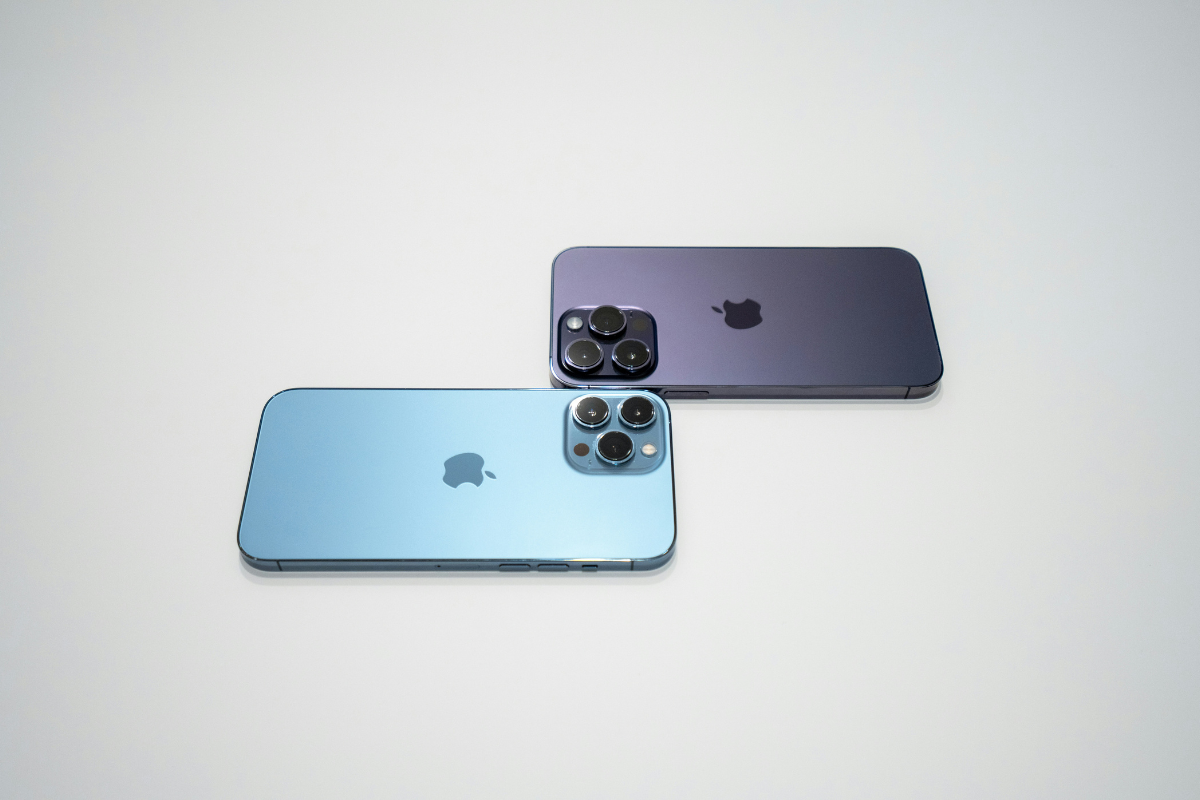
Image by Unsplash
Table of Contents
If you recently purchased or are planning to buy the iPhone 14, you may be wondering: Does iPhone 14 have a SIM card? The answer depends on where your device was purchased.
Apple introduced significant changes to SIM technology with the iPhone 14 lineup, especially in the United States. In this guide, we’ll explain whether the iPhone 14 includes a physical SIM card slot, how to remove a SIM card if your model has one, and how to choose the right mobile plan for your device.
1. Does iPhone 14 Have A SIM Card?
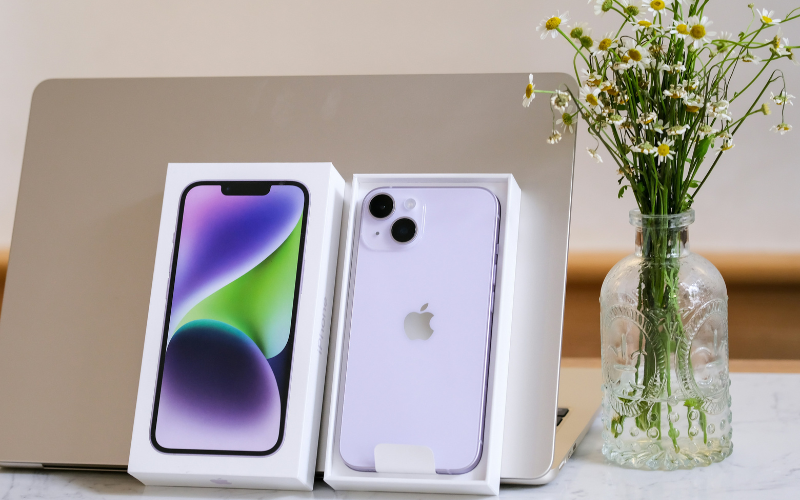
Does iPhone 14 Have A SIM Card (Image by Unsplash)
The answer varies by region.
In the United States, the iPhone 14 models are eSIM-only, meaning they do not include a physical SIM card tray. Instead, they use digital eSIM technology, which allows users to activate a carrier plan electronically.
However, in many other countries, the iPhone 14 still includes a physical SIM tray along with eSIM support. This means international models can use either:
A physical nano-SIM card.
One or two eSIM profiles (depending on the configuration).
So, if you are asking “Does iPhone 14 have a SIM card?”, the most accurate answer is:
U.S. models: No physical SIM card slot (eSIM only).
International models: Yes, a physical SIM tray is included.
You can confirm your model by checking: Settings => General => About => Model Number.
This will help determine whether your device supports physical SIM cards.
If you own an international version of the iPhone 14 with a SIM tray, you may need to remove or replace your SIM card at some point. Below is a complete guide.
Where Is The SIM Tray Located?
On iPhone 14 models that include a SIM tray, it is located on the left side of the device. You’ll see a small pinhole next to a thin rectangular outline. That’s the SIM tray slot. If you do not see a tray on the side of your phone, you likely have a U.S. eSIM-only version.
Step-By-Step Guide To Remove The SIM Card
If you are searching for how to take SIM card out of iPhone 14, follow these simple steps:
Step 1: Power off your iPhone to prevent any potential network issues.
Step 2: Insert a SIM eject tool (or a small paperclip) into the tiny hole next to the SIM tray.
Step 3: Apply gentle pressure until the tray pops out slightly.
Step 4: Pull the tray out carefully and remove the SIM card.
Step 5: Reinsert the tray securely into the phone.
Make sure not to force the tray, as this could damage the internal components.
What To Do If There Is No SIM Tray?
If your iPhone 14 does not have a SIM tray, it uses eSIM technology.
To activate eSIM:
Go to Settings => Cellular.
Tap Add eSIM.
Scan your carrier’s QR code or follow the activation instructions.
Many carriers now support instant eSIM activation, which eliminates the need for physical SIM cards entirely.
3. Choosing The Right Mobile Plan For iPhone 14
Once you understand your SIM type, like SIM card or eSIM, the next step is selecting the right mobile plan.
Physical SIM Vs eSIM Activation
Physical SIM
Requires inserting a nano-SIM card.
Easy to swap between devices.
May require shipping time.
eSIM
Activated digitally.
Faster setup.
Supports multiple profiles on one device.
Ideal for travelers and dual-line users.
The U.S. iPhone 14 supports dual eSIM, allowing users to store multiple plans and switch between them without removing hardware.
Choosing the right carrier is especially important for eSIM-only devices. Not all providers support eSIM activation, and coverage varies by region.
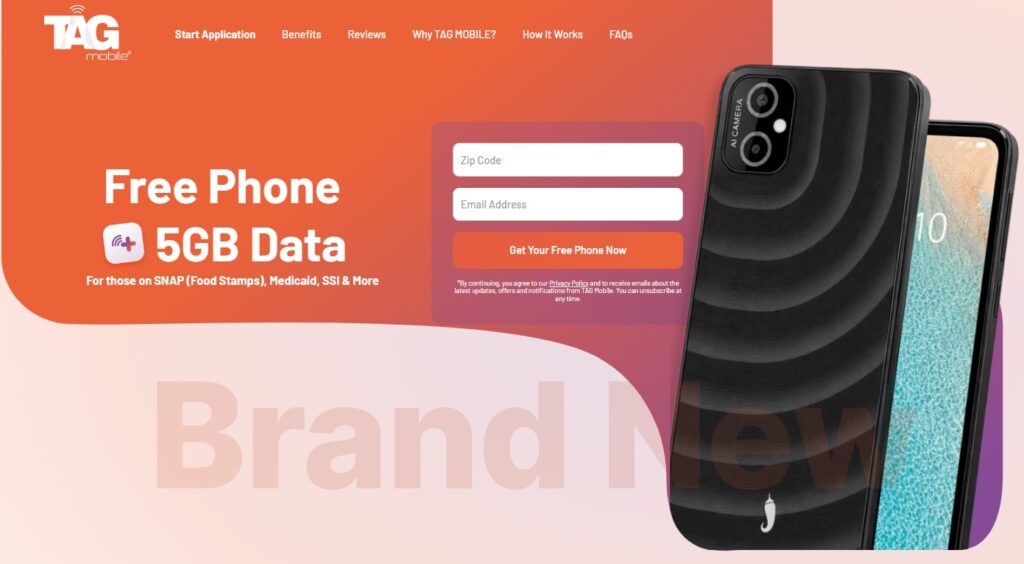
For individuals seeking affordable connectivity, TAG Mobile offers mobile service options through federal assistance programs. Eligible customers may qualify for discounted or free mobile service plans depending on income or participation in government assistance programs.
Before selecting a carrier:
Confirm eSIM compatibility.
Check network coverage in your area.
Compare data, talk, and text allowances.
Review eligibility requirements for subsidized plans.
The right carrier ensures your iPhone 14 performs optimally, whether you’re using a physical SIM or an eSIM.
4. How To Apply For A Free Mobile
If you are looking for an affordable mobile plan, or possibly a free phone. Here is how to apply through TAG Mobile.
Step 1: Verify Eligibility
Before starting your application, confirm you meet the eligibility criteria. You may qualify if you:
Participate in programs like SNAP, Medicaid, SSI, or other federal assistance.
Meet income-based requirements under federal poverty guidelines.
You will need documentation to verify your eligibility.
Provide your ZIP code and contact email: Start by typing in your ZIP code and a working email address, then click “Apply Now.” The system will instantly generate a list of eligible service plans and device options available in your area based on your qualifications.
Pick the plan that suits you best: Compare the Lifeline plans offered locally and select the one that matches your needs for talk time, text messaging, and data usage.
Choose a device or use your existing phone: Select from the free or discounted smartphones currently available, or keep your compatible device by entering its IMEI number through the Bring Your Own Device (BYOD) option.
Step 3: Enter Personal Information And Upload Documents
Complete your profile by providing accurate personal details. Upload required documents such as proof of identity and proof of program participation or income verification. Make sure all documents are clear and legible to avoid delays.
Step 4: Submit Form And Receive Approval
After reviewing your information, submit your application.
Once approved, you will receive confirmation and instructions for activating your service. If you are approved for a device, it will be shipped to your address. Processing times may vary, but many applicants receive updates within 7-10 business days.
So, does iPhone 14 have a SIM card? The answer depends on where you purchased it. U.S. models are eSIM-only, while international versions still include a physical SIM tray. If you have a model with a SIM tray, removing the card is simple with the right tool. If your device uses eSIM, activation is even faster and more convenient.
Finally, choosing a compatible and reliable carrier, especially one that supports eSIM, is crucial for getting the most out of your iPhone 14. Whether you’re paying full price for service or qualifying for assistance through providers like TAG Mobile, the right setup ensures seamless connectivity.
Notice: The government does not cover device costs, only basic service through Lifeline. Any free or discounted devices, upgrades, or top-ups are limited-time TAG Mobile offers and may vary by state, eligibility, and availability. Terms and conditions apply.
Share
TAG Blog
Stories, guides, and helpful updates for staying connected.