
How to Check Hotspot Usage iPhone: 3 Easy Methods
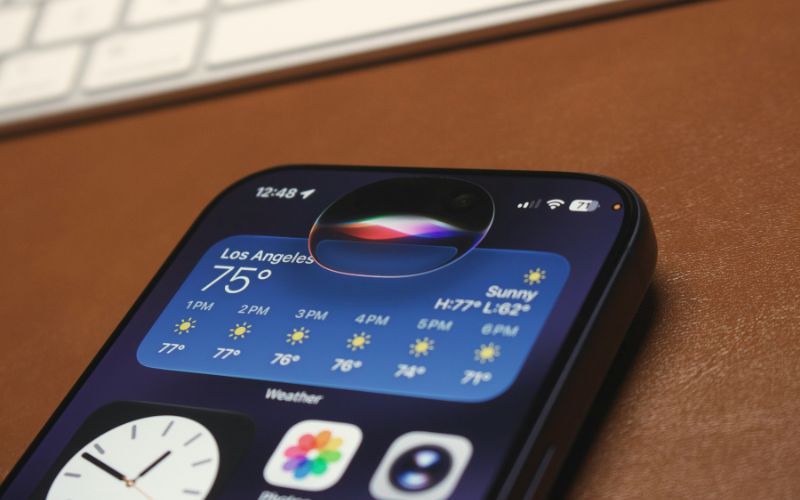
Tracking tethering data on your iPhone helps you understand how much cellular data connected devices are consuming. This guide explains how to check hotspot usage iPhone through built-in iOS settings, carrier account tools, and manually reset statistics. Each method offers a different view of usage, making it easier to monitor laptops, tablets, or other devices and avoid unexpected data limits.
1. How to Check Hotspot Usage iPhone with 3 Main Ways
iPhone gives you more than one way to understand how much cellular data tethering has consumed. You can review the phone’s own statistics, compare them with carrier records, or reset the counter and track a fresh period yourself.
Method 1: Check Hotspot Usage in iPhone Settings
Open Settings > Cellular and scroll through the cellular data statistics. On iOS versions that display a Personal Hotspot entry, tapping it can show how much data tethering has used during the current statistics period and may provide a breakdown for devices that previously connected.
For how to check hotspot usage on iPhone, remember that “Current Period” does not necessarily match your monthly billing cycle unless the statistics were reset at the appropriate time.
Apple recommends checking with your carrier for the most accurate usage figures.
Method 2: Check Hotspot Usage Through Your Carrier
Carrier records are particularly useful when you need usage that matches your actual billing period.
Sign in to your carrier’s app or online account and look for mobile data, tethering, or hotspot usage; the exact labels depend on the provider and plan.
For how to check your hotspot usage on iPhone, compare the carrier total with the iPhone’s statistics rather than expecting both numbers to match perfectly. Apple specifically notes that carriers are the best source for the most accurate current-period cellular data information.
Method 3: Reset iPhone Statistics and Track Hotspot Usage Yourself
Manual tracking works well when you want a clean starting point for a new billing cycle or a specific tethering test.
Go to Settings > Cellular, scroll to the bottom, and tap Reset Statistics, ideally on the first day of the period you want to monitor.
After resetting, use Personal Hotspot normally and return to Cellular settings later to review the new totals. This approach makes how to check hotspot usage iPhone easier when the built-in counter previously included weeks or months of older activity.
>>> Read More: How to Get Hotspot on iPhone: Set Up Personal Hotspot in 5 Minutes
2. How to See Which Devices Used Your iPhone Hotspot Data
Recognizing which laptop, tablet, or phone consumed the most data can help explain an unexpectedly high total.
iPhone may provide historical device-level information under Personal Hotspot statistics, although the level of detail can vary by iOS version.
- Open Settings > Cellular and look for Personal Hotspot within the usage statistics. If your iPhone provides a device breakdown, tap it to review recorded tethering usage.
- Check for recognizable device names, such as your laptop or tablet. Some traffic may appear under a broader label such as “Other Devices” rather than an identifiable name.
- Compare the listed usage with your own activity, especially after streaming, downloading large files, or installing updates on a connected laptop.
- Review your carrier account if the numbers seem unusually high. Carrier records are more appropriate when you need figures aligned with your billing cycle.
- For cleaner tracking, reset cellular statistics and reconnect only the devices you want to measure. This can make how to check hotspot usage iPhone more useful when older connections make the totals difficult to interpret.
3. Looking for Lower-Cost Phone Service? Explore Lifeline Options
High mobile-data costs can make regular phone service harder to fit into a household budget. Lifeline is a federal program that assists in lowering the cost of qualifying phone or internet service for eligible low-income households.
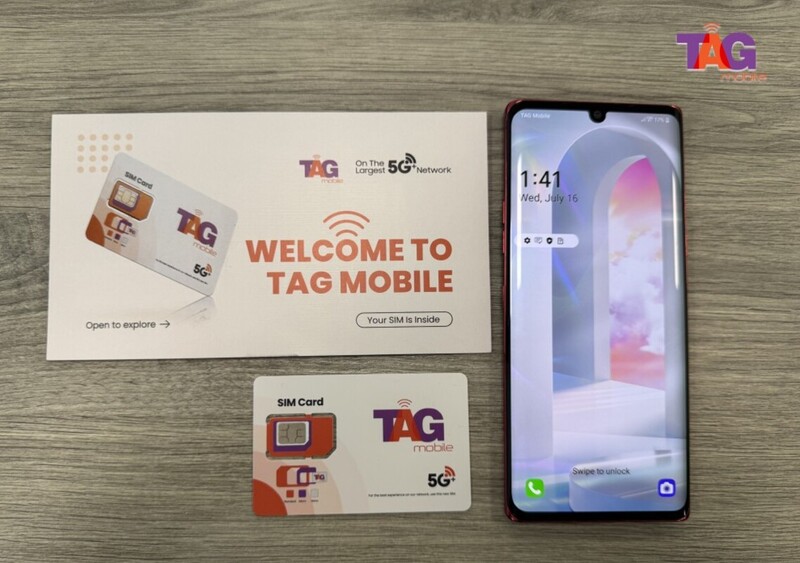
TAG Mobile serves eligible Lifeline customers as an Eligible Telecommunications Carrier and provides wireless service along with additional device and communication options. Current offers can include free monthly data, unlimited talk and text, free international calling to 200+ countries and territories, plus free or discounted phones, depending on location and eligibility.
Applying for a TAG Mobile phone begins with eligibility verification rather than simply selecting a device. Checking the available plan and phone options for your ZIP code first can also make the application process clearer.
Here are the simple steps you can start taking:
- Check whether you qualify: Confirm eligibility through qualifying household income or participation in programs such as SNAP, Medicaid, SSI, Federal Public Housing Assistance, or certain Tribal programs.
- Enter your ZIP code: Check which TAG Mobile Lifeline plans and current device offers are available in your area.
- Review your available benefits: Compare the available service plan, including monthly data, talk and text benefits, international calling, and other included features.
- Choose an eligible device: Select from any free or discounted phone options available based on your location, eligibility, and current inventory.
- Complete the application: Provide accurate personal, household, and eligibility information and upload supporting documents when requested.
- Wait for delivery: After approval and order processing, qualifying devices are generally delivered within 7-10 business days, subject to inventory and shipping conditions.
- Activate your service: Once the phone or SIM/eSIM is ready, follow TAG Mobile’s activation instructions to begin using your Lifeline service.
Note: Eligibility varies by state and program. Offers depend on availability and qualifications. TAG Mobile operates under the federal Lifeline Program as an Eligible Telecommunications Carrier (ETC). Service is non-transferable and limited to one service per household.
4. FAQs about Hotspot Usage on iPhone
Cellular statistics can be useful for spotting heavy tethering, but they do not always follow the same schedule or reporting method as your carrier. Understanding how to check hotspot data usage on iPhone also means knowing when counters reset and why different sources may show different totals.
Does iPhone hotspot usage reset every month?
Not necessarily. iPhone cellular statistics can continue accumulating until you manually choose Reset Statistics, rather than automatically restarting with every carrier billing cycle. Resetting them on your billing date can make monthly tracking easier.
Does Personal Hotspot count toward cellular data?
Yes. Personal Hotspot shares the iPhone’s cellular internet connection, so activity from connected laptops, tablets, or other devices uses cellular data. How your carrier categorizes that usage depends on the plan and any separate tethering allowance.
Why doesn’t my iPhone hotspot usage match my carrier?
The iPhone counter and carrier may cover different time periods or categorize traffic differently. Apple recommends contacting your carrier when you need the most accurate cellular data usage for the current billing period.
5. Final Thoughts
Regular usage checks can reveal which connected devices are consuming your data before the allowance disappears unexpectedly. Knowing how to check hotspot usage iPhone through Settings, carrier records, and manually reset statistics gives you a clearer picture of tethering habits. Comparing those numbers can also help you choose a more suitable data plan.
Eligible users can explore TAG Mobile for Lifeline-supported wireless service and available device offers.
- Share This:
-

-

-

-

-


About the author
