

How to Fix Slow Laptop by Finding the Real Bottleneck
Slow performance often comes from one specific issue rather than the entire device. If you are research how to fix slow laptop problems, everything starts with identifying whether limited storage, excessive background apps, overheating, outdated software, or insufficient memory is causing the slowdown.
By checking each possible bottleneck carefully, users can avoid unnecessary changes, target the real cause, and restore smoother performance with practical steps that match their laptop’s actual condition.
1. What Can Make the Laptop Become Slow?
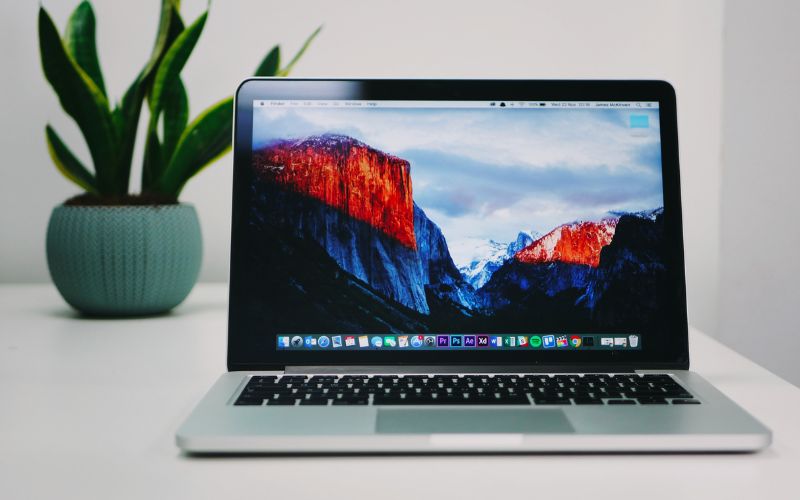
Laptop performance can decline when software demands exceed the system’s available resources or maintenance is neglected.
Identifying the actual cause is the first step in understanding how to fix a slow laptop without making unnecessary changes.
Too many background programs
Applications running quietly in the background consume memory and processing power. When several programs launch automatically at startup, the laptop may take longer to boot, open files, or respond to commands.
Limited storage space
Nearly full storage leaves insufficient room for temporary files, updates, and system processes. Removing unused applications, old downloads, and duplicate files can free space and help the operating system work more smoothly.
Insufficient RAM
Limited memory makes it difficult to run several applications or browser tabs at once. The system may repeatedly move data between memory and storage, causing delays, freezing, or slow transitions between programs.
Overheating components
Dust buildup, blocked air vents, or a failing cooling fan can raise internal temperatures. To prevent damage, the laptop may automatically reduce processor speed, resulting in noticeably slower performance during demanding tasks.
Outdated software or malware
Old operating systems, drivers, and applications may contain bugs or compatibility problems that reduce performance. Malware can also consume system resources, display unwanted ads, and run hidden processes that slow down the laptop.
>>> Read More: Free Laptop from Government: 2026 Guide to Applications
2. How to Fix Slow Laptop by Identifying the Bottleneck
A slow laptop does not always mean the entire system is failing; the problem may come from memory pressure, storage, background processes, overheating, or network performance.
Understanding how to fix slow laptop effectively starts with recognizing when the slowdown occurs and checking the component most likely responsible.
| Slowdown pattern | Likely area to inspect | Useful first check |
| Laptop is slow immediately after startup | Startup apps and background processes | Open Task Manager or Activity Monitor and review programs launching automatically |
| Performance drops with several apps open | RAM usage | Check memory usage and close unnecessary applications or browser tabs |
| Apps and files take a long time to open | Storage drive | Check available storage space and disk activity |
| Laptop becomes slower after extended use | CPU temperature and cooling | Check for overheating, blocked vents, or excessive fan activity |
| Browser and online apps feel slow | Internet connection | Run a speed test and compare performance with other devices |
| One specific program runs slowly | Application or software | Update or restart the affected program and check its resource usage |
| System freezes during demanding tasks | CPU, RAM, or GPU load | Monitor resource usage while the task is running |
| Performance declined after an update | Operating system or drivers | Review recent updates and check for pending driver or system fixes |
3. Windows, Mac, and Chromebook Need Different Checks
Each operating system manages storage, startup activity, updates, and background processes differently. Matching the troubleshooting steps to the device helps uncover the actual cause instead of applying fixes that may not work.
Windows Laptops
Windows users should open Task Manager to review CPU, memory, disk, and startup usage.
When researching laptop running slow how to fix solutions, begin by disabling unnecessary startup apps, removing unused programs, checking available storage, installing pending updates, and scanning the system for malware or unwanted background software.
Mac Laptops
Mac users can open Activity Monitor to identify applications consuming excessive memory, processor power, or energy.
Review login items, clear unnecessary storage, update macOS, and close demanding applications. Limited free space, outdated software, browser extensions, and overheating can all reduce performance even when the hardware remains functional.
Chromebooks
Chromebook troubleshooting should focus on browser tabs, extensions, local storage, and ChromeOS updates.
To understand how to fix slow laptop performance on this system, remove unnecessary extensions, close unused tabs, restart the device, clear browsing data, and check whether limited storage or an outdated operating system is causing delays.
4. Use a Phone as a Backup While Troubleshooting
Laptop repairs may interrupt access to email, work platforms, online classes, or important documents. While researching how to fix laptop running very slow, a dependable phone can keep essential communication and digital tasks available.
The Lifeline Program is a federal benefit that lowers the monthly cost of qualifying phone, internet, or bundled service by up to $9.25, or up to $34.25 for eligible households on qualifying Tribal lands. Applicants may qualify through household income at or below 135% of the Federal Poverty Guidelines or through participation in an approved assistance program, such as SNAP or Medicaid.
TAG Mobile is a Houston-based U.S. wireless service provider offering prepaid options and Lifeline-supported service to eligible customers.
Applicants across the US have chosen TAG Mobile because the company combines monthly service benefits with free or discounted device promotions, although device availability may vary by state, eligibility, and inventory.
- Free or discounted devices: Eligible applicants may receive a free smartphone or select an upgraded device at a reduced price, depending on location and current stock.
- Free monthly data: Available Lifeline plans may include up to 16GB of free data for browsing, messaging, and completing everyday online tasks.
- Unlimited talk and text: Qualifying plans include unlimited domestic calls and text messages, helping users remain reachable while their laptop is unavailable.
- International calling: TAG Mobile advertises international calling to more than 200 countries and territories with eligible plans, subject to applicable terms.
- No contract or credit check: TAG Mobile offers eligible service without long-term contracts or credit checks, simplifying enrollment for qualifying households.
Applying online allows eligible users to confirm qualification, provide supporting information, and select available service and device options.
Preparing accurate documents before beginning can help prevent delays during verification.
- Check eligibility: Enter your ZIP code and confirm whether you qualify through household income or participation in an accepted assistance program.
- Prepare supporting documents: Gather proof of program participation, an approval letter, benefit documentation, or acceptable proof of household income when verification is required.
- Select a plan: Review the Lifeline service options available in your state, since data allowances and additional features may differ by location.
- Choose a device: Select an available free smartphone or compare discounted upgrade options shown during the application process.
- Complete the application: Provide your personal details carefully and make sure the information matches your identification and eligibility records.
- Upload proof: Submit clear images of any requested documents so your identity, address, income, or program participation can be verified.
- Submit for review: Check the application for errors before sending it. TAG Mobile states that some approvals may be completed within minutes, while additional verification can extend the process.
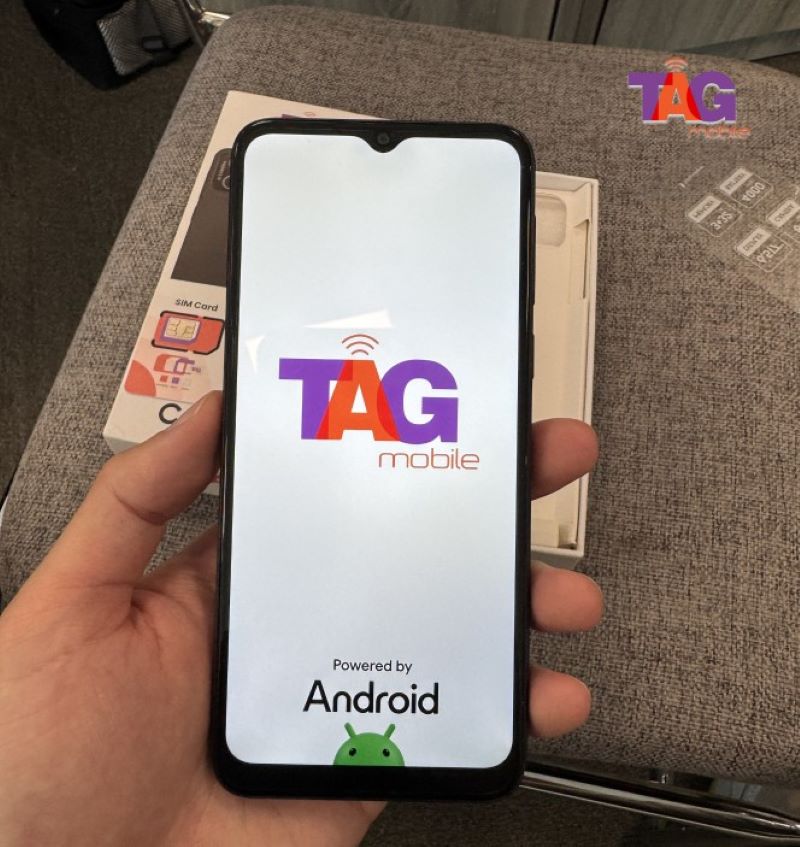
Note: Eligibility varies by state and program. Offers depend on availability and qualifications. TAG Mobile operates under the federal Lifeline Program as an Eligible Telecommunications Carrier (ETC). Service is non-transferable and limited to one service per household.
5. Frequently Asked Questions About Laptop Slowdowns
Laptop performance issues often come from several causes that produce similar symptoms. These answers help separate memory, storage, browser, temperature, and drive-related problems before any major changes are made.
How can I tell whether RAM or storage is the problem?
High memory usage, freezing during multitasking, and slow switching between applications usually point to limited RAM. Storage problems are more likely when files open slowly, the drive is nearly full, or the system takes a long time to boot.
Does low disk space make a laptop slower?
Yes, limited free space can reduce performance because the operating system needs room for temporary files, updates, and virtual memory. Anyone searching how to fix my slow laptop should remove unused programs, large downloads, and duplicate files before considering hardware upgrades.
Why is my laptop slow only when using a browser?
Too many open tabs, demanding extensions, cached data, or limited RAM can make a browser feel slow while other programs remain responsive. Disable unnecessary extensions, close unused tabs, clear browsing data, and compare performance in another browser.
Can overheating reduce laptop performance?
Yes, excessive heat can cause the processor to lower its speed automatically to protect internal components. Dusty vents, blocked airflow, or a weak cooling fan may lead to lag, freezing, or sudden performance drops during demanding tasks.
Is replacing an HDD with an SSD worth it?
Replacing a traditional hard drive with an SSD can noticeably improve startup times, application loading, file access, and overall responsiveness.
The upgrade is especially worthwhile for older laptops, provided the device supports the drive type and has no other major hardware limitations.
6. Final Thoughts
Fixing a sluggish computer starts with identifying whether storage, memory, background programs, overheating, malware, or outdated software is causing the problem. Once the bottleneck is clear, practical changes can restore smoother performance without unnecessary upgrades.
This guide on how to fix slow laptop issues also shows why a dependable phone from TAG Mobile can keep essential communication available during troubleshooting.
- Share This:
-

-

-

-

-


About the author
