

How to Clean Laptop Screen Without Damaging the Display
Fingerprints, dust, and oily smudges can quickly make a laptop display look dull and harder to read. Learning how to clean laptop screen safely means using gentle materials, minimal moisture, and techniques that protect delicate coatings from scratches or streaks.
Careful cleaning can restore clarity while reducing the risk of liquid reaching the bezel, damaging pixels, or wearing down the screen’s protective surface over time.
1. Check Your Laptop Screen Before You Start Cleaning
Screen materials and protective coatings vary between laptop models, so a quick inspection can prevent avoidable damage. Identifying the display type, existing marks, and manufacturer guidance also helps you choose a safer cleaning method.
- Identify the screen type: Determine whether the laptop has a matte, glossy, touchscreen, OLED, LCD, or specially coated display.
- Read the manufacturer’s instructions: Before deciding how to clean my laptop screen, review the recommended cleaning products and methods for your specific model.
- Inspect for loose dust: Look for particles that could scratch the surface if rubbed across the screen.
- Check for fingerprints and stains: Separate ordinary smudges from dried residue that may need a slightly damp microfiber cloth.
- Look for existing damage: Note scratches, cracks, peeling coatings, or pressure marks before applying moisture or wiping the display.
- Turn off and unplug the laptop: A dark screen makes dirt easier to see and reduces electrical risk while cleaning.
2. How to Clean Laptop Screen and Keyboard
Cleaning the display and keyboard together helps remove fingerprints, dust, crumbs, and oils that build up during daily use. Gentle tools and controlled moisture are essential because excess liquid or pressure can damage sensitive components.
- Shut down the laptop: Turn it off completely, unplug the charger, and disconnect accessories before cleaning.
- Remove loose debris: Tilt the laptop slightly and use a soft brush or short bursts of compressed air to clear crumbs around the keyboard.
- Dust the screen first: Use a clean, dry microfiber cloth to lift loose particles without scratching the display.
- Dampen the cloth carefully: For how to clean a laptop screen, lightly moisten a microfiber cloth with a manufacturer-approved screen cleaner or appropriate water-based solution instead of spraying liquid directly onto the display.
- Wipe gently: Move the cloth across the screen with light pressure, paying extra attention to fingerprints and smudges.
- Clean the keyboard surface: Use a microfiber cloth that is only slightly damp to wipe keycaps, the palm rest, and surrounding areas.
- Detail between keys: Use a soft brush or cotton swab where appropriate, avoiding excess liquid around openings.
- Let everything dry: Wait until the screen and keyboard are completely dry before reconnecting power and turning the laptop back on.
3. Cleaning Mistakes That Can Damage Your Laptop Screen
Screen damage often comes from the cleaning method rather than the dirt itself. Small habits like using the wrong cloth, too much liquid, or excessive pressure can affect coatings, leave scratches, or push moisture into sensitive areas.
Spraying Cleaner Directly on the Screen
Liquid sprayed onto the display can run toward the bezel and seep into internal components. For how to clean your laptop screen safely, apply an approved cleaner to a microfiber cloth first, keep the cloth only lightly damp, and avoid saturating the surface.
Using Paper Towels
Paper towels may feel soft, but their fibers can be abrasive enough to leave fine scratches on some displays. They can also shed lint across the surface. Use a clean microfiber cloth instead, and make sure no grit or debris is trapped in the fabric before wiping.
Using Alcohol on Sensitive Coatings
Strong alcohol-based cleaners may damage anti-glare, oleophobic, or other protective coatings on certain laptop screens. Compatibility varies by manufacturer and model, so check the care instructions before using any solvent-based product and avoid assuming that one cleaning formula is safe for every display.
Pressing Too Hard
Excess pressure can stress the LCD or OLED panel beneath the outer surface and may cause temporary distortion or permanent damage. Wipe with light, even strokes, and let the cloth do the work rather than scrubbing stubborn marks aggressively.
>>> Read More: How to Fix Screen Tearing: Simple Solutions That Actually Work
4. Get Tech Care Tips Whenever You Need Them with a FREE Phone
Laptop maintenance becomes easier when you can pull up cleaning instructions, troubleshooting videos, or manufacturer guidance right when a problem appears. For qualifying households, the Lifeline Program can also reduce the cost of staying connected to those digital resources.
Lifeline is a federal benefit that helps eligible consumers lower the cost of qualifying phone or internet service. Enrollment is generally based on income or participation in certain government assistance programs, with one Lifeline benefit allowed per household. For example, consumers who receive SNAP, Medicaid, SSI, or Federal Public Housing Assistance may qualify.
Since launching in Michigan in 2011, TAG Mobile has expanded its Lifeline-supported wireless services to customers across the country.
Eligible consumers may choose TAG Mobile for qualifying plans, reliable coverage through leading carrier networks, and potential access to free or discounted devices for calls, texts, mobile data, video tutorials, tech research, and account management. Availability varies by location, eligibility, and inventory.
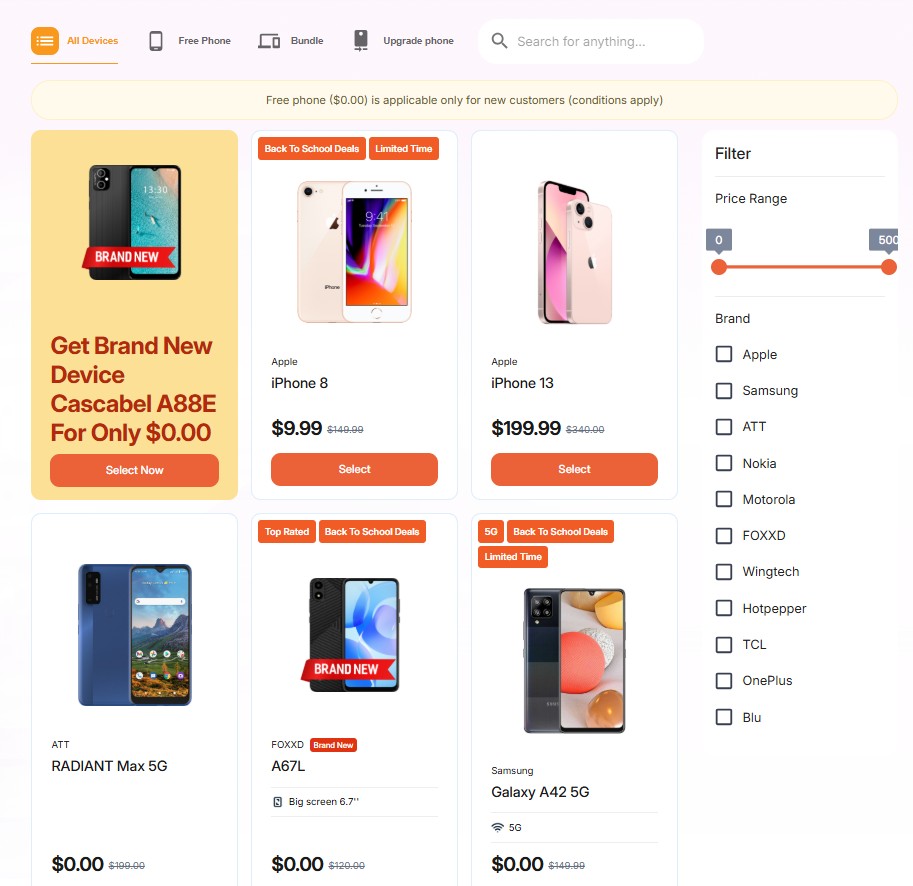
From checking laptop-cleaning instructions to watching repair tutorials away from your computer, a mobile device can keep useful information close at hand. TAG Mobile currently lists the following options, although availability and pricing can vary by location:
- iPhone 8 Plus: Useful for viewing cleaning tutorials, browsing support pages, messaging, and everyday mobile tasks.
- Samsung Galaxy A32 5G: Supports 5G connectivity for streaming tech guides, browsing troubleshooting resources, and staying connected.
- FOXXD C67: Suitable for web searches, instructional content, apps, calls, and messages.
- iPhone XR: Offers a convenient display for videos, online manuals, communication, and everyday digital resources.
- Samsung Galaxy Tab A 2018: The larger tablet screen can make step-by-step guides, videos, and technical instructions easier to follow.
- Clovertek G17: Provides smartphone access for browsing, communication, tutorials, and routine digital tasks.
- iPhone 7 Plus: Supports instructional videos, online searches, messaging, and other everyday mobile needs.
Note: Eligibility varies by state and program. Offers depend on availability and qualifications. TAG Mobile operates under the federal Lifeline Program as an Eligible Telecommunications Carrier (ETC). Service is non-transferable and limited to one service per household.
5. Frequently Asked Questions About Laptop Cleaning
Safe screen care depends on using gentle materials, limited moisture, and a routine that matches how often the laptop is handled. These common questions cover the basics of how to clean laptop screen surfaces without increasing the risk of scratches, streaks, or coating damage.
Is water safe for cleaning laptop displays?
Plain water can be safe in small amounts when the manufacturer allows it, especially if applied to a microfiber cloth rather than directly onto the screen. Avoid soaking the cloth or letting moisture collect around the bezel, ports, or keyboard.
What cloth should you use to clean a laptop screen?
Use a clean, soft microfiber cloth designed for delicate surfaces. Avoid paper towels, tissues, rough fabric, or dirty cloths because they may leave lint or create fine scratches on sensitive display coatings.
How often should you clean your laptop screen?
Light dusting can be done whenever visible particles appear, while deeper cleaning is usually needed only when fingerprints, oils, or smudges build up. Frequent gentle care is better than waiting for heavy residue that requires more rubbing or moisture.
Final Words
Gentle cleaning helps protect screen coatings while removing dust, fingerprints, and distracting smudges without unnecessary wear. TAG Mobile support can keep device-care tutorials, troubleshooting guides, and everyday tech resources within easy reach.
Following how to clean laptop screen correctly, with suitable materials and minimal moisture, helps maintain clear visibility and preserve the display’s condition through regular use.
- Share This:
-

-

-

-

-



About the author
