

How to Set Up Cellular on New iPhone: A 2026 Quick Start
Setting up mobile connectivity is one of the most important steps when you start using a new device. Many users want to ensure their phone can immediately access calls, messages, and mobile data through their carrier’s network.
Learning how to set up cellular on new iPhone helps make the activation process smoother, whether you are inserting a physical SIM card or activating an eSIM. To see the detailed instructions and helpful tips, you can refer to the article from TAG Mobile for more information.
1. What Cellular Setup Means on a New iPhone
Cellular setup on a new iPhone refers to the process of connecting the device to a mobile carrier so it can use services such as phone calls, text messages, and mobile data. This setup usually involves inserting a physical SIM card or activating an eSIM through your carrier during the initial device configuration.
If this step is not completed correctly, some users may wonder, “Why does my new iPhone not connect to Cellular data?”. In most cases, the issue occurs when the SIM or eSIM has not been activated, the carrier settings are missing, or the device has not yet connected to the carrier’s network.
2. What You Need Before Setting Up Cellular
Before activating cellular service on a new iPhone, it is helpful to prepare a few important things. Having the right information and tools ready can make the setup process much faster and smoother.
- A compatible SIM card or eSIM activation details: Make sure you have a nano-SIM card from your carrier or an eSIM QR code or activation instructions if you plan to use eSIM.
- An active mobile plan with your carrier: Your carrier must have an active plan linked to your SIM or eSIM profile for the phone to connect to the cellular network.
- A stable Wi-Fi connection: Many iPhone setup steps, especially eSIM activation, require an internet connection. Connecting to Wi-Fi helps the device download carrier settings and activation data.
- Your Apple ID and password: During the setup process, the iPhone may ask you to sign in with your Apple ID to restore settings or complete device activation.
- Your carrier’s account information (if required): In some cases, the carrier may ask for account verification or login details to activate cellular service on the new device.
3. How to Set Up Cellular on a New iPhone (Step-by-Step)
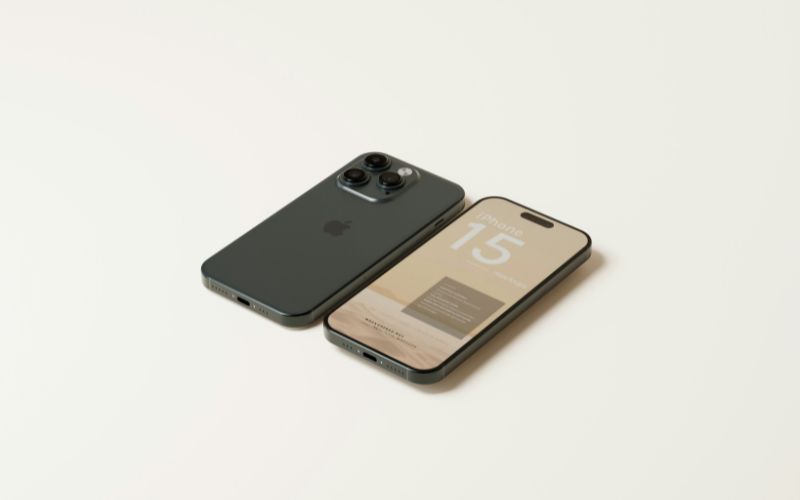
How do I activate cellular on my new iPhone? Activating cellular service is an essential part of setting up a new iPhone. By following a few simple steps, users can connect their devices to a mobile network and begin using calls, messages, and mobile data.
Step 1: Turn On Your New iPhone
First, you press and hold the power button until the Apple logo appears on the screen. The device will start the setup process and display the “Hello” welcome screen. From here, you can begin configuring language, region, and other initial settings.
Step 2: Connect to Wi-Fi
Next, let’s connect the iPhone to a stable Wi-Fi network. A Wi-Fi connection helps the phone complete activation and download necessary carrier settings. It is especially important when activating an eSIM or restoring settings from a previous device.
Step 3: Insert a SIM Card or Select eSIM Setup
At this stage, you can add your cellular plan to the device. Many users wonder, “When activating a new iPhone, do you put the SIM card in first?”.
In most cases, inserting the SIM card during setup helps the phone recognize the carrier automatically.
If you are using eSIM, simply choose the eSIM option and follow the on-screen instructions to scan the QR code or activate the digital plan.
Step 4: Follow Carrier Activation Instructions
After adding the SIM or selecting eSIM setup, follow the instructions provided by your mobile carrier. The iPhone may automatically detect the network and activate the plan, or it may prompt you to confirm the activation through your carrier’s system.
Step 5: Confirm Cellular Connection
Finally, you check the status bar at the top of the screen to confirm that cellular service is active. You should see the carrier name and signal bars appear once the activation is complete. At this point, your iPhone is ready to make calls, send texts, and use mobile data.
4. Common Problems When Setting Up Cellular
Sometimes the cellular setup process may not work perfectly the first time. Understanding common issues and their solutions can help users quickly restore their mobile connection and complete the activation successfully.
“No Service” After Activation
One common issue users may see is the “No Service” message even after inserting a SIM card or completing activation. This usually happens when the phone has not fully connected to the carrier network or when the SIM card is not detected properly.
To fix this, try restarting the iPhone, removing and reinserting the SIM card, or checking whether carrier settings need to be updated. Users who are learning how to set up cellular on new iPhone should also confirm that the SIM or eSIM plan has been fully activated by the carrier.
eSIM Not Activating
Another issue can occur when the eSIM fails to activate during setup. This may happen if the QR code was scanned incorrectly, the device does not have a stable internet connection, or the carrier profile was not downloaded successfully.
To resolve the issue, make sure the phone is connected to Wi-Fi, scan the QR code again, or restart the activation process. If the problem continues, the carrier may need to provide a new QR code or activation details.
Cellular Data Not Working
In some cases, the phone may show signal bars, but mobile data does not function properly. This can occur if cellular data is turned off in the settings or if the correct network configuration has not been applied.
To fix this, you check Settings → Cellular → Cellular Data and ensure it is turned on. Restarting the device or resetting the network settings can also help restore mobile data connectivity.
5. Review Suitable Mobile Options for Your iPhone
Many people activate cellular service when they upgrade to a new iPhone or switch to a different mobile carrier. Choosing the right mobile option can make the setup process easier and help ensure the device works smoothly with modern features like eSIM.
For users who want flexible and affordable connectivity, TAG Mobile offers upgraded smartphone options and convenient eSIM activation for compatible iPhones to eligible Lifeline participants.
With eSIM, users can activate service digitally in minutes without inserting a physical SIM card. Once approved, the activation link or QR code is typically sent by email or SMS so the service can be installed directly on the device.
Eligible customers may also receive several benefits through TAG Mobile plans, including:
- Unlimited talk and text
- Up to 16GB* of free data, depending on location and plan
- Free delivery or discounted phone options
- Instant eSIM activation on compatible devices
Depending on availability, some iPhone models that may work well with TAG Mobile service include:
| Phone models | TAG Mobile price* | Retail price |
| iPhone XR | From $101.40 | $158.00 |
| iPhone 11 | From $173.99 | $228.85 |
| iPhone 11 Pro Max | From $239.99 | $304.75 |
*Disclaimer: Offers may vary and are subject to future updates.
6. Final Words
Setting up mobile connectivity is an important step when starting to use a new device. Once you understand how to set up cellular on new iPhone, activating your mobile service becomes a quick and simple process. With the right SIM card or eSIM setup, your phone can connect to your carrier for calls, messages, and data in just a few minutes.
If you are looking for an easy way to activate service or switch to eSIM, TAG Mobile offers convenient activation and flexible plans for eligible users. Explore TAG Mobile to get connected quickly and enjoy reliable mobile service.
Notice: The government does not cover device costs, only basic service through Lifeline. Any free or discounted devices, upgrades, or top-ups are limited-time TAG Mobile offers and may vary by state, eligibility, and availability. Terms and conditions apply.
- Share This:
-

-

-

-

-


About the author
