

How to Lock Facebook Profile and Keep More of Your Information Private
Facebook’s profile lock can limit how much personal content unfamiliar people can view, giving you more control over your account privacy.
This guide explains how to lock Facebook profile, what changes after the feature is enabled, and which privacy settings to review if the option is unavailable. A few targeted adjustments can make photos, posts, stories, and profile details less visible to people outside your friends list.
1. What Does Locking a Facebook Profile Mean?
Facebook Profile Lock adds stronger privacy controls to your account by limiting what people outside your friends list can access.
It can reduce visibility of your profile and cover photos, restrict many posts and photos to friends, hide selected profile details from non-friends, and automatically apply additional protections to help keep more personal information private.
| Feature | Regular Profile | Locked Profile |
| Public posts | May be visible | Limited |
| Photos | More visible | Restricted |
| Profile details | Depends on settings | More private |
2. How to Lock Facebook Profile in a Few Steps
Profile Lock can be enabled from either a computer or the Facebook mobile app when the feature is available for your account and region. If you are searching for how to lock my Facebook profile, the process is usually quick once you open your profile menu and locate the privacy option.
Lock on Desktop
Using a desktop browser gives you a larger view of your profile settings, which can make the privacy controls easier to find. The exact wording may vary slightly as Facebook updates its interface, but the core steps remain similar.
- Open Facebook in your browser and sign in to your account.
- Click your profile picture or name to open your main profile page.
- Select the three-dot menu located near Edit Profile.
- Choose Lock Profile if the option appears in the menu.
- Review the explanation showing what will become more private.
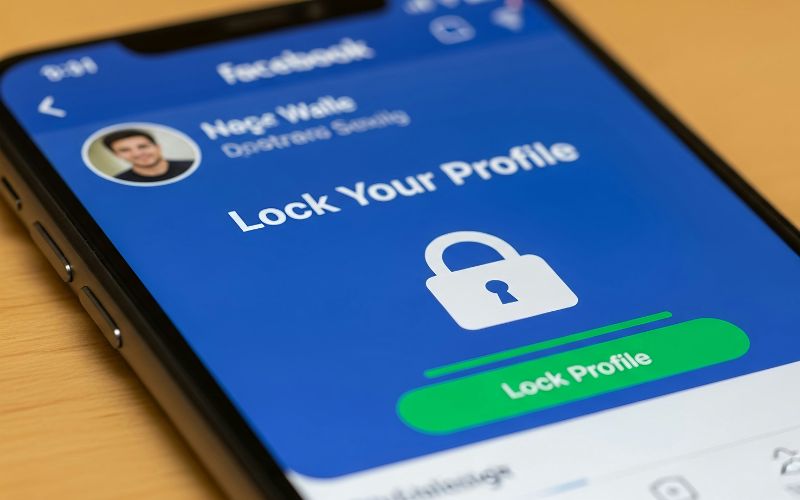
- Click Lock Your Profile to confirm the change.
- Return to your profile and check that the lock indicator or updated privacy state appears.
Lock on Mobile
The Facebook app offers a similar path, but menu placement can look slightly different depending on your device and app version. Once you reach your profile, the lock option is usually grouped with other profile-management settings.
- Open the Facebook app and tap your profile picture or name.
- Go to your main profile page, then tap the three-dot menu beside Edit Profile.
- Look for Lock Profile in the available options.
- Tap it to open the privacy summary and review what will change.
- Select Lock Your Profile to confirm.
- Reopen your profile afterward to make sure the new privacy setting has been applied.
3. How to Check If Your Facebook Profile Is Locked
Facebook gives you several practical ways to verify whether Profile Lock has been activated correctly. Checking more than one sign is useful because the interface can look slightly different across devices and app versions.
Check the Profile Menu
Open your Facebook profile and select the three-dot menu next to Edit Profile. When Profile Lock is active, the menu should show Unlock Profile instead of Lock Profile. This is one of the clearest ways to confirm the feature has already been enabled on your account.
Look for the Profile Lock Notice
Facebook may display a message or lock-related notice directly on your profile page. This indicates that additional privacy protections are currently applied. If you see this confirmation, non-friends should have more limited access to your posts, photos, and selected profile information.
Use the View As Feature
Open View As to preview your profile from the perspective of someone who is not your Facebook friend. After following how to lock Facebook profile, you should notice that fewer posts, photos, and personal details are publicly visible, making this feature useful for double-checking your privacy.
Review Older Public Content
Check several posts or photos that were previously shared with a public audience. Profile Lock can reduce access to certain existing content, so non-friends should see less than before. Reviewing older material also helps you identify anything that may still need separate privacy adjustments.
4. What Happens After You Lock Your Facebook Profile?
Turning on Profile Lock changes how much of your account people outside your friends list can access, while your existing friends can continue viewing content based on its audience settings. Once you understand how to lock your profile on Facebook, it is also useful to know which parts of your profile become more restricted.
- Posts become more private: Posts previously shared with a Public audience may have their visibility reduced, while future content is generally shown according to the tighter privacy settings applied by Profile Lock.
- Photos are more restricted: Non-friends have limited access to photos and albums that would otherwise be more openly visible, helping reduce how much personal content unfamiliar users can browse.
- Profile and cover photos receive extra protection: People who are not your friends may have more limited access to full-size versions of your current profile picture and cover photo.
- Profile details become less visible: Certain information in your About section, such as personal details and other profile data, may be hidden or shown more selectively to people outside your friends list.
- Stories are limited to friends: Profile Lock tightens story visibility, helping prevent non-friends from viewing personal updates that you share through Facebook Stories.
- Tag and profile review protections become more important: Facebook applies additional privacy controls, and reviewing posts or tags connected to your profile can help you maintain better control over what appears publicly.
- Your friends are not removed: Locking your profile does not delete friends, block people, or deactivate your account. It mainly changes what non-friends are allowed to see when they visit your profile.
5. How to Unlock a Facebook Profile
Unlocking your profile restores the regular visibility controls, allowing you to decide which posts and personal details can be shared publicly again. The process is straightforward and can be completed from either the Facebook app or a desktop browser.
Open Your Facebook Profile
Sign in to Facebook and go directly to your profile page. On mobile, tap your profile picture or name; on desktop, select your name from the main menu. From there, look for the three-dot button located near Edit Profile.
Select Unlock Profile
Open the three-dot menu and choose Unlock Profile. This option appears in place of Lock Profile when the feature is currently active. Facebook will then show information explaining what changes once your account is returned to a regular profile.
Confirm the Change
Follow the on-screen prompt and confirm that you want to unlock your profile. Once completed, the extra protections applied by Profile Lock are removed, and you can manage the visibility of posts, photos, stories, and personal information through individual privacy settings.
Review Your Privacy Settings
Unlocking your profile does not mean every detail must become public. Review your audience settings afterward and choose Friends, Only Me, or another suitable option for sensitive information, future posts, and profile details you still prefer to keep private.
>>> Also read: How to Fix Windows Update Error Without Reinstalling Windows
6. Why Can’t I Lock My Facebook Profile?
Profile Lock is not available to every Facebook account, so the option may be missing even when your privacy settings appear normal. Several account, region, or app-related factors can explain why the feature does not appear.
- Feature unavailable in your region: Facebook has not rolled out Profile Lock everywhere. If the feature is unsupported in your country or region, the Lock Profile option may not appear at all.
- Account type may not support it: Some professional, creator, or specially configured profiles may have different privacy tools. In these cases, how to lock Facebook profile may depend on using manual privacy settings instead of the dedicated lock feature.
- Facebook app is outdated: Older versions of the mobile app may not display newer privacy options correctly. Updating Facebook to the latest available version can sometimes make the Lock Profile option appear.
- Temporary app or account issue: Cached data, login glitches, or temporary Facebook bugs can prevent certain menu options from loading. Logging out and back in, restarting the app, or trying another device may help.
- Profile settings may differ by account: Facebook sometimes tests or rolls out features gradually, meaning two users in the same location may not see identical options. If Profile Lock is unavailable, adjust post visibility, story privacy, profile details, and photo settings manually.
7. FAQs about Locking Your Facebook Profile
Profile Lock changes what non-friends can see on your Facebook profile, but it does not shut down every way people can interact with you. These common questions clarify how the feature affects Messenger, notifications, messages, and search visibility.
Will locking my profile affect Messenger?
No. Locking your Facebook profile does not disable Messenger or prevent you from using chats, calls, and other messaging features. Your Messenger privacy and message-delivery settings remain separate from Profile Lock.
Does Facebook notify people when you lock your profile?
Facebook does not normally send your friends or followers a direct notification when you lock your profile. However, people who visit your profile may notice a lock indicator or find that less of your content is visible.
Can someone message me if my Facebook profile is locked?
Yes, locking your profile does not automatically stop non-friends from sending you messages or message requests. Whether their messages reach your inbox or requests folder depends on your Messenger delivery and privacy settings.
Does locking Facebook hide my profile from Google?
No. Profile Lock mainly restricts what people can view after reaching your Facebook profile; it does not automatically remove the profile itself from Google or other search engines. Search visibility may also depend on Facebook’s external search settings and what information remains public.
Final Thoughts
Stronger privacy starts with knowing which parts of your Facebook account deserve tighter control. Following how to lock Facebook profile can limit what non-friends see, reduce access to personal posts and photos, and add another layer of protection to your profile.
TAG Mobile’s blog makes it easier to stay connected while managing everyday digital tasks. Reviewing your privacy settings regularly can also help keep your information protected as Facebook features change.
- Share This:
-

-

-

-

-


About the author
