

How to Change Apple Maps Voice on iPhone in Just 5 Steps
Navigation feels more natural when spoken directions match the voice and language you prefer. This guide covers how to change Apple Maps voice on an iPhone in five straightforward steps, along with the settings that control Siri-powered navigation prompts.
A few quick adjustments can make turn-by-turn directions easier to follow, more comfortable to hear, and better suited to your everyday driving or walking routine.
1. How to Change Apple Maps Voice on iPhone
Apple Maps uses your Siri voice settings for spoken navigation, so you’ll need to make the change through your iPhone’s Settings. The process is straightforward and only takes a few steps before your new voice is used for turn-by-turn directions.
Step 1: Open Settings on Your iPhone
Open the Settings app on your iPhone to begin changing the voice used for Apple Maps navigation. Because Apple Maps relies on Siri for spoken directions, the voice setting is managed at the system level rather than inside the Maps app itself. This is the first step in adjusting your navigation voice.
Step 2: Tap Siri or Apple Intelligence & Siri
Scroll down in Settings and select “Siri,” “Siri & Search,” or “Apple Intelligence & Siri,” depending on your iOS version. This section controls Siri language, voice, and response preferences. Updating these settings also changes the voice Apple Maps uses for turn-by-turn navigation on your iPhone.
Step 3: Tap Voice
Inside the Siri settings, tap Siri Voice to open the available voice options. Depending on your selected language and region, you may see different varieties, accents, and individual voices to choose from. Some voices may need to be downloaded before they can be used for Siri and Apple Maps navigation.
Step 4: Choose a Different Voice or Variety
Select the voice variety, accent, or individual voice that sounds best to you. Some options may require an additional download before they become available. Keep your iPhone connected to Wi-Fi if needed, and note that available Siri voices can vary depending on your chosen language and regional settings.
Step 5: Open Apple Maps and Test the New Voice
Open Apple Maps and start a route after the new Siri voice finishes downloading. Make sure spoken directions are enabled, then listen to the next navigation instruction to confirm the update. If the old voice still plays, close and reopen Apple Maps or restart your iPhone before testing again.

2. What Apple Maps Voice Options Can You Choose?
Apple Maps navigation follows the Siri voice configured on your iPhone, so available choices depend on your selected language and region. When exploring how to change the voice in Apple Maps, you can typically choose among several voice varieties, accents, and individual voice options designed to make spoken directions feel more natural and comfortable.
Depending on your Siri language, varieties may include options such as American, Australian, British, Indian, Irish, or South African English. Each variety may offer multiple voices, though availability can differ by iOS version and device settings. Some selections also require an additional download before Apple Maps can use the new voice for turn-by-turn navigation.
3. Pro Tips for Better Apple Maps Voice Navigation
Clearer spoken directions can make Apple Maps easier to follow, especially when driving in busy areas or navigating unfamiliar routes. Beyond how to change voice on Apple Maps, a few additional settings can improve volume, timing, and overall navigation quality.
- Adjust navigation volume: Make sure spoken directions are loud enough to hear over music, traffic, or other background noise without becoming distracting.
- Keep Siri language consistent: Voice availability depends on the selected Siri language and region, so mismatched settings may limit the accents or voices you can choose.
- Download the full voice: Some Siri voices require additional data before they sound complete. Keeping the iPhone connected to Wi-Fi can help the download finish properly.
- Check spoken directions settings: Confirm that voice guidance is enabled in Apple Maps, especially if navigation prompts suddenly become silent.
- Test changes before driving: Start a short route while parked to confirm the new voice, volume, and pronunciation feel comfortable before heading onto the road.
- Keep iOS updated: Software updates can improve Siri voices, navigation performance, bug fixes, and compatibility with newer Apple Maps features.
- Reduce competing audio: Lower music or podcast volume when needed so important turn-by-turn instructions remain easy to hear at intersections and highway exits.
4. Want a Different iPhone for Apple Maps? Explore Your Options
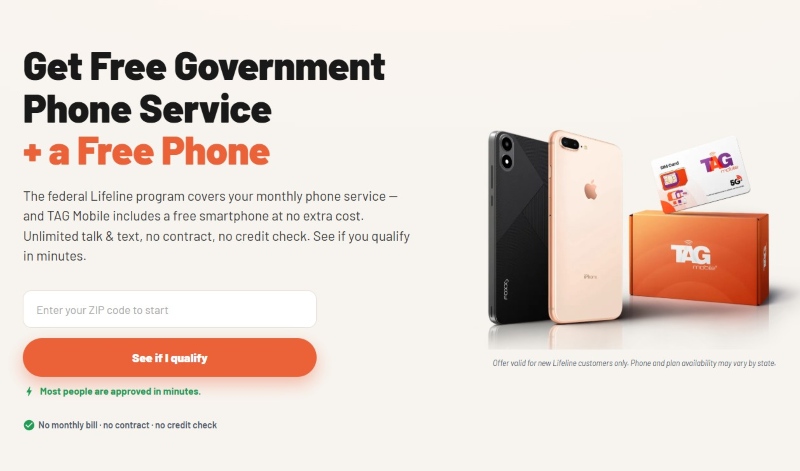
Navigation settings can make directions more comfortable to follow, but your device also plays a role in the overall experience, from screen clarity and performance to battery life. If you’re considering a device upgrade after learning how to change Apple Maps voice, TAG Mobile offers phone and tablet options worth exploring for everyday navigation and connectivity.
The federal Lifeline Program helps eligible low-income households lower the cost of monthly phone service, making calls, texts, mobile data, and other essential communication more accessible. Participating providers may build on this benefit with additional offers, including free or discounted devices for eligible customers, depending on location and availability.
TAG Mobile is one of the most reliable Lifeline providers. Its current Lifeline-supported plan can include up to 16GB of data, unlimited talk and text, free delivery with discounted phones, and international calling to more than 200 countries and territories.
Device needs can vary considerably, so screen size, operating system, camera capabilities, storage, and connectivity are worth comparing before making a choice. Apple devices are especially relevant for Apple Maps, while Android phones and tablets provide their own navigation options.
- Samsung Galaxy S8+: Features a 6.2-inch Super AMOLED display, 12MP rear camera, and expandable storage.
- iPhone 13: Comes with a 6.1-inch Super Retina XDR display, A15 Bionic chip, 5G support, and dual 12MP cameras.
- Samsung Galaxy S20 5G: Features a 6.2-inch AMOLED display, 120Hz refresh rate, 5G connectivity, and a versatile triple-camera system.
- iPad mini 4: A compact tablet with a 7.9-inch Retina display, A8 chip, and 8MP rear camera.
- TCL 20 SE: Offers a spacious 6.82-inch display, 4GB RAM, expandable storage, and a multi-camera system.
- Samsung Galaxy Tab A7 Lite: An Android tablet with an 8.7-inch display, 32GB storage, expandable memory, and a 5,100mAh battery.
- Clovertek G17: A 10.1-inch Android tablet with 3GB RAM, 32GB storage, and a 5,000mAh battery.
Lifeline eligibility can be based on participation in qualifying assistance programs or household income. The benefit is limited to one per household, and available plans, prices, and device models vary by location.
If you receive benefits such as SNAP or Medicaid, or your household meets the applicable income guideline, check your eligibility with TAG Mobile to see which Lifeline service and device offers are available in your ZIP code.

Note: Eligibility varies by state and program. Offers depend on availability and qualifications. TAG Mobile operates under the federal Lifeline Program as an Eligible Telecommunications Carrier (ETC). Service is non-transferable and limited to one service per household.
Final Thoughts
Customizing navigation audio can make every trip feel clearer and more comfortable. Once you know how to change Apple Maps voice, switching between available Siri voices, accents, and language options becomes simple.
Testing the new voice, checking spoken directions, and keeping iOS updated can also improve navigation quality. Small adjustments like these help Apple Maps better match your everyday travel preferences.
- Share This:
-

-

-

-

-


About the author
