

How to Uninstall Apps on Android? The Right Way to Remove Apps
Your Android phone probably has a few apps you downloaded once and have not opened in months. Clearing them out can recover storage, simplify your app library, and remove permissions you no longer want active.
With how to uninstall apps on Android, you have several routes to choose from, whether through a quick app shortcut, Settings, or Google Play, with a few extra considerations for subscriptions, stored data, and preinstalled apps.
1. How to Uninstall Apps on Android Phone (One App)
Removing one app usually takes only a few taps, but Android offers several paths depending on where you are on the phone. If you are researching how to uninstall apps on Android that won’t uninstall, first check whether the app is a protected system app, a device administrator, or simply requires removal through Settings.
Method 1: From the Home Screen or App Drawer
The quickest approach is often available directly from the app icon. Menu names can vary slightly between Samsung, Pixel, Motorola, and other Android phones, but the general process remains similar.
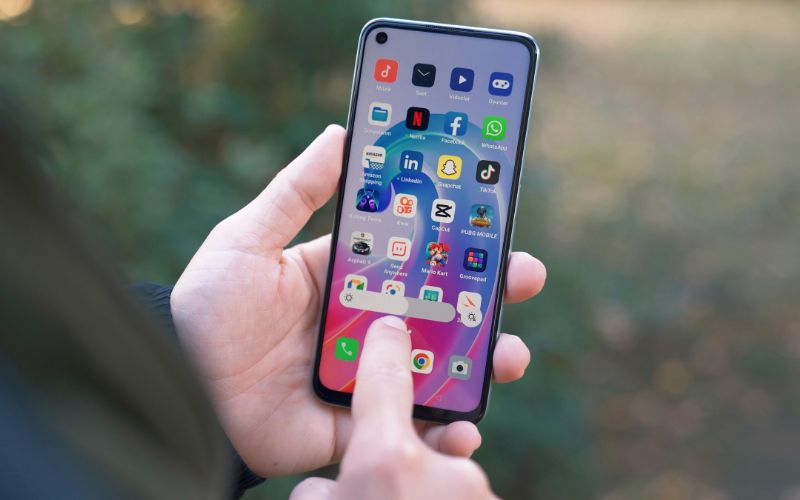
- Find the app on your Home screen or open the app drawer.
- Touch and hold the app icon until the shortcut menu appears.
- Tap Uninstall if that option is available. On some phones, you may need to drag the icon toward an uninstall area instead.
- Confirm the removal when Android asks whether you want to uninstall the app.
- Make sure you choose “Uninstall” rather than “Remove from Home,” since removing an icon from the Home screen does not delete the app itself.
Method 2: Through Android Settings
Settings gives you a more detailed route and is especially useful when the Home screen shortcut does not show an uninstall option. You can also review storage, permissions, and other app information before removing it.
- Open Settings and choose Apps or Apps & notifications, depending on your device.
- Tap See all apps if necessary, then locate the app you no longer need.
- Open the app’s information page and select Uninstall.
- Review the confirmation message before tapping OK or Uninstall again.
- If you see Disable instead of Uninstall, the app may be preinstalled and protected from complete removal.
- Afterward, check your storage if freeing space was the main reason for deleting the app.
Method 3: Through Google Play Store
Google Play provides another convenient option, particularly when you already know the app came from the Play Store. Google officially supports uninstalling installed apps directly through the Manage apps & device menu.
- Open the Google Play Store and tap your profile picture in the upper-right corner.
- Select Manage apps & device, then open Manage.
- Browse or search for the app you want to remove.
- Select the app and tap Uninstall.
- Confirm the action when prompted.
- Paid apps can generally be reinstalled later with the same Google Account without purchasing them again.
>>> Also read: How to Fix Windows Update Error Without Reinstalling Windows
2. How to Uninstall Multiple Apps on Android At the Same Time
Cleaning several unused apps individually can become tedious. Google Play makes how to uninstall apps on Android in batches easier by allowing multiple apps to be selected from one management screen.
Step 1: Open App Management
Launch Google Play, tap your profile icon, and choose Manage apps & device. Open the Manage tab to view installed apps associated with the selected device.
Step 2: Select the Apps
Mark several apps you want to remove rather than opening them one by one. Take a moment to review the selections so an important app is not deleted accidentally.
Step 3: Tap the Uninstall Icon
Once the apps are selected, tap the uninstall or trash icon near the top of the screen. Google Play will show a confirmation before proceeding with the removals.
Step 4: Confirm the Removal
Approve the uninstall request and allow Android to remove the selected apps. Google Play also supports managing apps across compatible devices connected to your account.
3. Can You Uninstall Preinstalled Apps on Android?
Many preinstalled system apps cannot be fully removed because they are built into the phone’s system software. Android may instead offer a Disable option, which stops the app and removes it from normal use. Some manufacturer or partner apps, however, can be uninstalled normally depending on the device.
4. What Happens to Your Data When You Uninstall an App?
Removing an app does more than make its icon disappear. Before following how to uninstall apps on Android, consider whether important files, account information, or subscriptions are connected to the app.
- Local app data: App-specific files stored locally are generally removed during a standard uninstall.
- Cloud-synced information: Data saved to an online account may remain available and return after you reinstall and sign back in.
- Downloaded files: Photos, documents, or media saved separately outside the app may remain on the phone.
- Account history: Removing an app usually does not delete the account you created with that service.
- Paid apps: Previously purchased Google Play apps can generally be reinstalled with the same account without another purchase.
- Subscriptions: Uninstalling an app does not automatically cancel an active Google Play subscription. You must cancel the subscription separately to stop future billing.
5. Clear Some Space, Then Discover More With Your New Phone
Removing unused apps can free up storage, but an upgraded device can make everyday browsing, communication, and app use feel noticeably smoother. For eligible households looking to reduce wireless costs at the same time, TAG Mobile offers another practical path.
TAG Mobile is an Eligible Telecommunications Carrier participating in the Lifeline Program. Many eligible customers apply through TAG Mobile because its Lifeline-supported service can include up to 16GB of data, unlimited talk and text, free delivery, discounted phones, and international calling to more than 200 countries and territories, depending on location and available offers.
To enroll, applicants must first qualify for Lifeline through participation in an approved assistance program or by meeting the applicable income requirement. Lifeline is limited to one benefit per household, and identity and eligibility documentation may be required during enrollment.
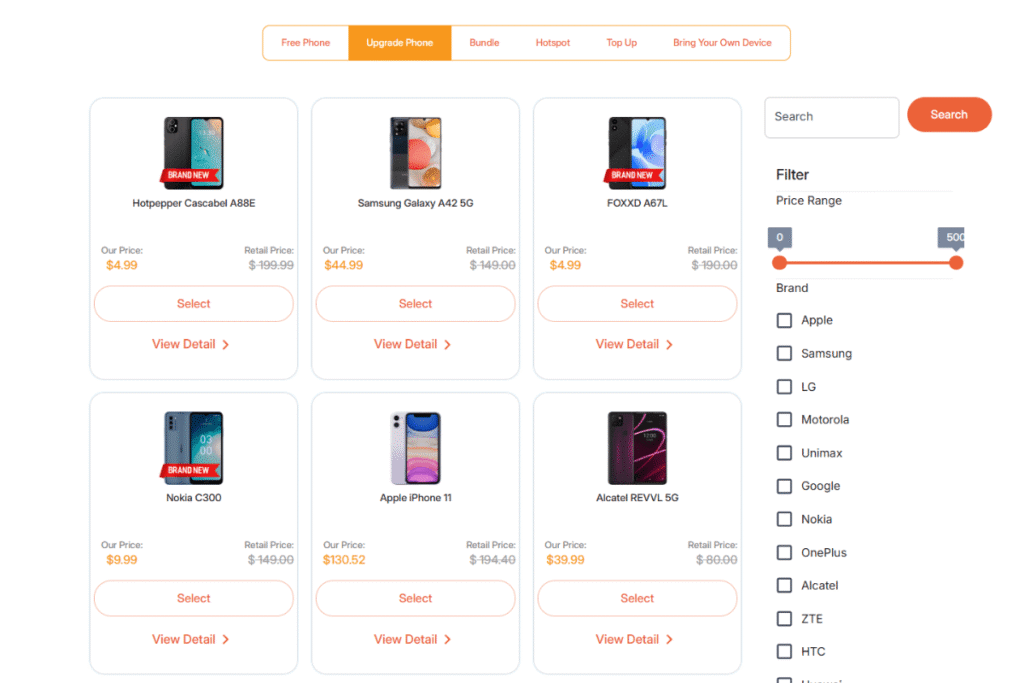
Once eligibility is confirmed, customers can compare TAG Mobile’s device options based on their preferred operating system, screen size, and everyday needs. Here are the exact products from the provided links:
- iPhone 13: Features a 6.1-inch Super Retina XDR display, A15 Bionic chip, 5G connectivity, and dual cameras for strong performance and photography.
- Samsung Galaxy A71 5G: Combines a large 6.7-inch display, 5G connectivity, and a 64MP main camera, making it well suited to streaming, photography, and multitasking.
- Samsung Galaxy S21 5G: Offers a high-refresh-rate display, powerful performance, versatile triple cameras, and 5G support for users who want a more premium Android experience.
- TCL 20 SE: Features a spacious 6.82-inch display and 5,000mAh battery, making it a practical choice for media viewing and longer everyday use.
Device offers and Lifeline service can vary by state, ZIP code, eligibility, and current availability, so customers should review each linked product page before making a selection.
Note: Eligibility varies by state and program. Offers depend on availability and qualifications. TAG Mobile operates under the federal Lifeline Program as an Eligible Telecommunications Carrier (ETC). Service is non-transferable and limited to one service per household.
Final Thoughts
Removing unused apps is a simple way to reclaim storage and keep your Android device easier to navigate. Once you know how to uninstall apps on Android, you can choose the quickest method for your phone and remove unwanted software in just a few taps.
Before finishing, check for active subscriptions or saved data you still need, and remember that preinstalled system apps may need to be disabled instead of deleted.
- Share This:
-

-

-

-

-



About the author
