

How to Fix Windows Update Error Without Reinstalling Windows
Failed updates can interrupt security patches, feature improvements, and normal system performance, but reinstalling Windows is rarely the first solution.
How to fix Windows Update errors? It begins with identifying whether the failure occurs during downloading, installation, restarting, or rollback.
1. Windows Update Errors Usually Fall Into Four Categories
Update failures may display similar messages even though they happen at different stages. Identifying the exact point of failure helps narrow the cause and prevents unnecessary changes to unrelated settings.
Download Problems
Download errors occur when Windows cannot retrieve update files completely. An unstable connection, paused update service, restricted network, damaged cache, or security software may interrupt the transfer.
Confirm that the internet connection works, disable metered restrictions temporarily, restart the computer, and run the built-in Windows Update troubleshooter before attempting more advanced repairs.
Installation Problems
Installation failures appear after the update has downloaded but cannot be applied. Common causes include insufficient storage, corrupted system components, incompatible drivers, and damaged update packages.
Anyone researching how to fix Windows Update errors should first note the displayed code, free storage space, disconnect unnecessary hardware, and install available driver updates.
Restart Failures
Some updates install partially but fail when Windows restarts to complete the process. The computer may freeze, restart repeatedly, or display a percentage that does not progress.
Disconnecting external drives, docking stations, printers, and other nonessential hardware can reduce conflicts. Users should also allow enough time before forcing a shutdown because major updates may restart more than once.
Rollback After Installation
Rollback occurs when Windows detects that the new update cannot start reliably and restores the previous version. Driver conflicts, migration problems, damaged system files, or incompatible software may trigger this behavior.
Review the error code, update device drivers, remove recently installed third-party security tools when appropriate, and repair system components before trying the update again.
>>> Read More: How to Fix Screen Tearing: Simple Solutions That Actually Work
2. How to Fix Windows Update Error
Start with the least disruptive fixes before resetting services or modifying system folders. Restarting, checking storage, running the troubleshooter, and repairing system files resolve many update problems without removing personal data.
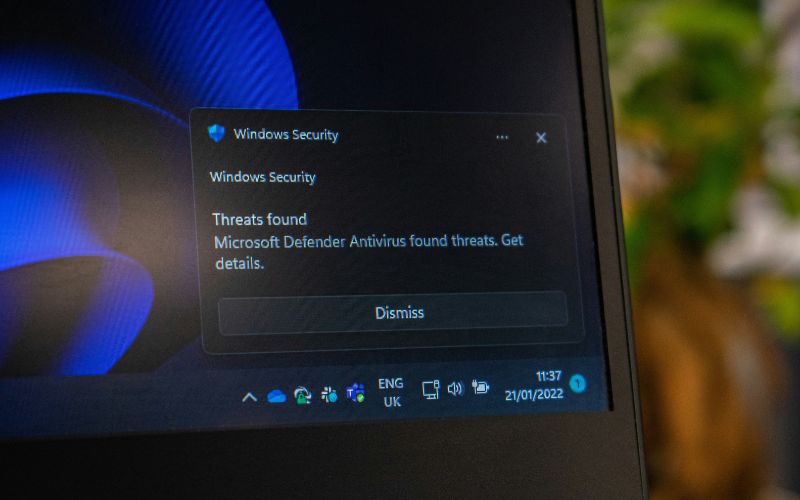
How to fix Windows 11 update error
Windows 11 includes built-in troubleshooting and repair options that can identify common service, cache, storage, and system-file problems.
Complete the following steps in order, testing Windows Update after each major change.
- Restart the computer: A fresh restart clears temporary processes that may be locking update files or preventing services from finishing correctly.
- Check the connection: Confirm that the internet is stable and temporarily disable any metered connection setting that may restrict large downloads.
- Free storage space: Remove temporary files, empty the Recycle Bin, and uninstall unused applications when the system drive has limited capacity.
- Run the troubleshooter: Open Settings > System > Troubleshoot > Other troubleshooters, then select Run beside Windows Update. Restart the computer after the scan finishes.
- Disconnect extra hardware: Remove external drives, docks, printers, and other devices that are not required for basic operation.
- Install driver updates: Check Windows Update for optional driver updates and review the device manufacturer’s support page for recently added hardware.
- Repair system files: Open Command Prompt as administrator, run DISM.exe /Online /Cleanup-Image /RestoreHealth, and then run sfc /scannow. Microsoft recommends running DISM before SFC.
- Restart and retry: Reboot the computer, return to Settings > Windows Update, and select Check for updates.
How to fix Windows 10 Update error 0x8007042b
Error 0x8007042b may appear when an update, feature upgrade, background process, driver, or migration task fails before completion.
Because the code can occur in different upgrade phases, begin with general update repairs before examining logs or attempting an in-place repair.
- Restart Windows: Close open applications and restart to release files or services that may be preventing installation.
- Run the Windows Update troubleshooter: Open Settings > Update & Security > Troubleshoot > Additional troubleshooters, then run Windows Update.
- Perform a clean boot: Temporarily disable non-Microsoft startup programs and services to determine whether third-party software is blocking the update.
- Remove unnecessary devices: Disconnect external storage, USB accessories, and docks before starting the installation again.
- Update drivers: Pay particular attention to storage, display, chipset, network, and recently installed device drivers. Microsoft lists outdated third-party drivers and attached hardware among common upgrade obstacles.
- Run DISM and SFC: Open an elevated Command Prompt, enter DISM.exe /Online /Cleanup-Image /RestoreHealth, wait for completion, and then enter SFC /scannow.
- Retry the update: Restart Windows and check for updates again.
- Review setup logs if it returns: Repeated 0x8007042b failures may require checking Setupact.log and Setuperr.log to identify the process or driver that stopped the upgrade.
How to fix Windows Update error 0x8007371b
Error 0x8007371b is associated with incomplete or damaged component-store transactions.
Microsoft identifies it as ERROR_SXS_TRANSACTION_CLOSURE_INCOMPLETE, meaning required transaction members are missing. Repairing the Windows image and clearing damaged update data are therefore appropriate next steps.
- Restart the computer: Complete any pending restart before performing component repairs.
- Run the troubleshooter: Use the Windows Update troubleshooter and apply any recommended fixes.
- Open Command Prompt as administrator: Administrative permission is required for image and system-file repairs.
- Check the Windows image: Run DISM /Online /Cleanup-Image /CheckHealth to determine whether corruption has been recorded.
- Repair the component store: Run DISM /Online /Cleanup-Image /RestoreHealth and wait until the process finishes.
- Scan protected files: Run sfc /scannow after DISM so Windows can replace damaged system files using the repaired image.
- Restart Windows: Reboot before testing the update again.
- Reset the update cache if necessary: Stop the Windows Update-related services, rename or clear the update cache folders, restart the services, and check for updates again. This step should follow the simpler repairs rather than replacing them.
3. Corrupted System Files Can Block Updates
Damaged protected files or a corrupted component store can prevent Windows from validating and installing update packages. Built-in repair tools should be used carefully and followed by a restart before the same update is tested again.
Signs of file corruption
Repeated update failures, missing system features, unexpected errors, damaged Windows components, or applications that stop opening may point to corrupted files. One error alone does not prove corruption, so run the official tools before drawing conclusions.
When SFC helps
System File Checker scans protected Windows files and replaces damaged versions with valid cached copies.
Run sfc /scannow from an elevated Command Prompt after DISM has repaired the underlying Windows image.
When DISM helps
DISM repairs the Windows component store that SFC relies on for replacement files.
Use DISM.exe /Online /Cleanup-Image /RestoreHealth when updates fail repeatedly, SFC cannot repair files, or component corruption is suspected.
Restart before retesting
Reboot after completing DISM and SFC, even when no restart prompt appears. This allows repaired services and replaced files to load properly before Windows Update performs another scan.
4. FAQs about Windows Update Errors
Storage, drivers, corrupted files, and update services can produce similar symptoms. These answers clarify which repairs are reasonable before reinstalling the operating system.
Can I fix Windows Update without reinstalling Windows?
Yes. Restarting, freeing storage, running the Windows Update troubleshooter, disconnecting extra hardware, updating drivers, and using DISM with SFC resolve many failures.
Windows also provides a repair option that reinstalls the current version while preserving files and applications when simpler methods do not work.
What does error 0x8007371b mean?
Error 0x8007371b means Windows detected an incomplete component-store transaction in which one or more required members are missing. It commonly points toward damaged servicing components, so DISM, SFC, a restart, and an update-cache reset are suitable troubleshooting steps.
Does low storage cause update failures?
Yes. Windows needs enough free space to download temporary files, unpack packages, create recovery data, and complete the installation. Microsoft recommends checking available storage as one of the first steps when an upgrade or update fails.
Can drivers block Windows Update?
Yes. Outdated or incompatible drivers can interrupt installation, trigger rollback, or cause restart failures. Update drivers for connected hardware and unplug nonessential devices before retrying a major Windows update.
5. Final Thoughts
Windows Update failures usually become easier to solve once the error stage and code are identified.
To sum up, if you want to learn how to fix Windows Update errors, the process involves starting with restarts, storage checks, the built-in troubleshooter, and driver updates before moving to DISM, SFC, or cache repairs.
Most problems can be addressed without deleting files or performing a clean installation. Clear instructions and dependable connectivity from TAG Mobile can help users complete essential troubleshooting and stay connected throughout the repair process.
- Share This:
-

-

-

-

-

About the author
